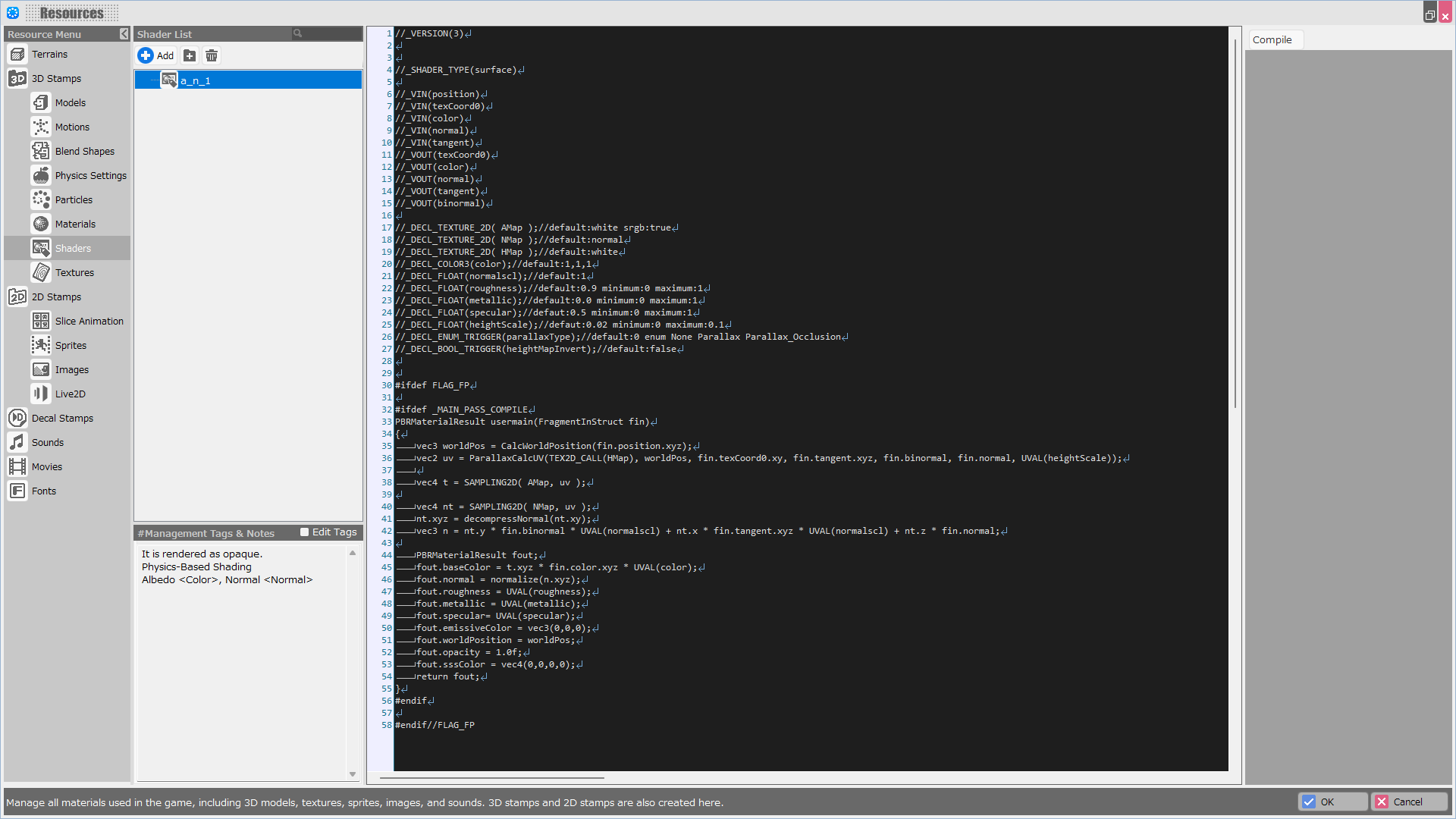
Shaders (Resources)†
You can register and edit shaders that can be applied to Materials.
This allows you to import externally created .cg files or edit shaders that have already been imported.
Shaders must be compiled before they can be applied to materials.
Shader List†
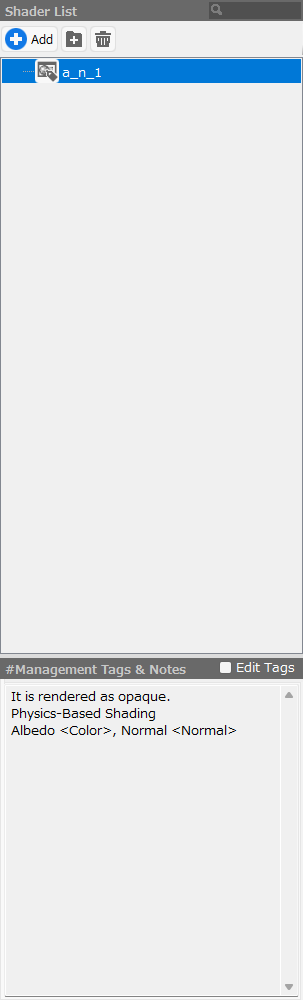
This is a list of registered shaders.
Use the Add button to select and register the shader you want to import.
- Add Button
Select the shader you want to add to the list from the options below.
| Derive from Built-in Shader | Create a new user shader based on a built-in shader in the project. |
| Select from Asset Picker | Import shaders from DLCs and local files. |
- Folder Button
Add a folder to manage entries in the tree.
You can group multiple selected entries into a folder, or move them by dragging and dropping after adding the folder.
- Trash Button
Delete the selected entries.
Shader List / Right-Click Menu†
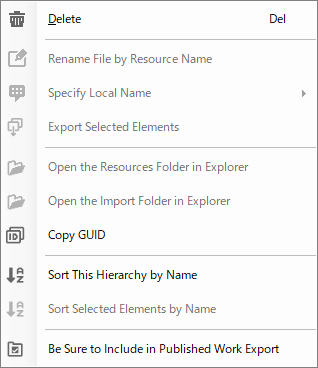
Right-click within the shader list to display it.
- Delete
Delete the selected shaders.
- Copy GUID
Copy the shader-specific GUID.
- Sort This Hierarchy by Name
Sort names alphabetically within the selected hierarchy/folder.
- Sort Selected Elements by Name
Sort only on multiple selections.
- Be Sure to Include in Published Work Export
Ensure that the selected resources are included in the work when it is exported as a published work.
(!)When exporting a work as a published work, resources other than “resources used in the game,” such as those placed on maps or used in events, will not be included in the work.
Therefore, resources that are used only by plugins installed in the work must be explicitly included in the work with this feature.
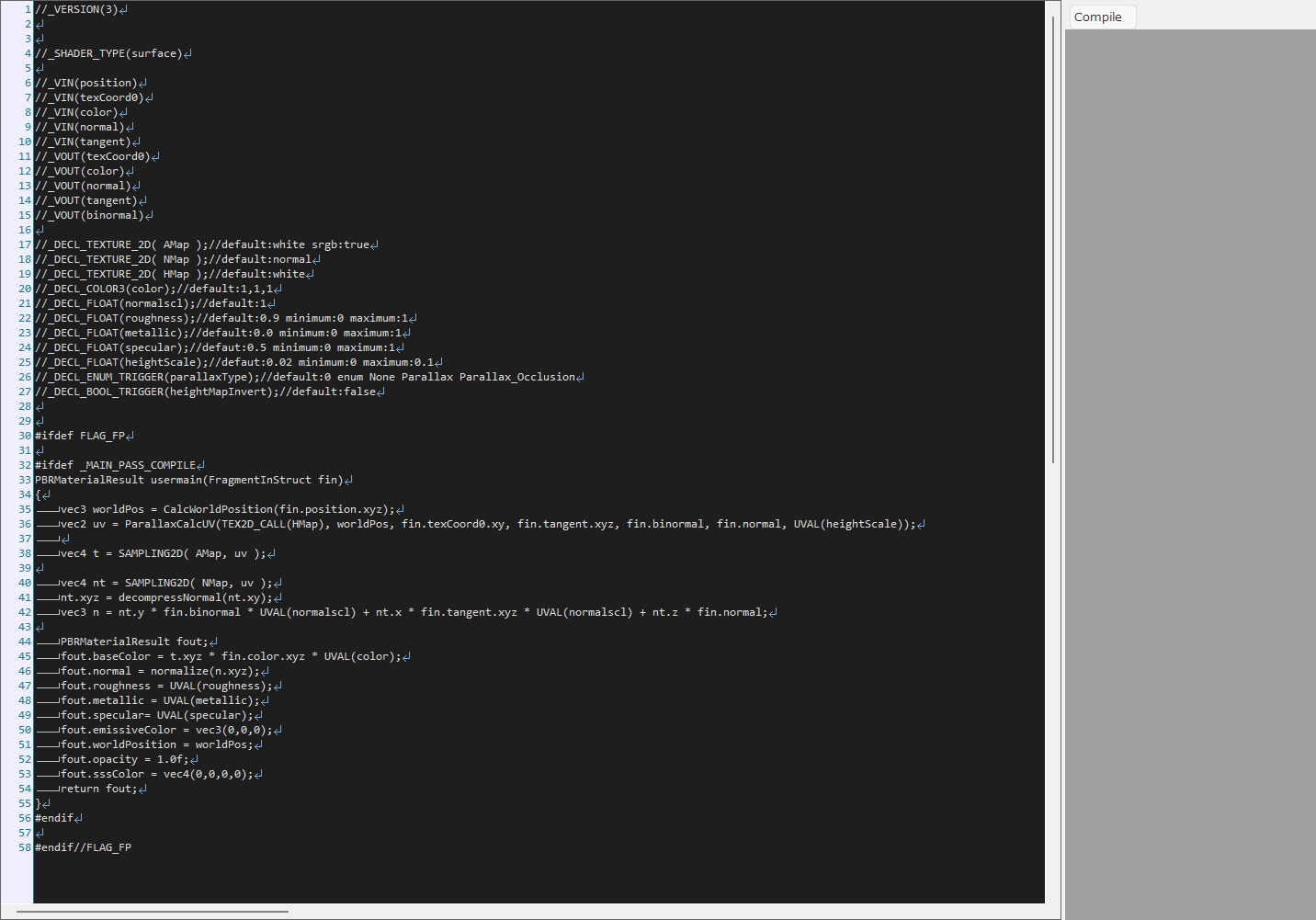
Shader Editor†
You can customize shaders.
Please refer to Shaded Document.
Custom shaders must be compiled using the “Compile” button.
![[PukiWiki]](./skin/BAKIN_logo_92.png "[PukiWiki]")