![[PukiWiki]](./skin/BAKIN_logo_92.png "[PukiWiki]")
When you open a project, the screen that appears is the Map Editor.
In the Map Editor, you can raise or lower terrain divided into a grid to create landscapes. You can then place buildings, trees, effects, lights, and events on top to build the map that becomes the stage for your game.
First, let’s create the starting map for your game.
It's a simple map with a forest, river, and house.
#ref(): File not found: "プロジェクトを作る_1.png" at page "Creating a Map 1 (Beginner Tutorial)"
Let’s start by getting a feel for how the Map Editor works by trying out the following controls.
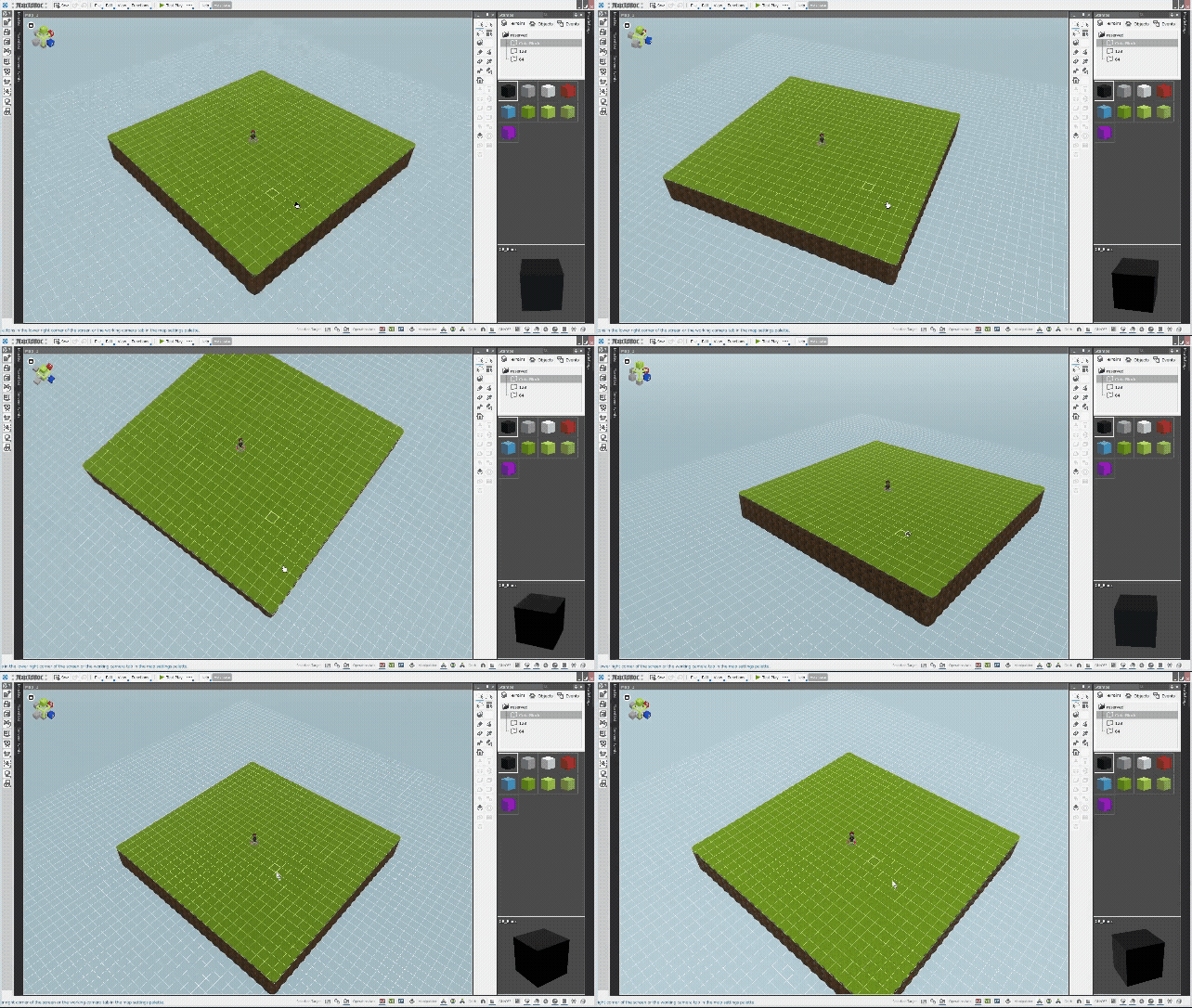
The working camera can be rotated by right dragging.
Center-drag or hold down the Shift key and right-drag to scroll in the X-axis and Z-axis directions.
Zoom in/out by rotating the wheel.
| Mouse Operation | |
| Right Drag | Rotation |
| Hold down Shift and right drag | XZ Parallel Displacement (Horizontal Movement) |
| Center Dragging | XZ Parallel Displacement (Horizontal Movement) |
| Center dragging while holding down Alt | XY Parallel Displacement (Vertical Movement) |
| Center Wheel | Zoom in/out |
Please also refer to the Editor Screen.
1. Bakinを起動すると表示されるトップメニューから、新規作成メニューを選択します。
#ref(): File not found: "Creating a Map 1_1.png" at page "Creating a Map 1 (Beginner Tutorial)"


