![[PukiWiki]](./skin/BAKIN_logo_92.png "[PukiWiki]")
Common events are events that can be called from almost any scene in your game.
See also: Common Event Palette
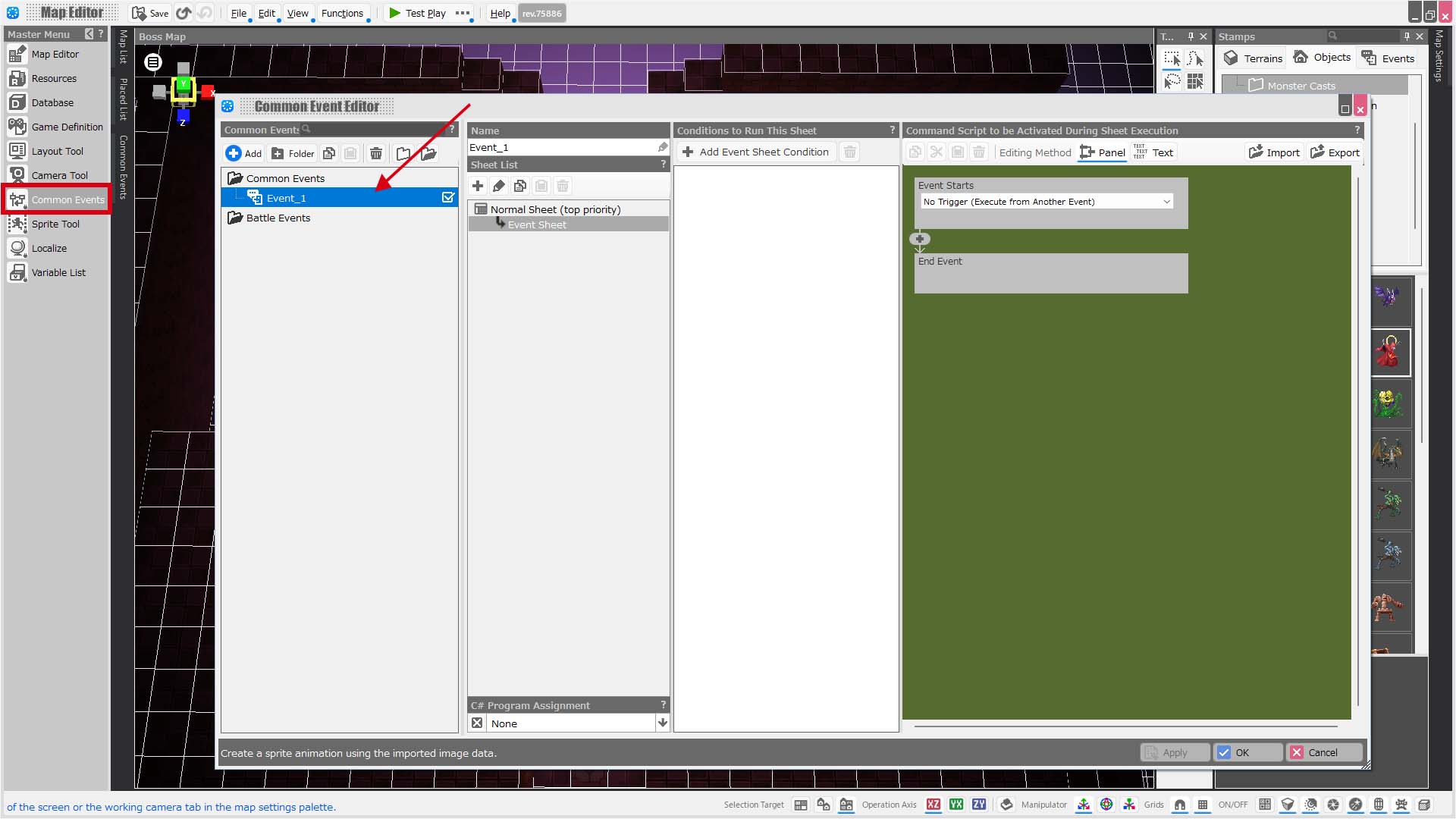
Normal events only work when the player is present on the map where the event is placed.
In contrast, common events can be triggered regardless of the player's current location.
For this reason, it’s helpful to define the features and visual effects used throughout the game as common events.
Example: Monitoring Button Input
You can create an event that performs an action or displays something when a specific button is pressed.
The example below uses the “Repeat in Parallel” trigger to continuously check for key input and turn on a switch when a key is pressed.
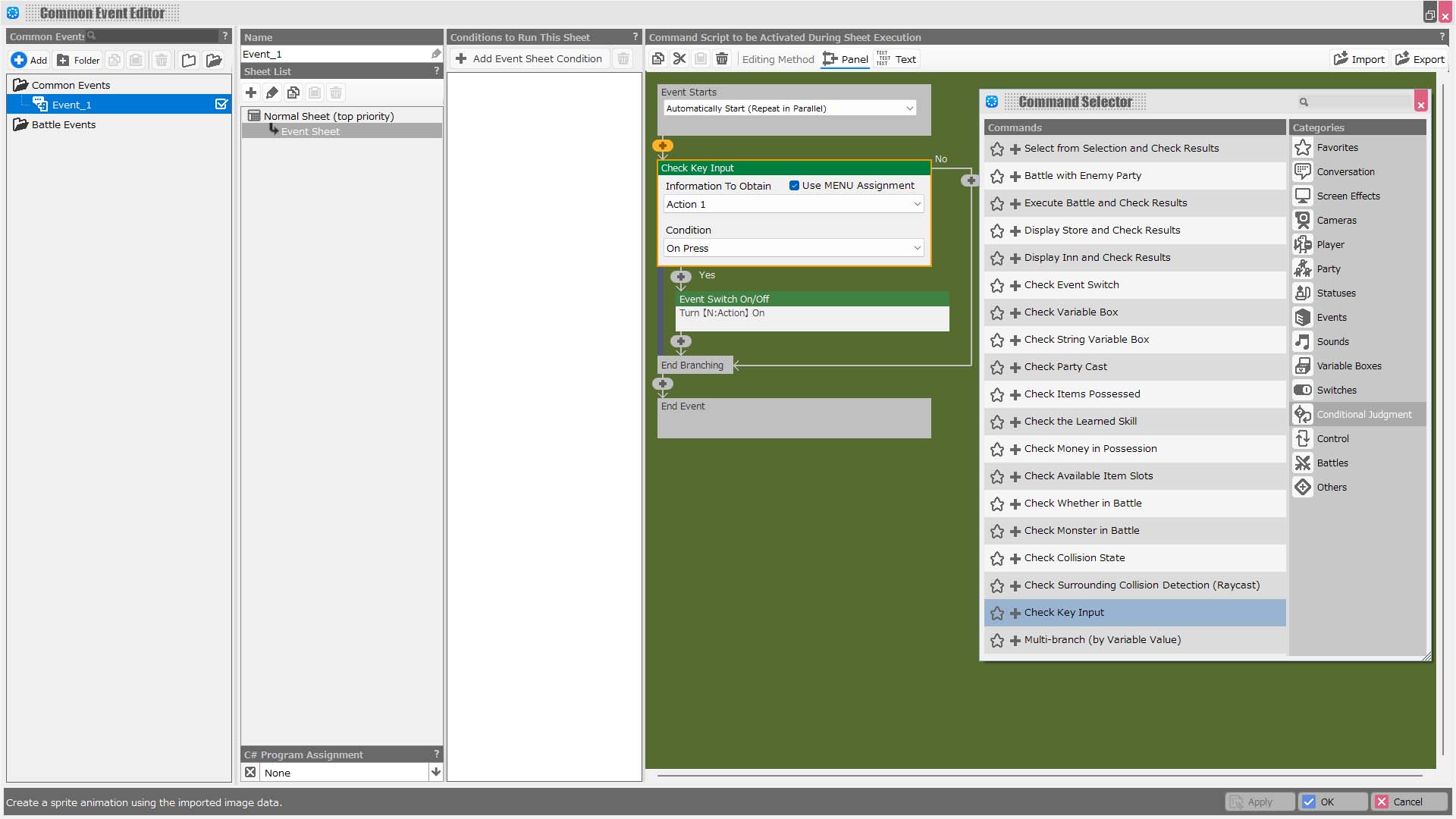
You can simplify your event setup by creating frequently used processes as common events. Then, use the "Execute Common Event" panel to call them from individual events.
Example: Show/Hide UI
Suppose you need to show or hide a screen UI composed of multiple layout elements in response to an event.
By creating a common event using panels like "Display Layout", you can easily show or hide the UI as needed by simply calling that common event with "Call Common Event". This helps keep your event structure clean and manageable.
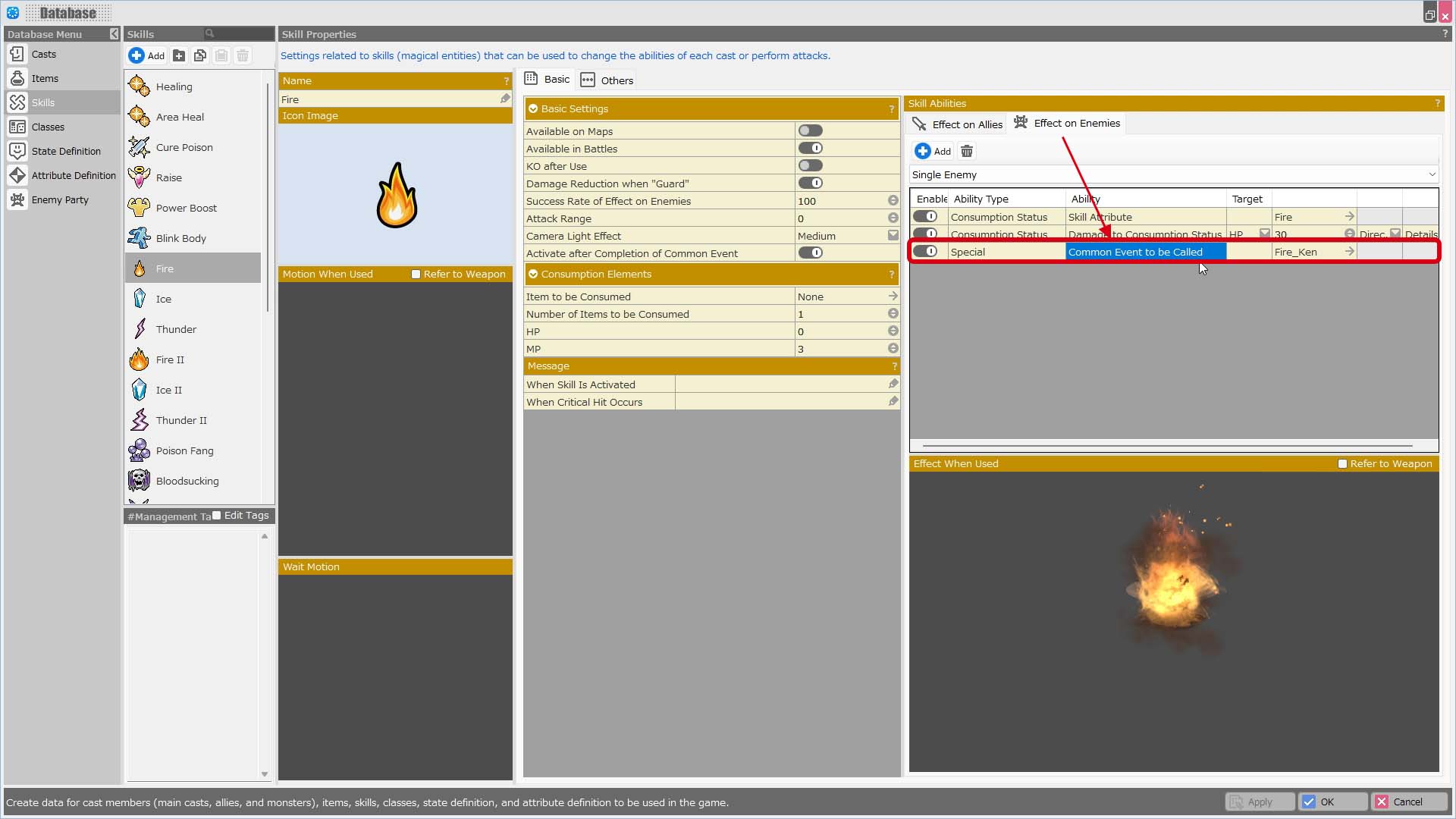
In the database, you can assign a "Common Event to be Called" to a skill or item. This allows a common event to be triggered whenever that skill or item is used.
Example: Skill Activation Effects
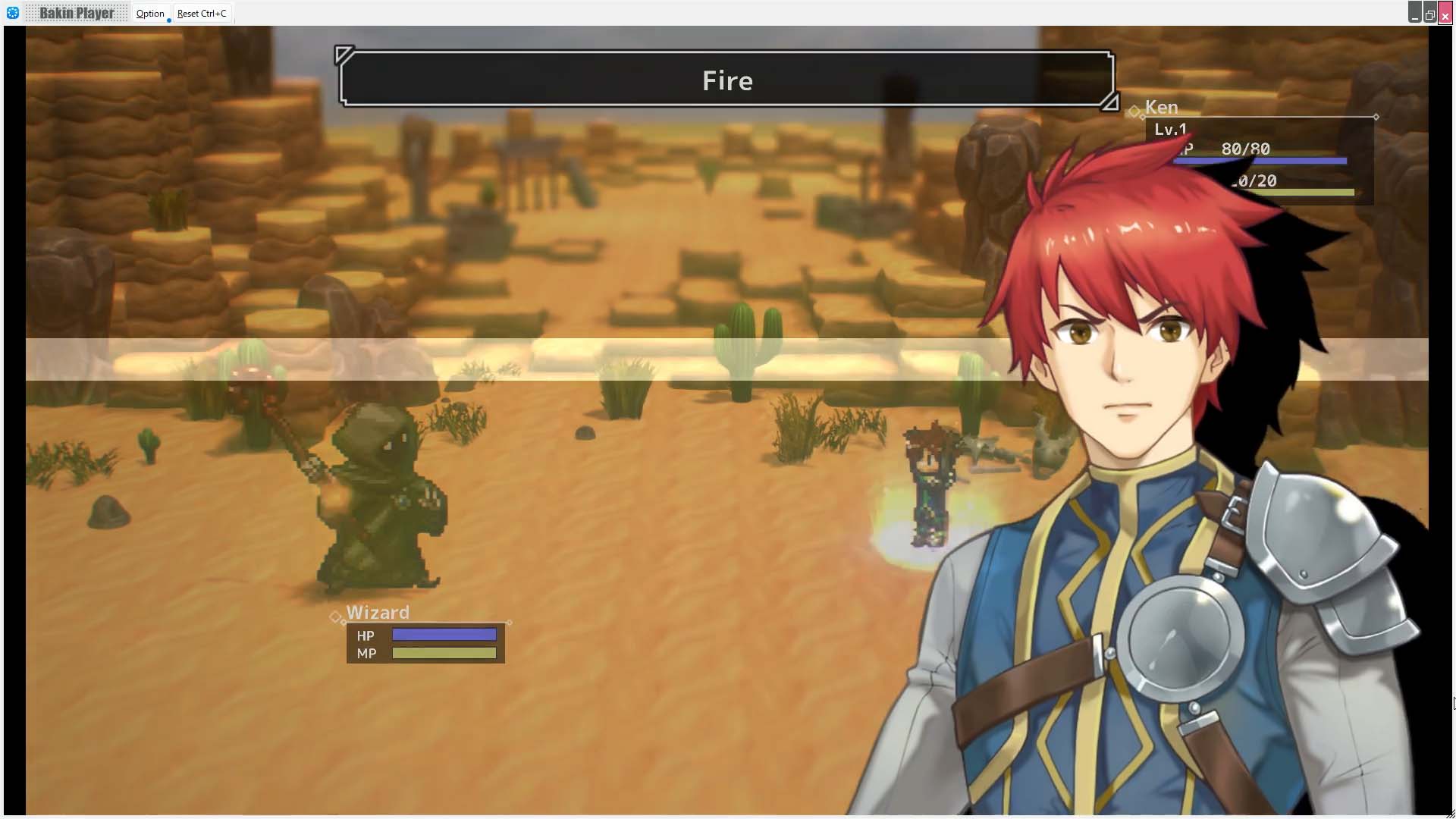
In the sample game Orb Stories, the skill Fire has a common event assigned to its "Effect on Enemies" section.
For more information, see the Creation Tips: [[Cutscene when Activating a Skill: https://rpgbakin.com/pukiwiki_en/?Creation+Tips#w0ee7f8c]]
By configuring the Layout Tool, you can set up menu options in the game to trigger a common event when selected.
Example: Effects When Selecting Menu Options
In the sample game Dungeon RPG Sample, the first inn scene during test play includes menu items that trigger common events when selected.
In Layout Tool > Screen List > “In-Game Effects” > “Free Layout for Event” > [Layout to be Assigned] > “Mainmenu_Camp,” select the submenu container labeled “Organization” from the layout parts list.
In its properties: Action is set to "Close and Call Common Event" and common Event is set to "Organization"
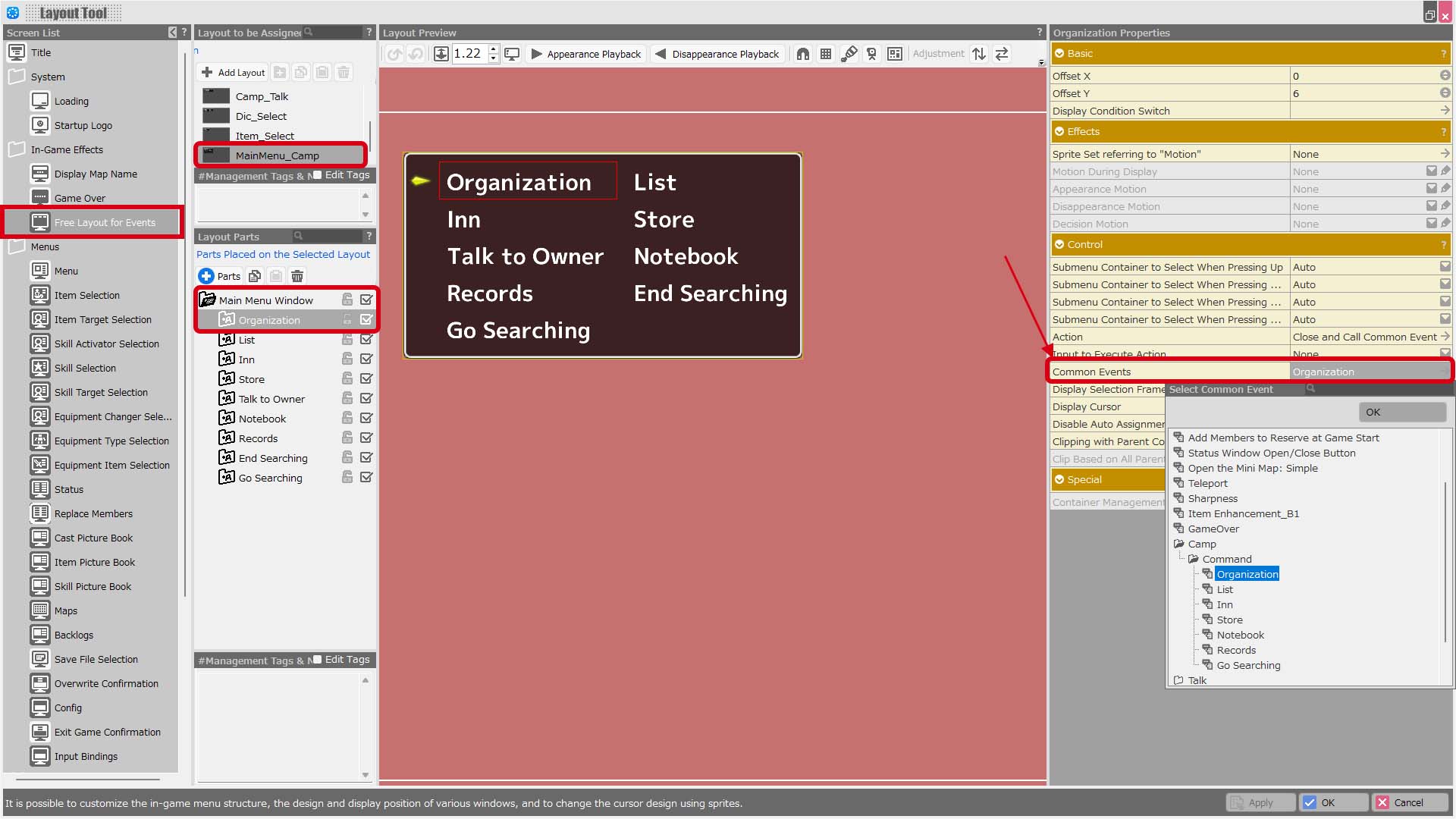
This setup ensures that when the player selects "Organization" during the game, a common event is triggered that handles the conversation with the innkeeper and displays the party management screen.
As your game becomes more complex, you may end up creating a large number of common events.
Be careful: if you have too many common events set with the "Repeat in Parallel" trigger, it can negatively impact performance.
Since common events can run anywhere in the game, they can potentially be active throughout the entire gameplay.
If the trigger is set to "Repeat in Parallel", the event will execute every frame, which adds to the system load.
Refer to the Creation Tips: "What to Do When the Game is Running Slow" for more details.
Previous: Creating an Event 3


