![[PukiWiki]](./skin/BAKIN_logo_92.png "[PukiWiki]")
Let's start by creating a game project.
In Bakin, each game you create is managed as a separate project. Events, database settings, and resources like images and sounds are all handled on a per-project basis.
When you create a project, a folder is generated in Windows Explorer, and all related data is saved inside that folder.
Now, let's launch Bakin and create a new project.
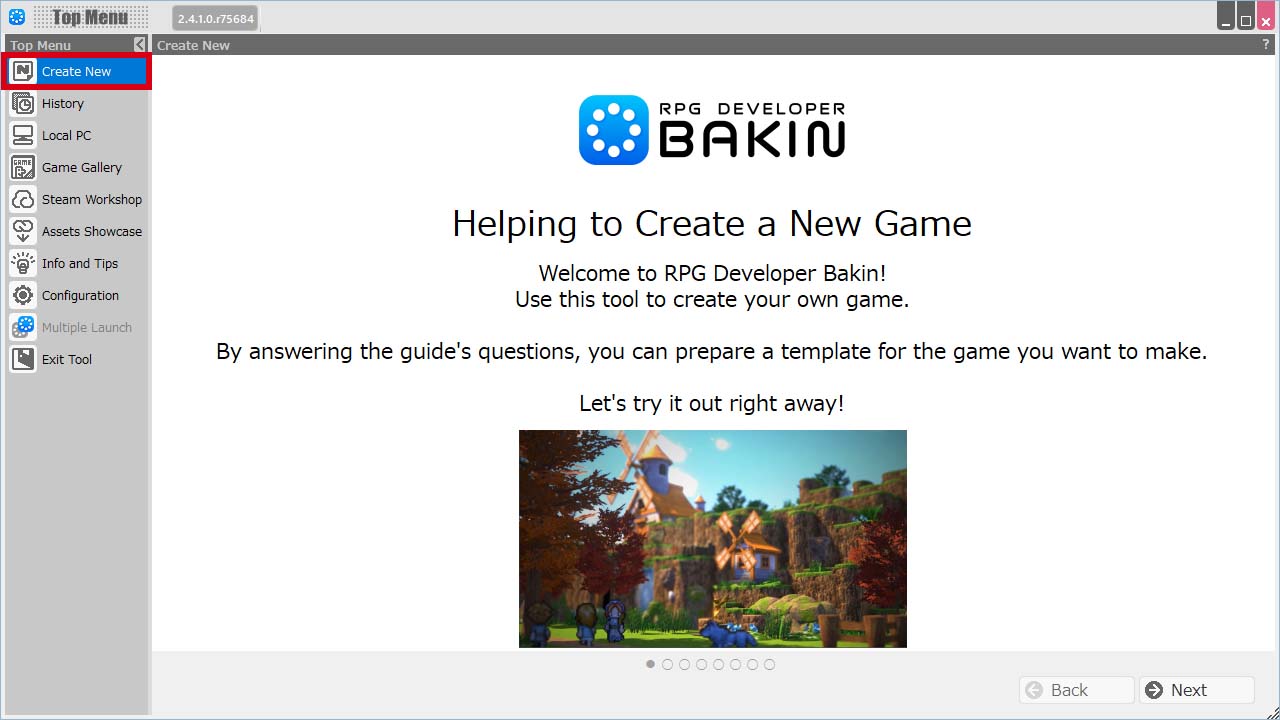
1) When Bakin starts, you'll see the top menu. From there, select the Create New option.
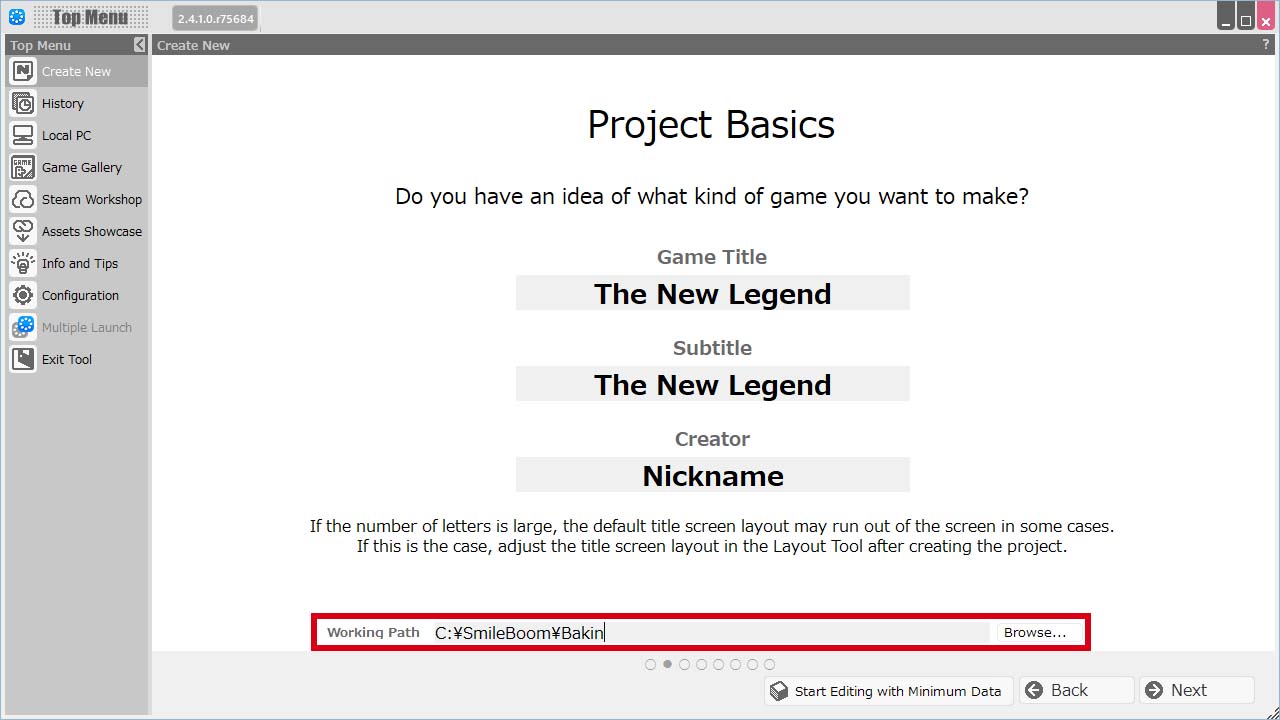
2) On the screen that appears, enter your project details and proceed to the next step.
You can enter things like the game's title and the author's name — don't worry, these can be changed later.
Take note of the "Game File Save Location" field so you know exactly where your project will be stored.
You can also set a default save folder from Configuration.
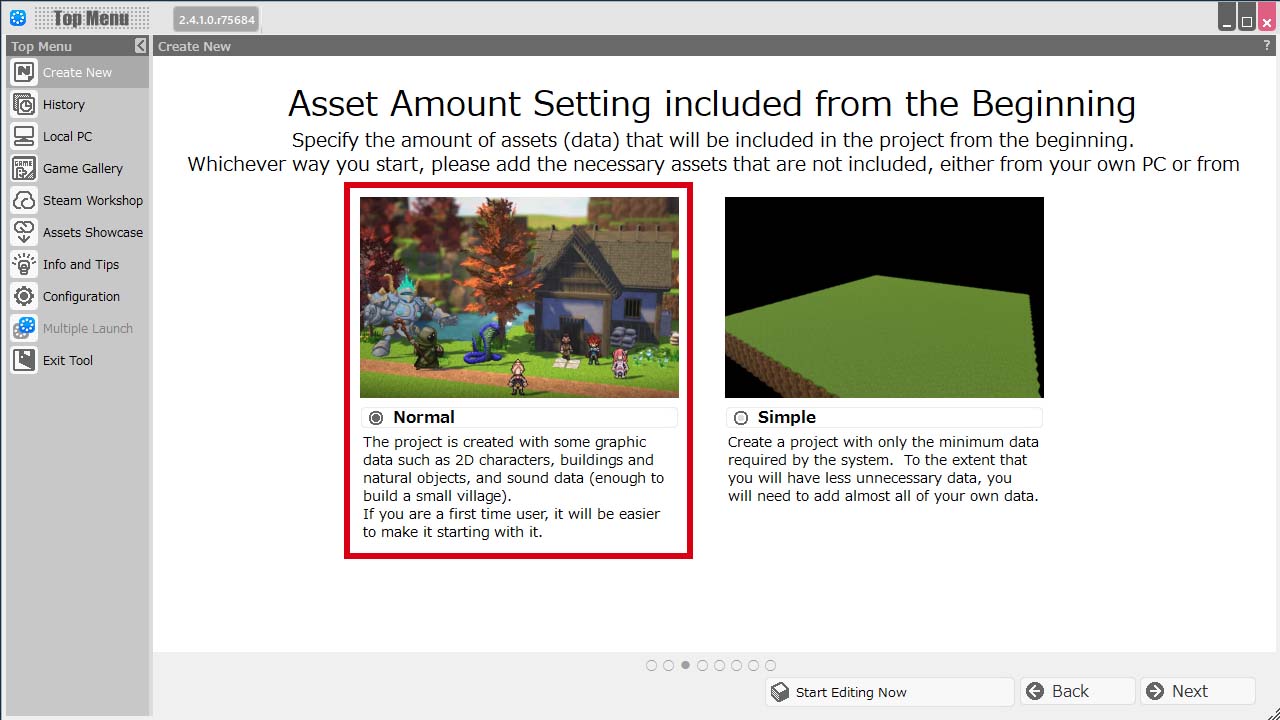
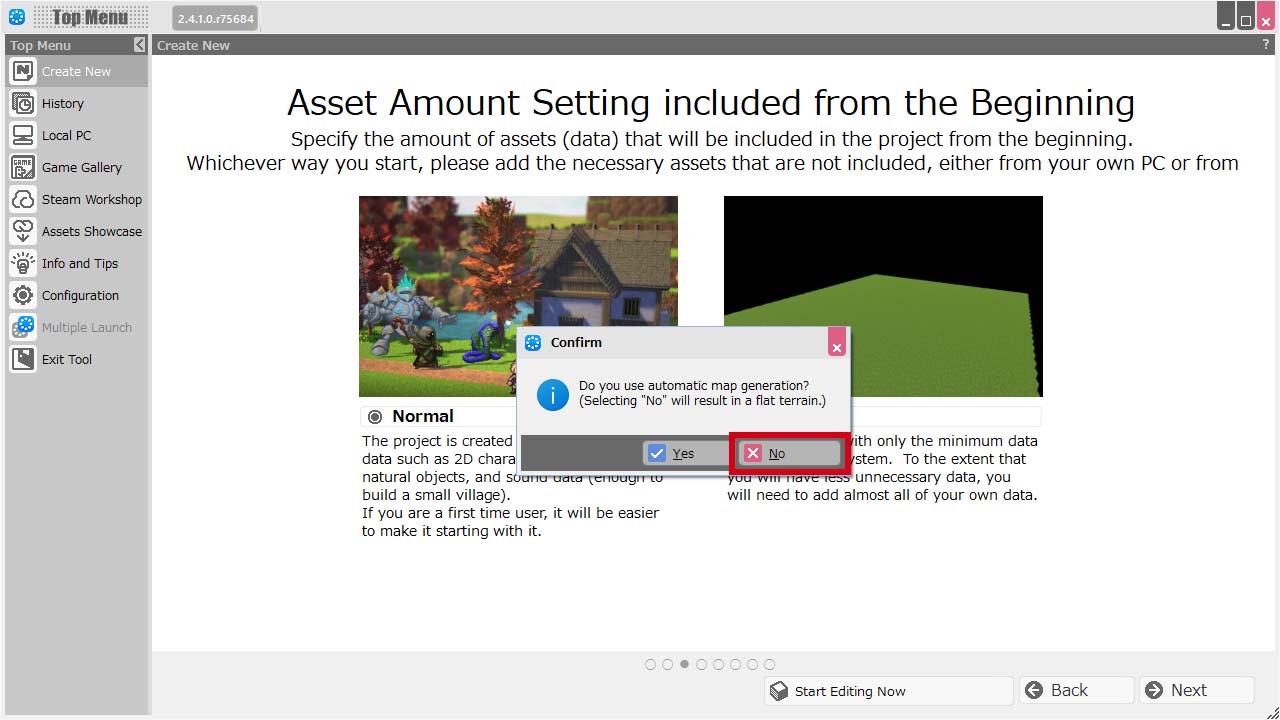
3) For the asset volume, choose "Normal."
This includes enough resources to create a simple game right from the start.
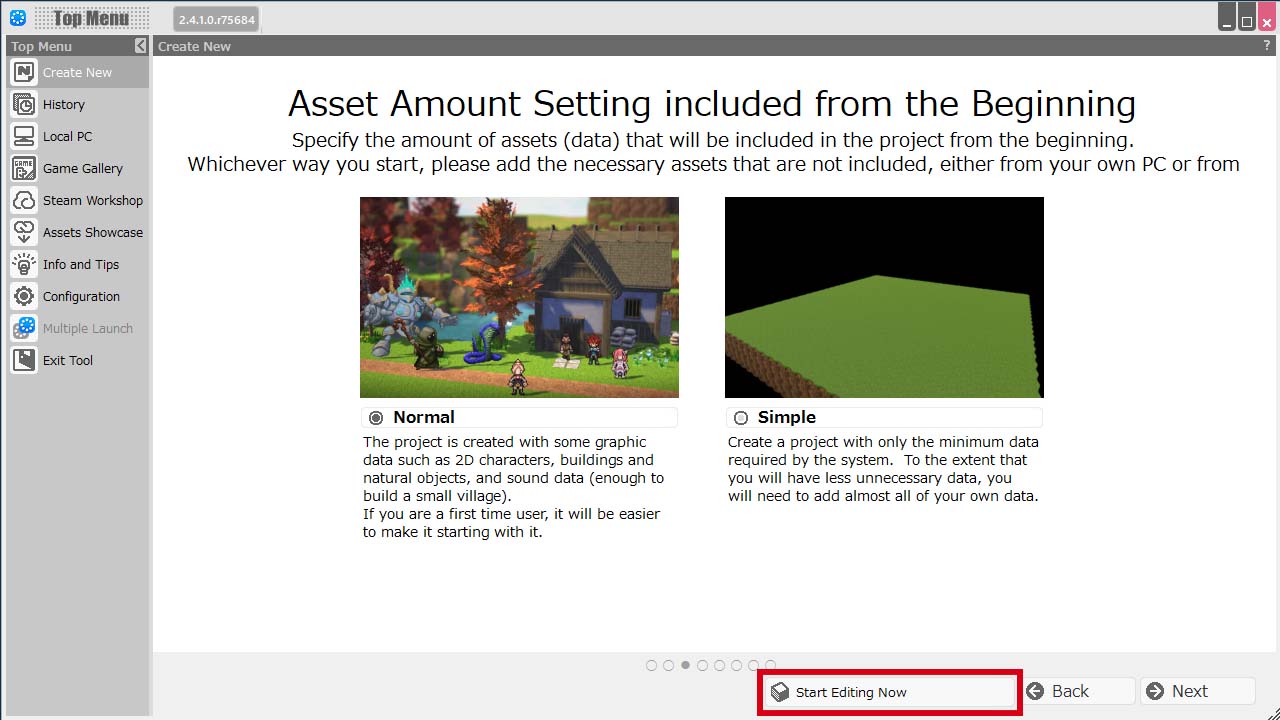
4) Click the "Start Editing Now" button to create your project.
After closing Bakin, when you launch it again, your previously created project will appear under History in the top menu.
Select your project and click the "Continue to Edit" button to resume your game development.
#ref(): File not found: "Creating a Project_8.png" at page "Creating a Project (Beginner Tutorial)"
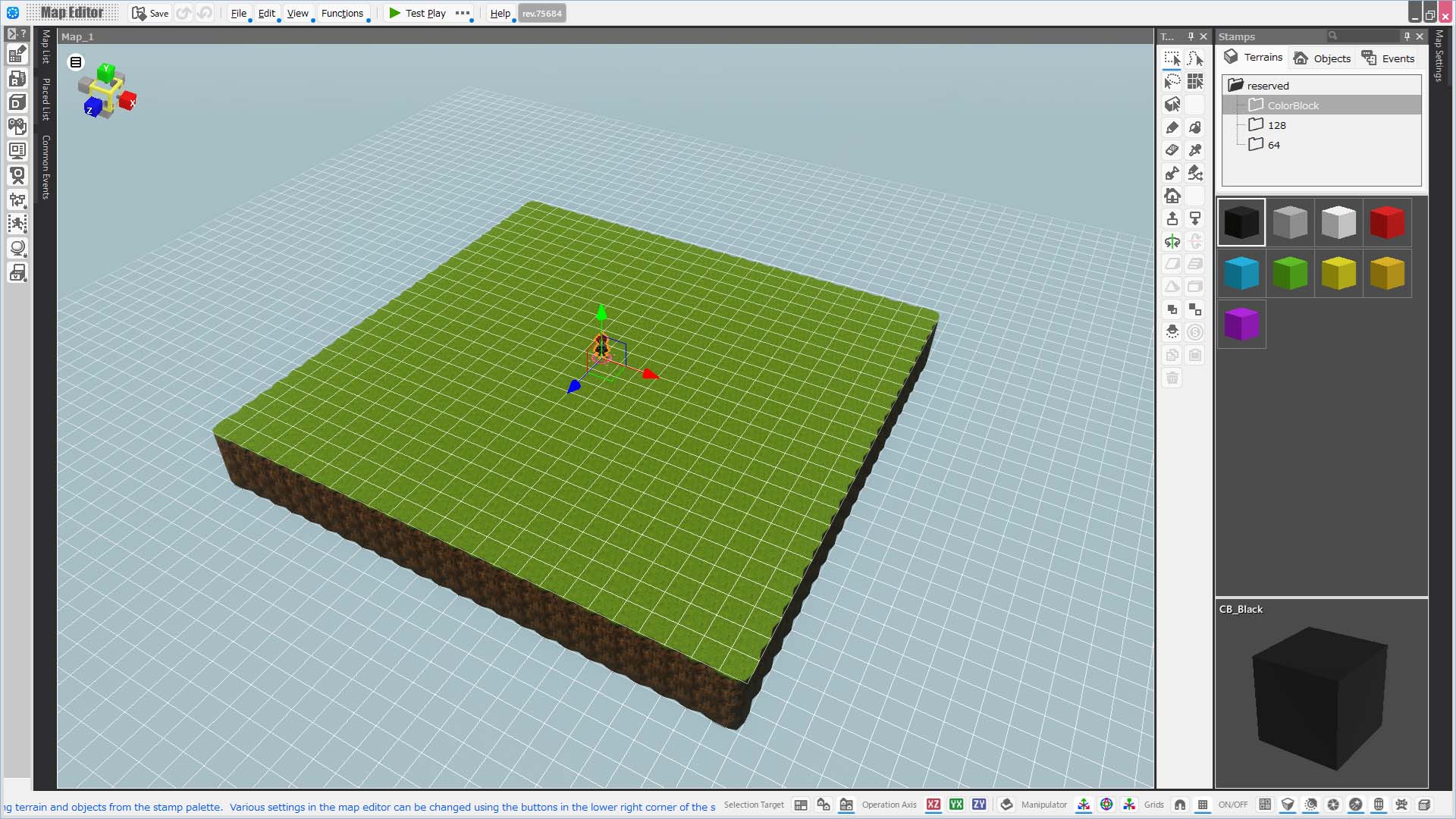
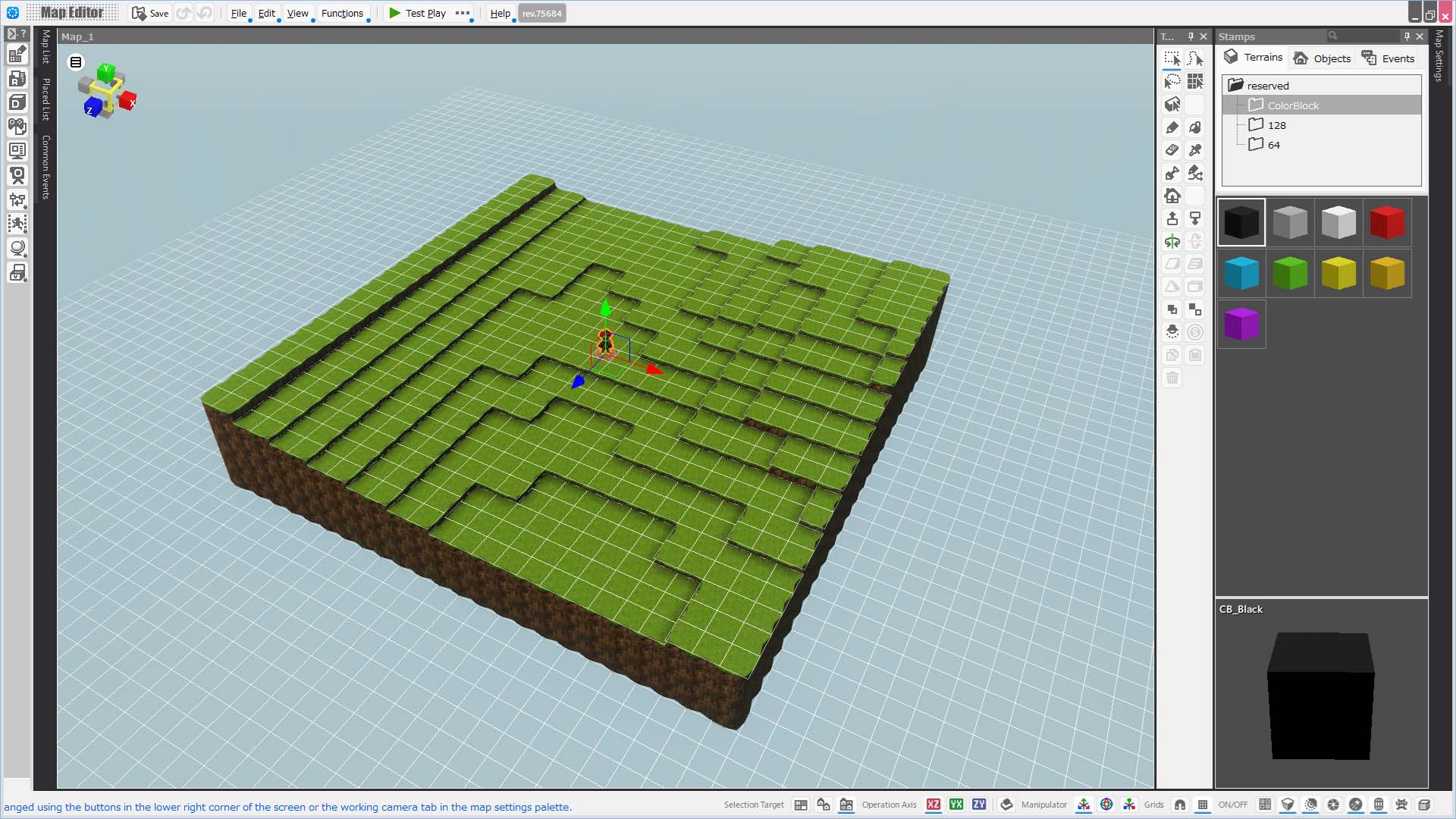
Your game development project is now ready.
From here, you’ll begin building your game by adding data and events to this project.
Next, let’s start by creating the map, the stage where your game will take place.
Next: test_3_EN
Previous: test_1_EN


