![[PukiWiki]](./skin/BAKIN_logo_92.png "[PukiWiki]")
When you open a project, the screen that appears is the Map Editor.
In the Map Editor, you can raise or lower terrain divided into a grid to create landscapes. You can then place buildings, trees, effects, lights, and events on top to build the map that becomes the stage for your game.
First, let’s create the starting map for your game.
It's a simple map with a forest, river, and house.
#ref(): File not found: "プロジェクトを作る_1.png" at page "Creating a Map 1 (Beginner Tutorial)"
Let’s start by getting a feel for how the Map Editor works by trying out the following controls.
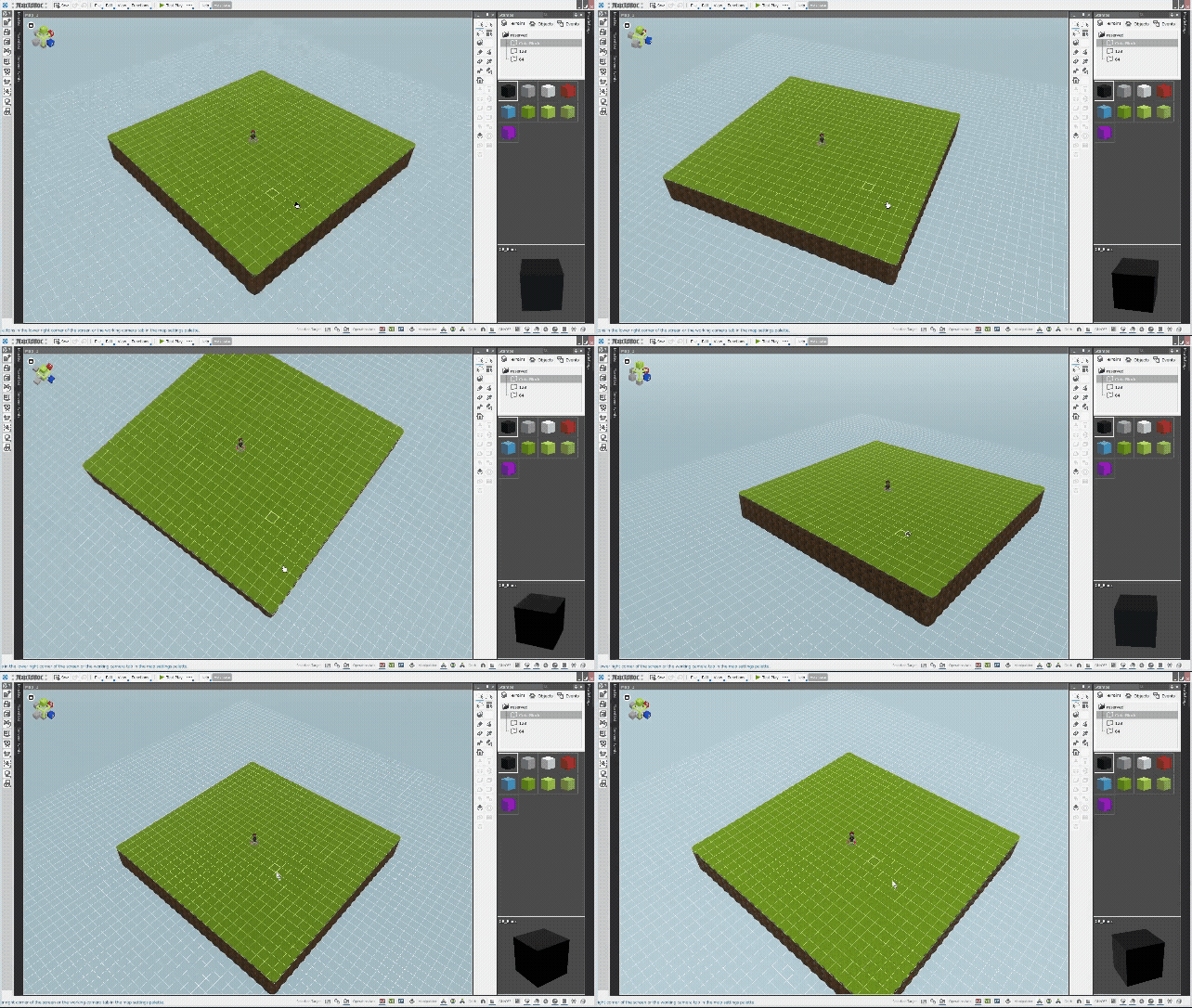
The working camera can be rotated by right dragging.
Center-drag or hold down the Shift key and right-drag to scroll in the X-axis and Z-axis directions.
Zoom in/out by rotating the wheel.
| Mouse Operation | |
| Right Drag | Rotation |
| Hold down Shift and right drag | XZ Parallel Displacement (Horizontal Movement) |
| Center Dragging | XZ Parallel Displacement (Horizontal Movement) |
| Center dragging while holding down Alt | XY Parallel Displacement (Vertical Movement) |
| Center Wheel | Zoom in/out |
Please also refer to the Editor Screen.
To make your work easier, click the “Show Grids” button in the lower right corner of the Map Editor to display the grid.
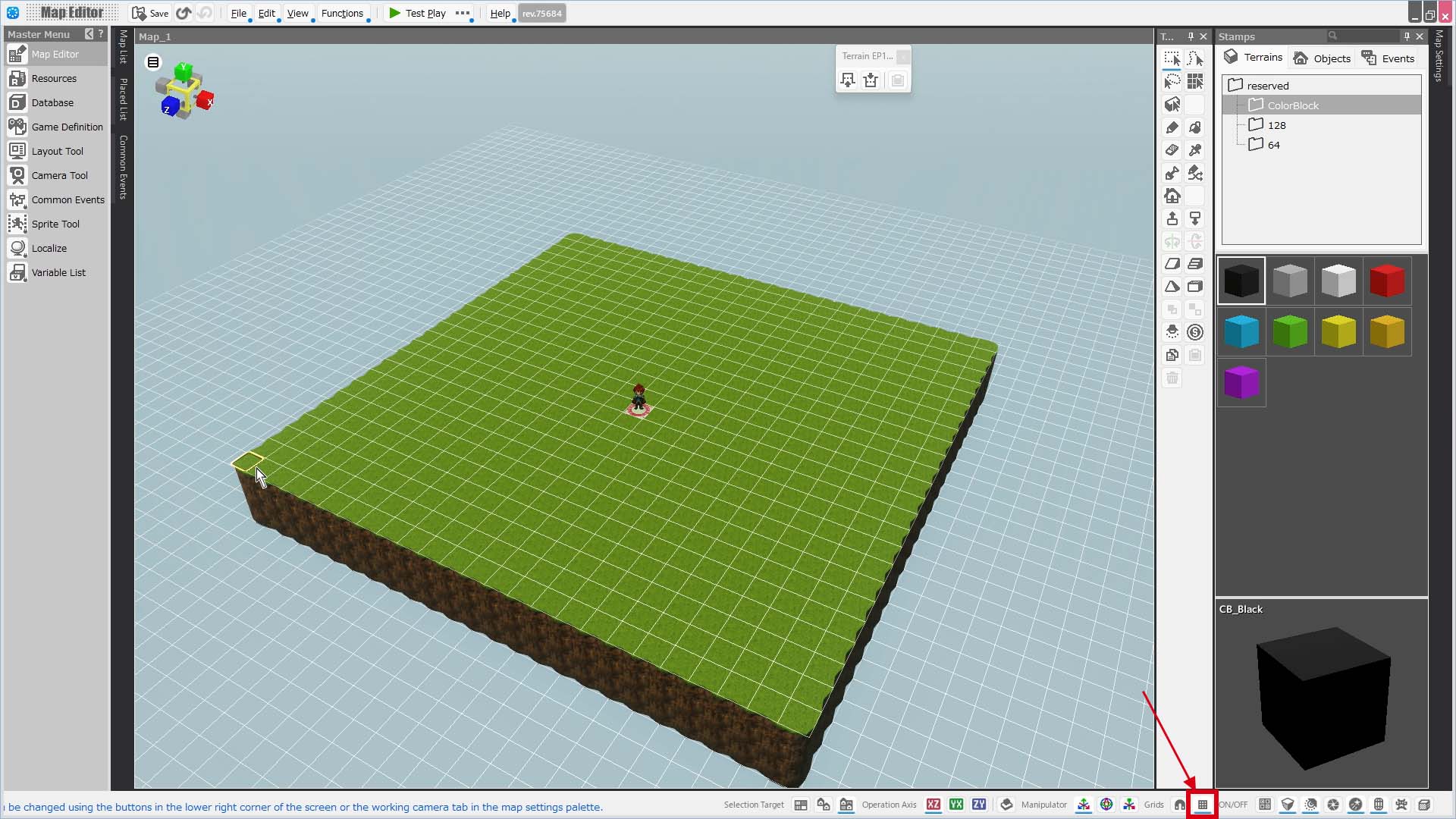
The “status bar” at the bottom of the Map Editor contains various buttons that control the editor's functions.
For information on the functions of each button, see Status Bar.
Before proceeding with this course, please check that the status of each button is as shown below. (A blue line under the button indicates that it is “on.”)

From this point on, we will toggle the status of several buttons as the course progresses.
If you notice that the tool isn't behaving as expected while using it, check the status of the buttons on the status bar.
Let’s start by raising the terrain at the back-left corner of the map.
Click and drag your mouse to select the area you want to raise, then click the Raise button several times.
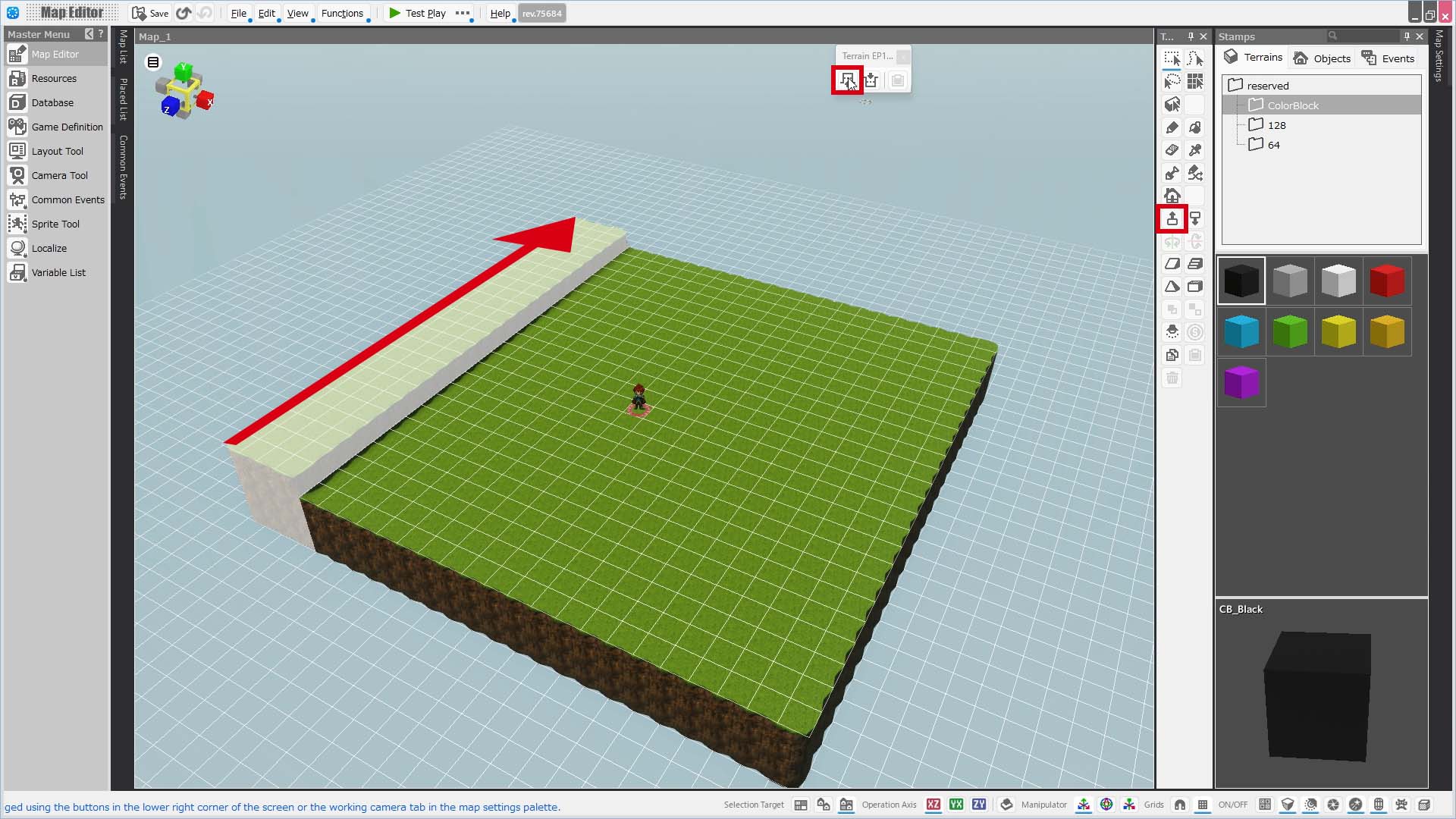
Next, raise the back edge of the map to the same elevation as the back-left corner.
Click and drag to select an area that includes at least one tile from the previously raised section.
Then, right-click to bring up the menu and select "Align at Higher Elevation."
(This menu that appears when you right-click is called a context menu.)
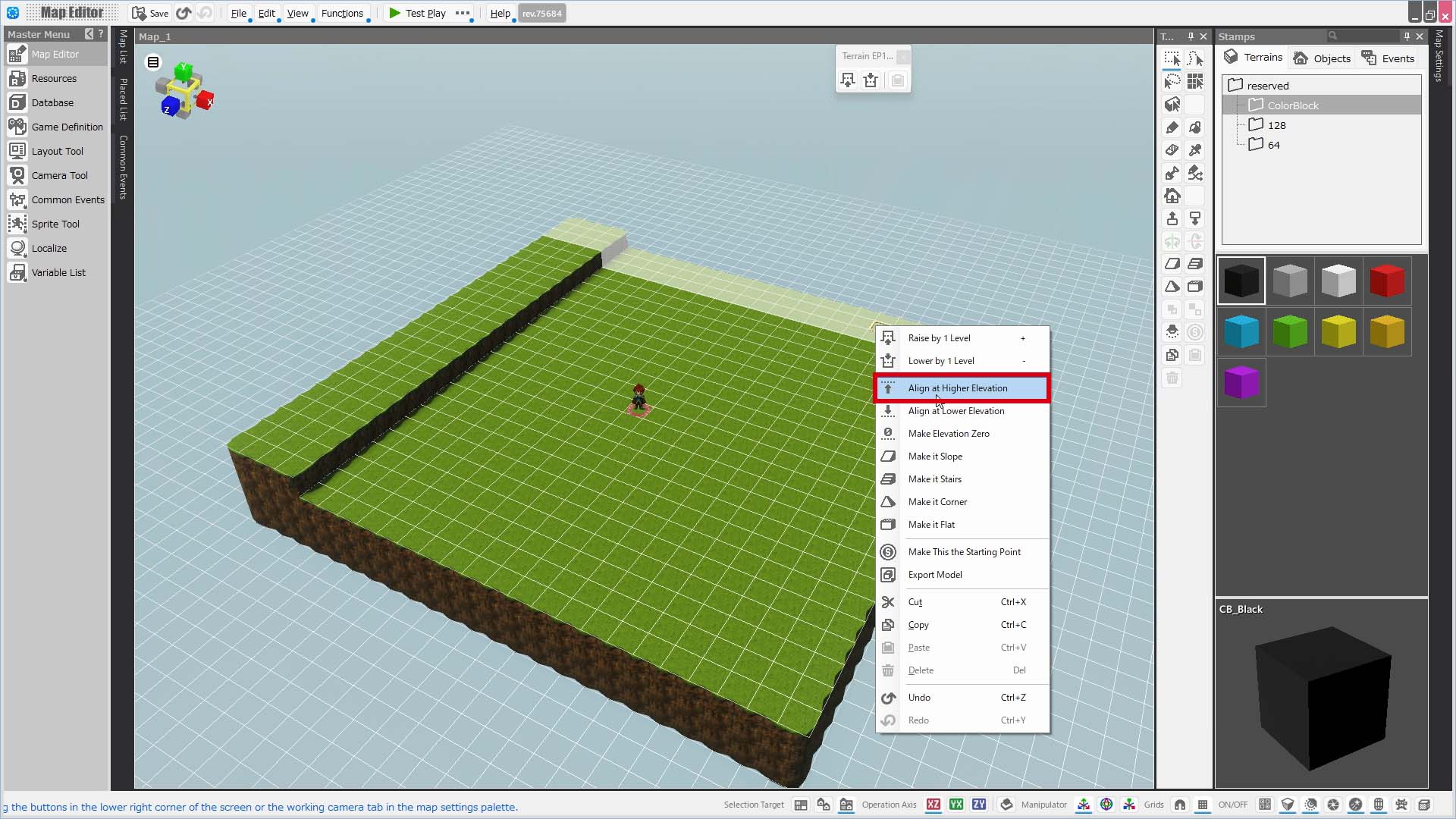
Now the back-left corner and the back edge are at the same elevation.
Next, let’s lower the ground to create a river.
Select an area 3 tiles wide, dragging from the back of the map to the front, on the right side of the map.
Once you've made your selection, right-click again to open the context menu, then select “Align at Lower Elevation.”
Once the ground is flat, click the “Lower by 1 Level” button four times.
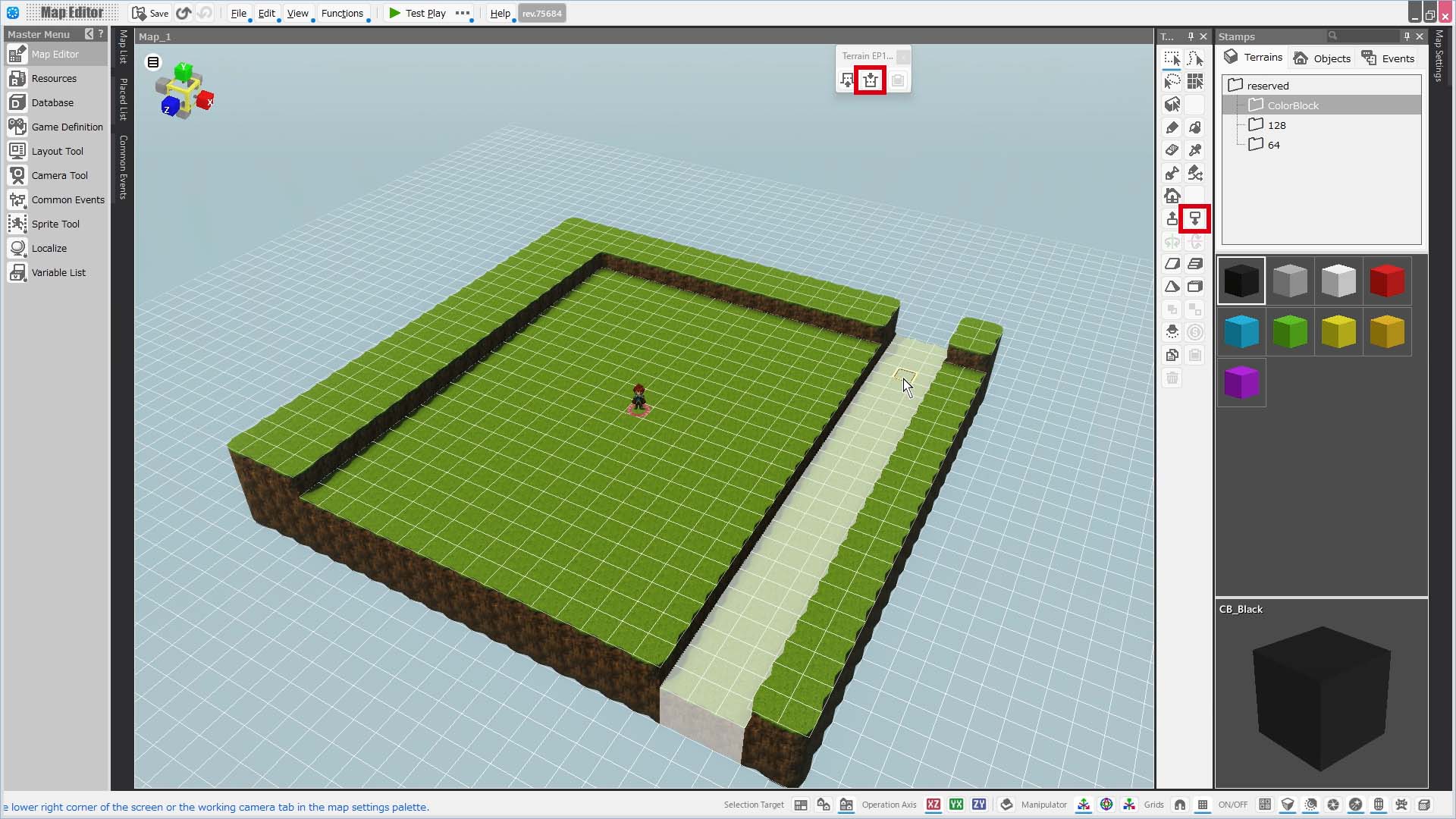
Let’s change the riverbed to a more earthy-looking texture.
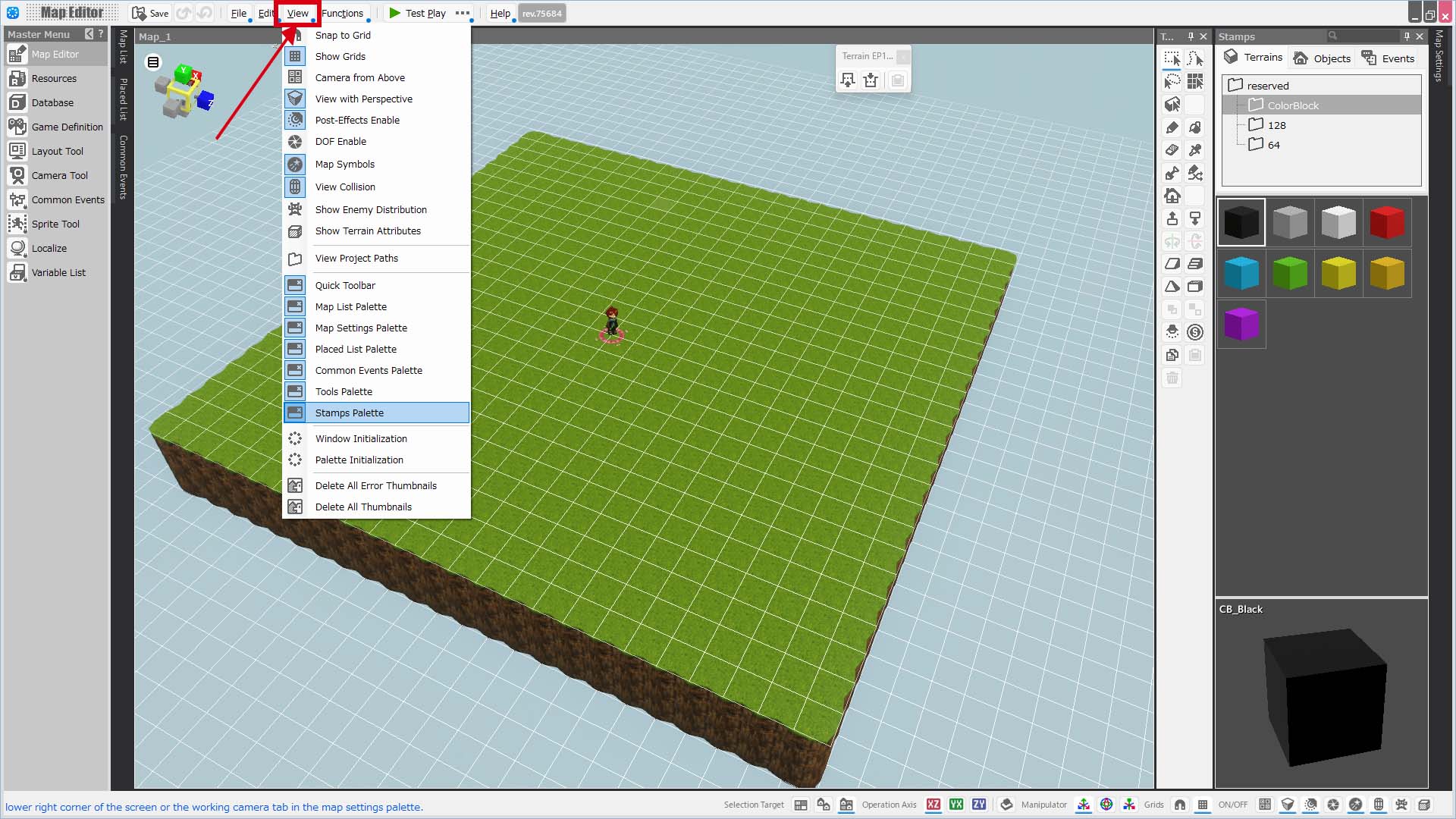
Open the [[Stamps Palette] on the right side of the Map Editor, and select the Terrain tab.
In the file tree under the Terrains tab, go to reserved > 128, and from the displayed thumbnails, choose "EP1_rock_01" (an earthy-looking terrain).
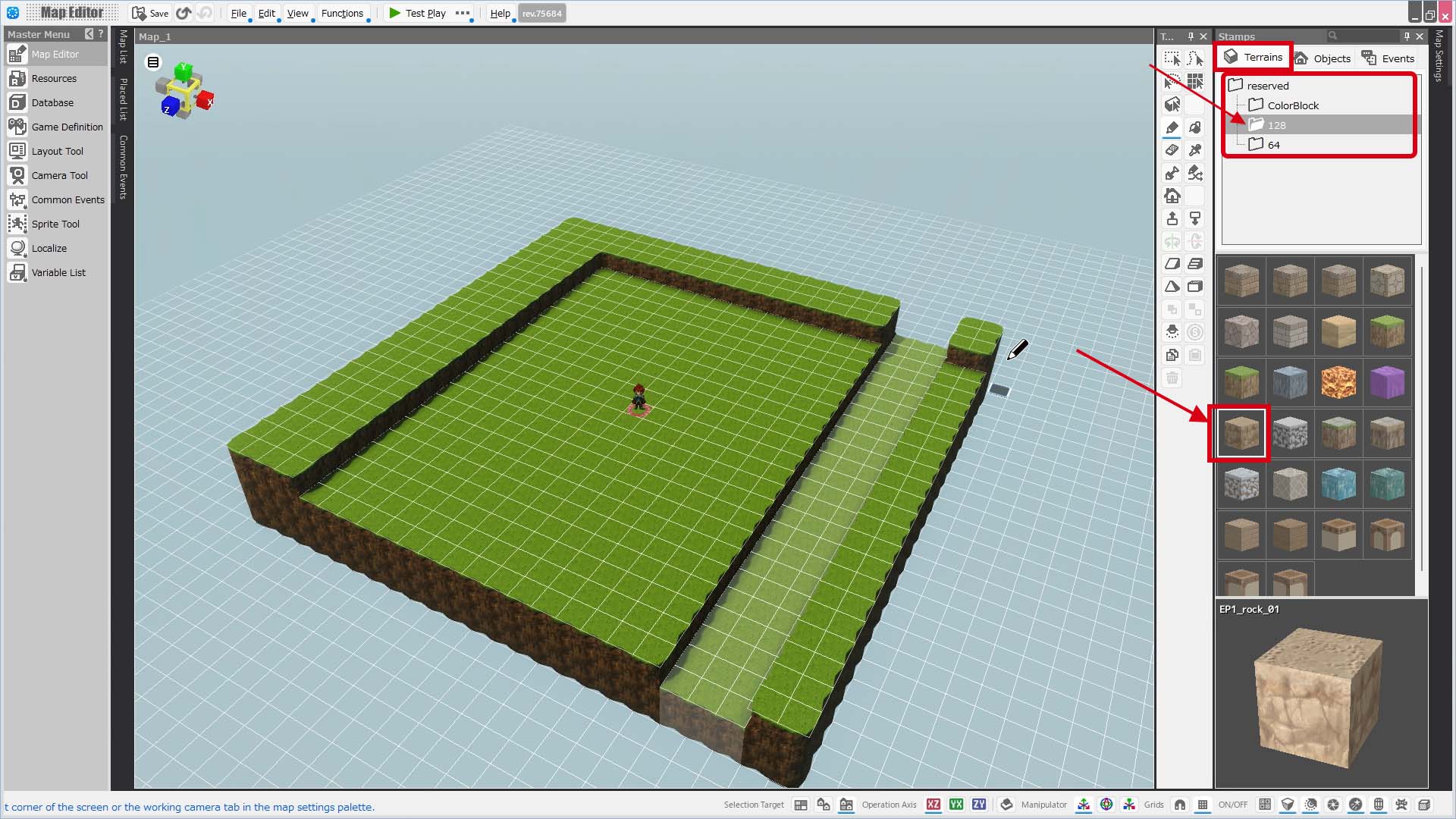
When your cursor changes to a pencil icon, try dragging over the riverbed like you're painting.
The terrain will change to EP1_rock_01 as if you're coloring it in.
(If you go outside the riverbed area by mistake, just press Ctrl+Z to undo.)
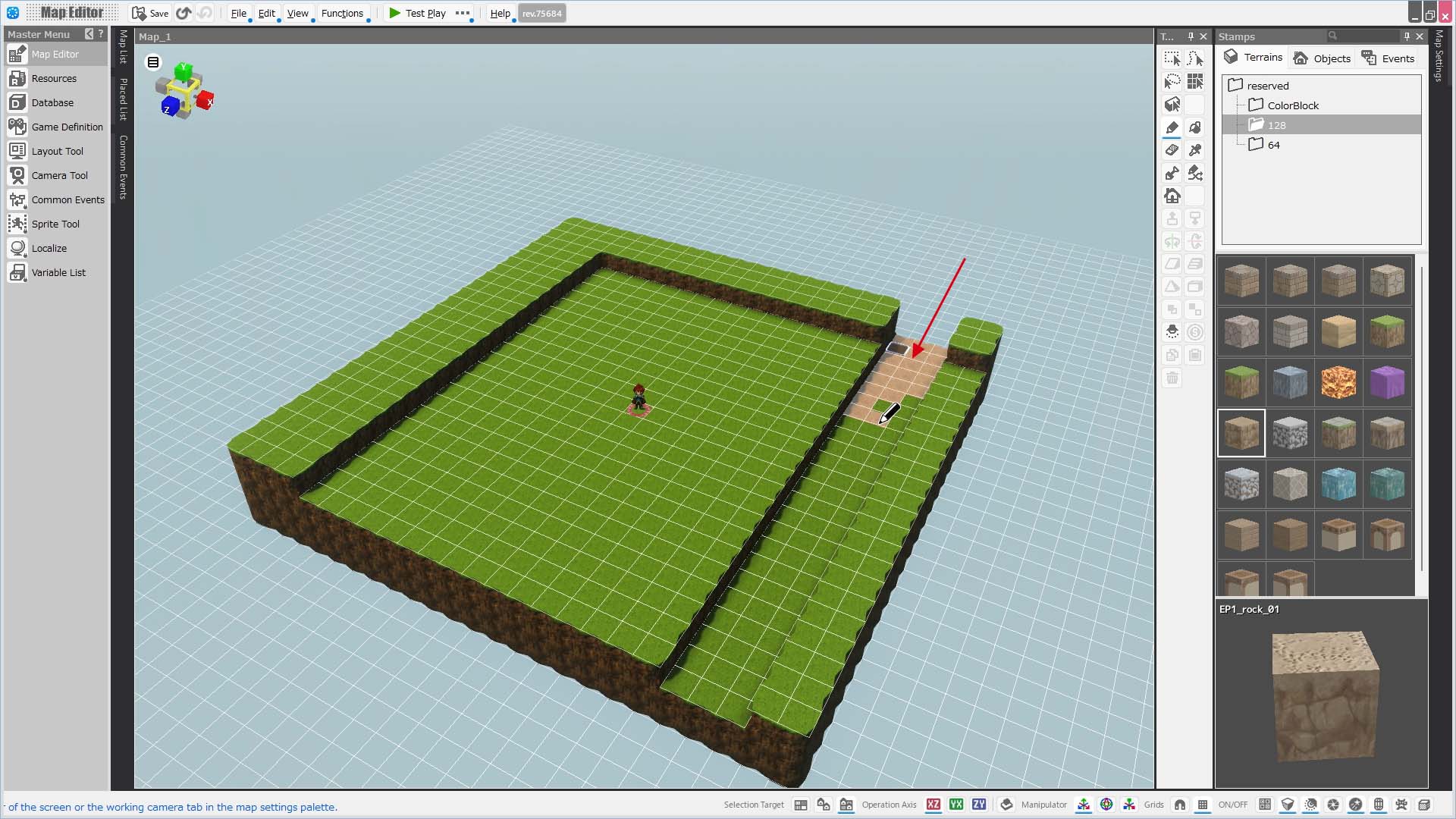
Painting the entire riverbed manually with the pen can be a bit tedious.
To make it easier, go to the [Tools Palette], select "Terrain: Same Elevation Selection", and click on the riverbed. This will select all terrain at the same elevation.
Next, choose the Fill Tool and click the selected area.
This will fill the selected area with the currently selected terrain.
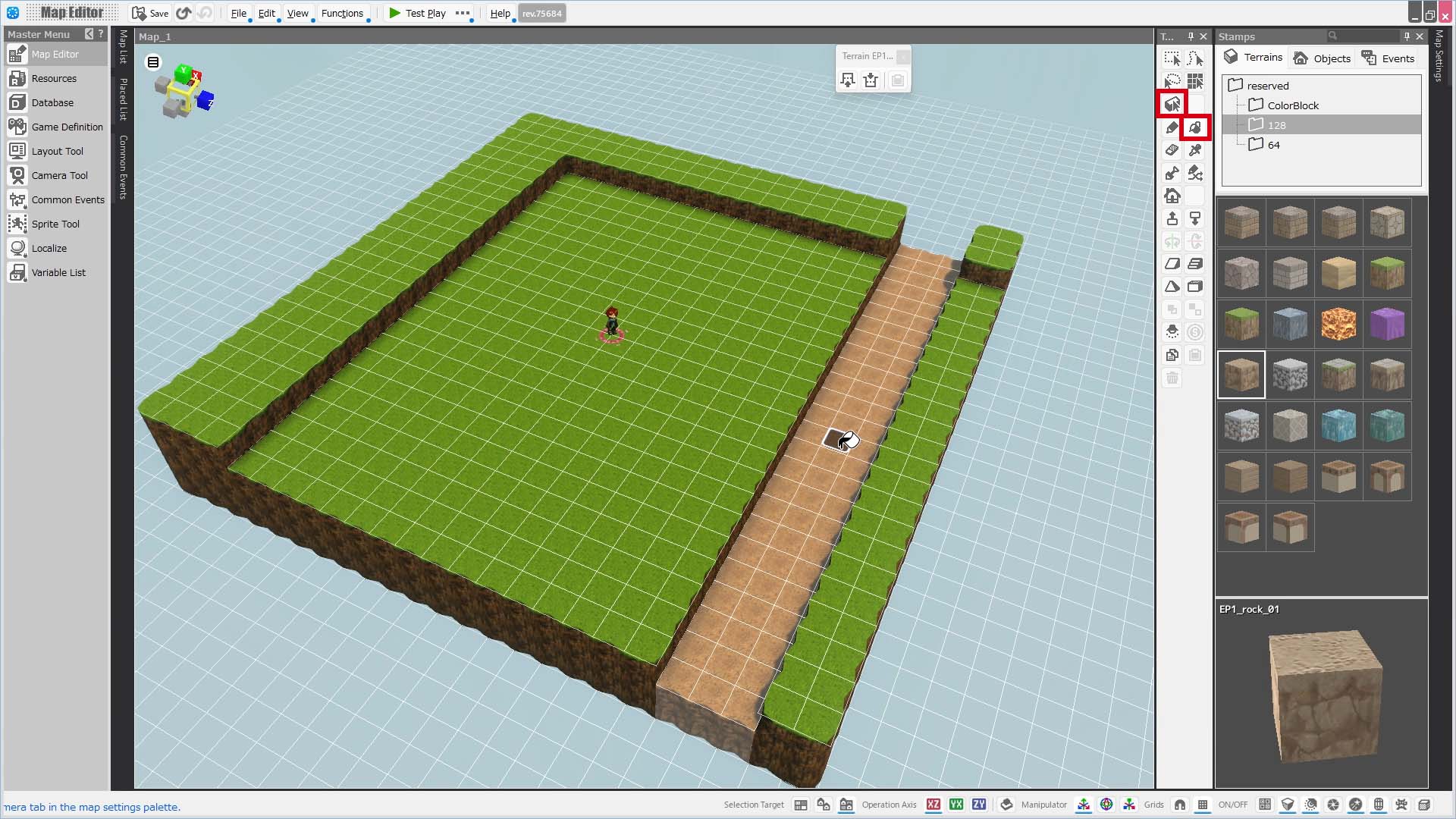
Now the base terrain is ready.
If your cursor is still showing the bucket icon, press ESC to return to the rectangular selection tool.
In Bakin, you create terrain by raising and lowering the ground.
Next, let’s add trees and a river to this terrain.
Next: Creating a Map 2
Previous: Creating a Project


