Variable Boxes (assignment and calculation), String Variables (assignment and text input)†
Variable Box Assignment and Calculation†
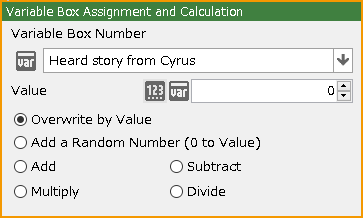
Assign a value to a numeric variable that has been specified in a specified manner.
- Variable Box Number
Specify the variable box to be used.
- Variable Box Type
- Value
The value to be used can be specified between -9999999 and 9999999.
- Text
Used to specify a string variable.
- Local Value
Used to specify a local variable.
- Array Variable
Used to specify an array variable.
- Pointer
Specify a pointer to be specified from an integer or variable box.
- Value
Assign an integer between the specified values in the following manner
- Overwrite by Value
Assign a value.
- Add a Random Number (0 to Value)
Add a random number from the range of 0 to the specified number.
- Subtract
Subtract the value.
- Multiply
Multiply the value.
- Divide
Divide by the value.
Advanced Variable Box Operation†
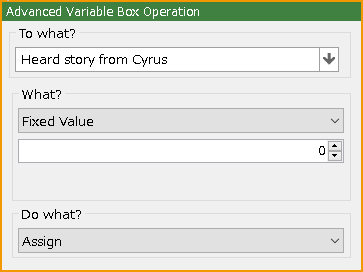
Assign the specified parameter to a numeric variable in the specified manner.
- About the (Deprecated) indication on some options for the operation
- These are recommended options to be operated using the following event panels that have been added with the Bakin update.
- It is acceptable to use those options that have been marked (Deprecated) in projects created up to the current version (Ver. 1.8.0.5).
- However, please note that these options may become non-selectable in the future.
Also, in the future, even if the number of obtainable values increases, they will not be added to the (Deprecated) options. We recommend using other event panels for this purpose.
- To what?
Specify the variable box to be used.
- What?
Specify the parameter to be assigned by selecting one of the following
- Fixed Value
An integer from 0 to 9999999 can be entered.
- Random Number
Any integer from -9999999 (minimum) to 9999999 (maximum) can be entered.
The minimum/maximum values of random numbers can also be specified using variables.
- Variable Box
Refer to the value in the assigned variable box.
- Money in Possession
Refer to the current money in possession.
- Number of Items Possessed
Refer to the number of the specified item in the possession.
- Total Cast Status:(Deprecated)
Refer to various statuses of the specified cast. The statuses that can be referenced are as follows
- LV
- Current HP
- Current MP
- Maximum HP
- Maximum MP
- Current HP(%)
- Current MP(%)
- Attack Power
- Magical Power
- Defense Power
- Accuracy
- Evasion Rate
- Agility
- EXP
- State Changes
- Class Level
- Subclass Level
- nth in the Party
- Total Status of the nth in the Party:(Deprecated)
You can refer to the entries without "nth in the Party" from the entries that can be referred to in "Cast Status".
- Total Event Status (Cast Event):(Deprecated)
If the specified event is a cast-based event, its status is referenced. The statuses that can be referenced are as follows:
- Current HP
- Current MP
- Maximum HP
- Maximum MP
- Current HP(%)
- Current MP(%)
- Attack Power
- Magical Power
- Defense Power
- Accuracy
- Evasion Rate
- Agility
- EXP
- G
- Current Time
Year, Month, Day, Day of the Week, Hour, Minute, Second
- Play Time
Hour, Minute, Second
- Map ID
The map ID can be specified in the Map Editor > Map Settings palette > Basic tab.
The map ID for each map is also listed on the Map List palette.
- Operation Key
Up, Down, Left, Right, Decision, Cancel, Dash, Camera: Rotate Up, Camera: Rotate Down, Camera: Rotate Left, Camera: Rotate Right, Camera: Zoom In, Camera: Zoom Out, Camera: Reset, Up (Repeat), Down (Repeat), Left (Repeat), Right (Repeat), Menu, Jump, Action 1, Action 2, Action 3, Up (Analog), Down (Analog), Left (Analog), Right (Analog), Camera: Rotate Up (Analog), Camera: Rotate Down (Analog), Camera: Rotate Left (Analog), Camera: Rotate Right (Analog), Camera: Zoom In (Analog), Camera: Zoom Out (Analog)
- (Repeat) is a special input type that is 1 at the moment it is pressed and after 0.5 seconds of holding it down, and 0 otherwise.
It is best used for menus, etc.
- (Analog), if the gamepad supports analog input, you can get the strength of the input as a decimal number between 0 and 1.
If digital input is made with a device such as a keyboard or directional keys, you will get a value of 0 or 1.
- For other options, a value of "1" is obtained while the button is pressed, "2" at the moment it is pressed, and "-1" at the moment it is released.
- "MENU" and "WALK"
Select whether to retrieve the operation key assigned to “MENU” for menu operation or “WALK” for map movement operation.
Please refer the Assign Input Device section.
- Camera Settings
X Rotation, Y Rotation, Angle of View, Distance, X Coordinate, Y Coordinate (Elevation), Z Coordinate, Z Rotation
- Coordinate Information for This Event
X Coordinate, Y Coordinate (Elevation), Z Coordinate, X Coordinate on the Screen, Y Coordinate on the Screen, X Rotation, Y Rotation (Orientation), Z Rotation, Orientation/4 Direction (U: 0, D: 1, L: 2, R: 3)
- Coordinate Information for Player
The same settings as "Coordinate Information for This Event" can be specified.
- Mouse Information
Mouse Pointer X Coordinate, Mouse Pointer Y Coordinate, Left Click, Right Click, Center Click, Wheel Rotation
- Elapsed Time from Previous Frame
- Player Operation Locked State (0=Unlocked)
- nth Parameter in the Inventory:(Deprecated)
The parameters that can be obtained are as follows:
- Consumables Specified
- Weapons Specified
- Armors Specified
- Enhanceable
- Equipped Part Number
- Level
- Price
- Original Price
- Attack Range
- Original Attack Range
- Attribute Attack Power
- Original Attribute Attack Power
- Critical Rate
- Original Critical Rate
- Max Damage/Recovery Amount
- Original Max Damage/Recovery Amount
- HP Recovery Amount
- Original HP Recovery Amount
- HP Recovery Rate
- Original HP Recovery Rate
- MP Recovery Amount
- Original MP Recovery Amount
- MP Recovery Rate
- Original MP Recovery Rate
- Maximum HP
- Original Maximum HP
- Maximum MP
- Original Maximum MP
- Attack Power
- Original Attack Power
- Defense Power
- Original Defense Power
- Magical Power
- Original Magical Power
- Agility
- Original Agility
- Accuracy
- Original Accuracy
- Evasion Rate
- Original Evasion Rate
- Parameter for Item (Item Event):(Deprecated)
If this event is an item event, you can get a parameter of the item.
The parameters that can be obtained are the same as those in "nth Parameter in the Inventory".
- Distance Between Player and This Event
- X Angle Between Player and This Event
- Y Angle Between Player and This Event
- Number of Steps
You can obtain the number of steps (grids) the player has moved since the game began.
- Do what?
| Assign | Assign the obtained value to the variable box. |
| Addition | Add the obtained value to the value of the variable box. |
| Subtraction | Subtract the obtained value from the value of the variable box. |
| Multiplication | Multiply the value of the variable box by the obtained value. |
| Division | Divide the value of the variable box by the obtained value. |
| Assign Remainder of Division | Divide the value of the variable box by the obtained value and assign the remainder. |
| Assign with Decimals Rounded Down | Assign the obtained value with the decimal point rounded down. |
Assign to String Variable†
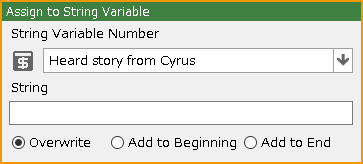
Assign a string to a string variable in the specified manner.
- String Variable Number
Select a variable to store the string to be changed.
If you select "Name of Cast" or "This Event's Name" specified in the Database in the "In-Game Variables" tab in the Select Variable Box dialog, you can rewrite the respective values.
- String
Specify the string to be assigned.
- String Assigning Methods
- Overwrite
Overwrite and assign a string.
- Add to Beginning
Add the string to the beginning.
- Add to End
Add the string to the end.
Input String Variable†
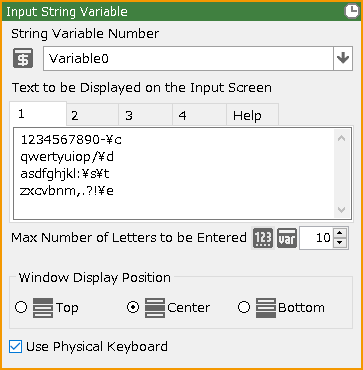
Open a panel for entering strings. The string the player enter is assigned to a string variable.
The layout when using this event panel, including the size and position of the text input panel, can be created in the Layout Tool > Input String screen.
- String Variable Number
Specify the variable box to be used.
- Text to be Displayed on the Input Screen
The letters to be displayed in the input panel can be specified.
Text input panels can be created by specifying the special format \inputstrings for a text panel in the Layout Tool > "Input String" screen.
Please refer to the "Help" tab for information on how to display the decision button, the tab switching button, etc.
Up to four tabs can be set.
This allows you to use tab 1 in lowercase, tab 2 in uppercase, and so on.
- Max Number of Letters to be Entered
Specify the maximum number of letters that can be entered between 0 and 65536.
- Window Display Position
You can specify the position of the Input String Window.
The position is determined according to the "special coordinate specification tag" specified in the container's properties in the Layout Tool > Input String screen.
Please refer to the default layout on the same screen.
- Use Physical Keyboard
Allows direct input of strings from the keyboard during event execution.
When this function is turned on, it is no longer necessary to use the text panel with the special format \inputstrings in the Layout Tool > "Input String" screen.
- Allow Empty String
Even if the input field is empty, it will be possible to press the OK button and proceed.
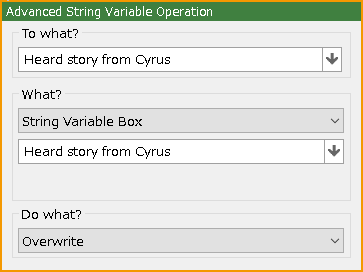
Advanced String Variable Operation†
Assign a specified parameter to a string variable in a specified manner.
- To what?
Specify the variable box to be used.
- What?
Specify the content to be used.
- String Variable Box
Specify the variable box to be used.
- Current Map Name
Use the current map name.
- Cast Status
You can specify either the name, original name (database name), class, subclass, management tag, or the name/management tag of the equipped type for each equipment slot.
- nth Status in the Party
The same settings as in "Cast Status" can be specified.
- This Event's Name
The name of the event itself can be obtained.
- Name of Shooting Source
The name of the event from which this event was generated can be obtained.
- nth Parameter in the Inventory
You can assign a name, attack attribute, and equipment part for a specified item.
- Parameter for Item (Item Event)
If this event is an item event (specified in Database > Items), you can retrieve a parameter for the item.
The parameters that can be obtained are the same as those in "nth Parameter in the Inventory".
- Name of the Last Item Obtained
- Current Encounter Area Name
You can obtain the "Area Name" specified in the Map Settings Palette > Enemy Distribution tab.
- Do what?
- Overwrite
Overwrite and assign a string.
- Add to Beginning
Add the string to the beginning.
- Add to End
Add the string to the end.
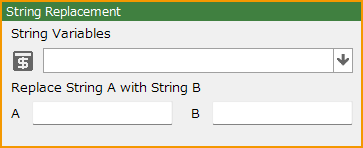
String Replacement†
Replaces string variable A in the specified variable box with string B.
- String Variable
Select a variable to store the string to be changed.
If you select "Name of Cast" or "This Event's Name" specified in the Database in the "In-Game Variables" tab in the Select Variable Box dialog, you can rewrite the respective values.
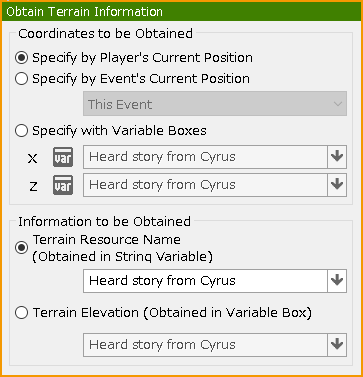
Obtain Terrain Information†
Obtain terrain information for the current position of the player or event or for the coordinates specified in the variable box.
- Specify by Player's Current Position
Obtain terrain information for the player's current location.
- Specify by Event's Current Position
Obtain terrain information for the current location of the event.
- Specify with Variable Boxes
Use the value in the variable box as the coordinate to get the terrain information for that coordinate.
- Terrain Resource Name
Obtain the name of the resource used in the terrain as a string variable.
- Terrain Elevation
Obtain the elevation of the terrain in the variable box.
Obtain Cast Status†
Please read the Statuses > Obtain Cast Status section for more information.
Obtain Item Parameter†
Please read the Statuses > Obtain Item Parameter section for more information.
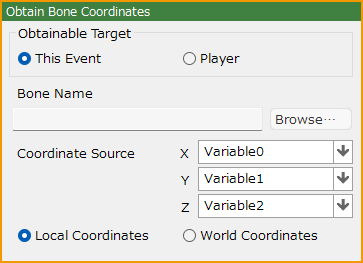
Obtain Bone Coordinates†
The coordinates of a specified bone of a specified model can be obtained.
- Obtainable Target
Specify the target for obtaining bone coordinates.
- Bone Name
Specify the bone to be obtained for which coordinates are to be obtained.
- Coordinate Source
Specify variables to store the acquired bone coordinates XYZ.
- Local Coordinates / World Coordinates
If "Local Coordinates" is specified, the coordinates are taken from the origin of the Obtainable Target's model.
If “World Coordinates” is specified, the coordinates on the map are obtained.
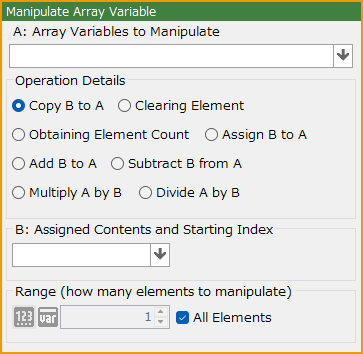
Manipulate Array Variable†
A specified operation can be applied to a specified index of an array variable.
- A: Array Variables to Manipulate
Specify the array variable to be manipulated.
- Operation Details
Specify what operation is to be performed on the array variable specified by A.
- Copy B to A
- Clearing Element
- Obtaining Element Count
- Assign B to A
- Add B to A
- Subtract B from A
- Multiply A by B
- Divide A by B
- B: Assigned Contents and Starting Index
The contents of this field will vary depending on the options specified in the "Operation Details" section.
Specify the value to assign, the variable to assign the obtained value to, or the index of the array variable to start the operation.
- Range (how many elements to manipulate)
Specify the number of targeted elements from the index at which the operation is to start.
- All Elements
When checked, all elements of the array variable specified by A are subject to operation.
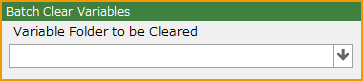
Batch Clear Variables†
When a folder created in the “Select Variable Box” dialog is specified, variables under that folder are cleared at once.
- Variable Folder to be Cleared
The “Select Variable Box” dialog opens, allowing you to specify which folder(s) to clear.
(!)Folders located at a lower level than the specified folder will also be cleared.
![[PukiWiki]](./skin/BAKIN_logo_92.png "[PukiWiki]")