Conversation†
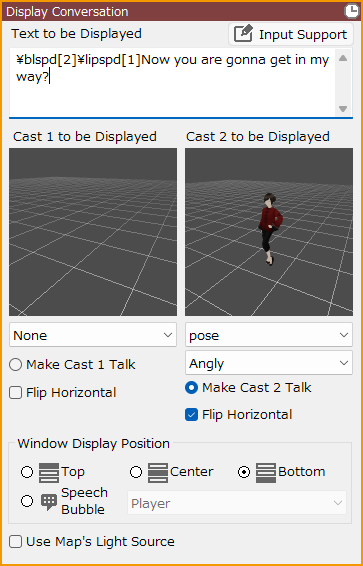
Display Conversation†
You can set up conversation scenes between cast members.
Rendering stamps specified in "Cast to be Displayed" can be displayed on the left and right sides of the screen at the same time as the text on the screen.
- Text to be Displayed
Enter the text to be displayed as a conversation.
Fill in the cast lines to be spoken.
- Preview
Opens the Message Editor.
For details, see the Message Editor page.
- Text Commands
By adding Text Commands to text, you can add specified decorations and movements.
Please use the Input Support button to enter Text Commands.
A list of Text Commands can be found at the Text Formatting and Text Commands page.
The type of Text Commands available depends on the contents of the event panels.
- Cast to be Displayed
Assign 2D/3D stamps to be displayed on the left and right sides of the screen.
- You can assign a motion to be displayed.
- When specifying a 3D stamp with Blend Shapes, you can assign a clip to play in addition to the motion.
- Camera and rendering settings for a 3D stamp of a conversational cast can be created in the Camera Tool.
- See Sprite Tool for information on how to create a sprite for a 2D graphic of a conversational cast, and System Resources for information on changing the motion and size of a conversational cast's entry and exit.
- Make Cast 1/2 Talk
Assign the cast that is talking.
The image of a cast not assigned will be darkened.
- By unchecking both Cast 1/2 checkboxes, you can create a scene where neither speaker speaks.
- If you want your cast to do blinking/lip-synching, you need to specify the necessary settings in the Sprite Tool for 2D or in the Blend Shapes for 3D.
- Flip Horizontal
If checked, the cast image is displayed flipped left to right.
- Billboard
This can only be specified when a 2D stamp is selected as the Cast to be Displayed.
If checked, 2D stamps are rendered in 3D.
- Window Display Position
You can assign message windows and speech bubbles specified in the Layout Tool.
In order to assign a display position for the message window, a layout must be prepared for each position.
The default layout of the conversation screen in Layout Tool can be used for each position, so please use it as a reference for your own design.
- Speech Bubble
Specify a target for the speech bubble on the map.
- Use Map's Light Source
When checked, the lighting information specified in "Rendering" under "Map Settings" in the Map List will be reflected in the Cast to be Displayed.
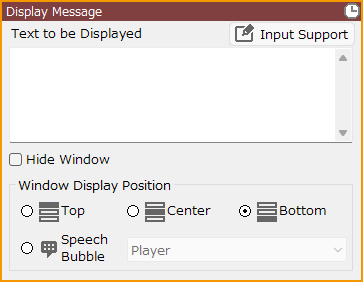
Display Message†
Display text in the message window.
- Preview
Opens the Message Editor.
For details, see the Message Editor page.
- By adding Text Commands to the text, you can add specified decorations and movements.
Use the Input Support button to enter Text Commands.
For a list of Text Commands, see the Text Formatting and Text Commands page for more information.
The type of Text Commands that can be used depends on the contents of the event panel.
- If "Hide Window" is checked, only the text can be displayed.
- You can specify a message window or speech bubble specified in the Layout Tool.
To specify the display position of the message window, a layout must be prepared for each position.
The default layout of the conversation screen in the Layout Tool can be used for each position, so please use it as a reference for your creation.
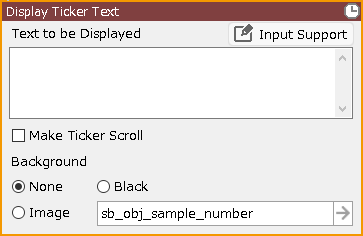
Display Ticker Text†
Display text on the entire screen. Suitable for use in prologues, epilogues, etc.
- Preview
Opens the Message Editor.
For details, see the Message Editor page.
- If "Make Ticker Scroll" is checked, the text will automatically scroll from bottom to top as soon as the event starts.
In order to scroll the ticker, it is necessary to create a layout part for scrolling in the Layout Tool.
The default layout of the ticker screen in the Layout Tool is scrollable, so please use it as a reference for your creation.
- By adding Text Commands to the text, you can add specified decorations and movements.
Use the Input Support button to enter Text Commands.
For a list of Text Commands, see the Text Formatting and Text Commands page for more information.
The type of Text Commands that can be used depends on the contents of the event panel.
Text Commands for Wait, Instant Display, Waiting for Input, and Window Auto-Close is not available in this event panel.
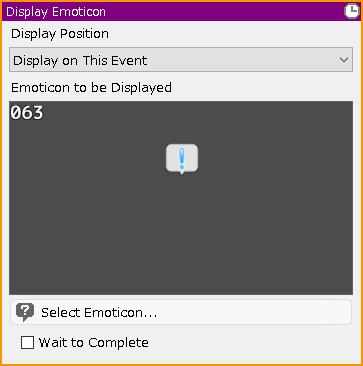
Display Emoticon†
Play emoticon (sprites) centered on the specified event or player.
- Display Position
- Display on This Event
Play the effect at the coordinates where this event is located.
- Display on Player
Play the effect at the coordinates where the player is located.
- 2nd ~ 8th Cast in the Party
Play the effect at the coordinates where the 2nd to 8th cast member of the party is located.
- Select Emoticon
Assign an emoticon to be displayed.
- Wait to Complete
Wait for the next event panel to be executed until the display of the effect is finished.
Change Map Cast Expression†
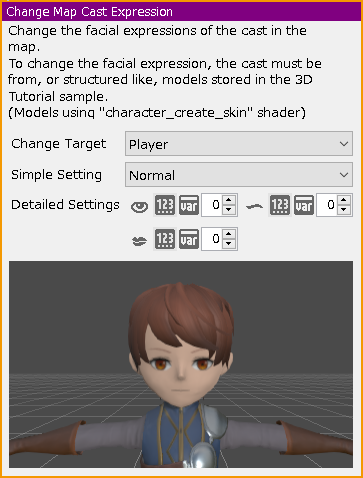
Change the facial expressions of the cast in the map. To use this function, the 3D model used must have been created to a defined specification.
Add Strings to Backlogs†
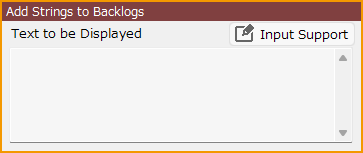
You can set text that is not displayed during the game and is only recorded in the backlog.
It is intended to be used to put a separator such as “ End of Chapter 1” in the backlog, or to use string variables to insert selection results or text input results into the backlog.
Message Editor†
Can be used in conversation, message, and ticker events.
#ref(): File not found: "会話プレビュー_EN.png" at page "Conversation"
- Text to be Displayed
Enter the text to be displayed.
After editing the text, press “OK” to close this window and apply the changes to the event.
When you enter multi-line text, page break lines will be displayed. Use them as a guideline for when the page switches.
When input is confirmed, the preview will be reset.
- Preview
Displays a preview using the specified layout.
If a cast is set for conversation display, the cast will also be shown.
- Input Support
By adding Text Commands to the text, you can apply specified decorations and animations.
Use the Input Support button to enter Text Commands.
A list of Text Commands can be found on the Text Formatting and Text Commands page.
The types of Text Commands that can be used vary depending on the contents of the event panel.
- Preview Reset
Resets the preview display and returns to the first line.
- Preview Progress
Advances the preview display.
- Layout to be Used
Allows you to change the layout to be used.
You can select from layouts that are compatible with the event.
![[PukiWiki]](./skin/BAKIN_logo_92.png "[PukiWiki]")