![[PukiWiki]](./skin/BAKIN_logo_92.png "[PukiWiki]")
This is a description of each screen provided in the default "Screen List".
Basically, each screen has its own defined function, and there are differences in the number of menu containers that can be placed, layout property options, etc.
This page describes the role of each screen, its specific specifications, the number of menu containers that can be placed, and the layout property options specific to that screen.
Please refer to this description along with the system layout (the default layout shown in red text in the Layout to be Assigned field of the Layout Tool).
This is the title screen of the game.
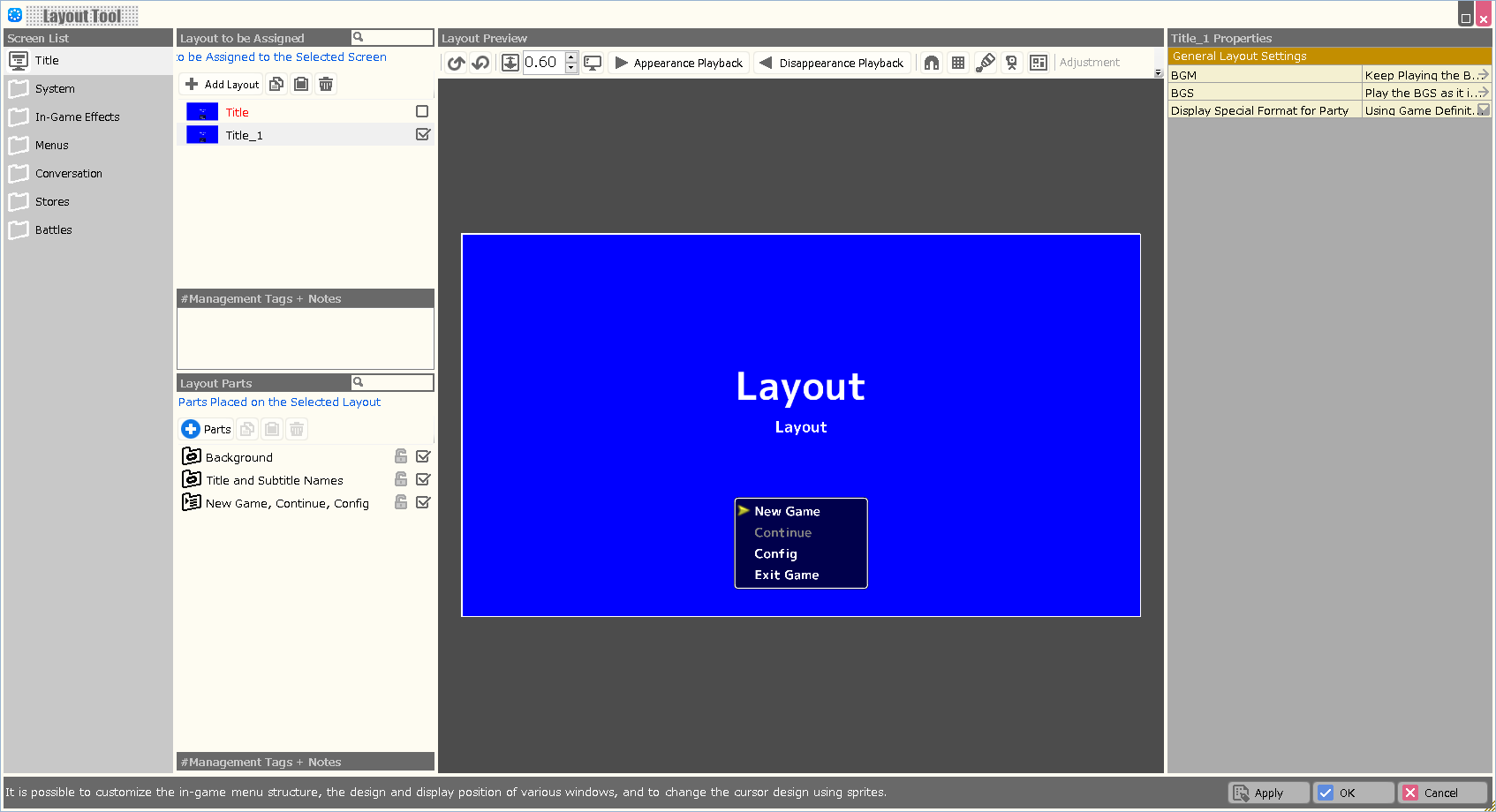
| Property Option | |
| BGM | Specify the background music to be played when this layout is displayed. |
| BGS | Specify the environmental sound to be played when this layout is displayed. |
| Display Special Format for Party | Assign whether to include the reserve members as part of the party when using a special format that deals with information about the party in this layout. |
| Variable to Assign a Selection Result | A value corresponding to the element determined by this layout is assigned to the specified variable. In case of cancellation, -1 is assigned. |
| Variable to Assign a Selection | A value corresponding to the currently selected element in this layout is assigned to the specified variable. In the Enhancement Item Selection screen, the number on the inventory (from 1) is assigned; in other screens, the container number is assigned. |
| Start the Index from 1 | When turned on, when assigning a Selection Result or Selection to a variable, the first element number starts from “1” instead of “0”. |
This screen is displayed during game loading.
If multiple layouts are created, it is possible to change the loading screen when going from Map A to Map B and from Map B to Map C.
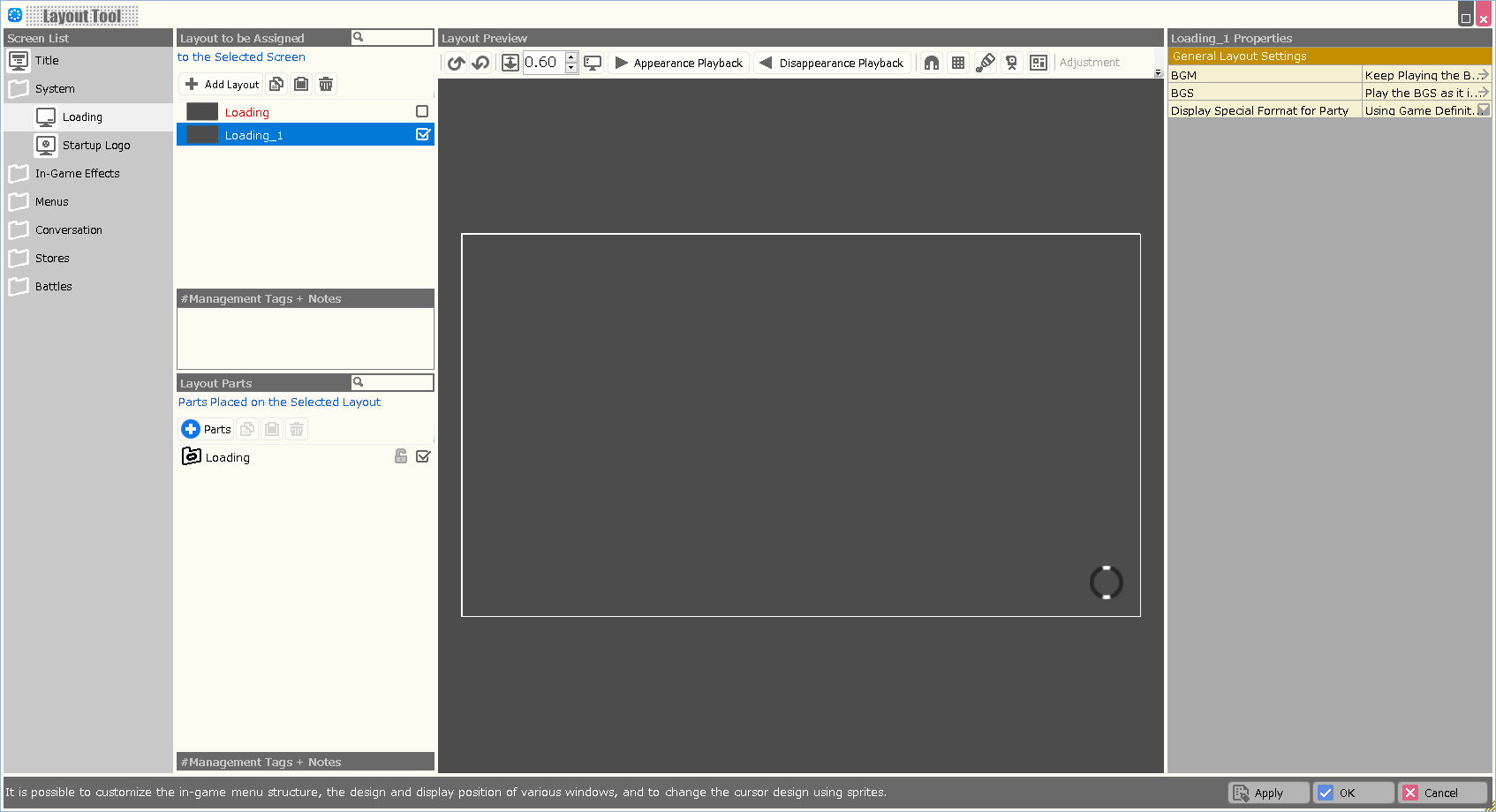
| Property Option | |
| BGM | Specify the background music to be played when this layout is displayed. |
| BGS | Specify the environmental sound to be played when this layout is displayed. |
| Display Special Format for Party | Assign whether to include the reserve members as part of the party when using a special format that deals with information about the party in this layout. |
This is the screen that appears when the game is launched.
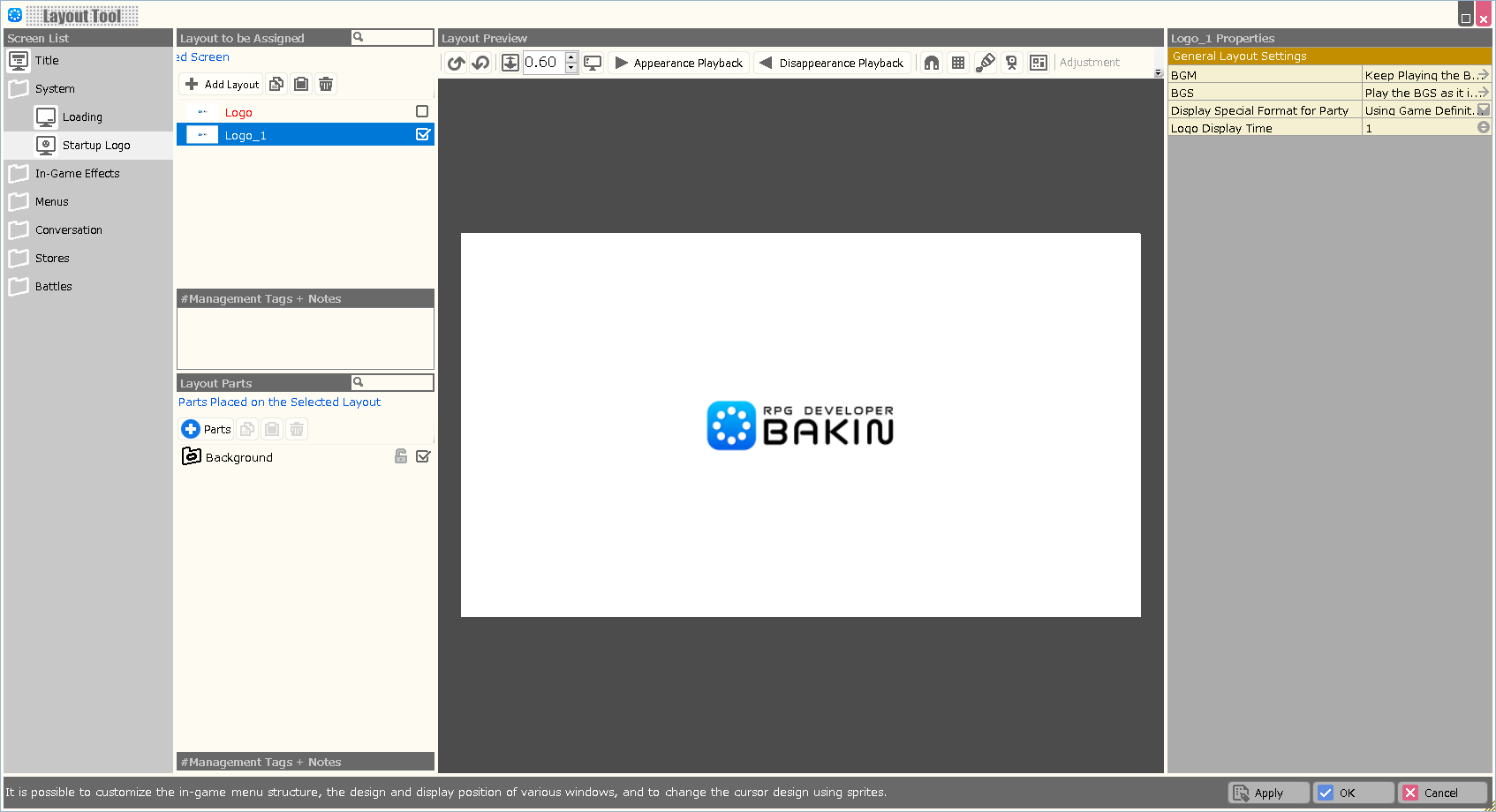
| Property Option | |
| BGM | Specify the background music to be played when this layout is displayed. |
| BGS | Specify the environmental sound to be played when this layout is displayed. |
| Display Special Format for Party | Assign whether to include the reserve members as part of the party when using a special format that deals with information about the party in this layout. |
| Logo Display Time | Specify the time for which the startup logo is displayed. |
This screen displays the map name set in the Map Settings Palette > Basic tab when the player moves to maps in the game.
This screen will not appear if you set the map name not to be displayed in the Map Settings Palette>Basic tab.
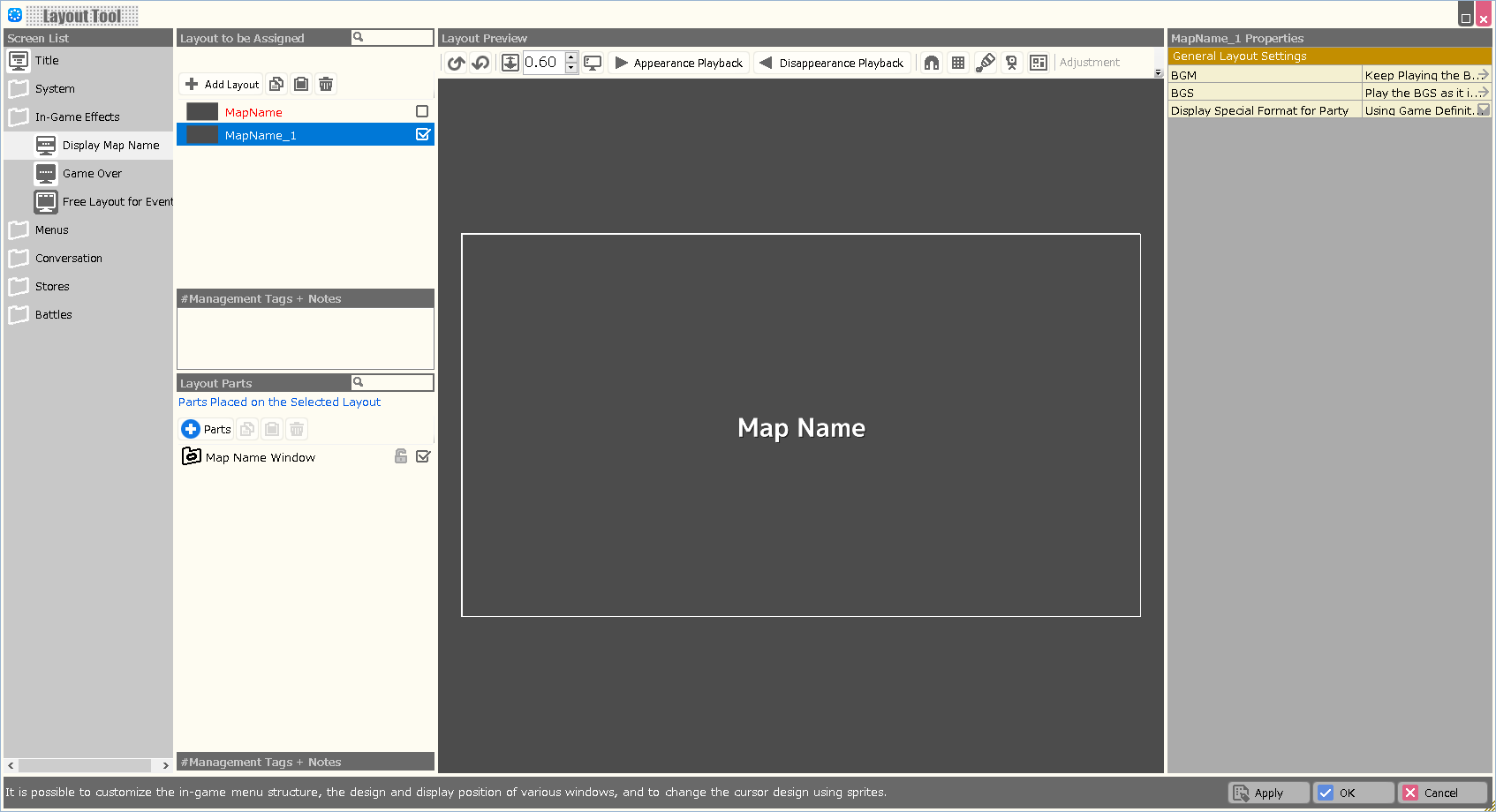
| Property Option | |
| BGM | Specify the background music to be played when this layout is displayed. |
| BGS | Specify the environmental sound to be played when this layout is displayed. |
| Display Special Format for Party | Assign whether to include the reserve members as part of the party when using a special format that deals with information about the party in this layout. |
| Variable to Assign a Selection Result | A value corresponding to the element determined by this layout is assigned to the specified variable. In case of cancellation, -1 is assigned. |
| Variable to Assign a Selection | A value corresponding to the currently selected element in this layout is assigned to the specified variable. In the Enhancement Item Selection screen, the number on the inventory (from 1) is assigned; in other screens, the container number is assigned. |
| Start the Index from 1 | When turned on, when assigning a Selection Result or Selection to a variable, the first element number starts from “1” instead of “0”. |
This screen is displayed when the game is over.
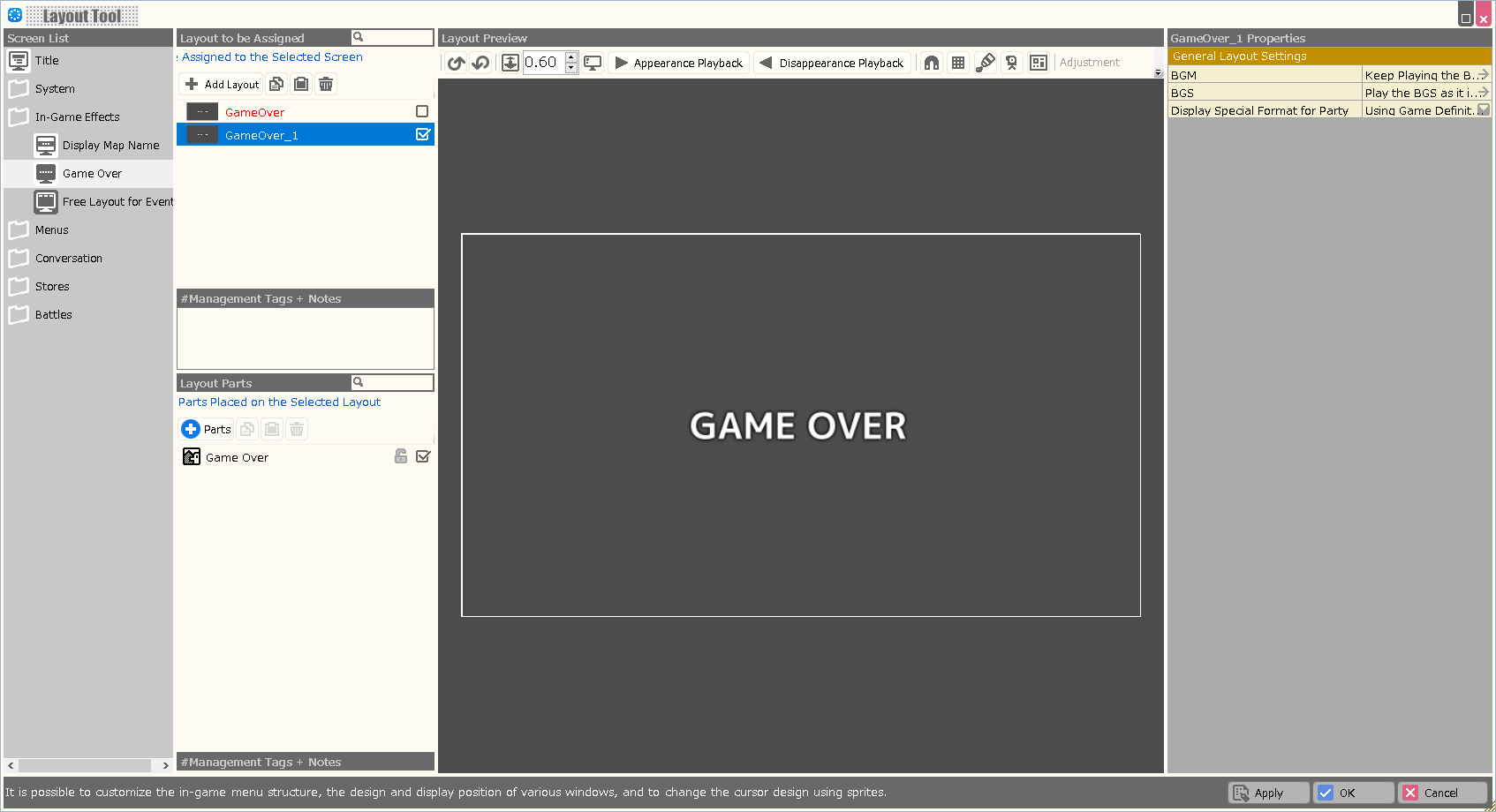
| Property Option | |
| BGM | Specify the background music to be played when this layout is displayed. |
| BGS | Specify the environmental sound to be played when this layout is displayed. |
| Display Special Format for Party | Assign whether to include the reserve members as part of the party when using a special format that deals with information about the party in this layout. |
| Variable to Assign a Selection Result | A value corresponding to the element determined by this layout is assigned to the specified variable. In case of cancellation, -1 is assigned. |
| Variable to Assign a Selection | A value corresponding to the currently selected element in this layout is assigned to the specified variable. In the Enhancement Item Selection screen, the number on the inventory (from 1) is assigned; in other screens, the container number is assigned. |
| Start the Index from 1 | When turned on, when assigning a Selection Result or Selection to a variable, the first element number starts from “1” instead of “0”. |
"Free Layout for Event" is a layout that can be called by the command script "Display Free Layout for Event".
A menu placed on this screen behaves as a "menu equivalent in the "Menu Screen" of the Screen List".
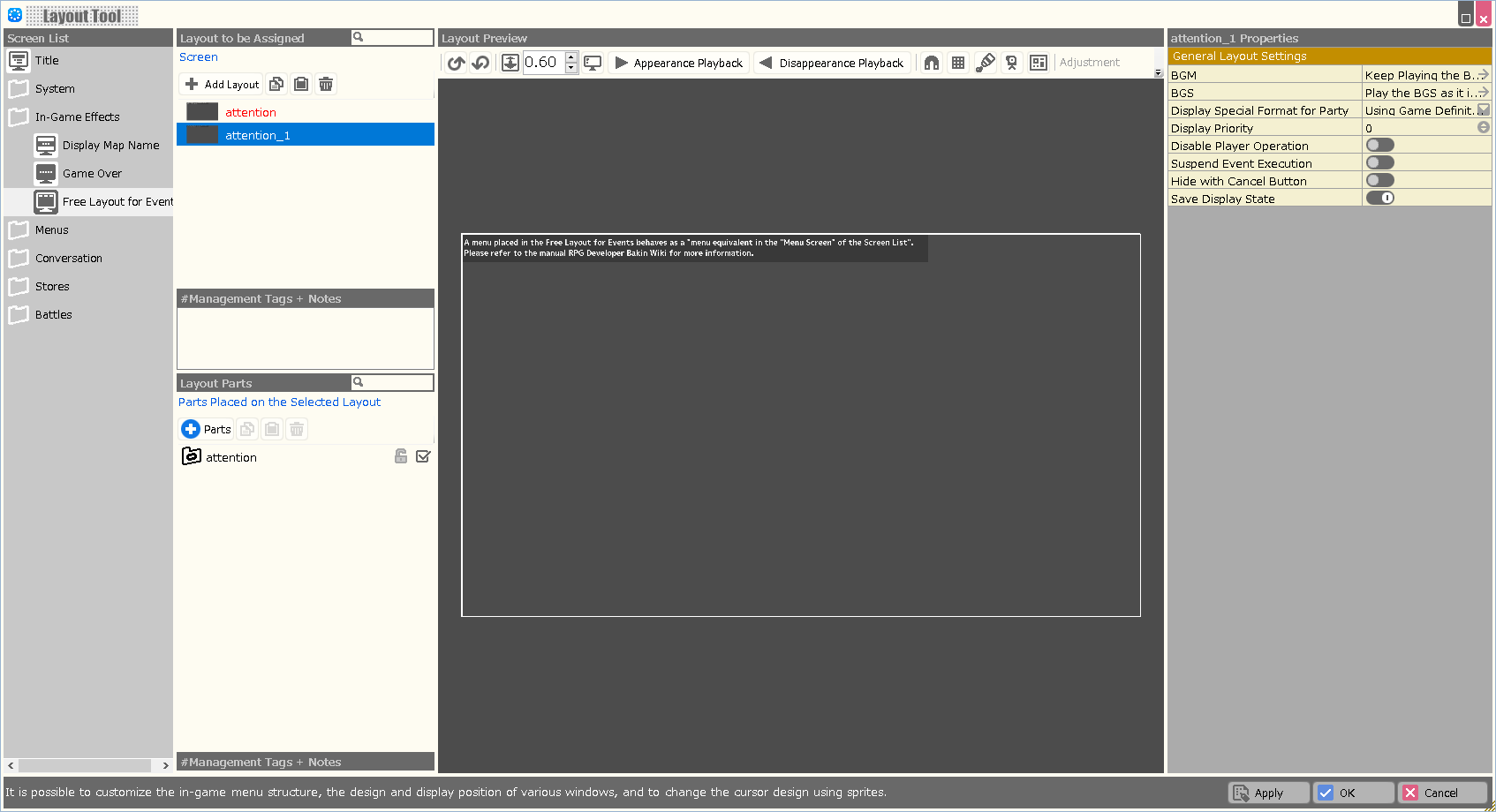
| Property Option | |
| BGM | Specify the background music to be played when this layout is displayed. |
| BGS | Specify the environmental sound to be played when this layout is displayed. |
| Display Special Format for Party | Assign whether to include the reserve members as part of the party when using a special format that deals with information about the party in this layout. |
| Variable to Assign a Selection Result | A value corresponding to the element determined by this layout is assigned to the specified variable. In case of cancellation, -1 is assigned. |
| Variable to Assign a Selection | A value corresponding to the currently selected element in this layout is assigned to the specified variable. In the Enhancement Item Selection screen, the number on the inventory (from 1) is assigned; in other screens, the container number is assigned. |
| Start the Index from 1 | When turned on, when assigning a Selection Result or Selection to a variable, the first element number starts from “1” instead of “0”. |
| Priority | When displaying multiple layouts, you can assign a display priority. The higher the value, the higher the display priority. (Displayed in the foreground) |
| Disable Player Operation | When turned ON, operations other than menu operations are prohibited while this layout is displayed. |
| Suspend Event Execution | When turned ON, event execution is prohibited while this layout is displayed. |
| Hide with Cancel Button | When turned on, this layout will be closed when the Cancel button is pressed during play. |
| Save Display State | When turned ON, the show/hide status of this layout is saved in the save data. |
| Management Tags for Items to be Displayed | Assigning a management tag allows you to limit the items displayed on this screen. Please specify the management tag at Database > Items. |
| Management Tags for Skills to be Displayed | Assigning a management tag allows you to limit the skills displayed on this screen. Please specify the management tag at Database > Skills. |
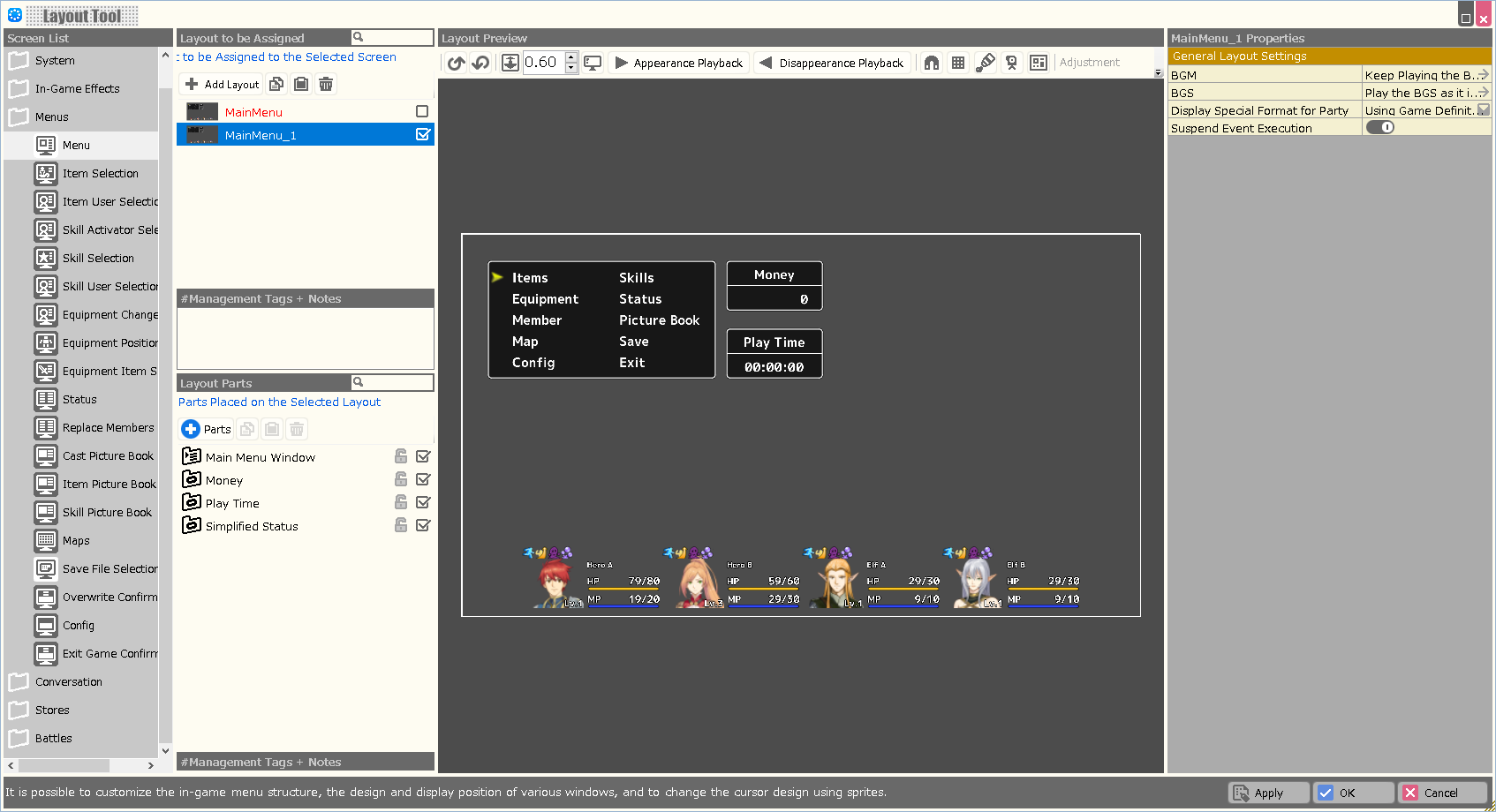
| Property Option | |
| BGM | Specify the background music to be played when this layout is displayed. |
| BGS | Specify the environmental sound to be played when this layout is displayed. |
| Display Special Format for Party | Assign whether to include the reserve members as part of the party when using a special format that deals with information about the party in this layout. |
| Variable to Assign a Selection Result | A value corresponding to the element determined by this layout is assigned to the specified variable. In case of cancellation, -1 is assigned. |
| Variable to Assign a Selection | A value corresponding to the currently selected element in this layout is assigned to the specified variable. In the Enhancement Item Selection screen, the number on the inventory (from 1) is assigned; in other screens, the container number is assigned. |
| Start the Index from 1 | When turned on, when assigning a Selection Result or Selection to a variable, the first element number starts from “1” instead of “0”. |
| Suspend Event Execution | When turned ON, event execution is prohibited while this layout is displayed. |
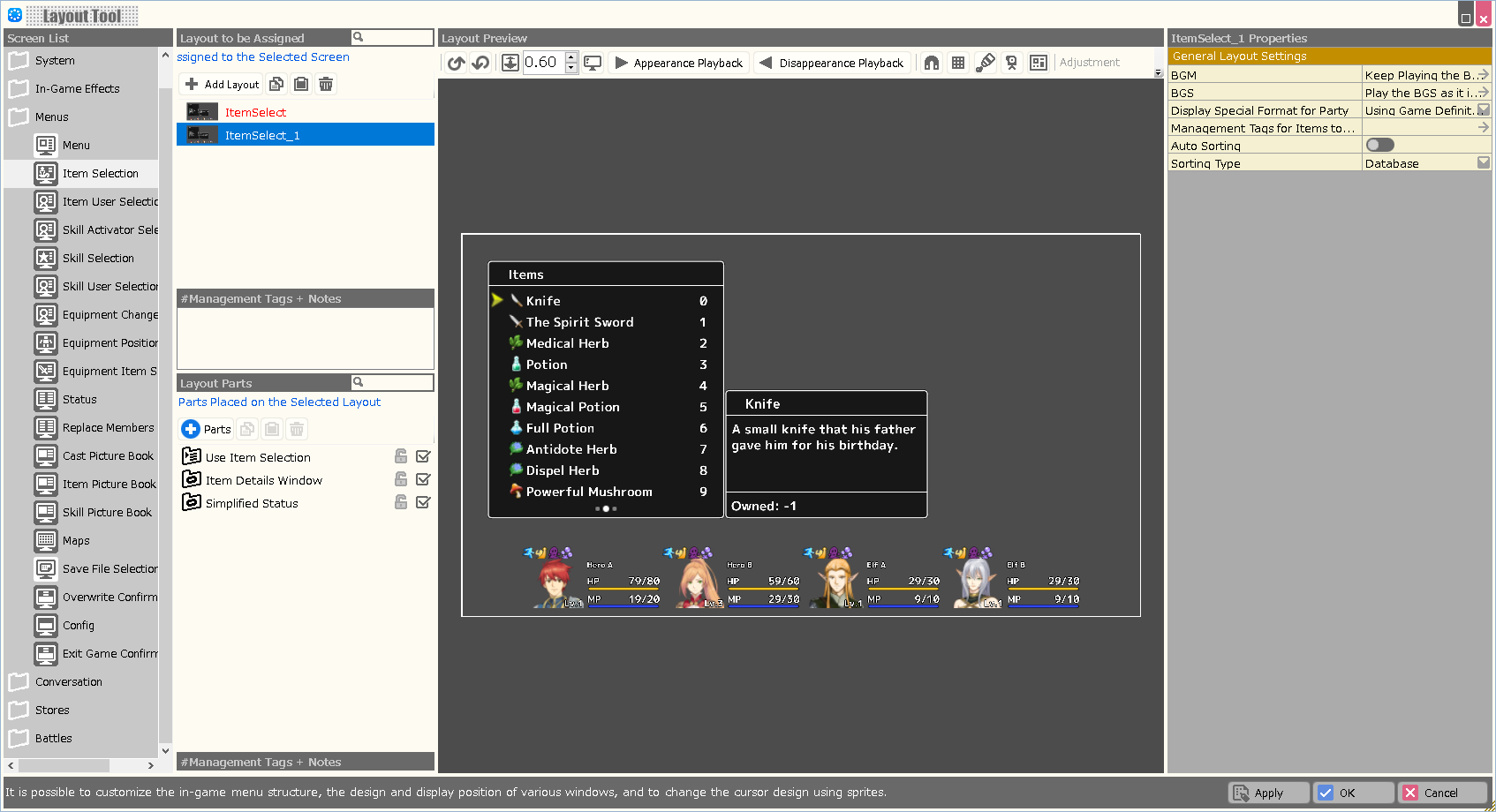
| Property Option | |
| BGM | Specify the background music to be played when this layout is displayed. |
| BGS | Specify the environmental sound to be played when this layout is displayed. |
| Display Special Format for Party | Assign whether to include the reserve members as part of the party when using a special format that deals with information about the party in this layout. |
| Variable to Assign a Selection Result | A value corresponding to the element determined by this layout is assigned to the specified variable. In case of cancellation, -1 is assigned. |
| Variable to Assign a Selection | A value corresponding to the currently selected element in this layout is assigned to the specified variable. In the Enhancement Item Selection screen, the number on the inventory (from 1) is assigned; in other screens, the container number is assigned. |
| Start the Index from 1 | When turned on, when assigning a Selection Result or Selection to a variable, the first element number starts from “1” instead of “0”. |
| Management Tags for Items to be Displayed | Assigning a management tag allows you to limit the items displayed on this screen. Please specify the management tag at Database > Items. |
| Auto Sorting | When turned ON, the selections displayed in the layout are automatically sorted when this layout is opened. |
| Sorting Type | Assign the rule for sorting when "Auto Sorting" is turned on, from among Obtained Order/ Database/ Name. |
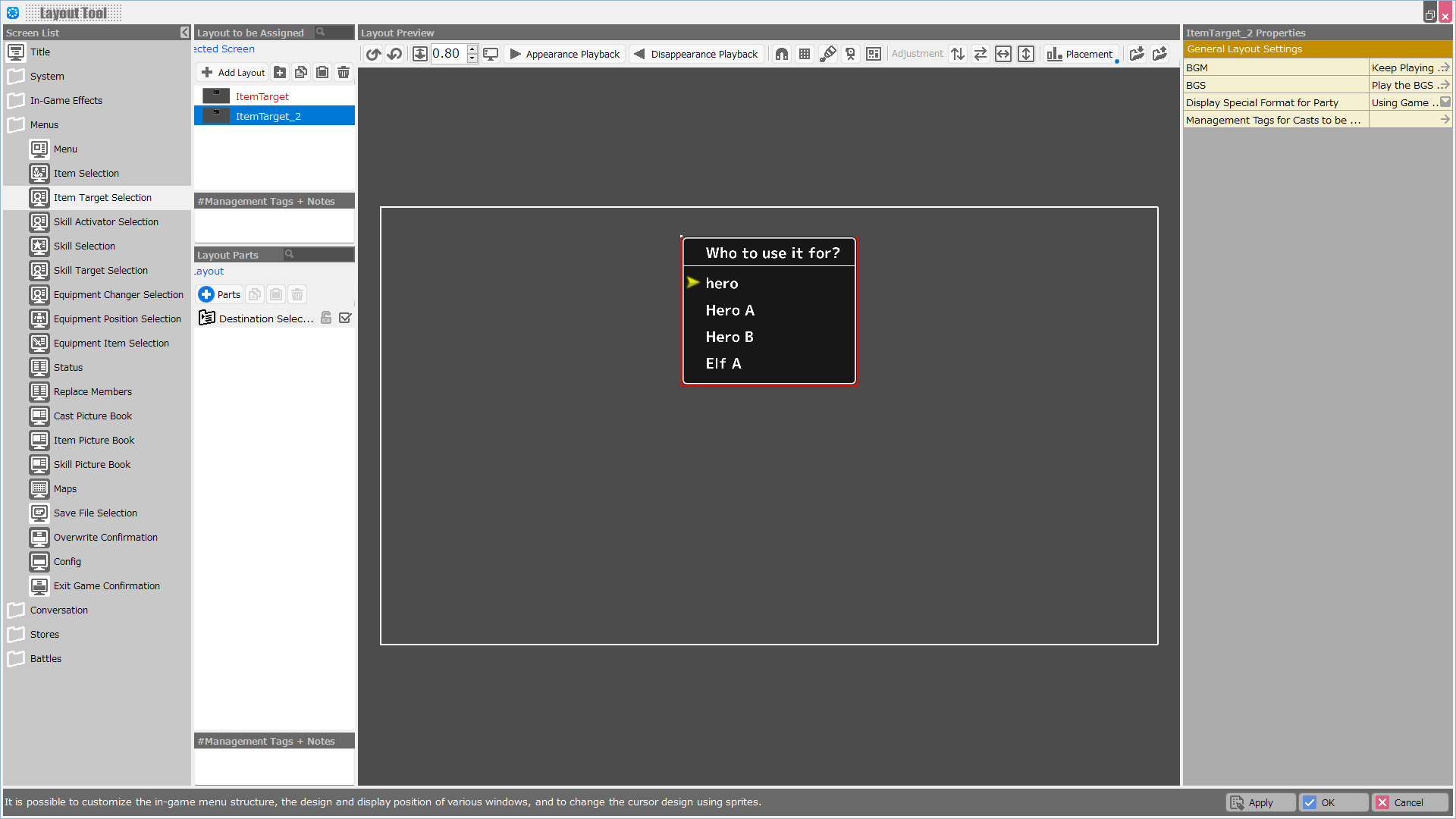
| Property Option | |
| BGM | Specify the background music to be played when this layout is displayed. |
| BGS | Specify the environmental sound to be played when this layout is displayed. |
| Display Special Format for Party | Assign whether to include the reserve members as part of the party when using a special format that deals with information about the party in this layout. |
| Variable to Assign a Selection Result | A value corresponding to the element determined by this layout is assigned to the specified variable. In case of cancellation, -1 is assigned. |
| Variable to Assign a Selection | A value corresponding to the currently selected element in this layout is assigned to the specified variable. In the Enhancement Item Selection screen, the number on the inventory (from 1) is assigned; in other screens, the container number is assigned. |
| Start the Index from 1 | When turned on, when assigning a Selection Result or Selection to a variable, the first element number starts from “1” instead of “0”. |
| Management Tags for Casts to be Displayed | Assigning a management tag allows you to limit the number of casts displayed on this screen. The management tag should be specified at Database > Casts. |
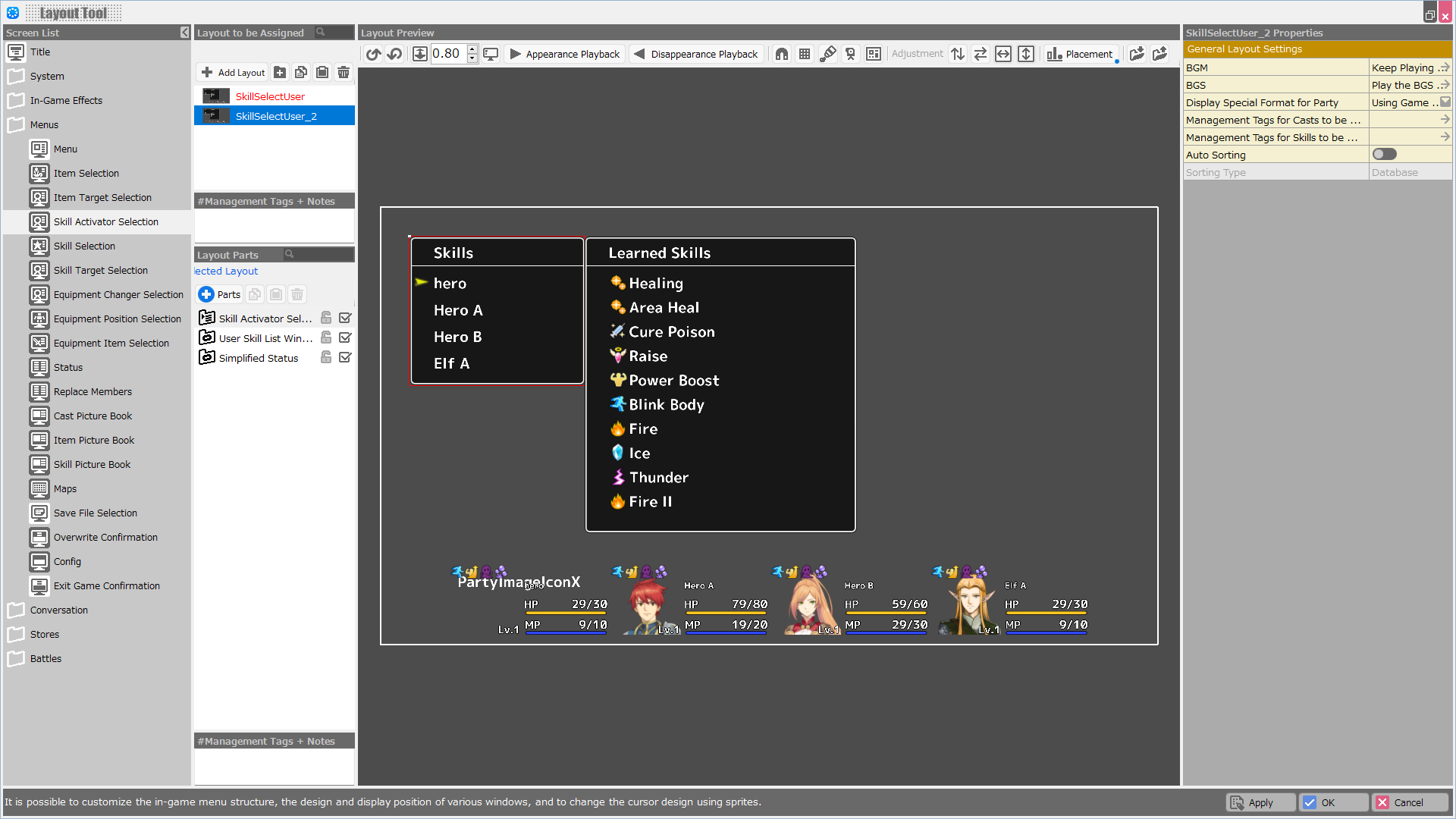
| Property Option | |
| BGM | Specify the background music to be played when this layout is displayed. |
| BGS | Specify the environmental sound to be played when this layout is displayed. |
| Display Special Format for Party | Assign whether to include the reserve members as part of the party when using a special format that deals with information about the party in this layout. |
| Variable to Assign a Selection Result | A value corresponding to the element determined by this layout is assigned to the specified variable. In case of cancellation, -1 is assigned. |
| Variable to Assign a Selection | A value corresponding to the currently selected element in this layout is assigned to the specified variable. In the Enhancement Item Selection screen, the number on the inventory (from 1) is assigned; in other screens, the container number is assigned. |
| Start the Index from 1 | When turned on, when assigning a Selection Result or Selection to a variable, the first element number starts from “1” instead of “0”. |
| Management Tags for Casts to be Displayed | Assigning a management tag allows you to limit the number of casts displayed on this screen. The management tag should be specified at Database > Casts. |
| Management Tags for Skills to be Displayed | Assigning a management tag allows you to limit the skills displayed on this screen. Please specify the management tag at Database > Skills. |
| Auto Sorting | When turned ON, the selections displayed in the layout are automatically sorted when this layout is opened. |
| Sorting Type | Assign the rule for sorting when "Auto Sorting" is turned on, from among Obtained Order/ Database/ Name. |
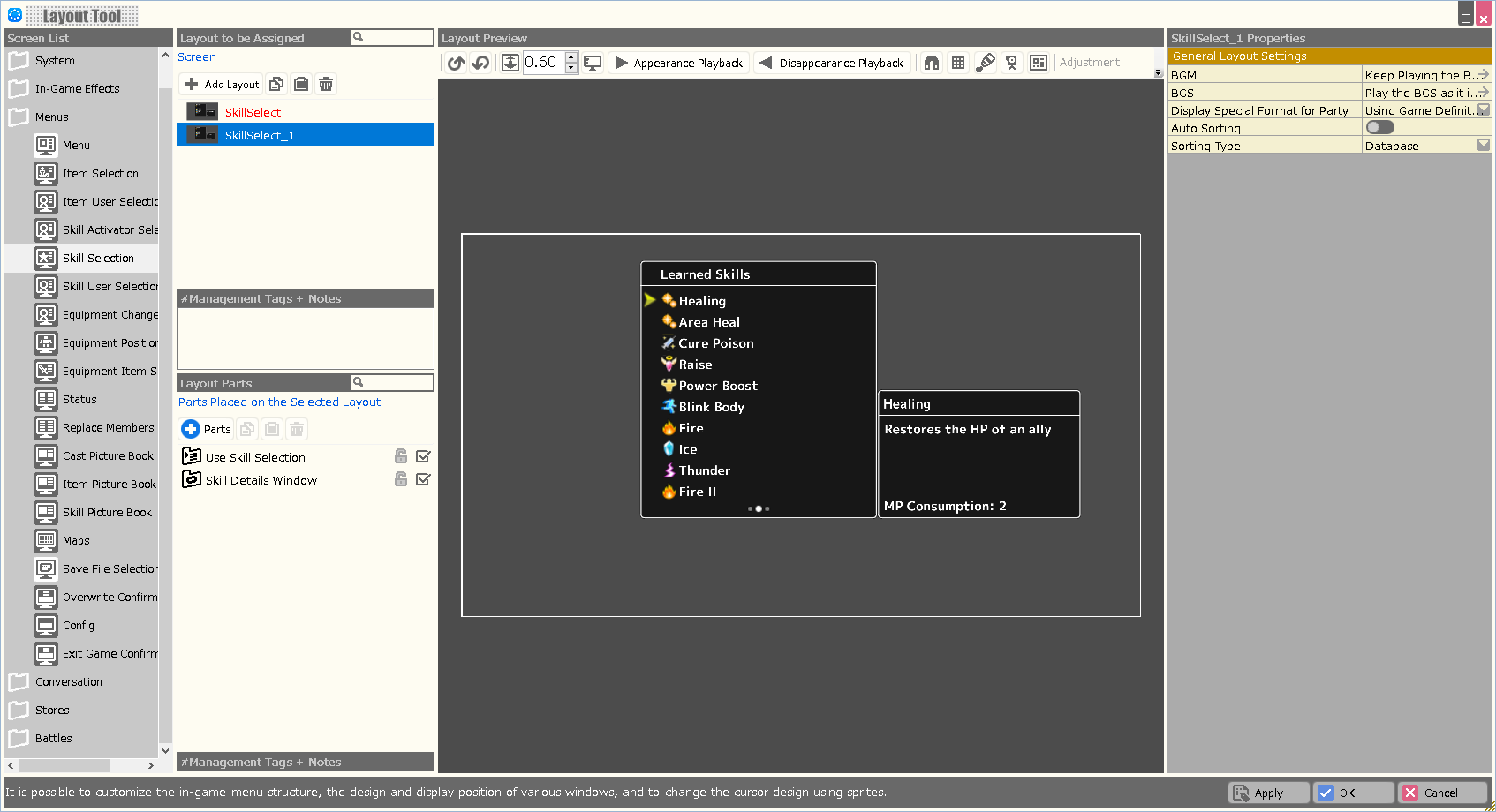
| Property Option | |
| BGM | Specify the background music to be played when this layout is displayed. |
| BGS | Specify the environmental sound to be played when this layout is displayed. |
| Display Special Format for Party | Assign whether to include the reserve members as part of the party when using a special format that deals with information about the party in this layout. |
| Variable to Assign a Selection Result | A value corresponding to the element determined by this layout is assigned to the specified variable. In case of cancellation, -1 is assigned. |
| Variable to Assign a Selection | A value corresponding to the currently selected element in this layout is assigned to the specified variable. In the Enhancement Item Selection screen, the number on the inventory (from 1) is assigned; in other screens, the container number is assigned. |
| Start the Index from 1 | When turned on, when assigning a Selection Result or Selection to a variable, the first element number starts from “1” instead of “0”. |
| Management Tags for Skills to be Displayed | Assigning a management tag allows you to limit the skills displayed on this screen. Please specify the management tag at Database > Skills. |
| Auto Sorting | When turned ON, the selections displayed in the layout are automatically sorted when this layout is opened. |
| Sorting Type | Assign the rule for sorting when "Auto Sorting" is turned on, from among Obtained Order/ Database/ Name. |
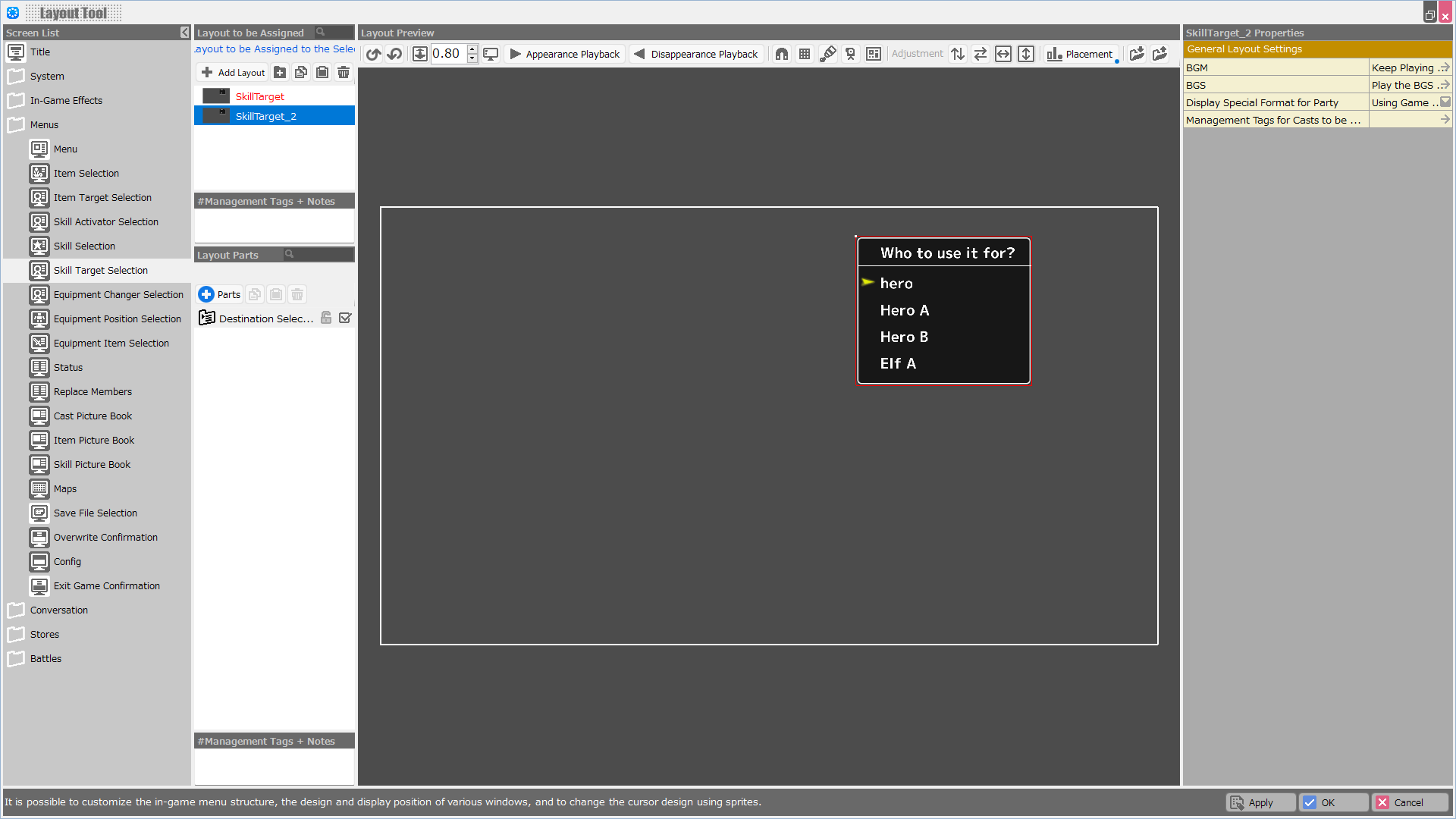
| Property Option | |
| BGM | Specify the background music to be played when this layout is displayed. |
| BGS | Specify the environmental sound to be played when this layout is displayed. |
| Display Special Format for Party | Assign whether to include the reserve members as part of the party when using a special format that deals with information about the party in this layout. |
| Variable to Assign a Selection Result | A value corresponding to the element determined by this layout is assigned to the specified variable. In case of cancellation, -1 is assigned. |
| Variable to Assign a Selection | A value corresponding to the currently selected element in this layout is assigned to the specified variable. In the Enhancement Item Selection screen, the number on the inventory (from 1) is assigned; in other screens, the container number is assigned. |
| Start the Index from 1 | When turned on, when assigning a Selection Result or Selection to a variable, the first element number starts from “1” instead of “0”. |
| Management Tags for Casts to be Displayed | Assigning a management tag allows you to limit the number of casts displayed on this screen. The management tag should be specified at Database > Casts. |
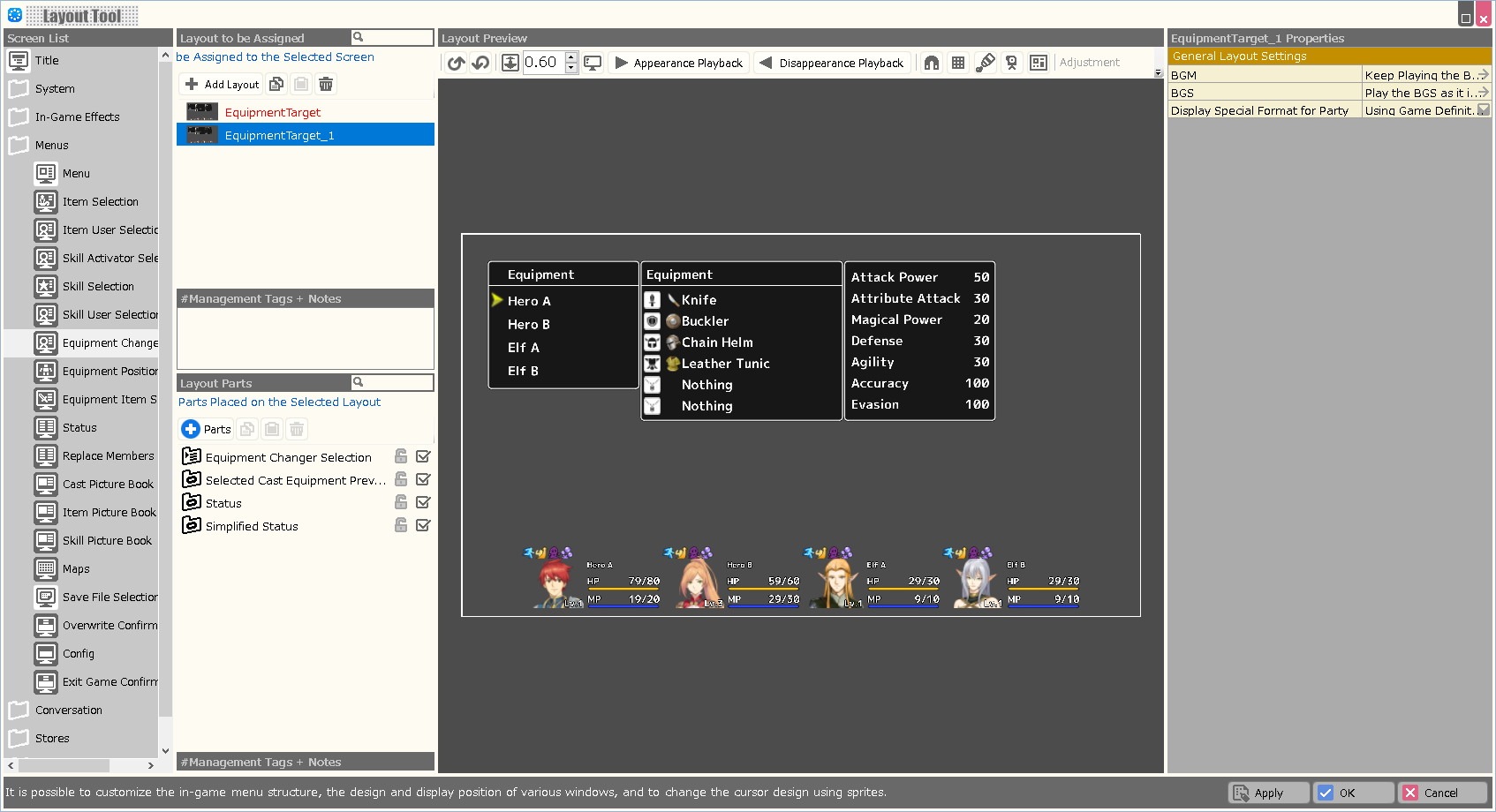
| Property Option | |
| BGM | Specify the background music to be played when this layout is displayed. |
| BGS | Specify the environmental sound to be played when this layout is displayed. |
| Display Special Format for Party | Assign whether to include the reserve members as part of the party when using a special format that deals with information about the party in this layout. |
| Variable to Assign a Selection Result | A value corresponding to the element determined by this layout is assigned to the specified variable. In case of cancellation, -1 is assigned. |
| Variable to Assign a Selection | A value corresponding to the currently selected element in this layout is assigned to the specified variable. In the Enhancement Item Selection screen, the number on the inventory (from 1) is assigned; in other screens, the container number is assigned. |
| Start the Index from 1 | When turned on, when assigning a Selection Result or Selection to a variable, the first element number starts from “1” instead of “0”. |
| Management Tags for Casts to be Displayed | Assigning a management tag allows you to limit the number of casts displayed on this screen. The management tag should be specified at Database > Casts. |
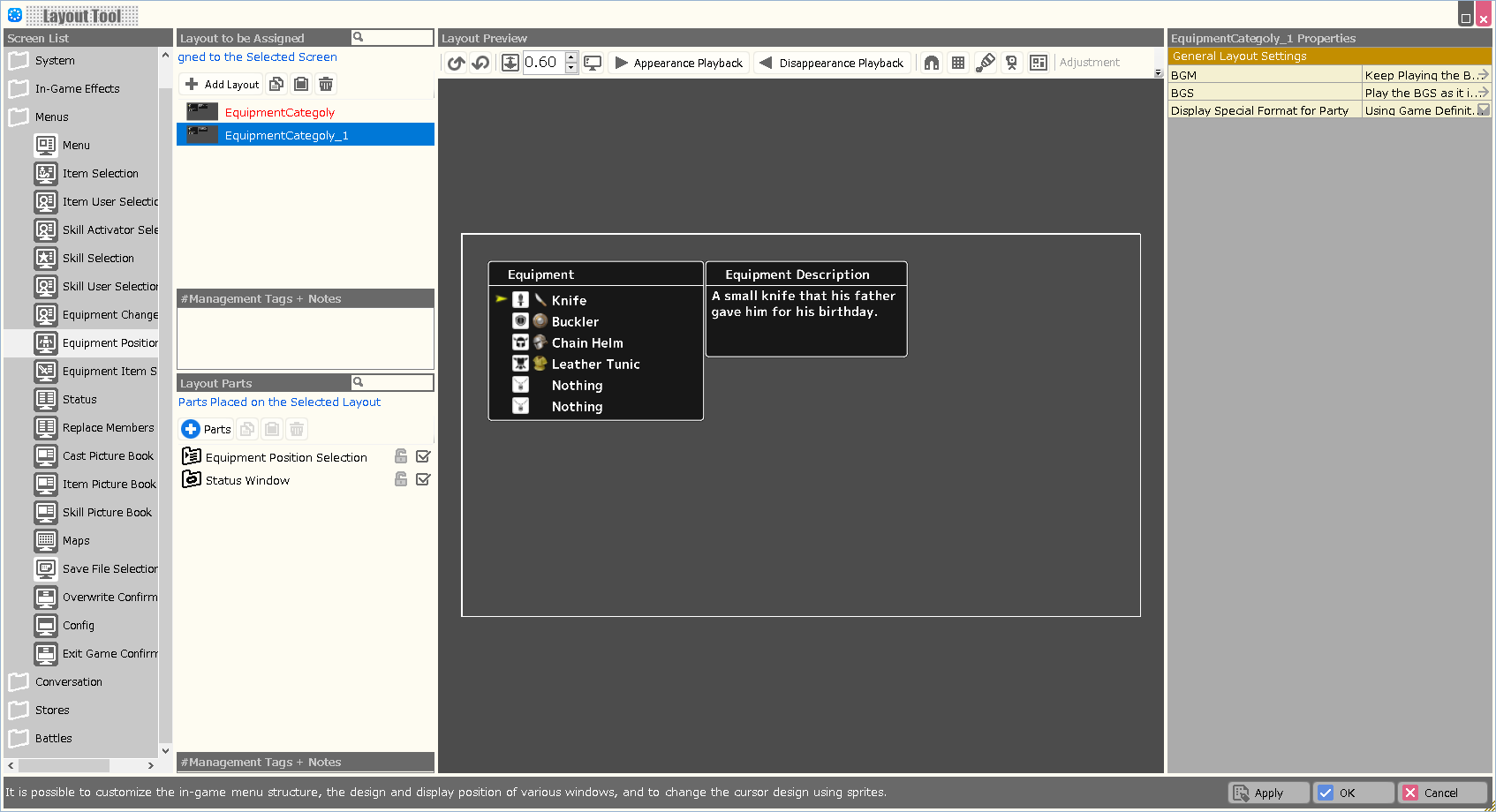
| Property Option | |
| BGM | Specify the background music to be played when this layout is displayed. |
| BGS | Specify the environmental sound to be played when this layout is displayed. |
| Display Special Format for Party | Assign whether to include the reserve members as part of the party when using a special format that deals with information about the party in this layout. |
| Variable to Assign a Selection Result | A value corresponding to the element determined by this layout is assigned to the specified variable. In case of cancellation, -1 is assigned. |
| Variable to Assign a Selection | A value corresponding to the currently selected element in this layout is assigned to the specified variable. In the Enhancement Item Selection screen, the number on the inventory (from 1) is assigned; in other screens, the container number is assigned. |
| Start the Index from 1 | When turned on, when assigning a Selection Result or Selection to a variable, the first element number starts from “1” instead of “0”. |
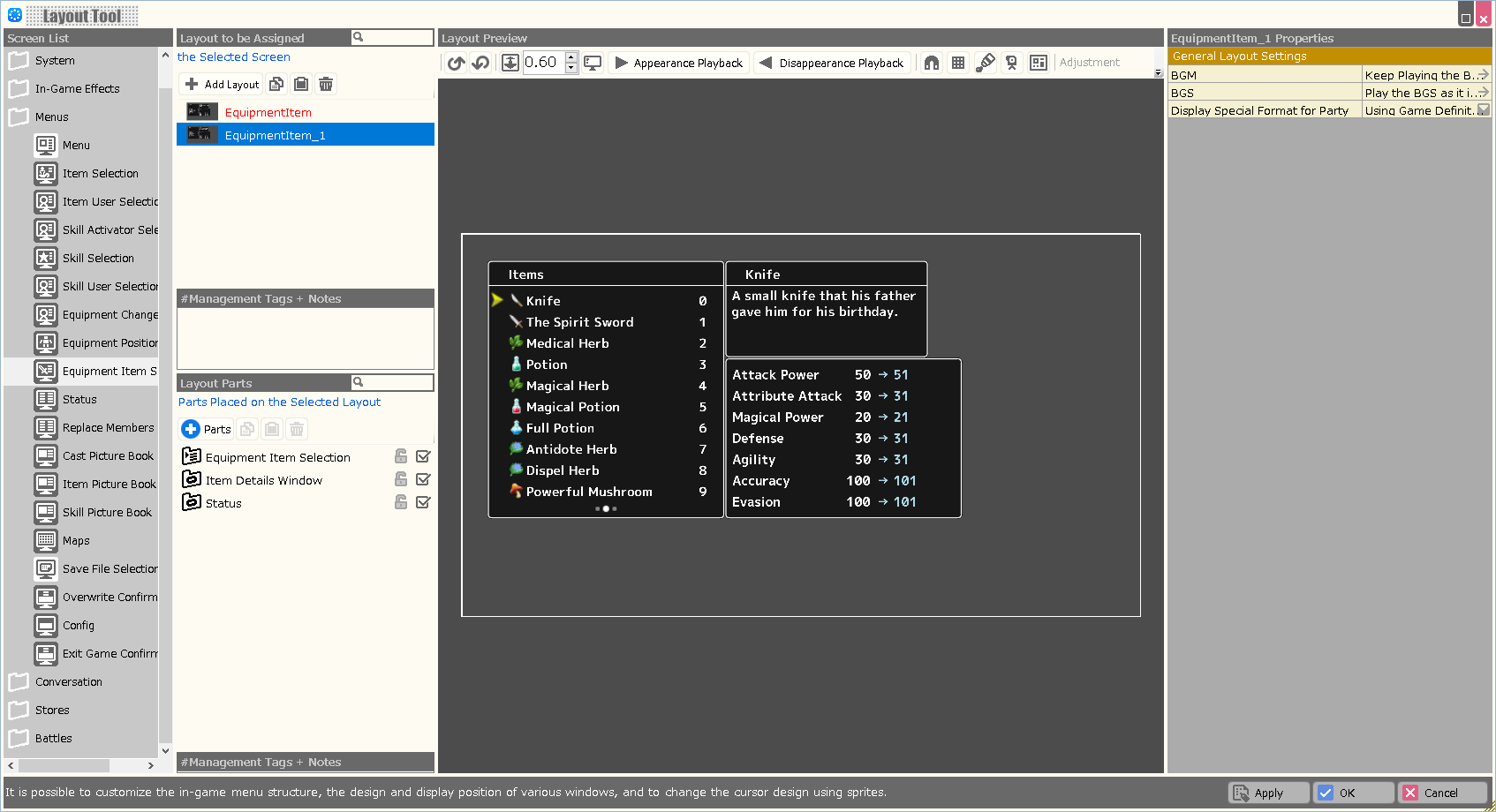
| Property Option | |
| BGM | Specify the background music to be played when this layout is displayed. |
| BGS | Specify the environmental sound to be played when this layout is displayed. |
| Display Special Format for Party | Assign whether to include the reserve members as part of the party when using a special format that deals with information about the party in this layout. |
| Variable to Assign a Selection Result | A value corresponding to the element determined by this layout is assigned to the specified variable. In case of cancellation, -1 is assigned. |
| Variable to Assign a Selection | A value corresponding to the currently selected element in this layout is assigned to the specified variable. In the Enhancement Item Selection screen, the number on the inventory (from 1) is assigned; in other screens, the container number is assigned. |
| Start the Index from 1 | When turned on, when assigning a Selection Result or Selection to a variable, the first element number starts from “1” instead of “0”. |
| Management Tags for Items to be Displayed | Assigning a management tag allows you to limit the items displayed on this screen. Please specify the management tag at Database > Items. |
| Auto Sorting | When turned ON, the selections displayed in the layout are automatically sorted when this layout is opened. |
| Sorting Type | Assign the rule for sorting when "Auto Sorting" is turned on, from among Obtained Order/ Database/ Name. |
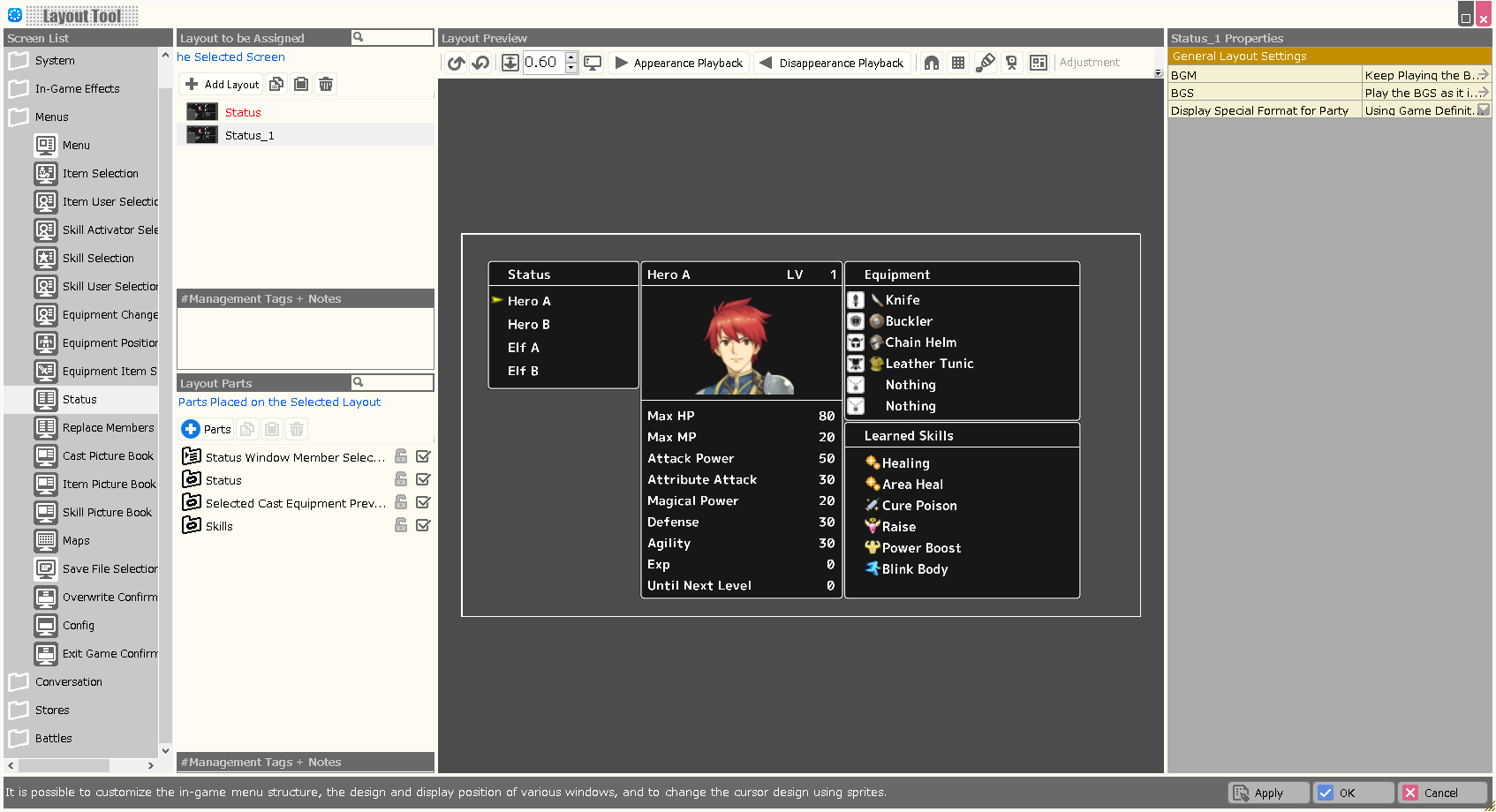
| Property Option | |
| BGM | Specify the background music to be played when this layout is displayed. |
| BGS | Specify the environmental sound to be played when this layout is displayed. |
| Display Special Format for Party | Assign whether to include the reserve members as part of the party when using a special format that deals with information about the party in this layout. |
| Variable to Assign a Selection Result | A value corresponding to the element determined by this layout is assigned to the specified variable. In case of cancellation, -1 is assigned. |
| Variable to Assign a Selection | A value corresponding to the currently selected element in this layout is assigned to the specified variable. In the Enhancement Item Selection screen, the number on the inventory (from 1) is assigned; in other screens, the container number is assigned. |
| Start the Index from 1 | When turned on, when assigning a Selection Result or Selection to a variable, the first element number starts from “1” instead of “0”. |
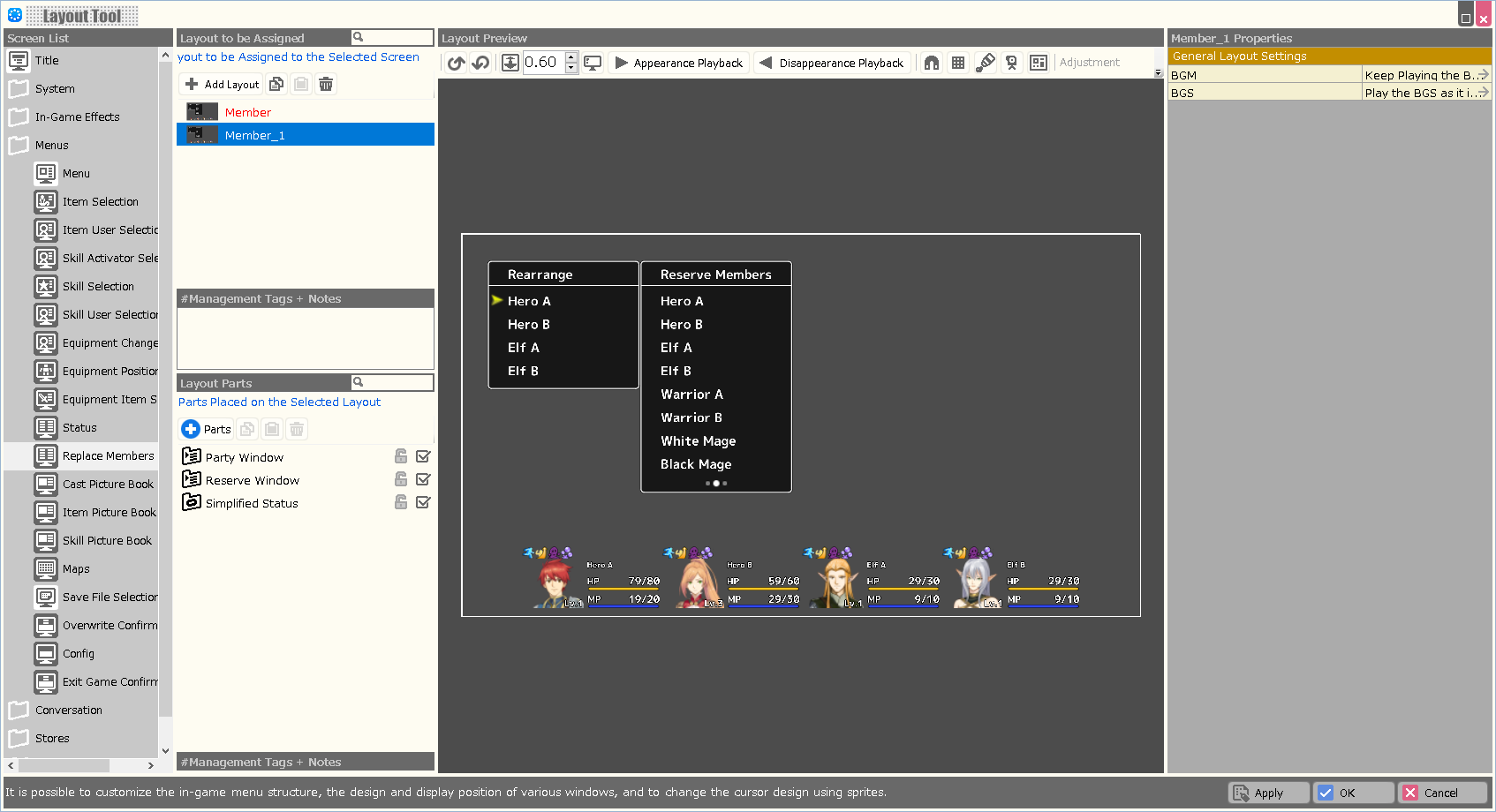
| Property Option | |
| BGM | Specify the background music to be played when this layout is displayed. |
| BGS | Specify the environmental sound to be played when this layout is displayed. |
| Variable to Assign a Selection Result | A value corresponding to the element determined by this layout is assigned to the specified variable. In case of cancellation, -1 is assigned. |
| Variable to Assign a Selection | A value corresponding to the currently selected element in this layout is assigned to the specified variable. In the Enhancement Item Selection screen, the number on the inventory (from 1) is assigned; in other screens, the container number is assigned. |
| Start the Index from 1 | When turned on, when assigning a Selection Result or Selection to a variable, the first element number starts from “1” instead of “0”. |
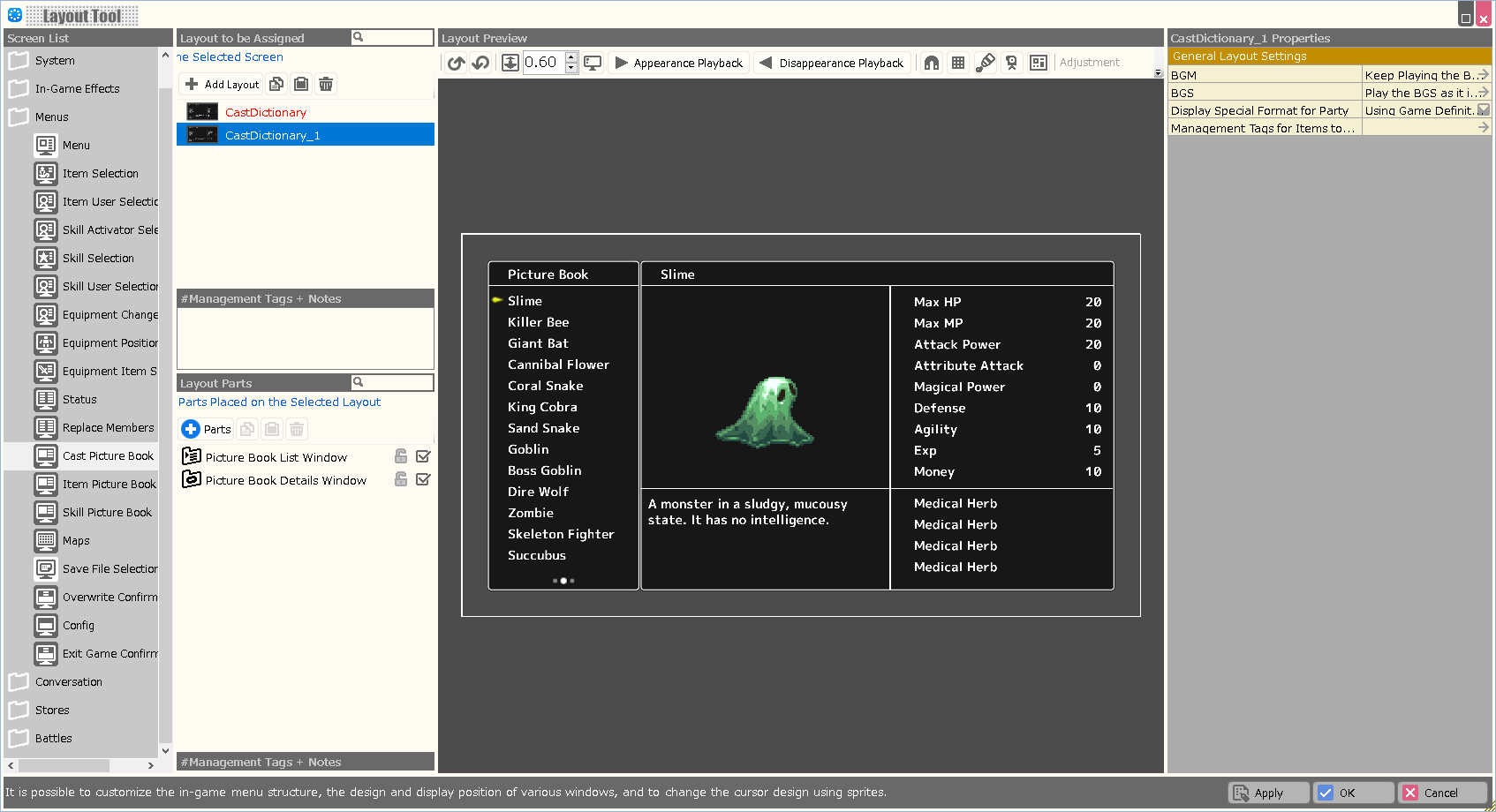
| Property Option | |
| BGM | Specify the background music to be played when this layout is displayed. |
| BGS | Specify the environmental sound to be played when this layout is displayed. |
| Display Special Format for Party | Assign whether to include the reserve members as part of the party when using a special format that deals with information about the party in this layout. |
| Variable to Assign a Selection Result | A value corresponding to the element determined by this layout is assigned to the specified variable. In case of cancellation, -1 is assigned. |
| Variable to Assign a Selection | A value corresponding to the currently selected element in this layout is assigned to the specified variable. In the Enhancement Item Selection screen, the number on the inventory (from 1) is assigned; in other screens, the container number is assigned. |
| Start the Index from 1 | When turned on, when assigning a Selection Result or Selection to a variable, the first element number starts from “1” instead of “0”. |
| Management Tags for Casts to be Displayed | Assigning a management tag allows you to limit the number of casts displayed on this screen. The management tag should be specified at Database > Casts. |
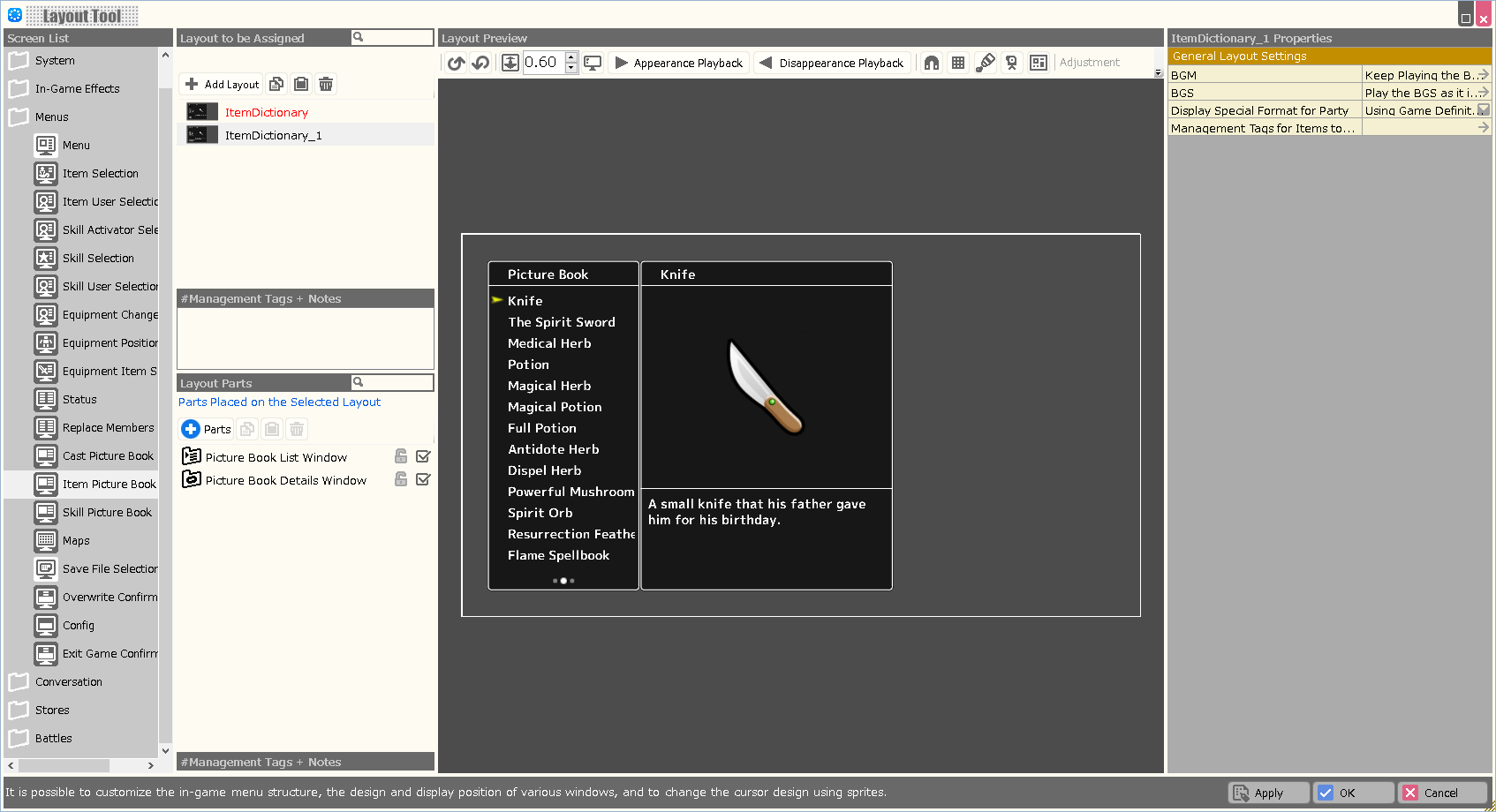
| Property Option | |
| BGM | Specify the background music to be played when this layout is displayed. |
| BGS | Specify the environmental sound to be played when this layout is displayed. |
| Display Special Format for Party | Assign whether to include the reserve members as part of the party when using a special format that deals with information about the party in this layout. |
| Variable to Assign a Selection Result | A value corresponding to the element determined by this layout is assigned to the specified variable. In case of cancellation, -1 is assigned. |
| Variable to Assign a Selection | A value corresponding to the currently selected element in this layout is assigned to the specified variable. In the Enhancement Item Selection screen, the number on the inventory (from 1) is assigned; in other screens, the container number is assigned. |
| Start the Index from 1 | When turned on, when assigning a Selection Result or Selection to a variable, the first element number starts from “1” instead of “0”. |
| Management Tags for Items to be Displayed | Assigning a management tag allows you to limit the items displayed on this screen. Please specify the management tag at Database > Items. |
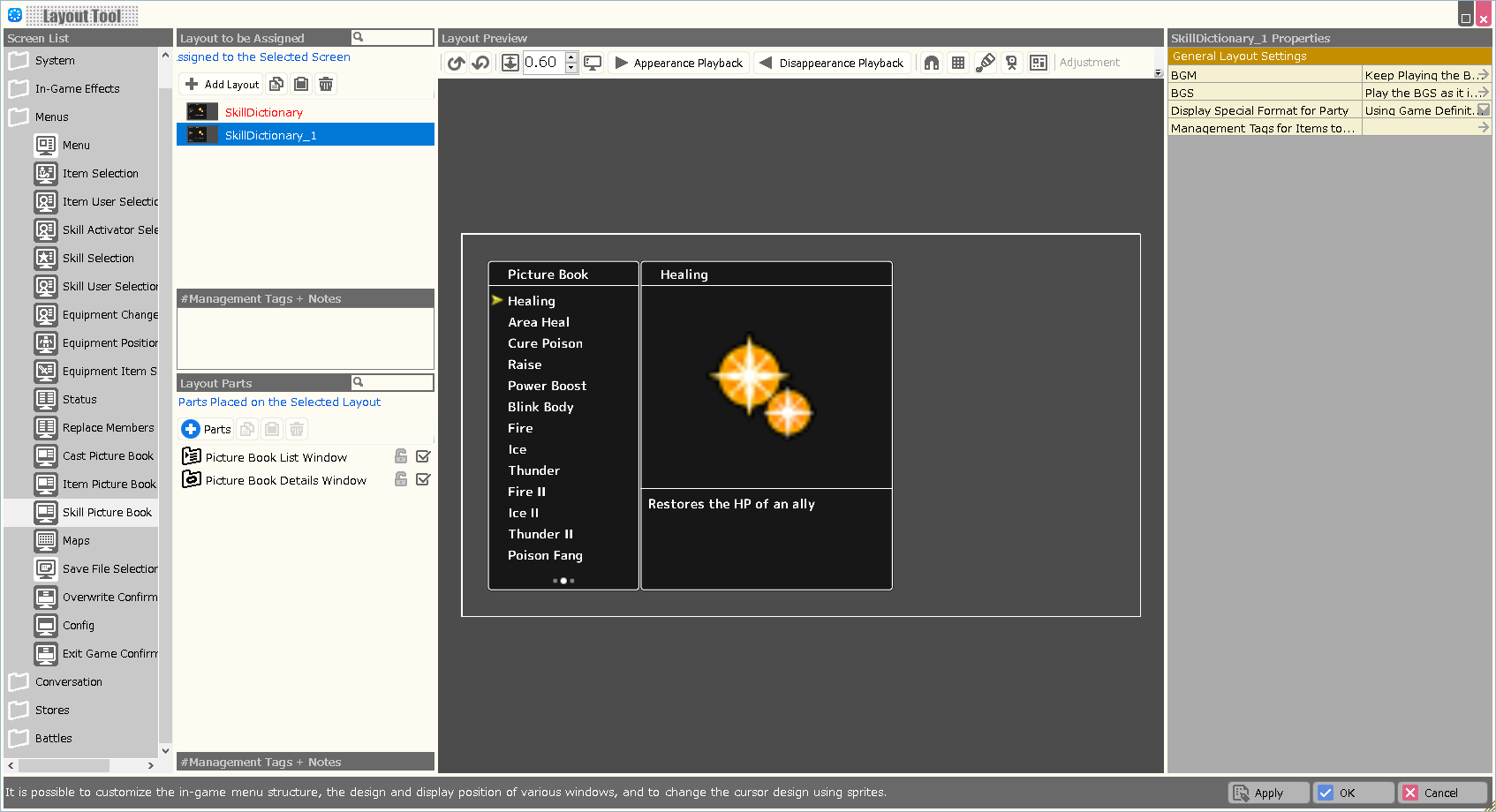
| Property Option | |
| BGM | Specify the background music to be played when this layout is displayed. |
| BGS | Specify the environmental sound to be played when this layout is displayed. |
| Display Special Format for Party | Assign whether to include the reserve members as part of the party when using a special format that deals with information about the party in this layout. |
| Variable to Assign a Selection Result | A value corresponding to the element determined by this layout is assigned to the specified variable. In case of cancellation, -1 is assigned. |
| Variable to Assign a Selection | A value corresponding to the currently selected element in this layout is assigned to the specified variable. In the Enhancement Item Selection screen, the number on the inventory (from 1) is assigned; in other screens, the container number is assigned. |
| Start the Index from 1 | When turned on, when assigning a Selection Result or Selection to a variable, the first element number starts from “1” instead of “0”. |
| Management Tags for Skills to be Displayed | Assigning a management tag allows you to limit the skills displayed on this screen. Please specify the management tag at Database > Skills. |
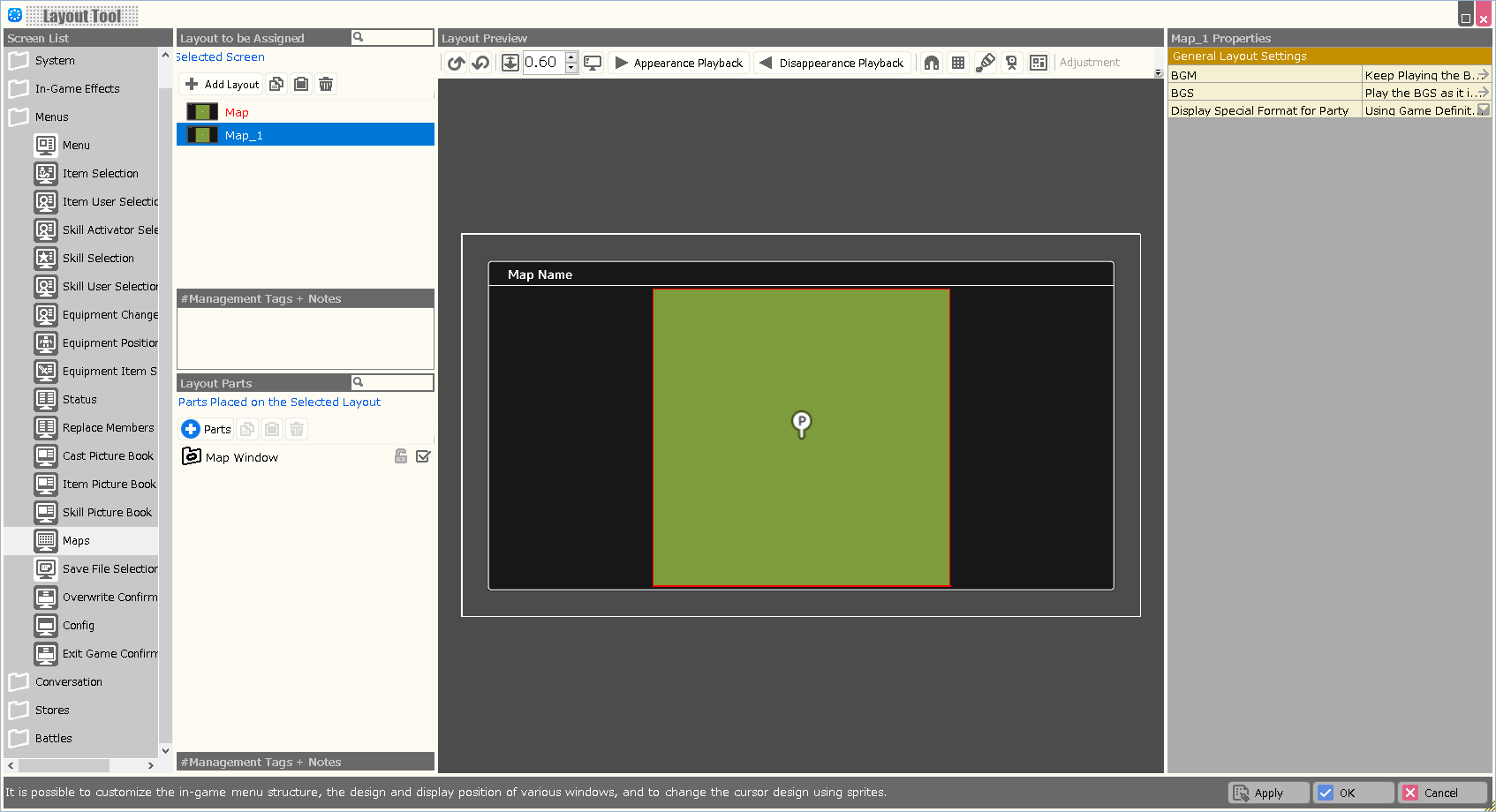
| Property Option | |
| BGM | Specify the background music to be played when this layout is displayed. |
| BGS | Specify the environmental sound to be played when this layout is displayed. |
| Display Special Format for Party | Assign whether to include the reserve members as part of the party when using a special format that deals with information about the party in this layout. |
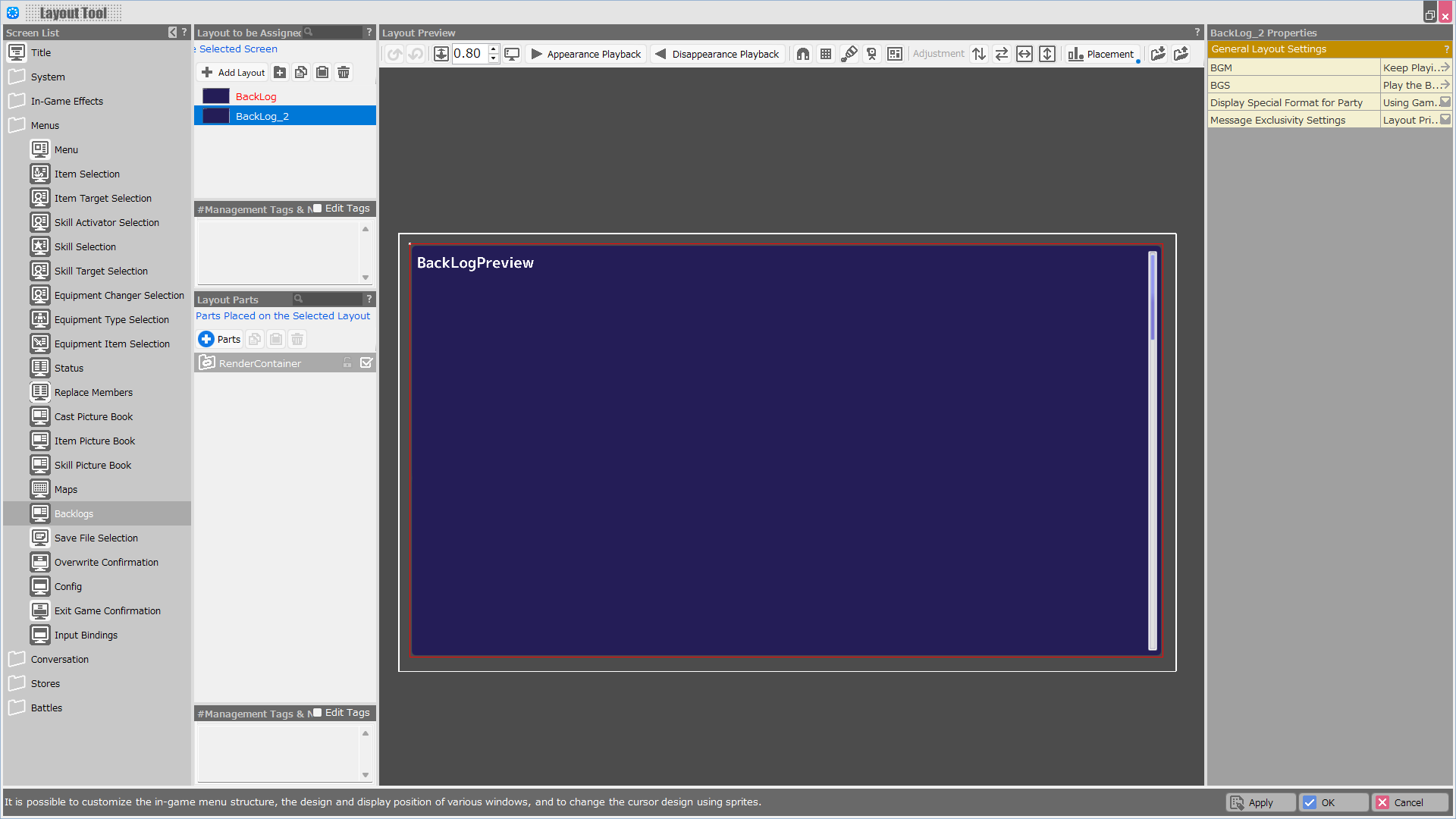
This screen allows you to view the backlog, which is mainly saved text displayed in the game.
In this screen, a scrollbar can be displayed by setting the Special Coordinate Specification Tag “ScrollBar” to the rendering container.
The page can also be switched by entering left or right.
| Property Option | |
| BGM | Set the background music to be played when this layout is displayed. |
| BGS | Set the environmental sound to be played when this layout is displayed. |
| Display Special Format for Party | Specify whether to include the reserve members as a party when using a special format that handles information about the party in this layout. |
| Variable to Assign a Selection Result | A value corresponding to the element determined by this layout is assigned to the specified variable. In case of cancellation, -1 is assigned. |
| Variable to Assign a Selection | A value corresponding to the currently selected element in this layout is assigned to the specified variable. In the Enhancement Item Selection screen, the number on the inventory (from 1) is assigned; in other screens, the container number is assigned. |
| Start the Index from 1 | When turned on, when assigning a Selection Result or Selection to a variable, the first element number starts from “1” instead of “0”. |
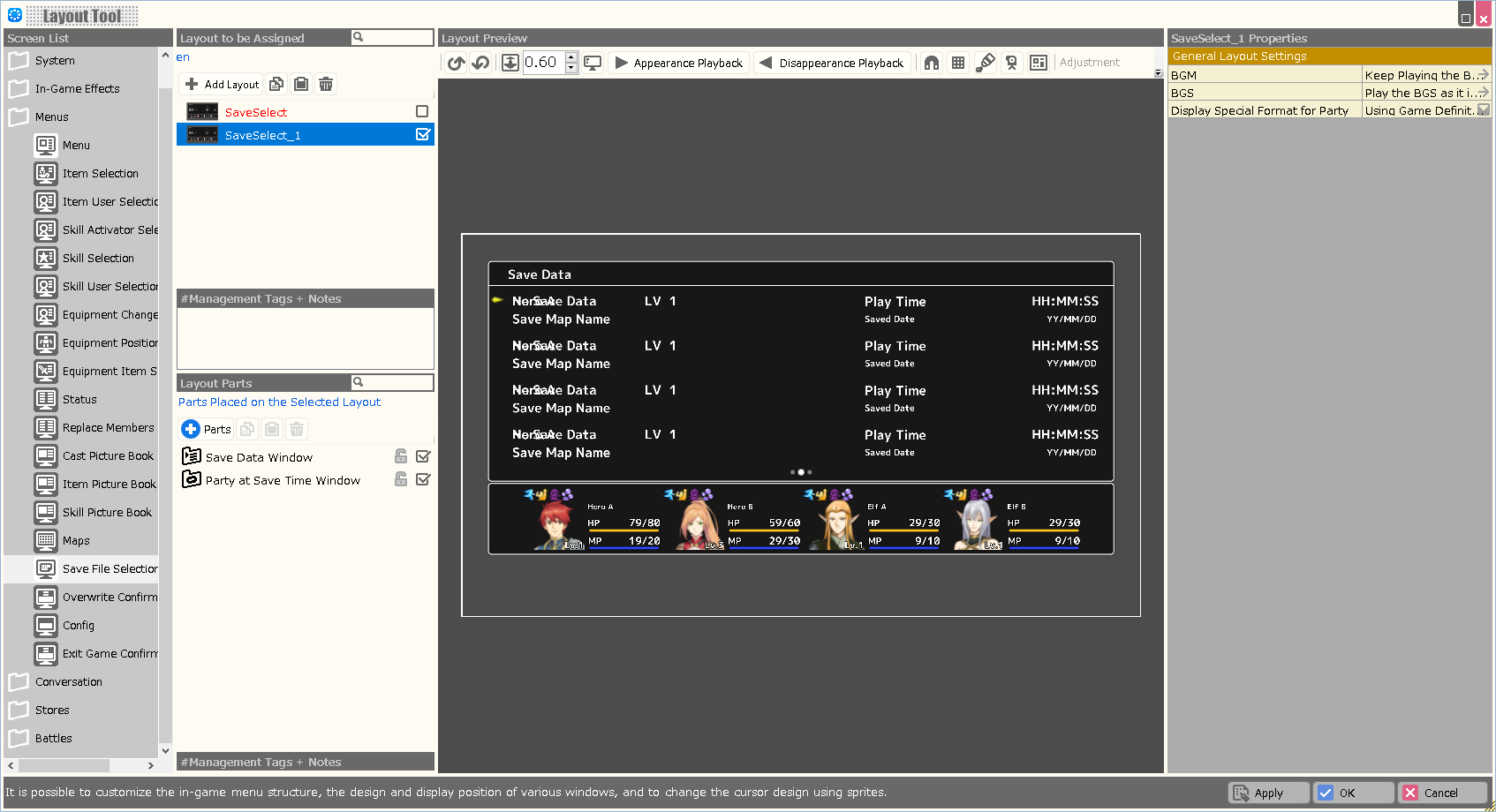
| Property Option | |
| BGM | Specify the background music to be played when this layout is displayed. |
| BGS | Specify the environmental sound to be played when this layout is displayed. |
| Display Special Format for Party | Assign whether to include the reserve members as part of the party when using a special format that deals with information about the party in this layout. |
| Variable to Assign a Selection Result | A value corresponding to the element determined by this layout is assigned to the specified variable. In case of cancellation, -1 is assigned. |
| Variable to Assign a Selection | A value corresponding to the currently selected element in this layout is assigned to the specified variable. In the Enhancement Item Selection screen, the number on the inventory (from 1) is assigned; in other screens, the container number is assigned. |
| Start the Index from 1 | When turned on, when assigning a Selection Result or Selection to a variable, the first element number starts from “1” instead of “0”. |
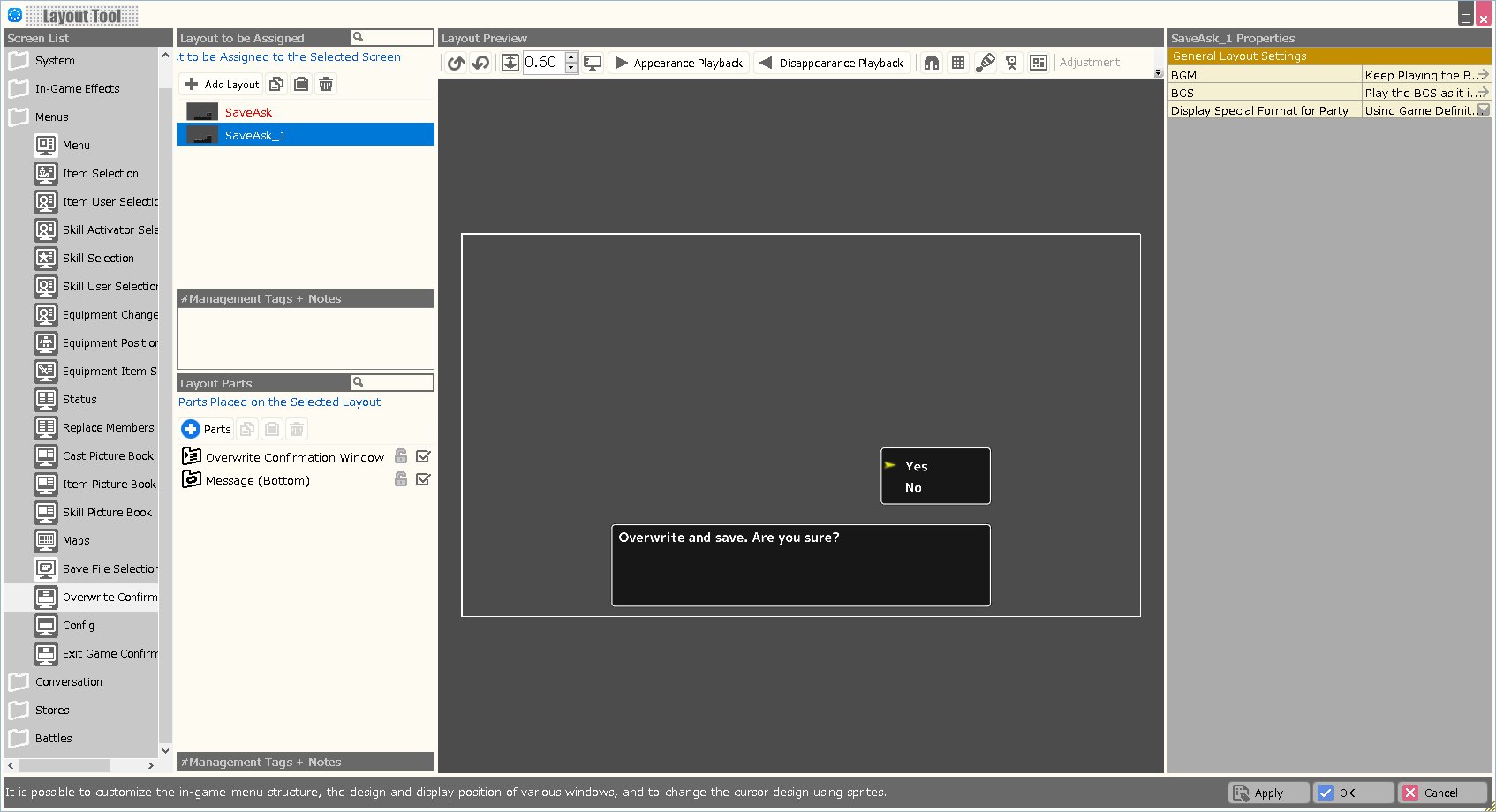
| Property Option | |
| BGM | Specify the background music to be played when this layout is displayed. |
| BGS | Specify the environmental sound to be played when this layout is displayed. |
| Display Special Format for Party | Assign whether to include the reserve members as part of the party when using a special format that deals with information about the party in this layout. |
| Variable to Assign a Selection Result | A value corresponding to the element determined by this layout is assigned to the specified variable. In case of cancellation, -1 is assigned. |
| Variable to Assign a Selection | A value corresponding to the currently selected element in this layout is assigned to the specified variable. In the Enhancement Item Selection screen, the number on the inventory (from 1) is assigned; in other screens, the container number is assigned. |
| Start the Index from 1 | When turned on, when assigning a Selection Result or Selection to a variable, the first element number starts from “1” instead of “0”. |
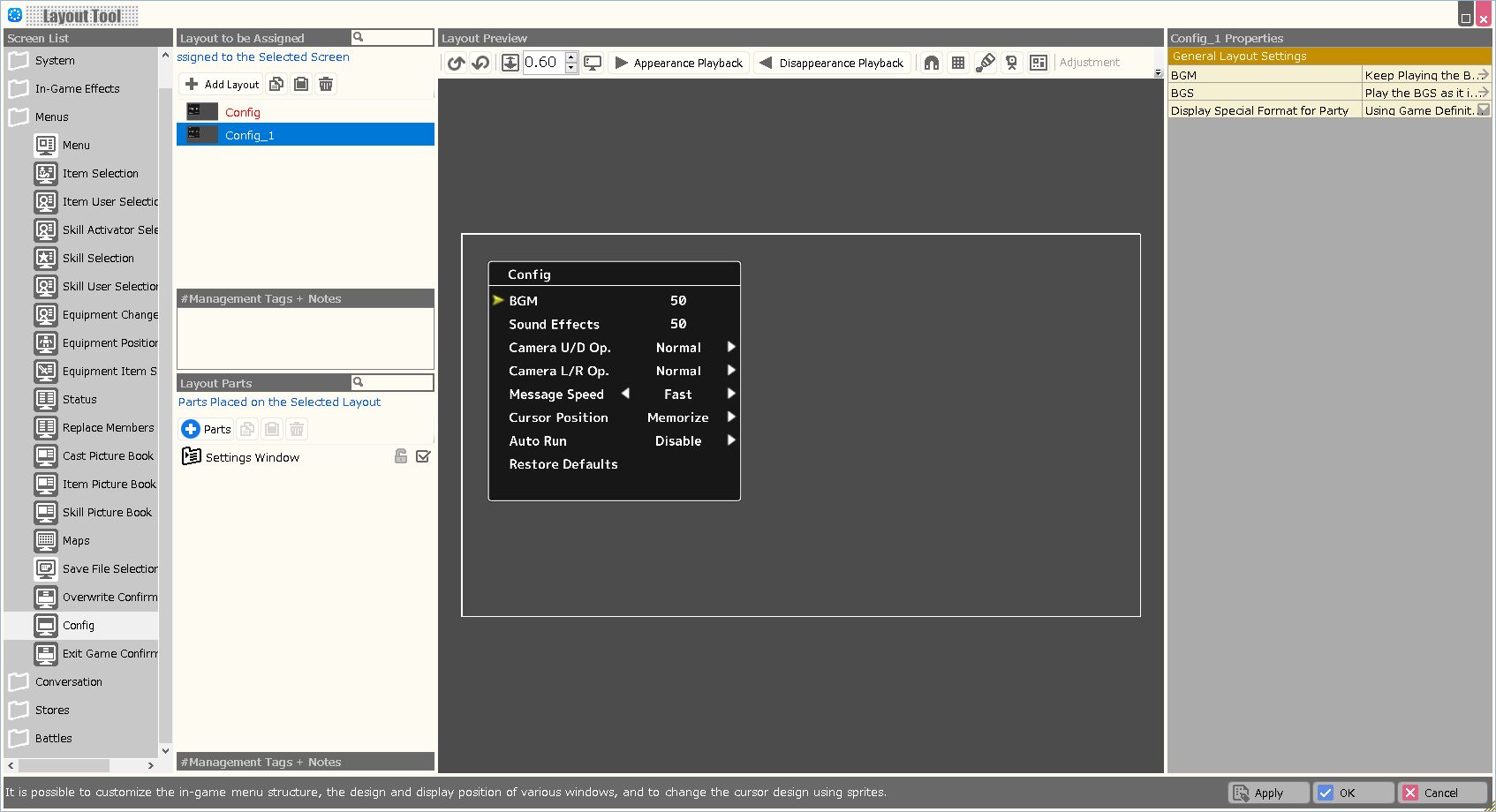
| Property Option | |
| BGM | Specify the background music to be played when this layout is displayed. |
| BGS | Specify the environmental sound to be played when this layout is displayed. |
| Display Special Format for Party | Assign whether to include the reserve members as part of the party when using a special format that deals with information about the party in this layout. |
| Variable to Assign a Selection Result | A value corresponding to the element determined by this layout is assigned to the specified variable. In case of cancellation, -1 is assigned. |
| Variable to Assign a Selection | A value corresponding to the currently selected element in this layout is assigned to the specified variable. In the Enhancement Item Selection screen, the number on the inventory (from 1) is assigned; in other screens, the container number is assigned. |
| Start the Index from 1 | When turned on, when assigning a Selection Result or Selection to a variable, the first element number starts from “1” instead of “0”. |
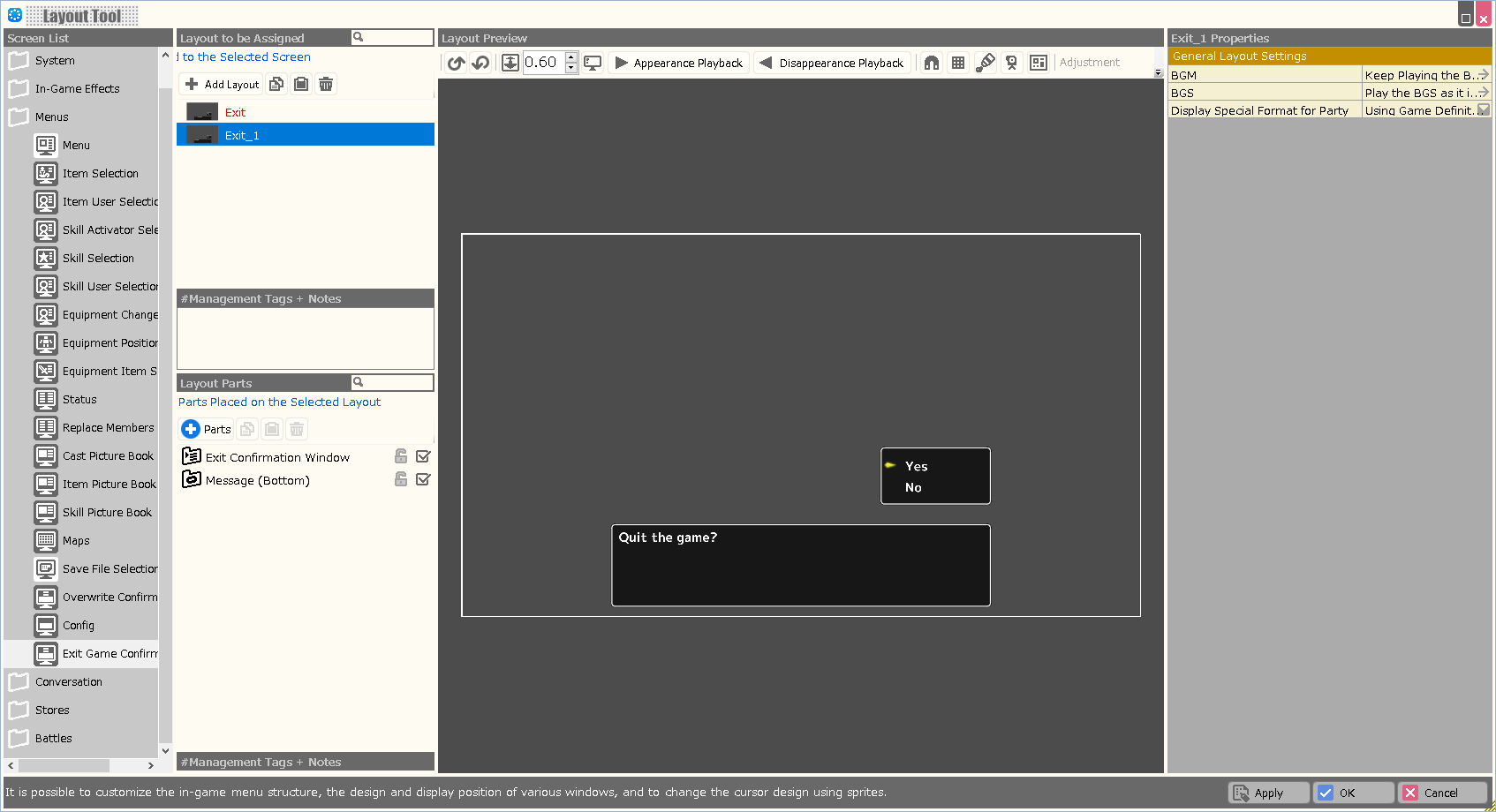
| Property Option | |
| BGM | Specify the background music to be played when this layout is displayed. |
| BGS | Specify the environmental sound to be played when this layout is displayed. |
| Display Special Format for Party | Assign whether to include the reserve members as part of the party when using a special format that deals with information about the party in this layout. |
| Variable to Assign a Selection Result | A value corresponding to the element determined by this layout is assigned to the specified variable. In case of cancellation, -1 is assigned. |
| Variable to Assign a Selection | A value corresponding to the currently selected element in this layout is assigned to the specified variable. In the Enhancement Item Selection screen, the number on the inventory (from 1) is assigned; in other screens, the container number is assigned. |
| Start the Index from 1 | When turned on, when assigning a Selection Result or Selection to a variable, the first element number starts from “1” instead of “0”. |
This screen allows you to assign keyboard keys or gamepad buttons to in-game actions.
Use the action assigned to the submenu container to toggle between assigning a key or a button.
When creating this screen, refer to the structure of the system layout (default layout) as a guide.
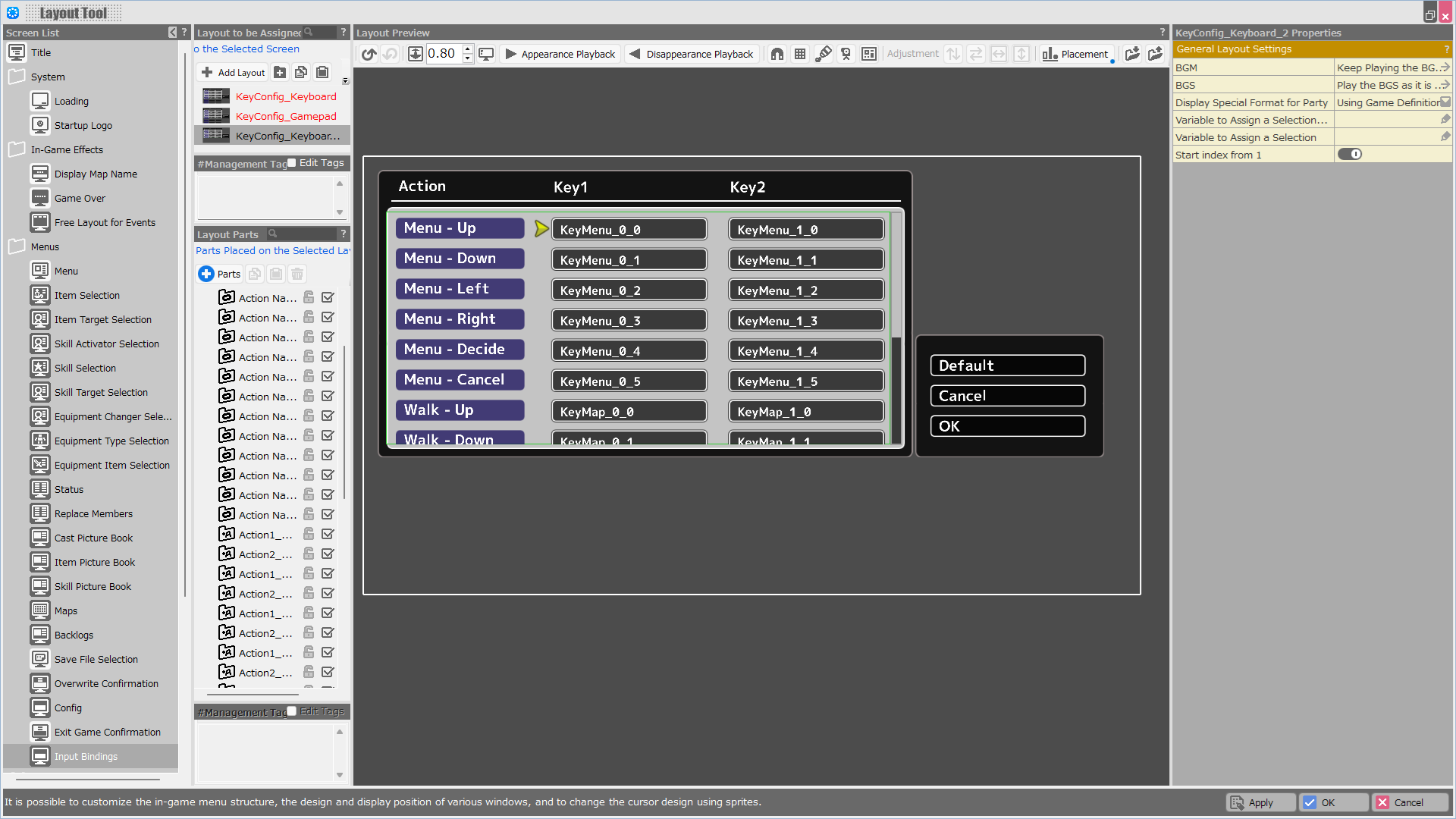
| Property | |
| BGM | Sets the background music that plays while this layout is displayed. |
| BGS | Sets the environmental sound that plays while this layout is displayed. |
| Display Special Format for Party | Specifies whether special formats that handle party information in this layout should consider reserve members as part of the party. |
| Variable to Assign a Selection Result | The value corresponding to the selected selection in this layout is assigned to the specified variable. If the selection is canceled, -1 is assigned. |
| Variable to Assign a Selection | The value corresponding to the currently selected selection in this layout is assigned to the specified variable. In the Enhancement Item Selection screen, this refers to the inventory index (starting from 1), while in other screens it refers to the container index. |
| Start Index from 1 | When enabled, the variable assigned for the selected result/selection starts from "1" instead of "0" |
When enabled, the variable assigned for the selected result/item starts from "1" instead of "0".
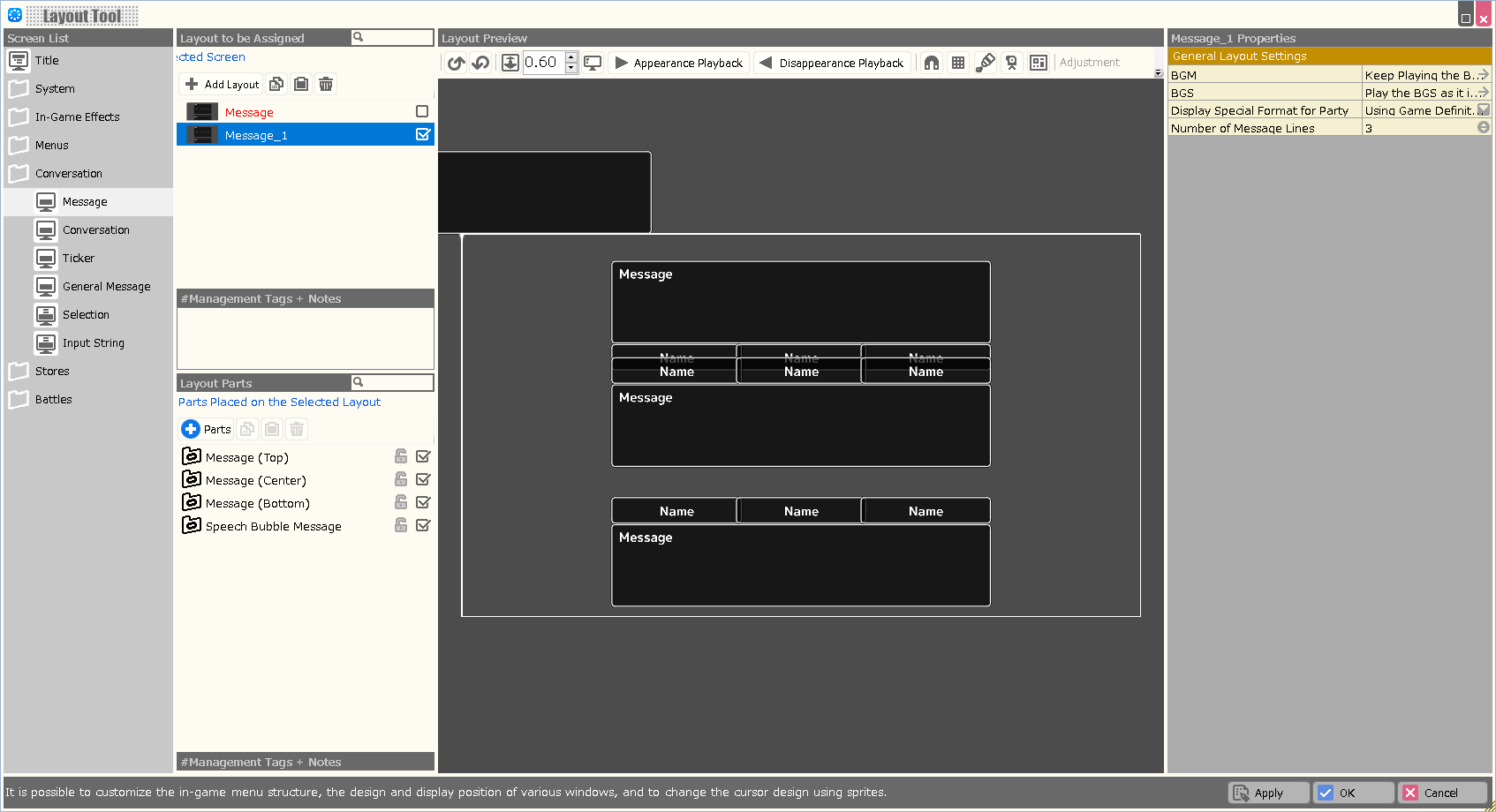
| Property Option | |
| BGM | Specify the background music to be played when this layout is displayed. |
| BGS | Specify the environmental sound to be played when this layout is displayed. |
| Display Special Format for Party | Assign whether to include the reserve members as part of the party when using a special format that deals with information about the party in this layout. |
| Number of Message Lines | The number of lines before the line feed mark appears can be set. |
| Line Spacing Offset | The width between lines of text can be set. |
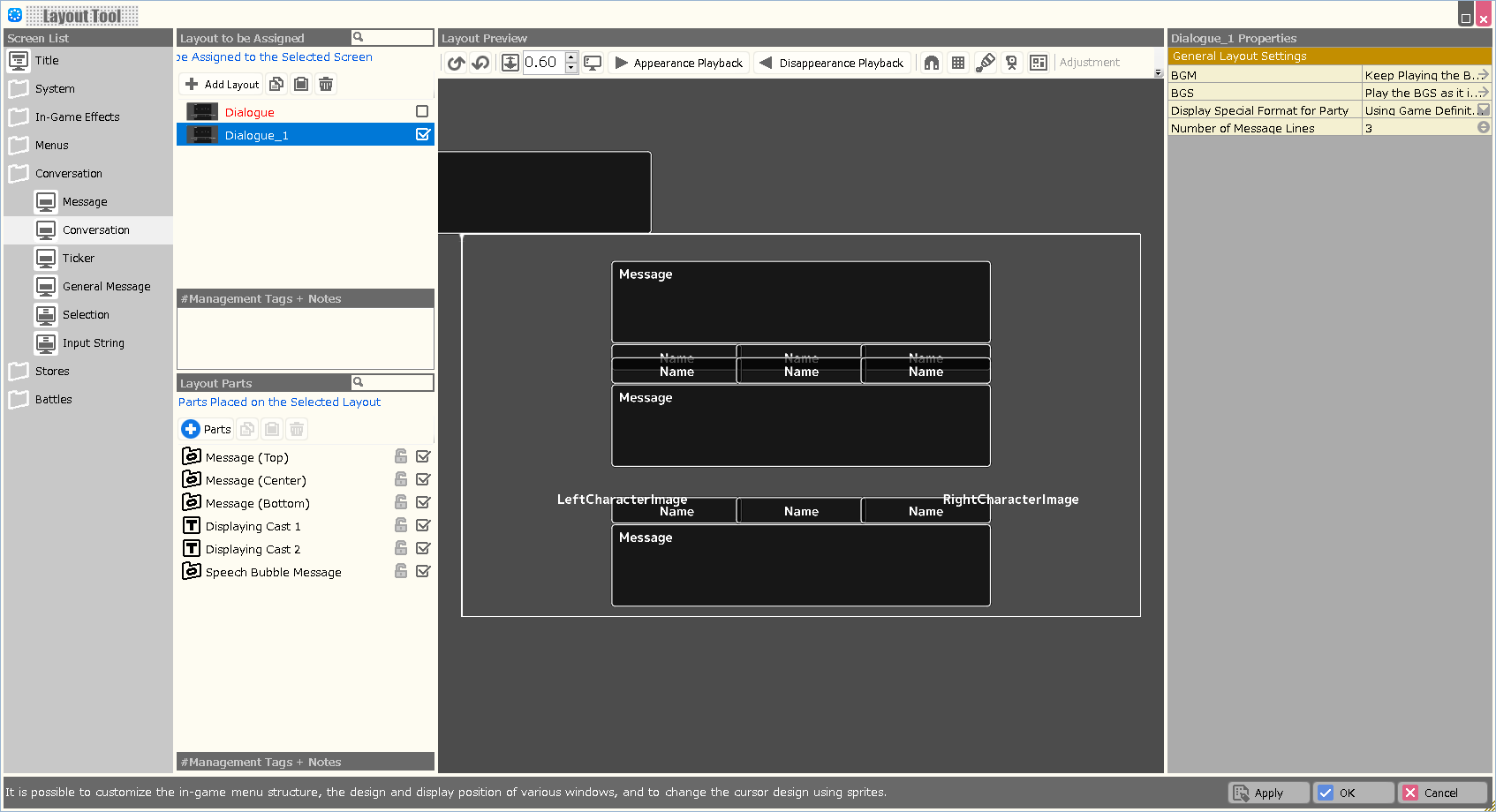
| Property Option | |
| BGM | Specify the background music to be played when this layout is displayed. |
| BGS | Specify the environmental sound to be played when this layout is displayed. |
| Display Special Format for Party | Assign whether to include the reserve members as part of the party when using a special format that deals with information about the party in this layout. |
| Number of Message Lines | The number of lines before the line feed mark appears can be set. |
| Line Spacing Offset | The width between lines of text can be set. |
| Reflect the Rendering Order of the Cast Displayed | When turned on, the parts at the bottom of the layout parts list will be displayed in the foreground, as in the other screens. When turned off, “panels assigning the special formats \dialoguecharacterleft or \dialoguecharacterright″ will always be rendered further back than the message window. |
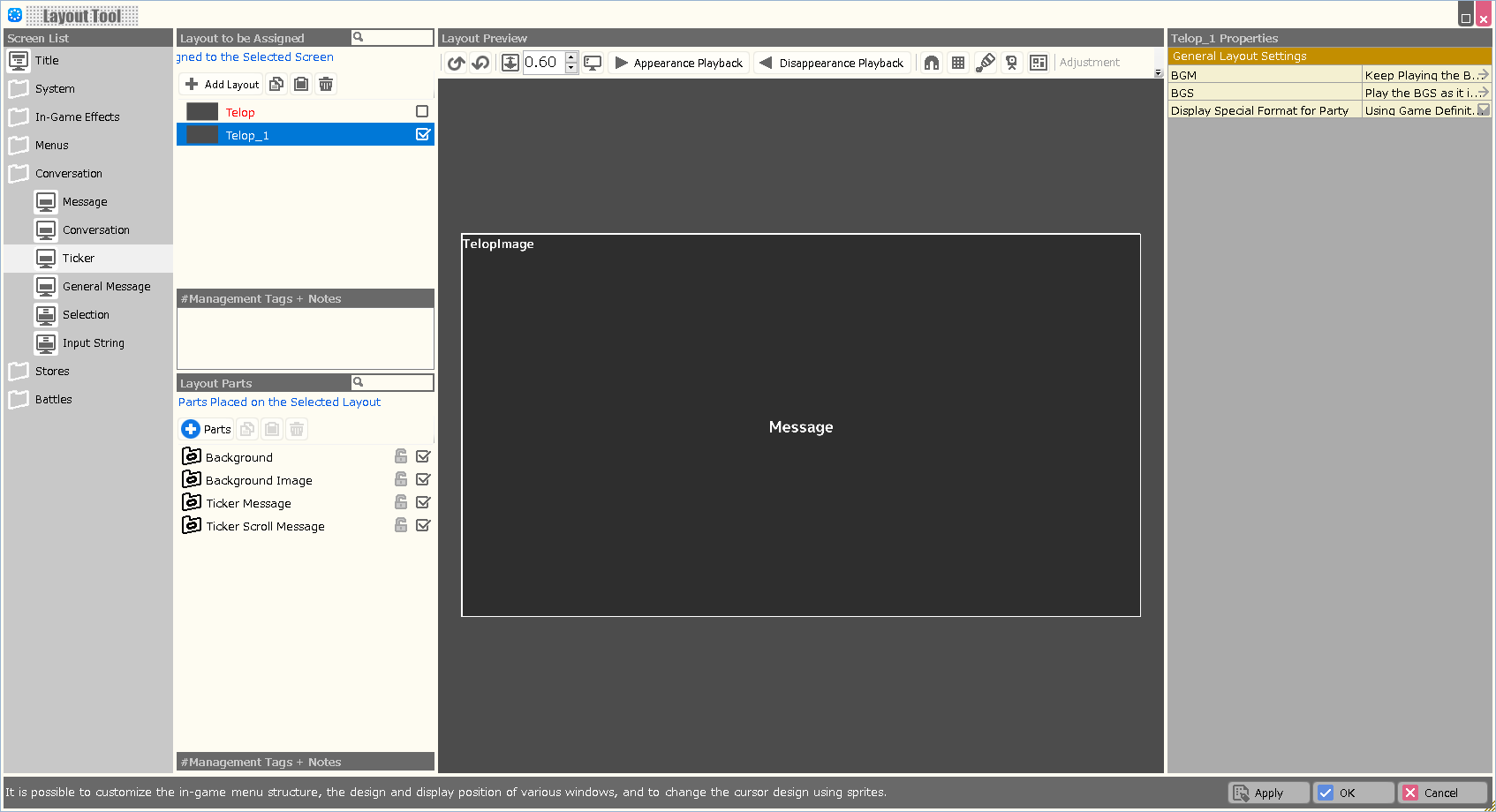
| Property Option | |
| BGM | Specify the background music to be played when this layout is displayed. |
| BGS | Specify the environmental sound to be played when this layout is displayed. |
| Display Special Format for Party | Assign whether to include the reserve members as part of the party when using a special format that deals with information about the party in this layout. |
| Line Spacing Offset | The width between lines of text can be set. |
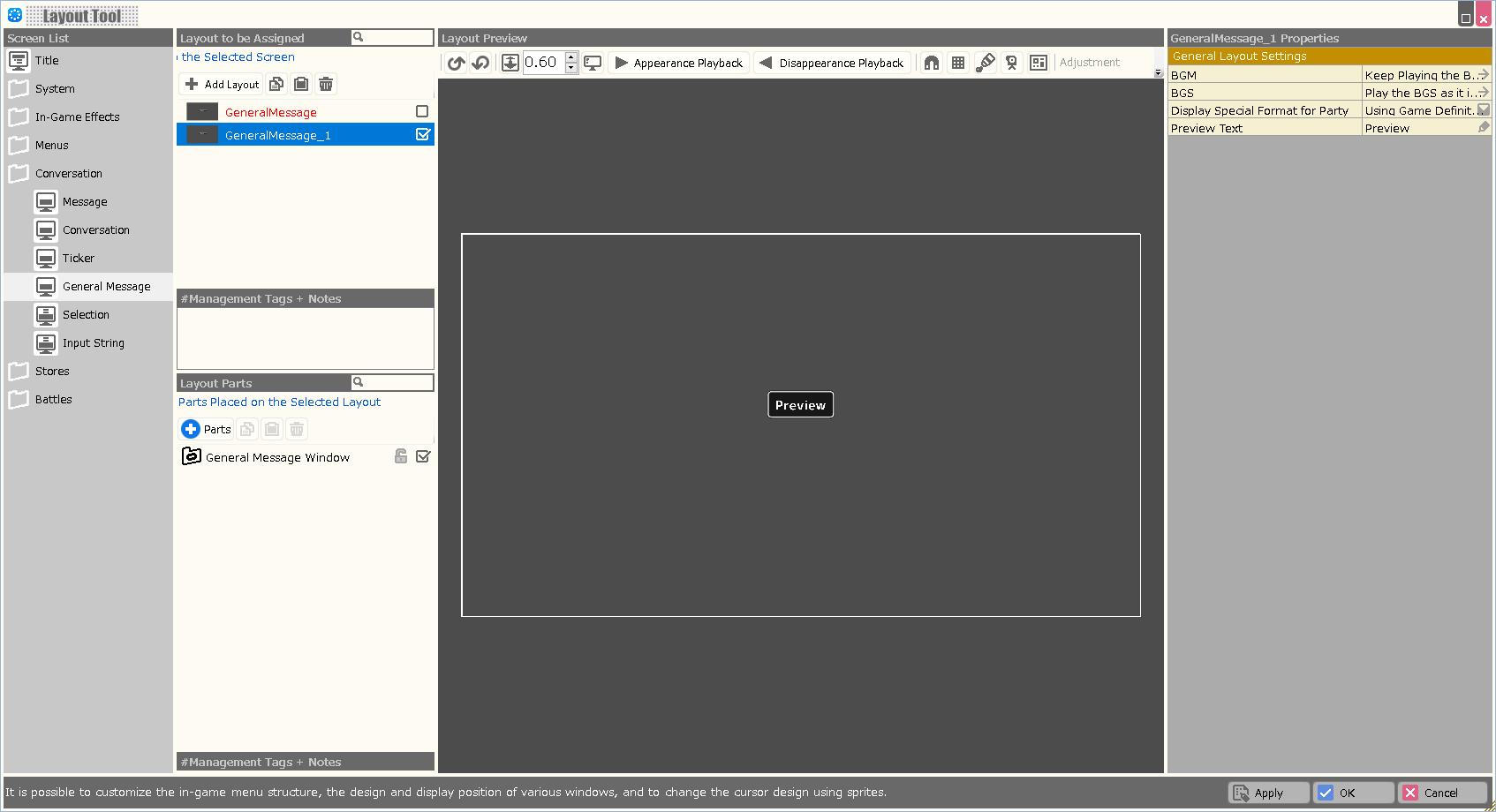
| Property Option | |
| BGM | Specify the background music to be played when this layout is displayed. |
| BGS | Specify the environmental sound to be played when this layout is displayed. |
| Display Special Format for Party | Assign whether to include the reserve members as part of the party when using a special format that deals with information about the party in this layout. |
| Preview Text | This setting is for layout preview. A preview will appear with the assigned text. |
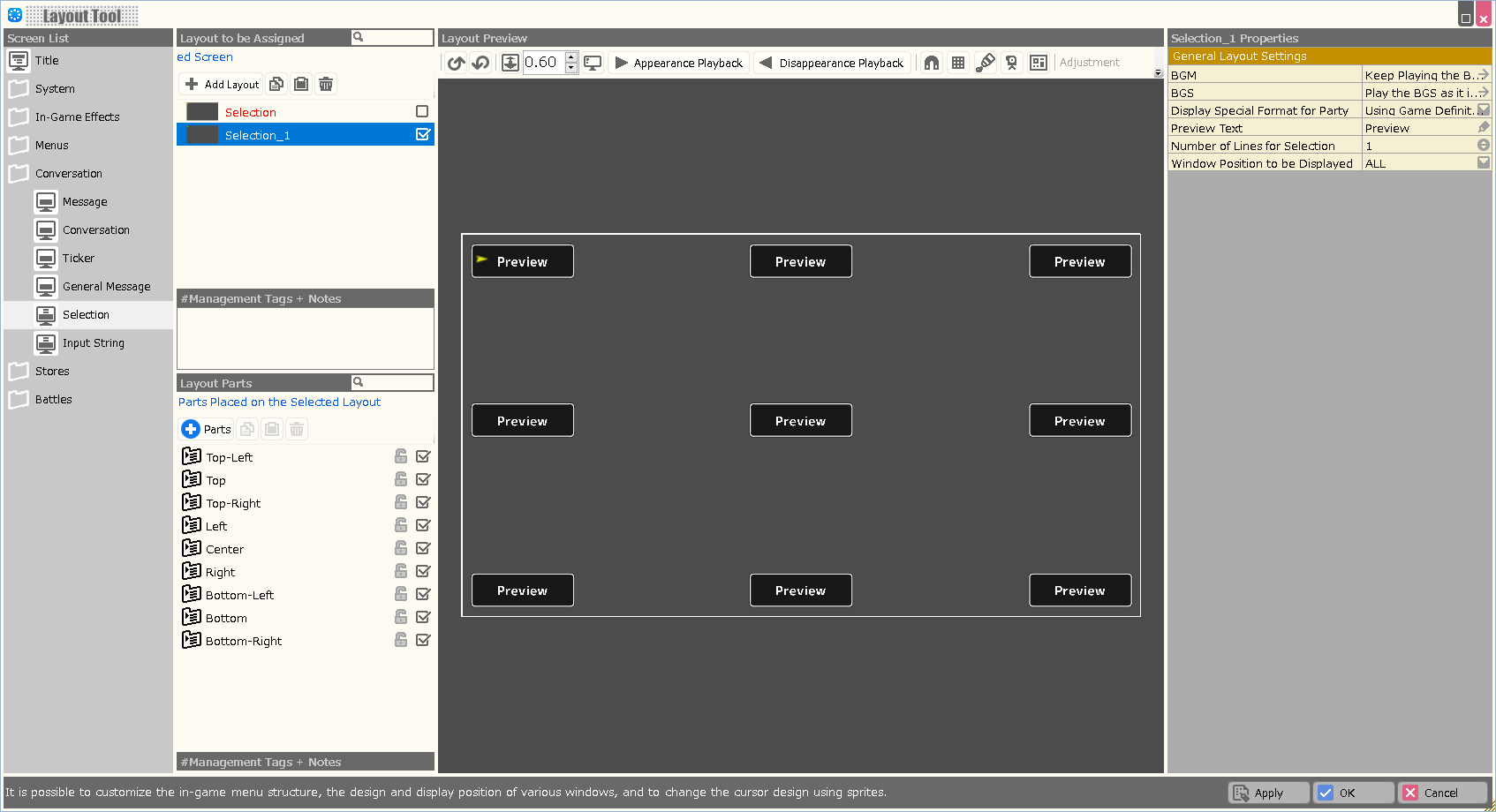
| Property Option | |
| BGM | Specify the background music to be played when this layout is displayed. |
| BGS | Specify the environmental sound to be played when this layout is displayed. |
| Display Special Format for Party | Assign whether to include the reserve members as part of the party when using a special format that deals with information about the party in this layout. |
| Variable to Assign a Selection Result | A value corresponding to the element determined by this layout is assigned to the specified variable. In case of cancellation, -1 is assigned. |
| Variable to Assign a Selection | A value corresponding to the currently selected element in this layout is assigned to the specified variable. In the Enhancement Item Selection screen, the number on the inventory (from 1) is assigned; in other screens, the container number is assigned. |
| Start the Index from 1 | When turned on, when assigning a Selection Result or Selection to a variable, the first element number starts from “1” instead of “0”. |
| Preview Text | This setting is for layout preview. A preview will appear with the assigned text. |
| Number of Lines for Selection | This setting is for layout preview.&brA preview will be displayed in the form of the number of lines (number) of the assigned selections. |
| Window Position to be Displayed | This setting is for layout preview. When the Preview Text and the Number of Lines for Selection are specified, the menu container at the specified position is displayed in the preview. A tag indicating the display position must be specified in the Special Coordinate Specification Tag of the menu container. |
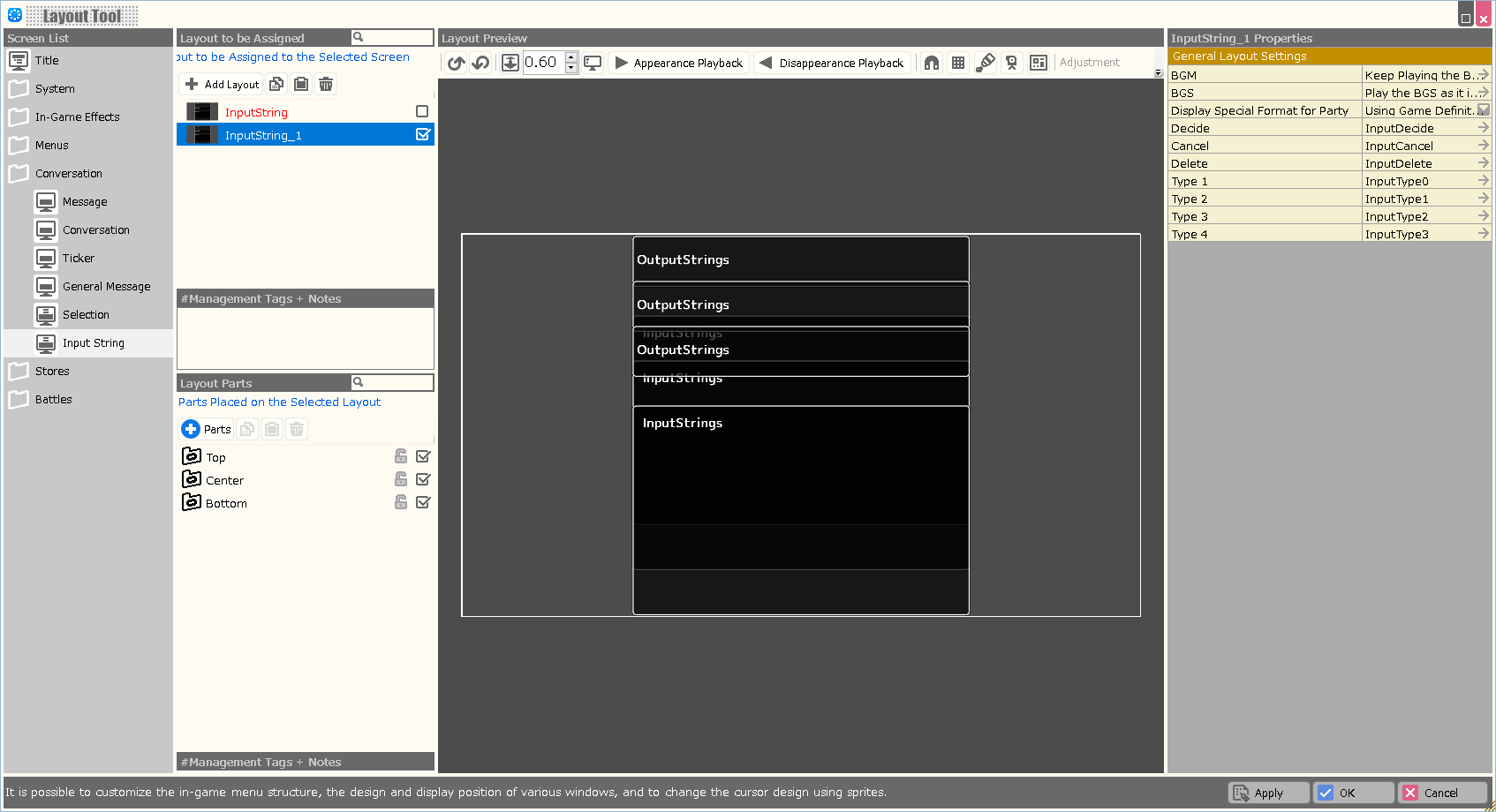
| Property Option | |
| BGM | Specify the background music to be played when this layout is displayed. |
| BGS | Specify the environmental sound to be played when this layout is displayed. |
| Display Special Format for Party | Assign whether to include the reserve members as part of the party when using a special format that deals with information about the party in this layout. |
| Decide | An image can be assigned for the decision button to place on the Input String panel. |
| Cancel | An image can be assigned for the cancel button to place on the Input String panel. |
| Delete | An image can be assigned for the delete button to place on the Input String panel. |
| Type 1 | Select the image to be used when displaying page 1 from the images. This button is used to switch pages on the input screen. |
| Type 2 | Select the image to be used when displaying page 2 from the images. This button is used to switch pages on the input screen. |
| Type 3 | Select the image to be used when displaying page 3 from the images. This button is used to switch pages on the input screen. |
| Type 4 | Select the image to be used when displaying page 4 from the images. This button is used to switch pages on the input screen. |
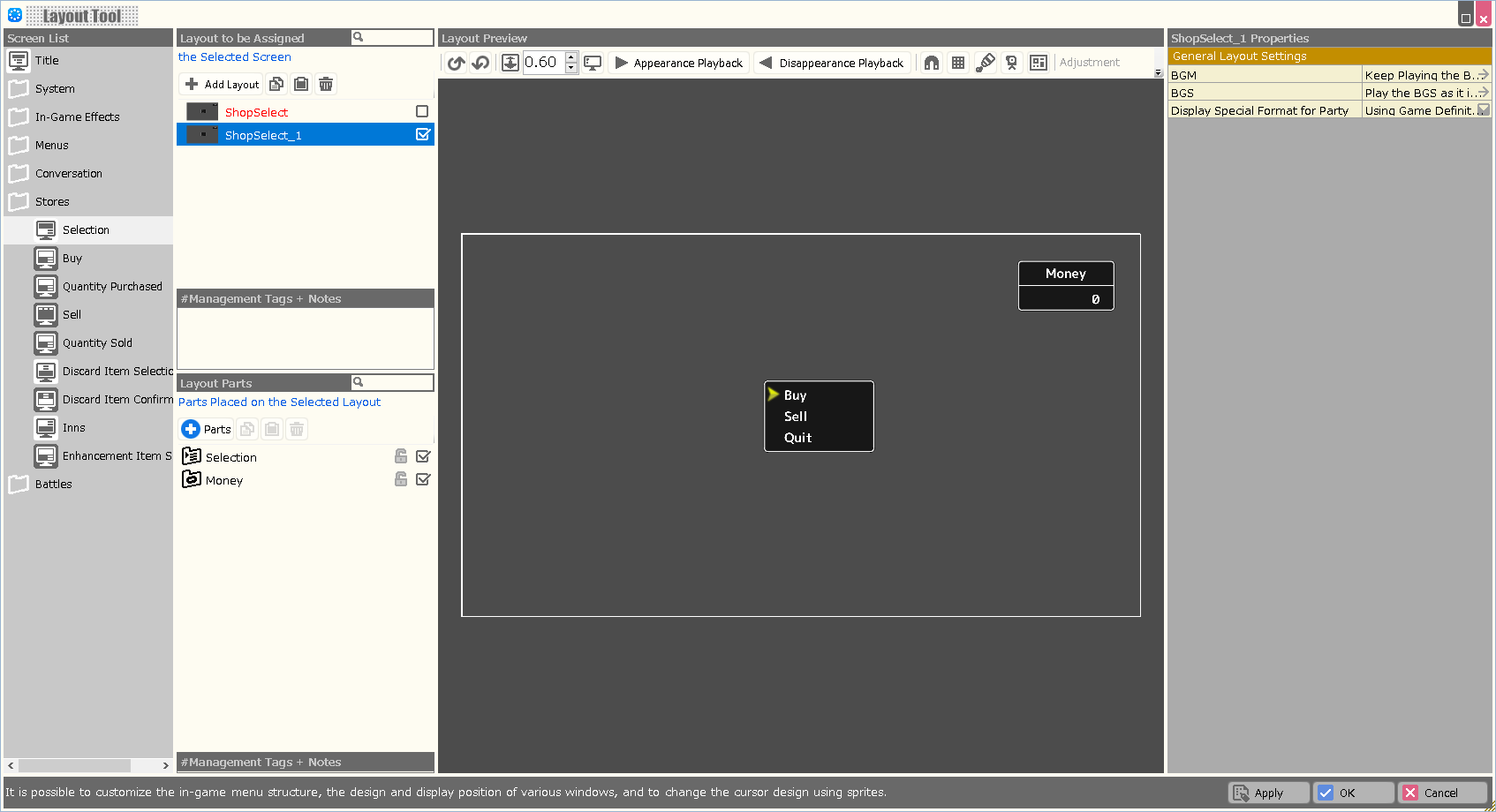
| Property Option | |
| BGM | Specify the background music to be played when this layout is displayed. |
| BGS | Specify the environmental sound to be played when this layout is displayed. |
| Display Special Format for Party | Assign whether to include the reserve members as part of the party when using a special format that deals with information about the party in this layout. |
| Variable to Assign a Selection Result | A value corresponding to the element determined by this layout is assigned to the specified variable. In case of cancellation, -1 is assigned. |
| Variable to Assign a Selection | A value corresponding to the currently selected element in this layout is assigned to the specified variable. In the Enhancement Item Selection screen, the number on the inventory (from 1) is assigned; in other screens, the container number is assigned. |
| Start the Index from 1 | When turned on, when assigning a Selection Result or Selection to a variable, the first element number starts from “1” instead of “0”. |
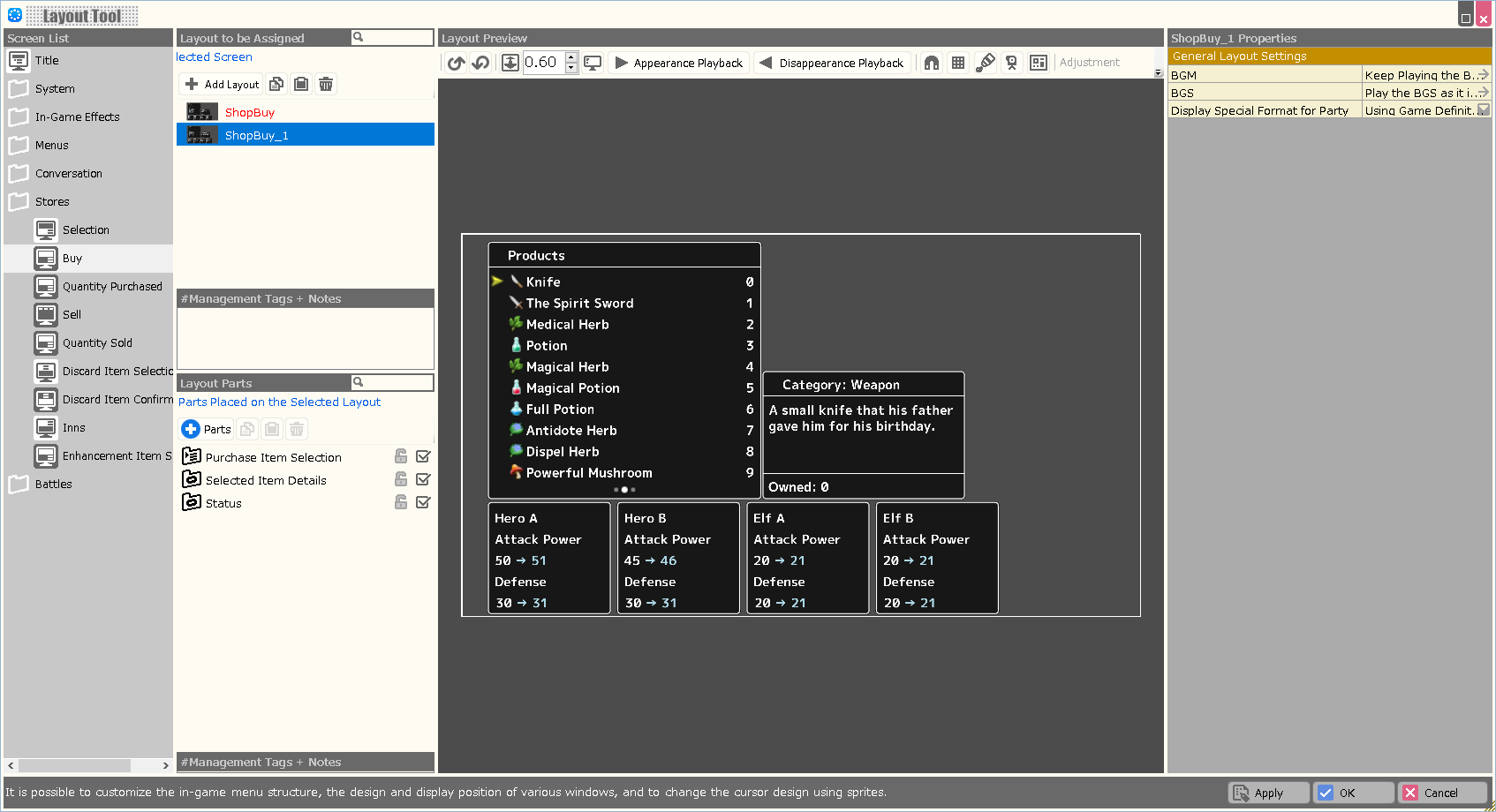
| Property Option | |
| BGM | Specify the background music to be played when this layout is displayed. |
| BGS | Specify the environmental sound to be played when this layout is displayed. |
| Display Special Format for Party | Assign whether to include the reserve members as part of the party when using a special format that deals with information about the party in this layout. |
| Variable to Assign a Selection Result | A value corresponding to the element determined by this layout is assigned to the specified variable. In case of cancellation, -1 is assigned. |
| Variable to Assign a Selection | A value corresponding to the currently selected element in this layout is assigned to the specified variable. In the Enhancement Item Selection screen, the number on the inventory (from 1) is assigned; in other screens, the container number is assigned. |
| Start the Index from 1 | When turned on, when assigning a Selection Result or Selection to a variable, the first element number starts from “1” instead of “0”. |
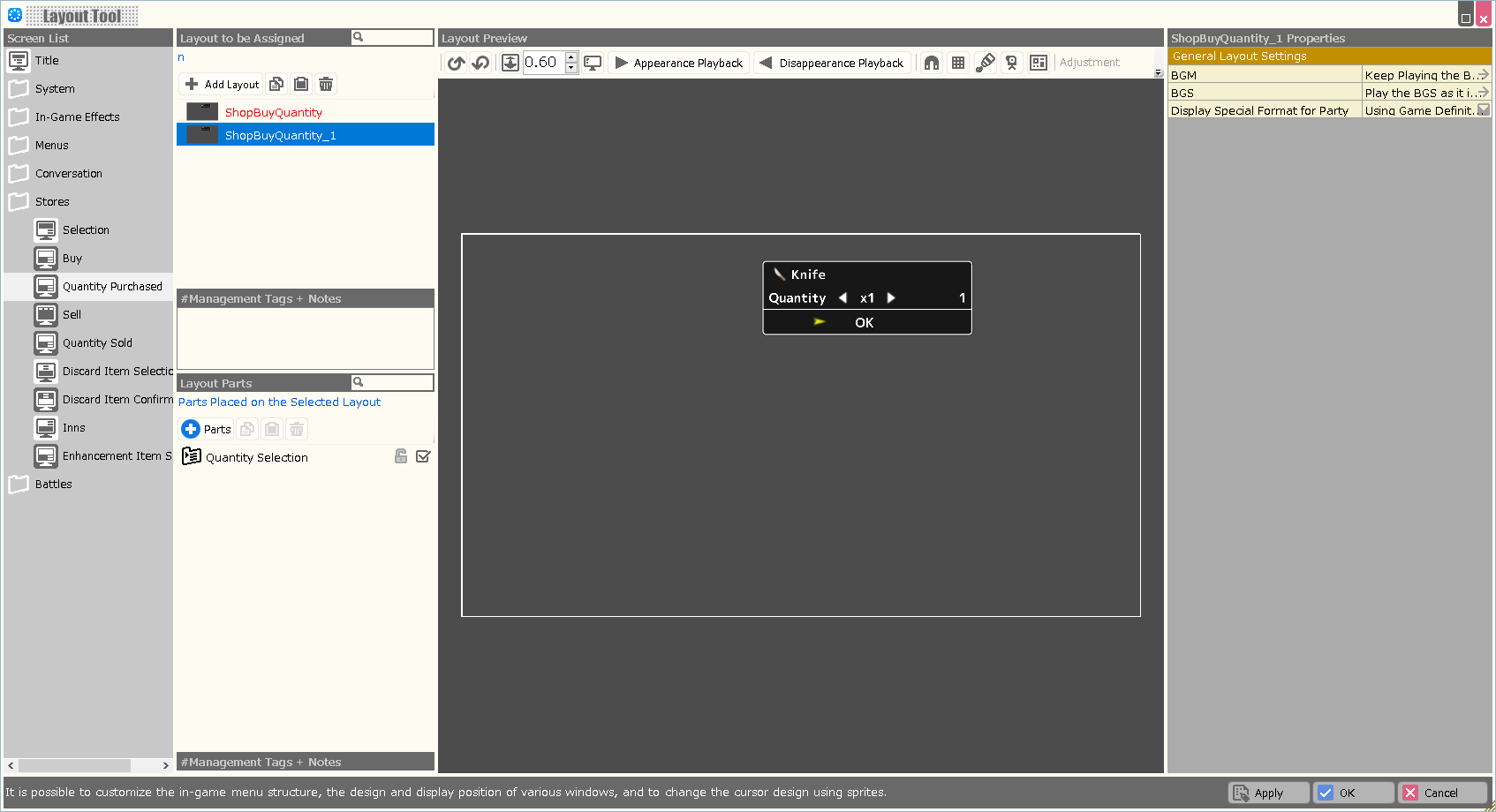
| Property Option | |
| BGM | Specify the background music to be played when this layout is displayed. |
| BGS | Specify the environmental sound to be played when this layout is displayed. |
| Display Special Format for Party | Assign whether to include the reserve members as part of the party when using a special format that deals with information about the party in this layout. |
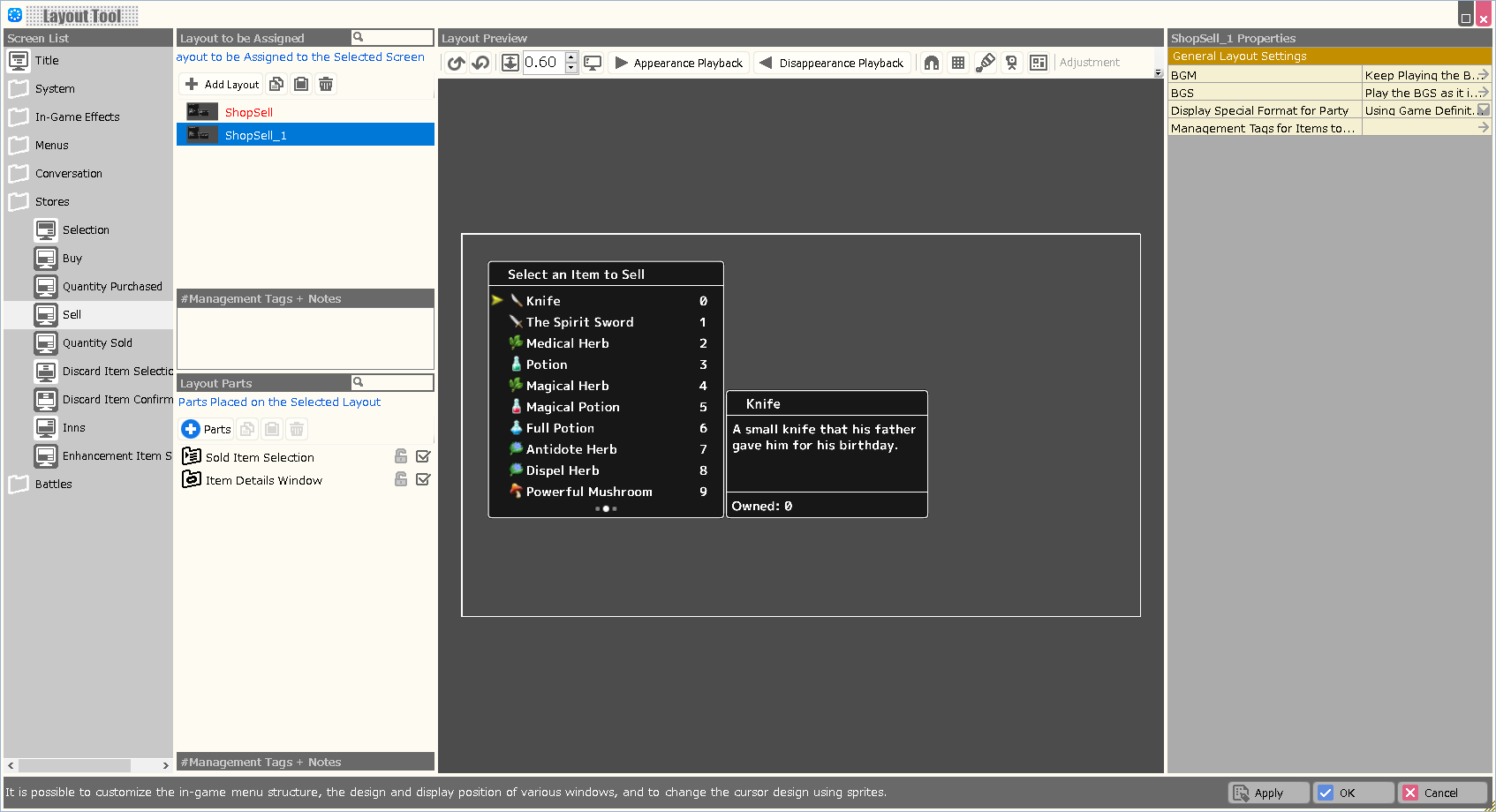
| Property Option | |
| BGM | Specify the background music to be played when this layout is displayed. |
| BGS | Specify the environmental sound to be played when this layout is displayed. |
| Display Special Format for Party | Assign whether to include the reserve members as part of the party when using a special format that deals with information about the party in this layout. |
| Variable to Assign a Selection Result | A value corresponding to the element determined by this layout is assigned to the specified variable. In case of cancellation, -1 is assigned. |
| Variable to Assign a Selection | A value corresponding to the currently selected element in this layout is assigned to the specified variable. In the Enhancement Item Selection screen, the number on the inventory (from 1) is assigned; in other screens, the container number is assigned. |
| Start the Index from 1 | When turned on, when assigning a Selection Result or Selection to a variable, the first element number starts from “1” instead of “0”. |
| Management Tags for Items to be Displayed | Assigning management tags allows you to limit the items that are displayed on this screen. Management tags should be specified in each menu of the Database. |
| Auto Sorting | When turned ON, the selections displayed in the layout are automatically sorted when this layout is opened. |
| Sorting Type | Assign the rule for sorting when "Auto Sorting" is turned on, from among Obtained Order/ Database/ Name. |
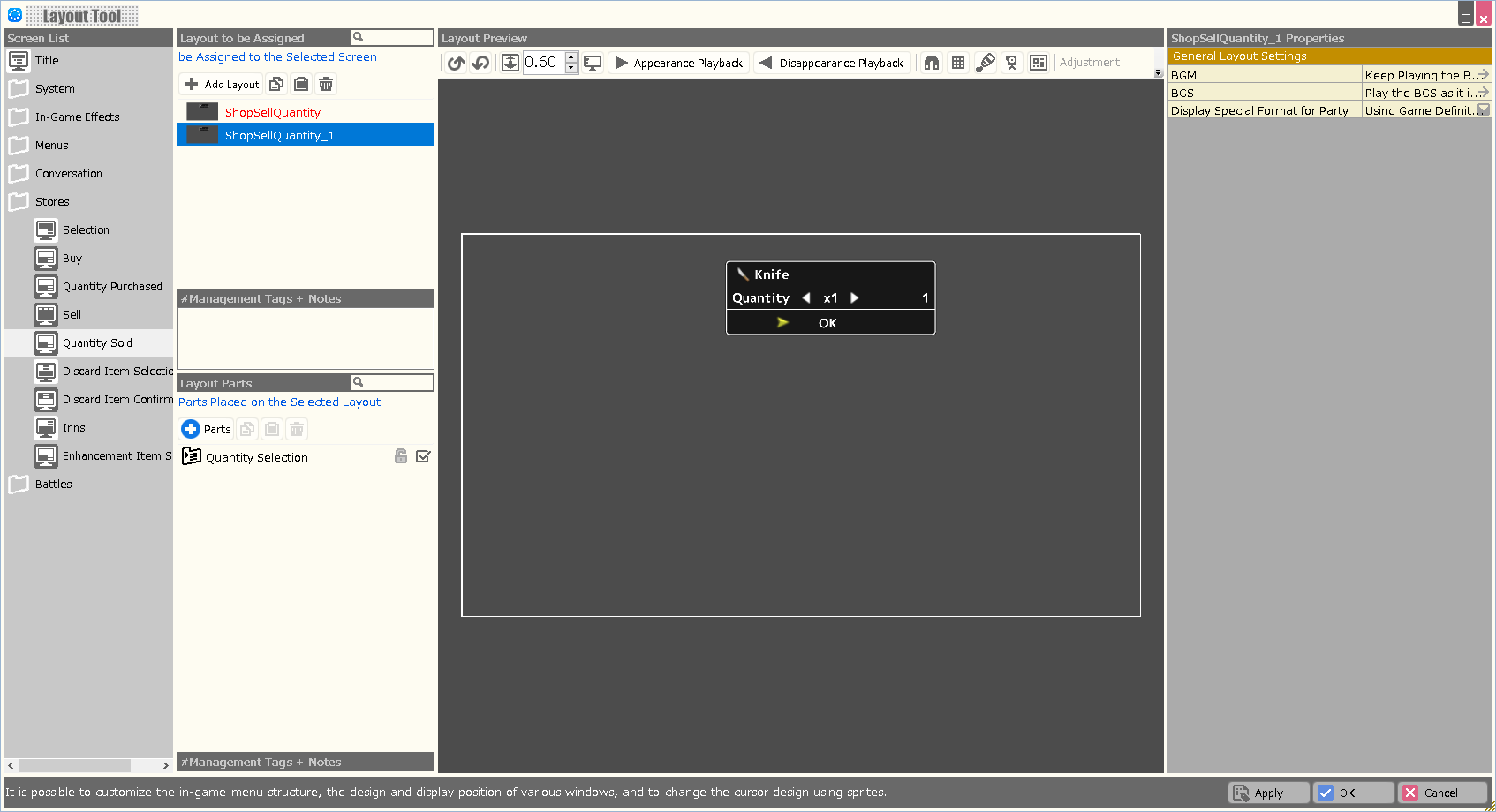
| Property Option | |
| BGM | Specify the background music to be played when this layout is displayed. |
| BGS | Specify the environmental sound to be played when this layout is displayed. |
| Display Special Format for Party | Assign whether to include the reserve members as part of the party when using a special format that deals with information about the party in this layout. |
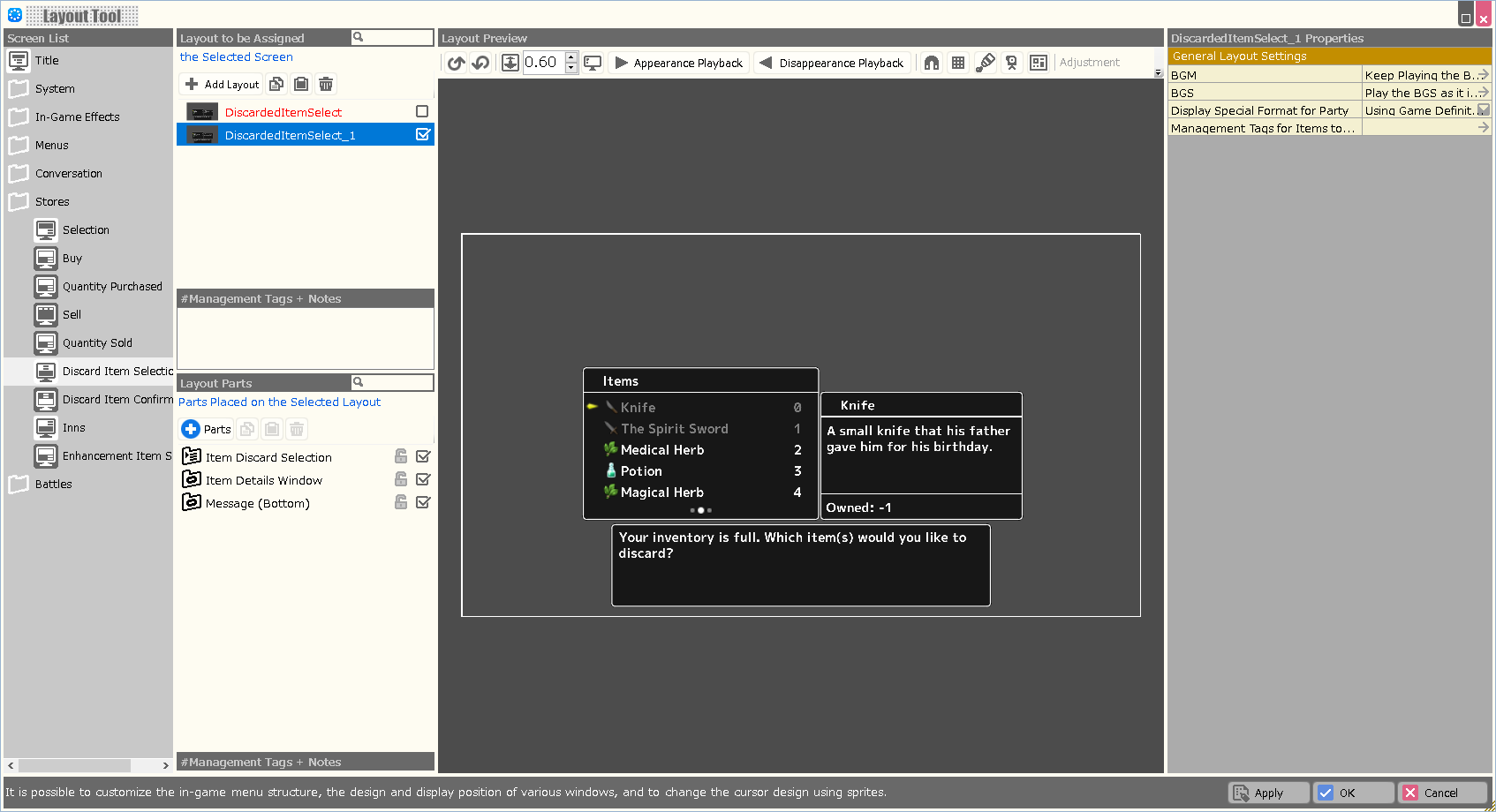
| Property Option | |
| BGM | Specify the background music to be played when this layout is displayed. |
| BGS | Specify the environmental sound to be played when this layout is displayed. |
| Display Special Format for Party | Assign whether to include the reserve members as part of the party when using a special format that deals with information about the party in this layout. |
| Variable to Assign a Selection Result | A value corresponding to the element determined by this layout is assigned to the specified variable. In case of cancellation, -1 is assigned. |
| Variable to Assign a Selection | A value corresponding to the currently selected element in this layout is assigned to the specified variable. In the Enhancement Item Selection screen, the number on the inventory (from 1) is assigned; in other screens, the container number is assigned. |
| Start the Index from 1 | When turned on, when assigning a Selection Result or Selection to a variable, the first element number starts from “1” instead of “0”. |
| Management Tags for Items to be Displayed | Assigning a management tag allows you to limit the items displayed on this screen. Please specify the management tag at Database > Items. |
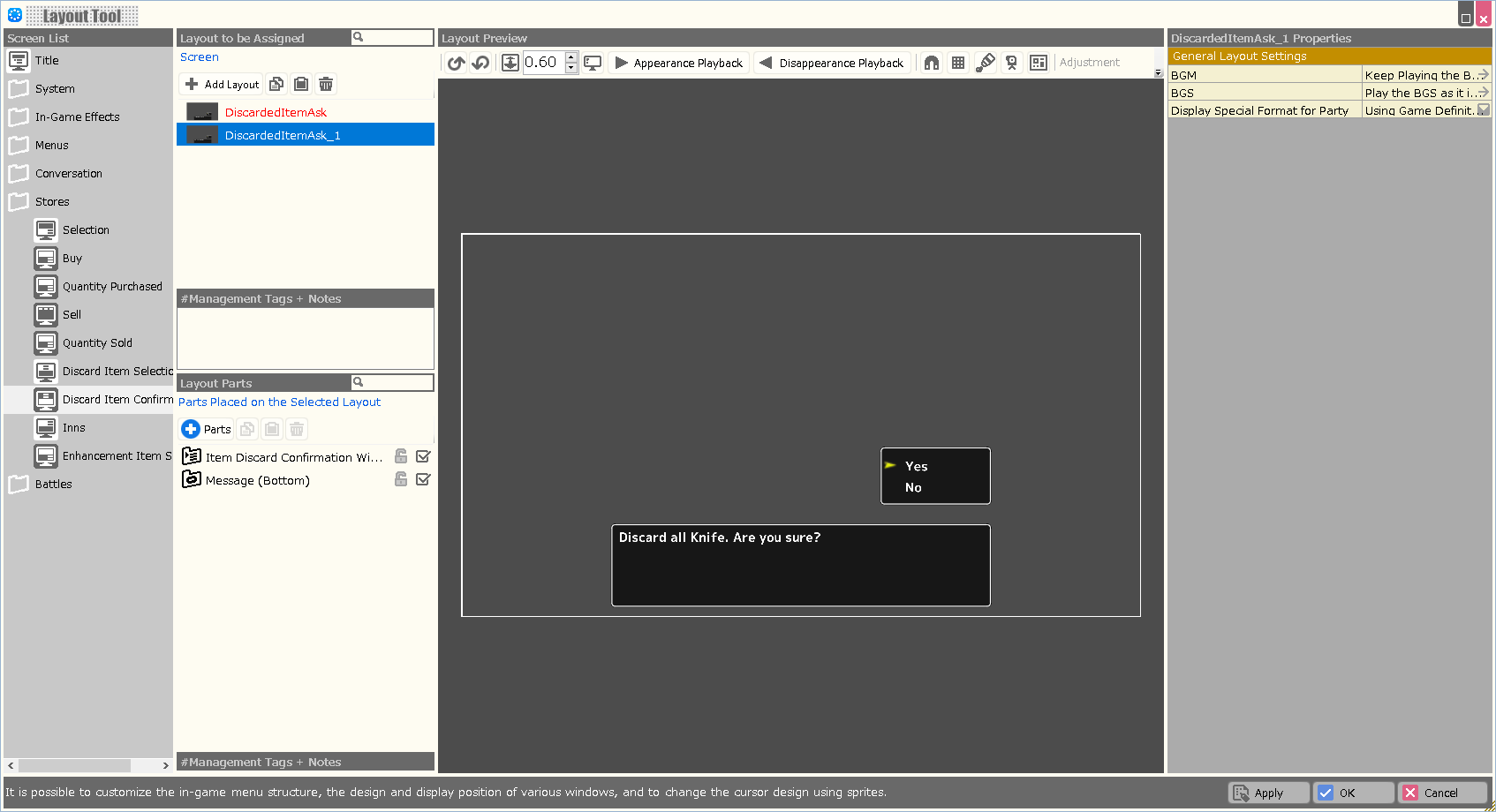
| Property Option | |
| BGM | Specify the background music to be played when this layout is displayed. |
| BGS | Specify the environmental sound to be played when this layout is displayed. |
| Display Special Format for Party | Assign whether to include the reserve members as part of the party when using a special format that deals with information about the party in this layout. |
| Variable to Assign a Selection Result | A value corresponding to the element determined by this layout is assigned to the specified variable. In case of cancellation, -1 is assigned. |
| Variable to Assign a Selection | A value corresponding to the currently selected element in this layout is assigned to the specified variable. In the Enhancement Item Selection screen, the number on the inventory (from 1) is assigned; in other screens, the container number is assigned. |
| Start the Index from 1 | When turned on, when assigning a Selection Result or Selection to a variable, the first element number starts from “1” instead of “0”. |
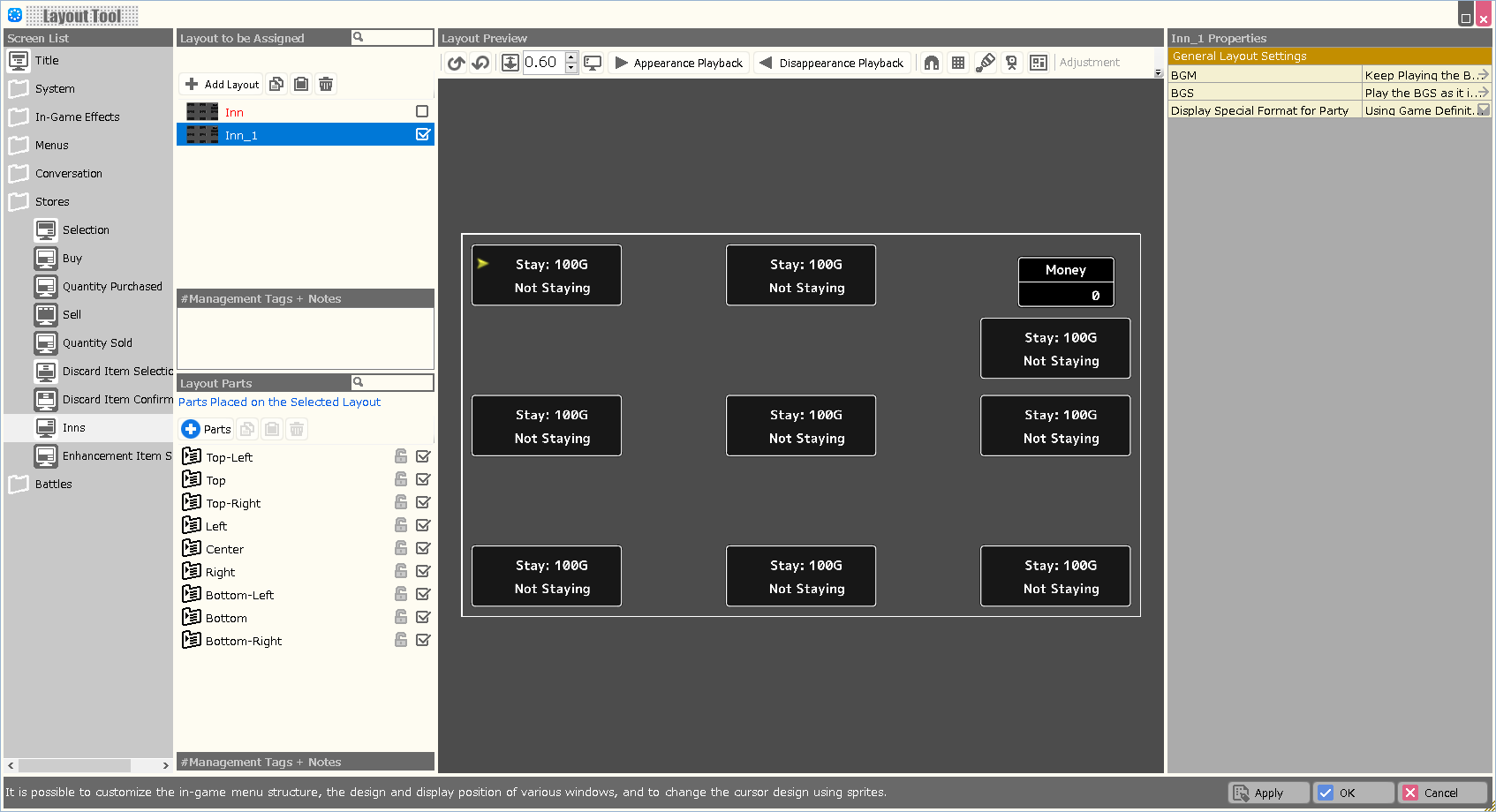
| Property Option | |
| BGM | Specify the background music to be played when this layout is displayed. |
| BGS | Specify the environmental sound to be played when this layout is displayed. |
| Display Special Format for Party | Assign whether to include the reserve members as part of the party when using a special format that deals with information about the party in this layout. |
| Variable to Assign a Selection Result | A value corresponding to the element determined by this layout is assigned to the specified variable. In case of cancellation, -1 is assigned. |
| Variable to Assign a Selection | A value corresponding to the currently selected element in this layout is assigned to the specified variable. In the Enhancement Item Selection screen, the number on the inventory (from 1) is assigned; in other screens, the container number is assigned. |
| Start the Index from 1 | When turned on, when assigning a Selection Result or Selection to a variable, the first element number starts from “1” instead of “0”. |
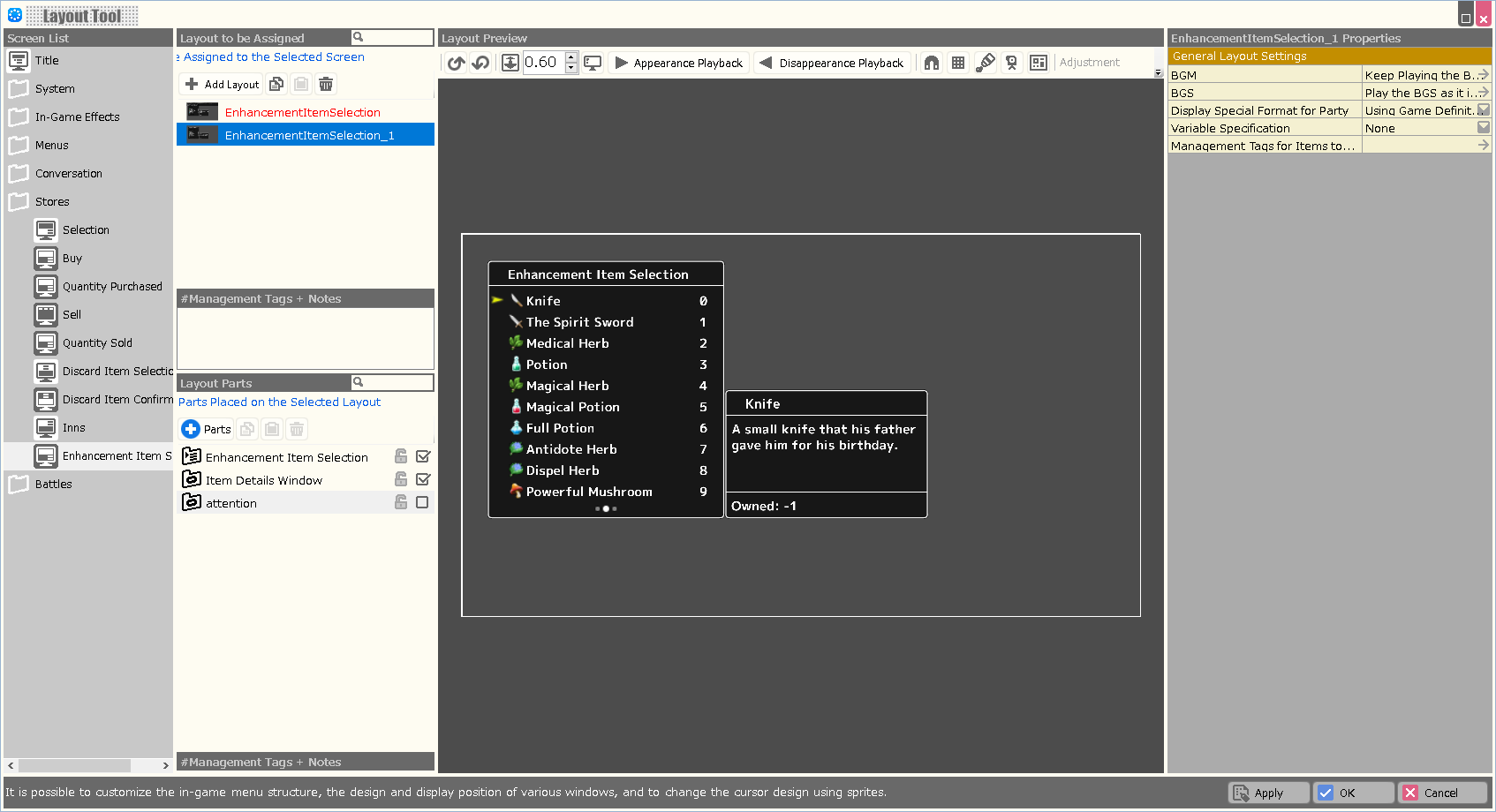
| Property Option | |
| BGM | Specify the background music to be played when this layout is displayed. |
| BGS | Specify the environmental sound to be played when this layout is displayed. |
| Display Special Format for Party | Assign whether to include the reserve members as part of the party when using a special format that deals with information about the party in this layout. |
| Variable to Assign a Selection Result | A value corresponding to the element determined by this layout is assigned to the specified variable. In case of cancellation, -1 is assigned. |
| Variable to Assign a Selection | A value corresponding to the currently selected element in this layout is assigned to the specified variable. In the Enhancement Item Selection screen, the number on the inventory (from 1) is assigned; in other screens, the container number is assigned. |
| Start the Index from 1 | When turned on, when assigning a Selection Result or Selection to a variable, the first element number starts from “1” instead of “0”. |
| Management Tags for Items to be Displayed | Assigning a management tag allows you to limit the items displayed on this screen. Please specify the management tag at Database > Items. |
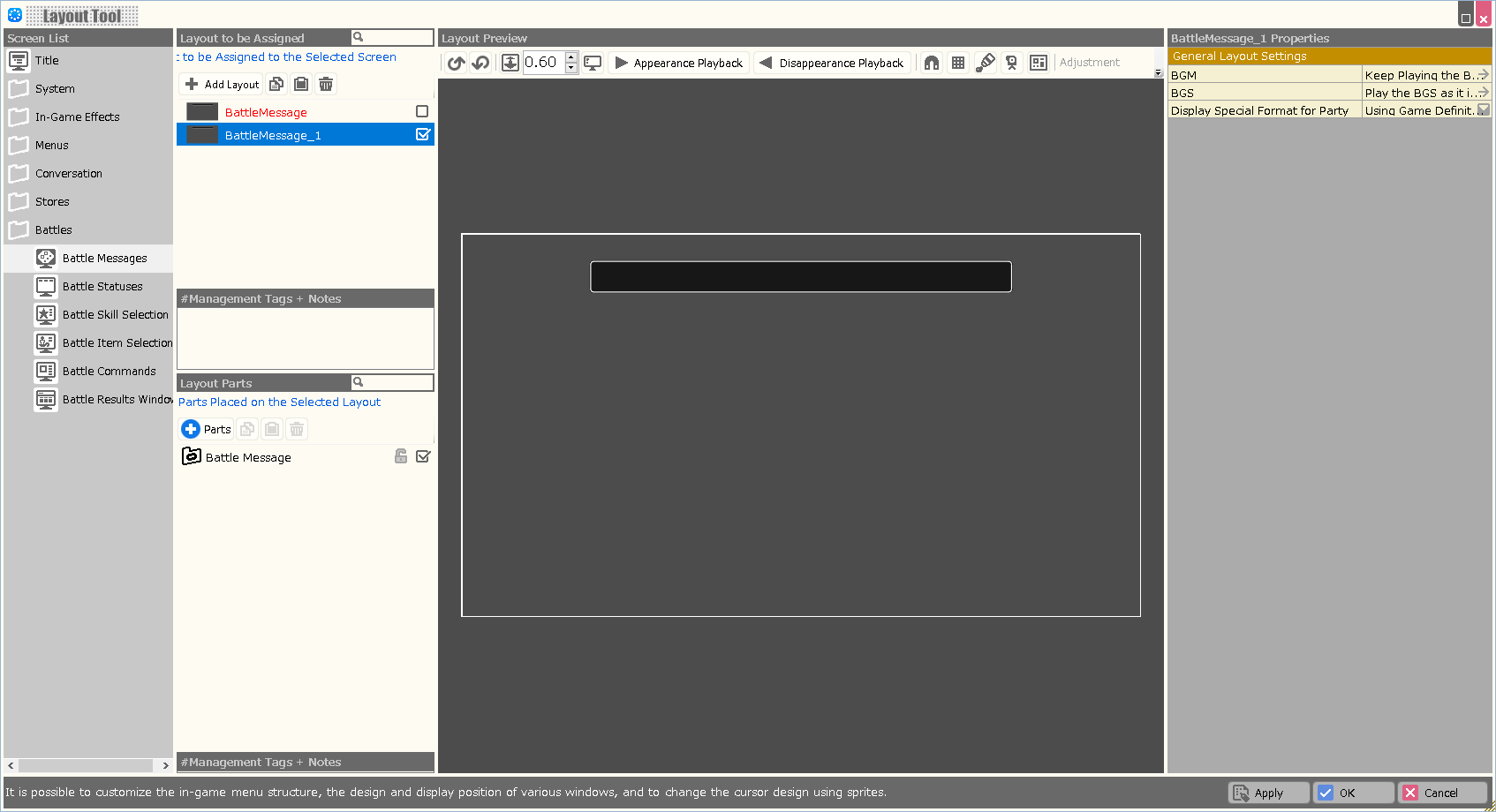
| Property Option | |
| BGM | Specify the background music to be played when this layout is displayed. |
| BGS | Specify the environmental sound to be played when this layout is displayed. |
| Display Special Format for Party | Assign whether to include the reserve members as part of the party when using a special format that deals with information about the party in this layout. |
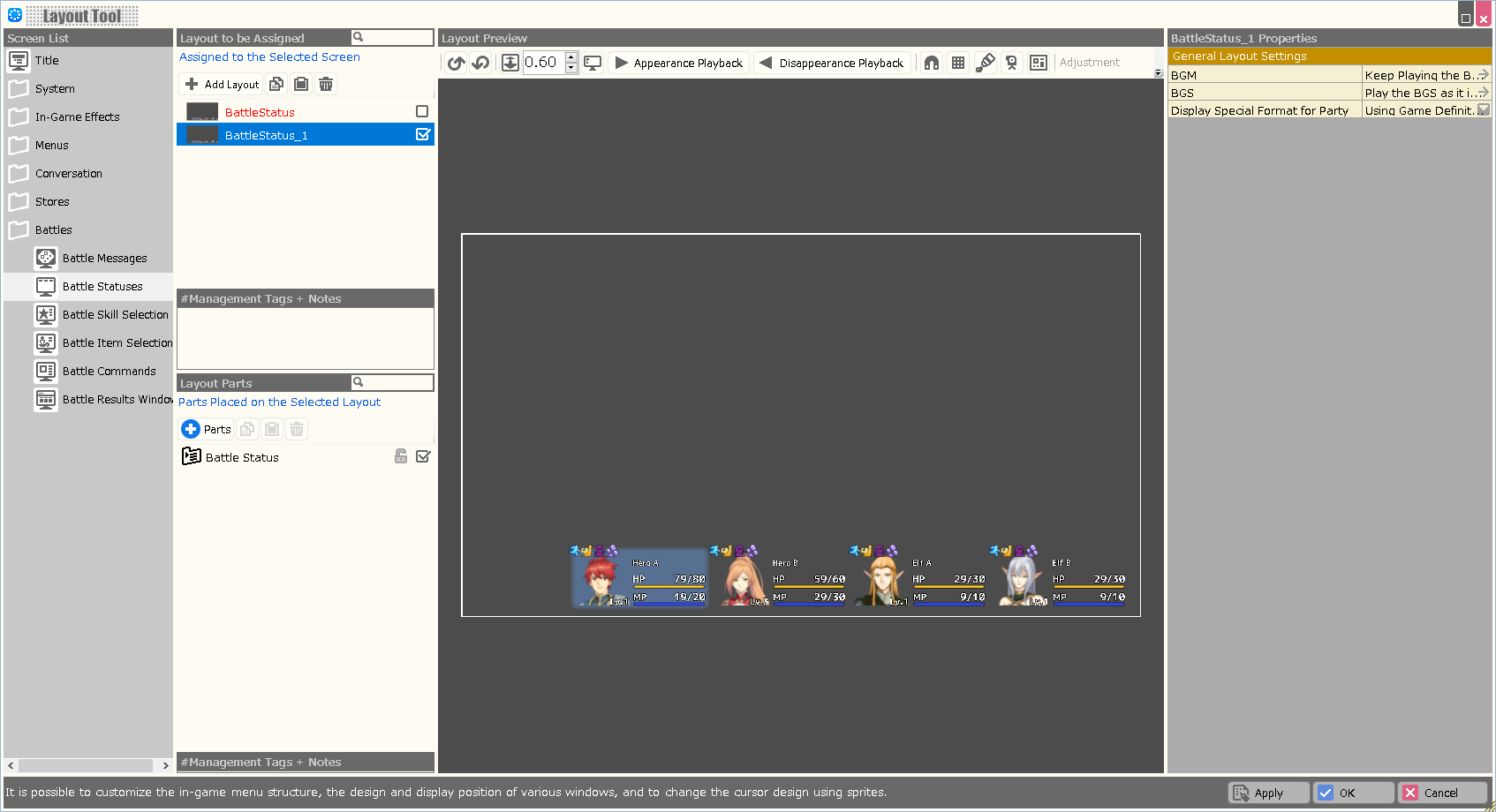
| Property Option | |
| BGM | Specify the background music to be played when this layout is displayed. |
| BGS | Specify the environmental sound to be played when this layout is displayed. |
| Display Special Format for Party | Assign whether to include the reserve members as part of the party when using a special format that deals with information about the party in this layout. |
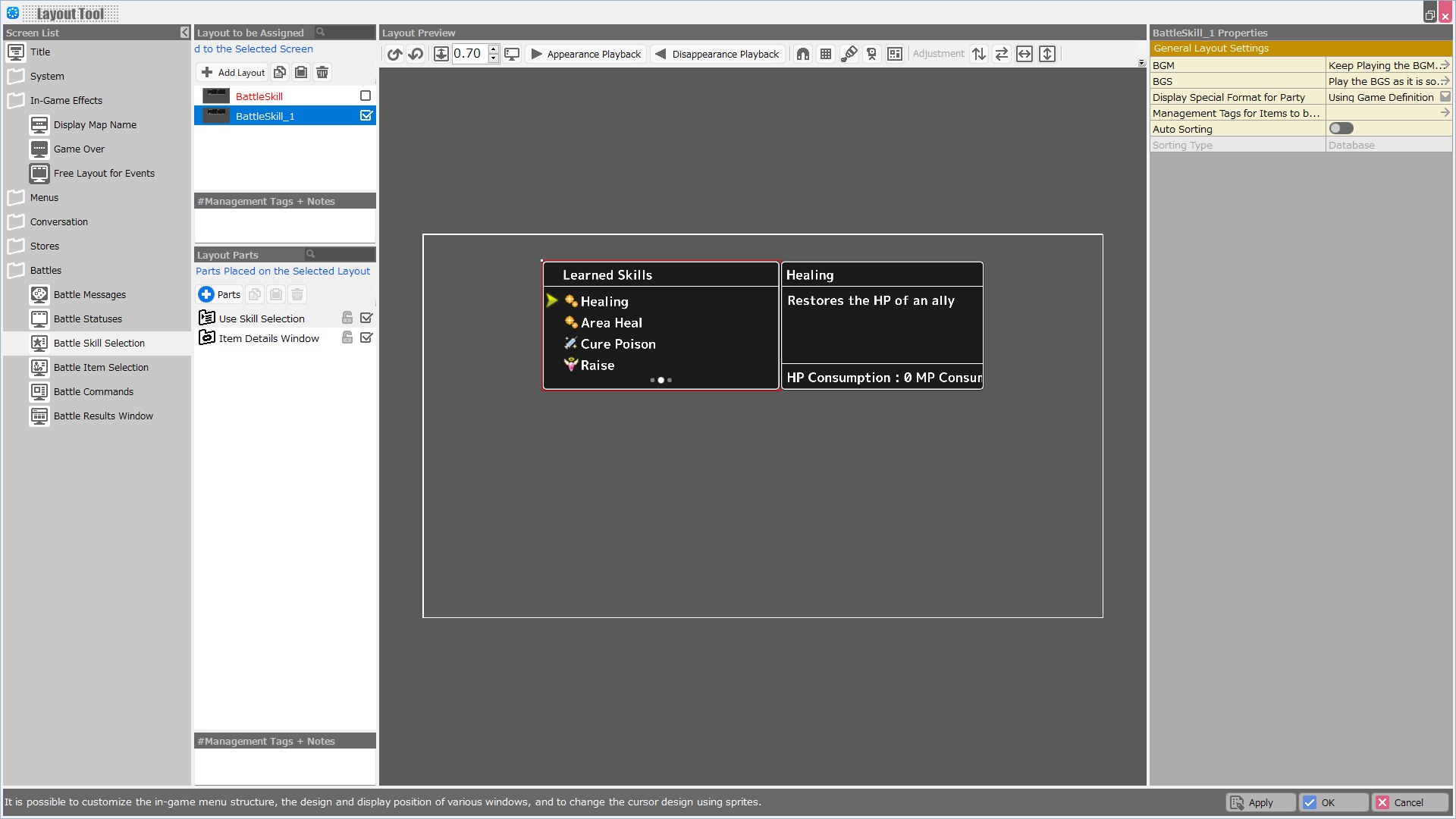
| Property Option | |
| BGM | Specify the background music to be played when this layout is displayed. |
| BGS | Specify the environmental sound to be played when this layout is displayed. |
| Display Special Format for Party | Assign whether to include the reserve members as part of the party when using a special format that deals with information about the party in this layout. |
| Variable to Assign a Selection Result | A value corresponding to the element determined by this layout is assigned to the specified variable. In case of cancellation, -1 is assigned. |
| Variable to Assign a Selection | A value corresponding to the currently selected element in this layout is assigned to the specified variable. In the Enhancement Item Selection screen, the number on the inventory (from 1) is assigned; in other screens, the container number is assigned. |
| Start the Index from 1 | When turned on, when assigning a Selection Result or Selection to a variable, the first element number starts from “1” instead of “0”. |
| Management Tags for Skills to be Displayed | Assigning a management tag allows you to limit the skills displayed on this screen. Please specify the management tag at Database > Skills. |
| Auto Sorting | When turned ON, the selections displayed in the layout are automatically sorted when this layout is opened. |
| Sorting Type | Assign the rule for sorting when "Auto Sorting" is turned on, from among Obtained Order/ Database/ Name. |
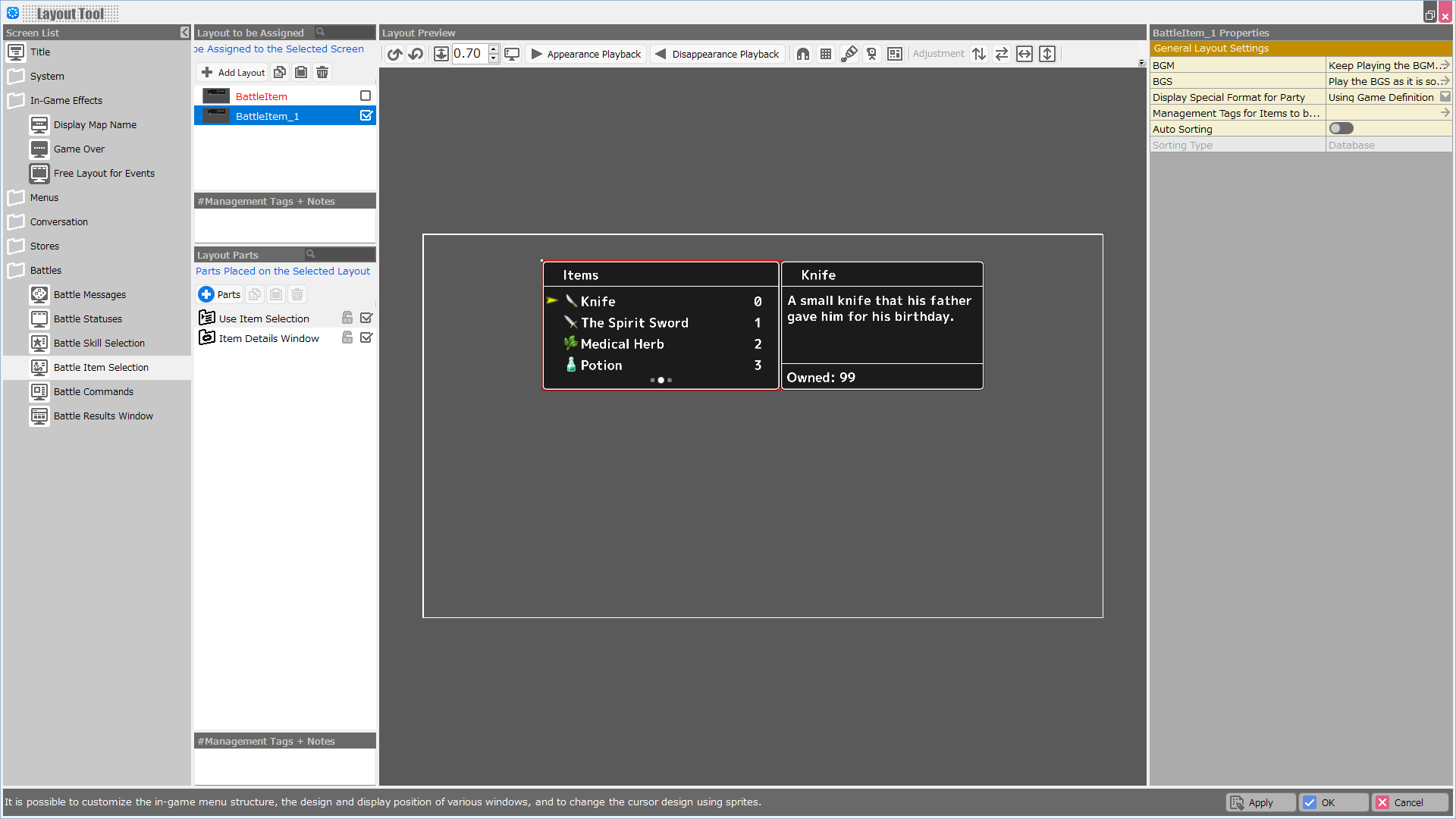
| Property Option | |
| BGM | Specify the background music to be played when this layout is displayed. |
| BGS | Specify the environmental sound to be played when this layout is displayed. |
| Display Special Format for Party | Assign whether to include the reserve members as part of the party when using a special format that deals with information about the party in this layout. |
| Variable to Assign a Selection Result | A value corresponding to the element determined by this layout is assigned to the specified variable. In case of cancellation, -1 is assigned. |
| Variable to Assign a Selection | A value corresponding to the currently selected element in this layout is assigned to the specified variable. In the Enhancement Item Selection screen, the number on the inventory (from 1) is assigned; in other screens, the container number is assigned. |
| Start the Index from 1 | When turned on, when assigning a Selection Result or Selection to a variable, the first element number starts from “1” instead of “0”. |
| Management Tags for Items to be Displayed | Assigning a management tag allows you to limit the items displayed on this screen. Please specify the management tag at Database > Items. |
| Auto Sorting | When turned ON, the selections displayed in the layout are automatically sorted when this layout is opened. |
| Sorting Type | Assign the rule for sorting when "Auto Sorting" is turned on, from among Obtained Order/ Database/ Name. |
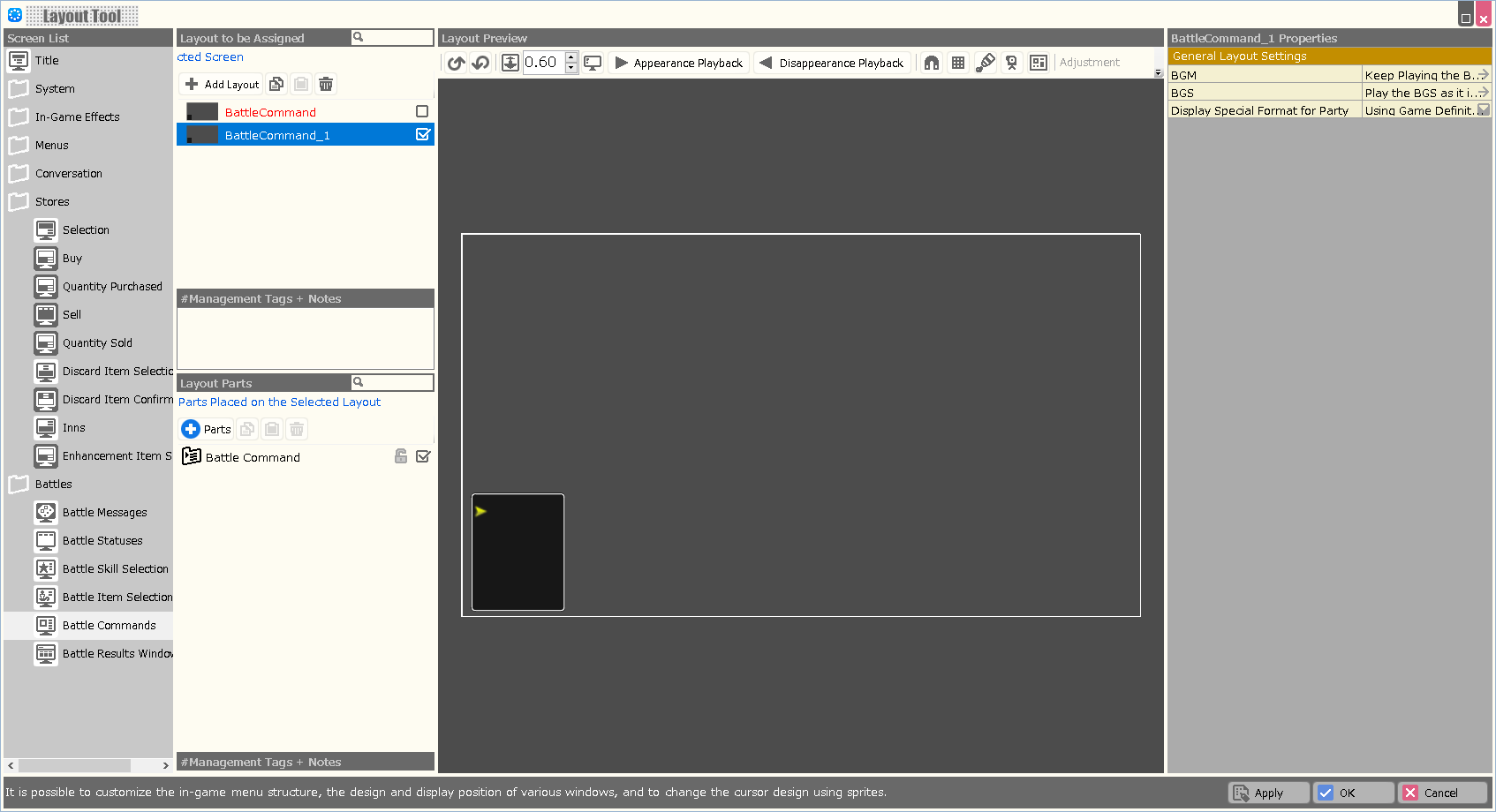
| Property Option | |
| BGM | Specify the background music to be played when this layout is displayed. |
| BGS | Specify the environmental sound to be played when this layout is displayed. |
| Display Special Format for Party | Assign whether to include the reserve members as part of the party when using a special format that deals with information about the party in this layout. |
| Variable to Assign a Selection Result | A value corresponding to the element determined by this layout is assigned to the specified variable. In case of cancellation, -1 is assigned. |
| Variable to Assign a Selection | A value corresponding to the currently selected element in this layout is assigned to the specified variable. In the Enhancement Item Selection screen, the number on the inventory (from 1) is assigned; in other screens, the container number is assigned. |
| Start the Index from 1 | When turned on, when assigning a Selection Result or Selection to a variable, the first element number starts from “1” instead of “0”. |
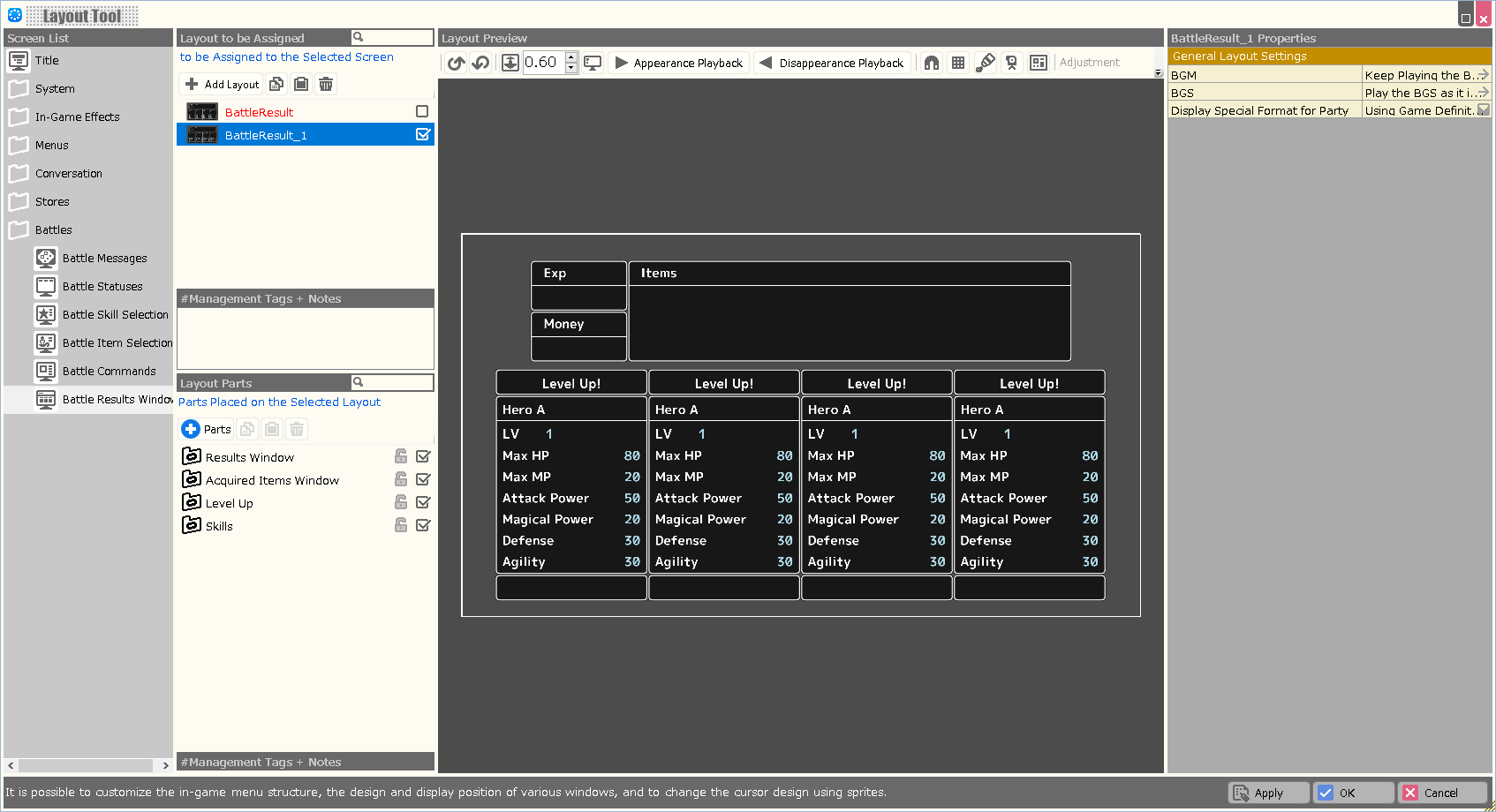
| Property Option | |
| BGM | Specify the background music to be played when this layout is displayed. |
| BGS | Specify the environmental sound to be played when this layout is displayed. |
| Display Special Format for Party | Assign whether to include the reserve members as part of the party when using a special format that deals with information about the party in this layout. |


