![[PukiWiki]](./skin/BAKIN_logo_92.png "[PukiWiki]")
Place trees and a river on the terrain you’ve created, set the background music, and finish your map.
Let’s also use “Post Effects,” one of Bakin’s key features, to completely transform the map’s landscape.
You’ll start placing trees, rivers, and houses on the map.
In Bakin, maps are created by placing resources called “stamps”' onto maps.
Everything you place on maps—whether 3D or 2D—is considered a “stamp.” For more details on stamps, please refer to What are 'Stamps'?.
Let’s begin by placing some trees in the back area of the map.
First, turn off the “Snap to Grid” button located at the bottom of the Map Editor.
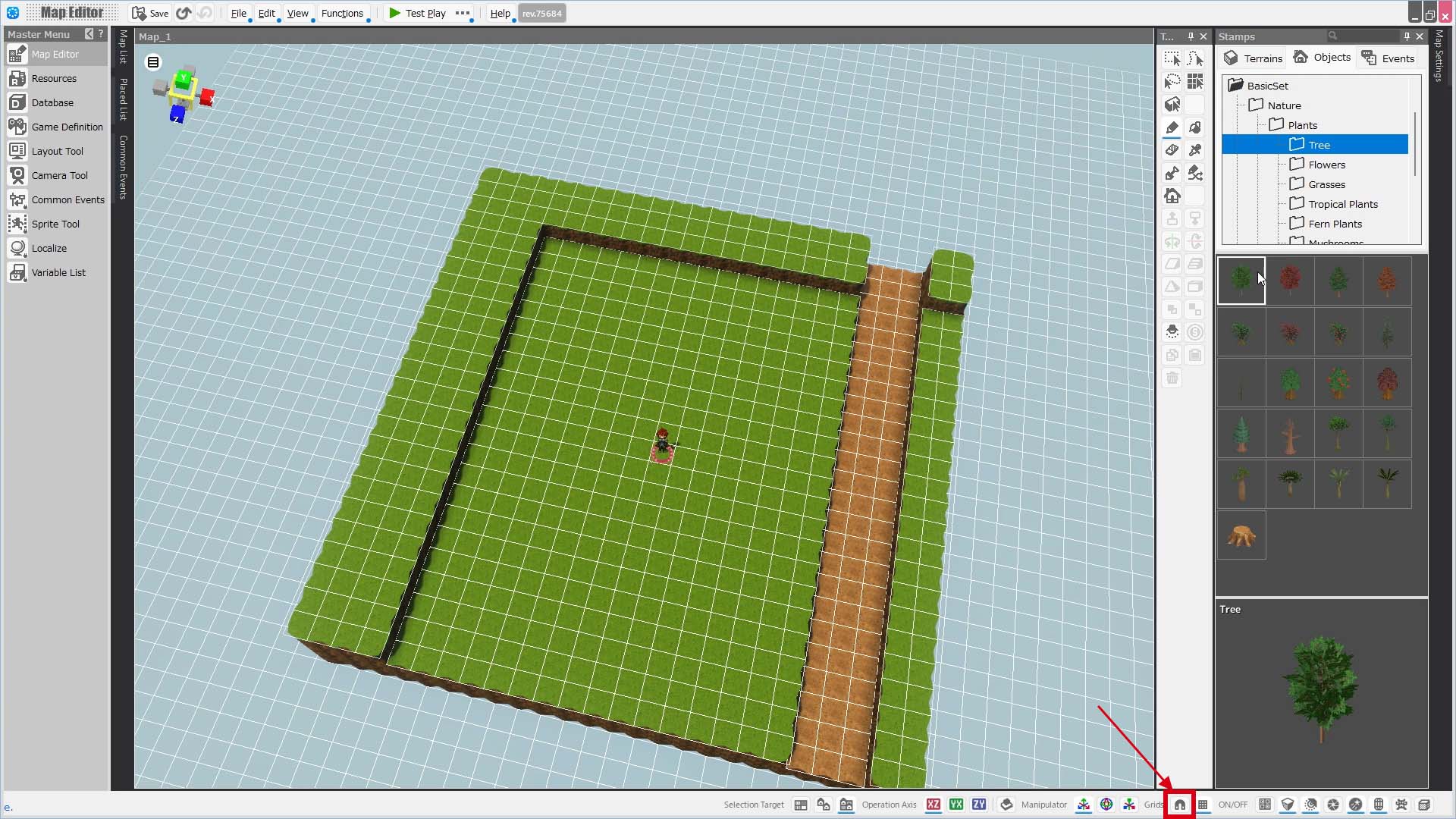
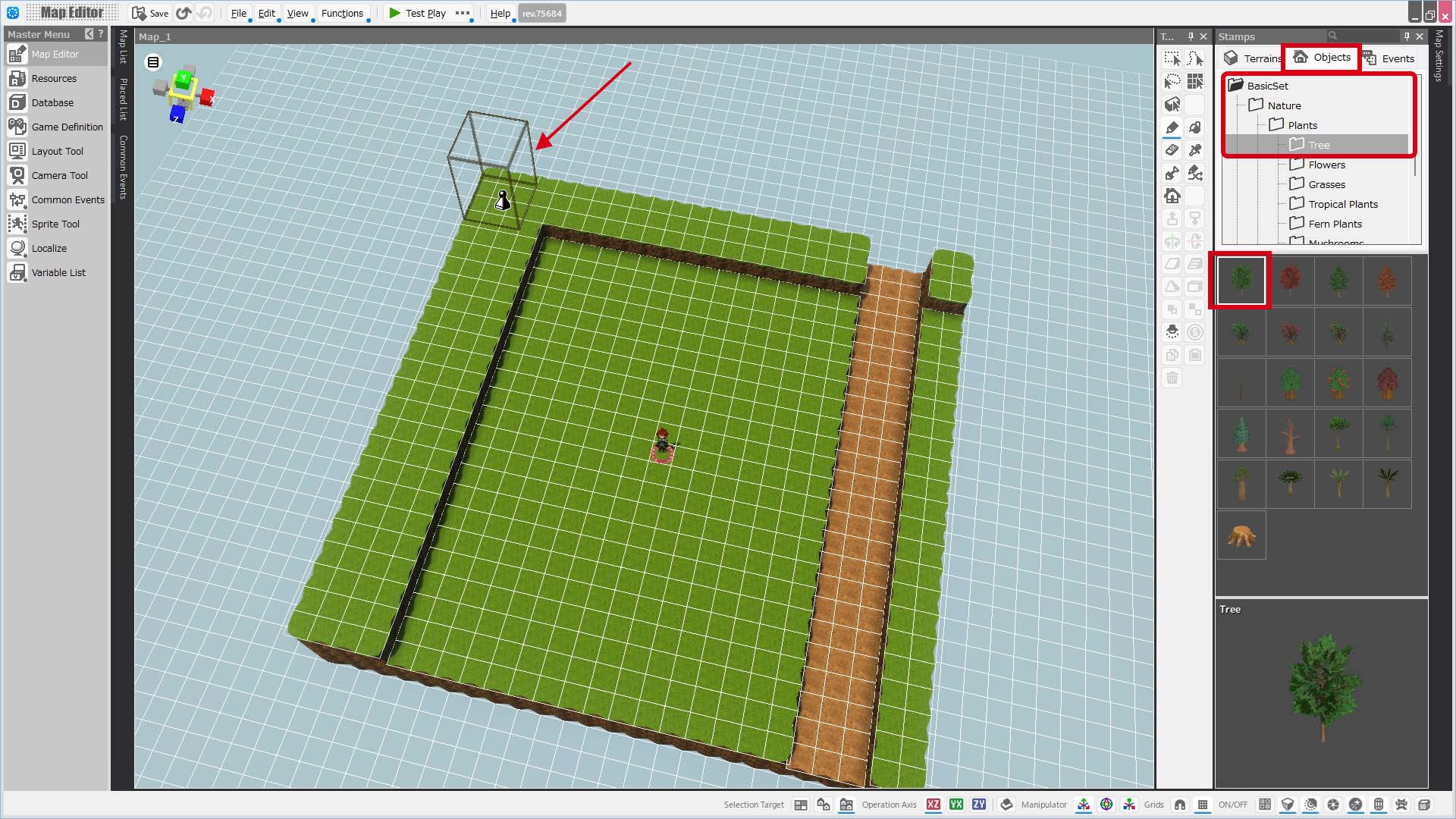
Next, open the Stamps Palette on the right side of the screen, and select the Object tab.
In the file tree under the Objects tab, go to: BasicSet > Nature > Plants > Trees, then, choose a tree stamp from the thumbnails.
Your mouse cursor will change to a box-like shape.
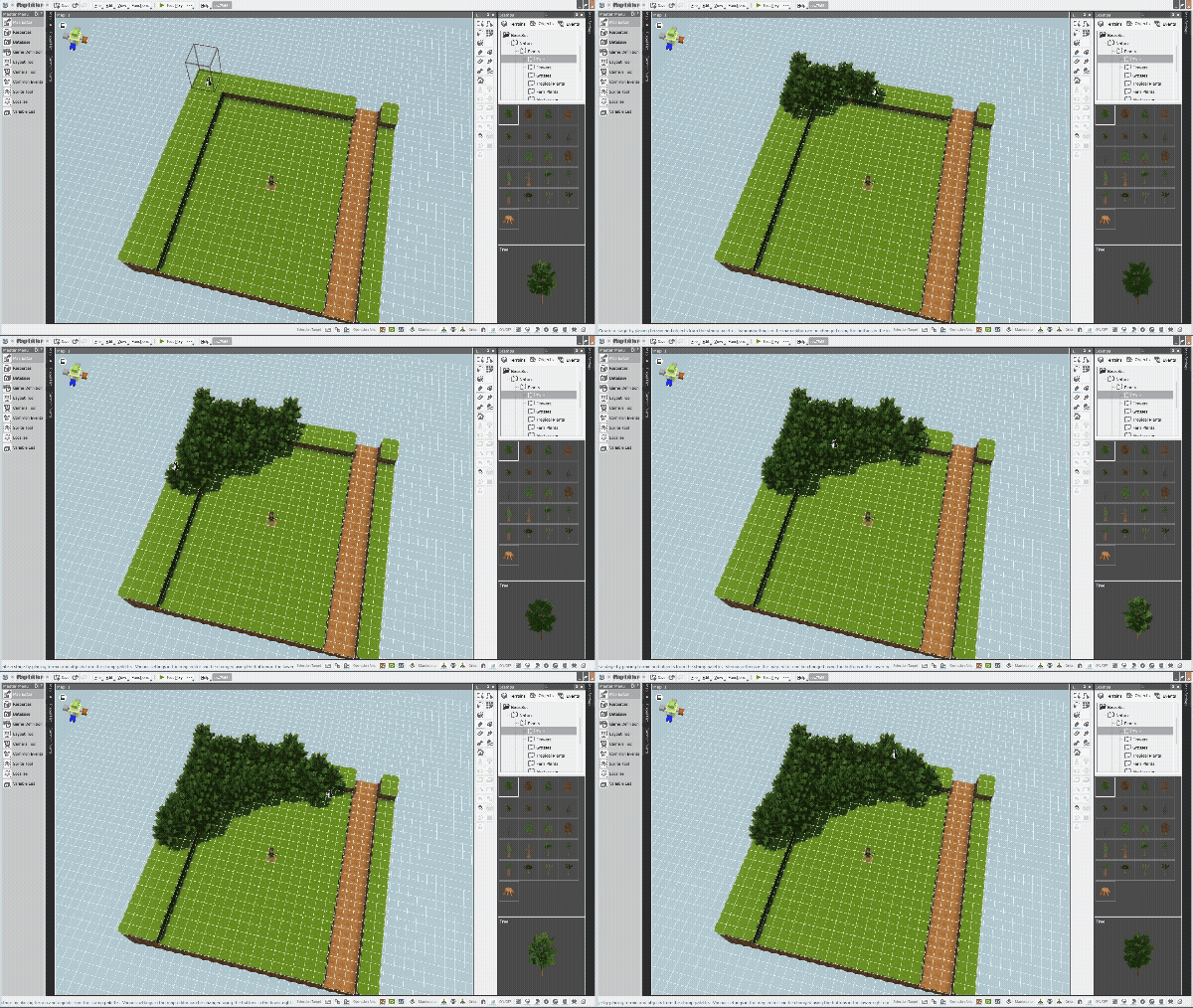
Now try dragging in the back area of the map.
Trees will be placed, creating a “forest.”
If you make a mistake, press Undo (Ctrl+Z) to go back. Try as many times as you'd like.
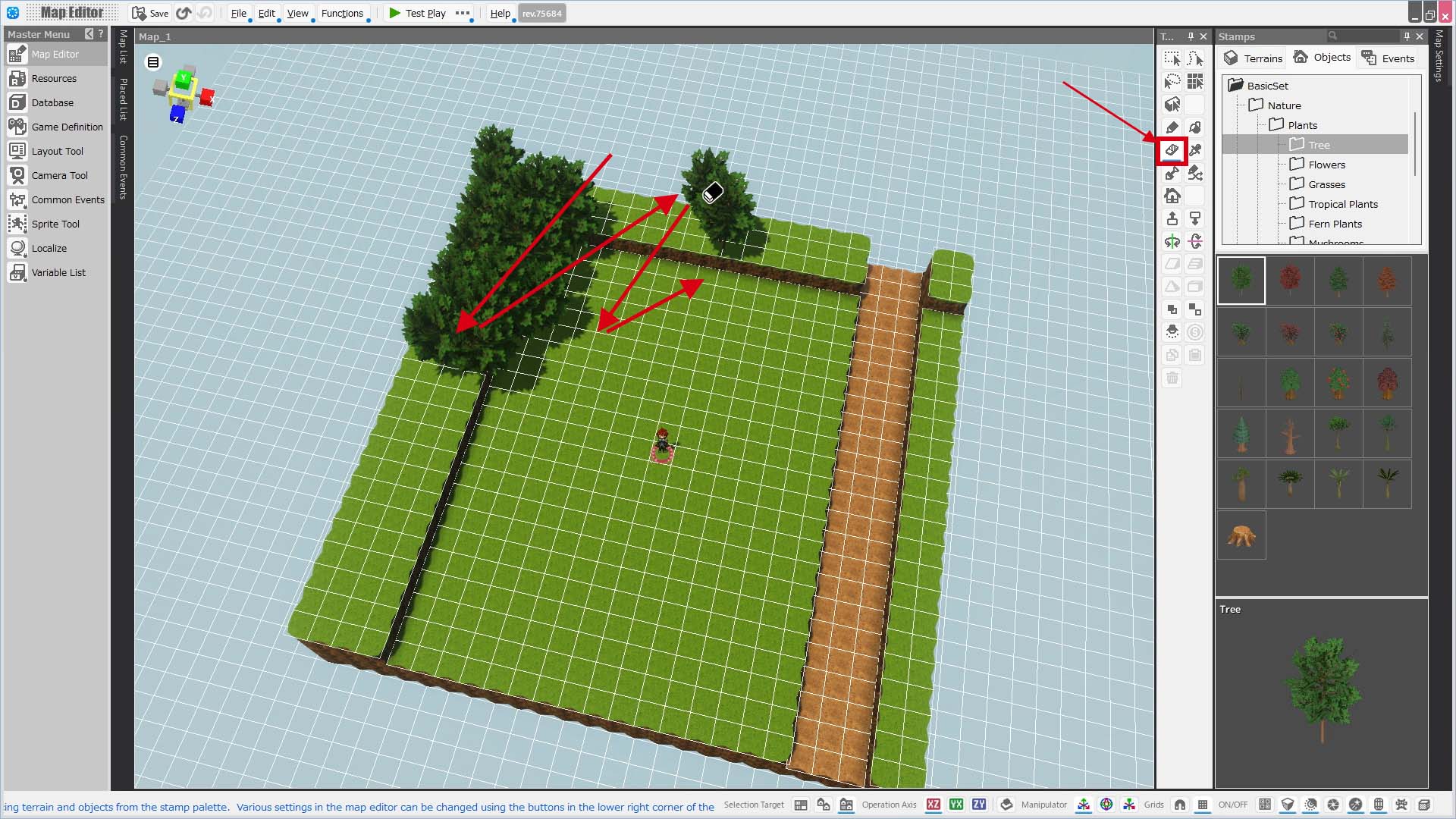
Next, let’s delete the trees you just placed.
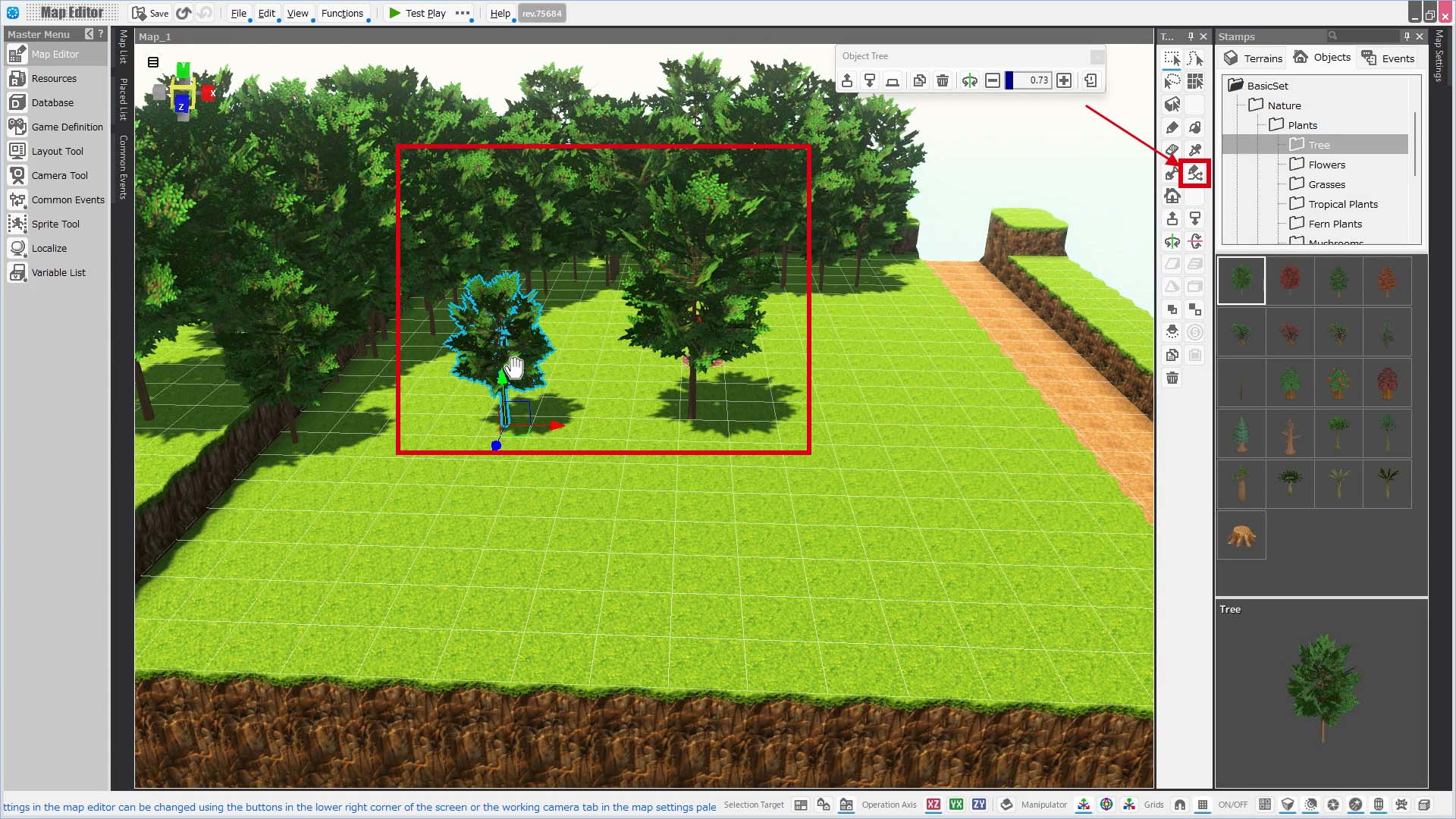
Select the “Eraser” tool from the Tools Palette and drag over the trees you want to remove.
Of course, you can also use Undo to revert to the state before placing the trees.
Once all the trees are removed, select the tree stamp again from the Stamps Palette. This time, try dragging in the back of the map while holding down Ctrl + Alt.
Trees with slight variations in rotation and height will be placed, creating a more natural-looking forest.
This is a feature called the “Random Pen,” which is also available as a tool in the Tools Palette.
For detailed settings of the Random Pen, please refer to the Project Settings page.
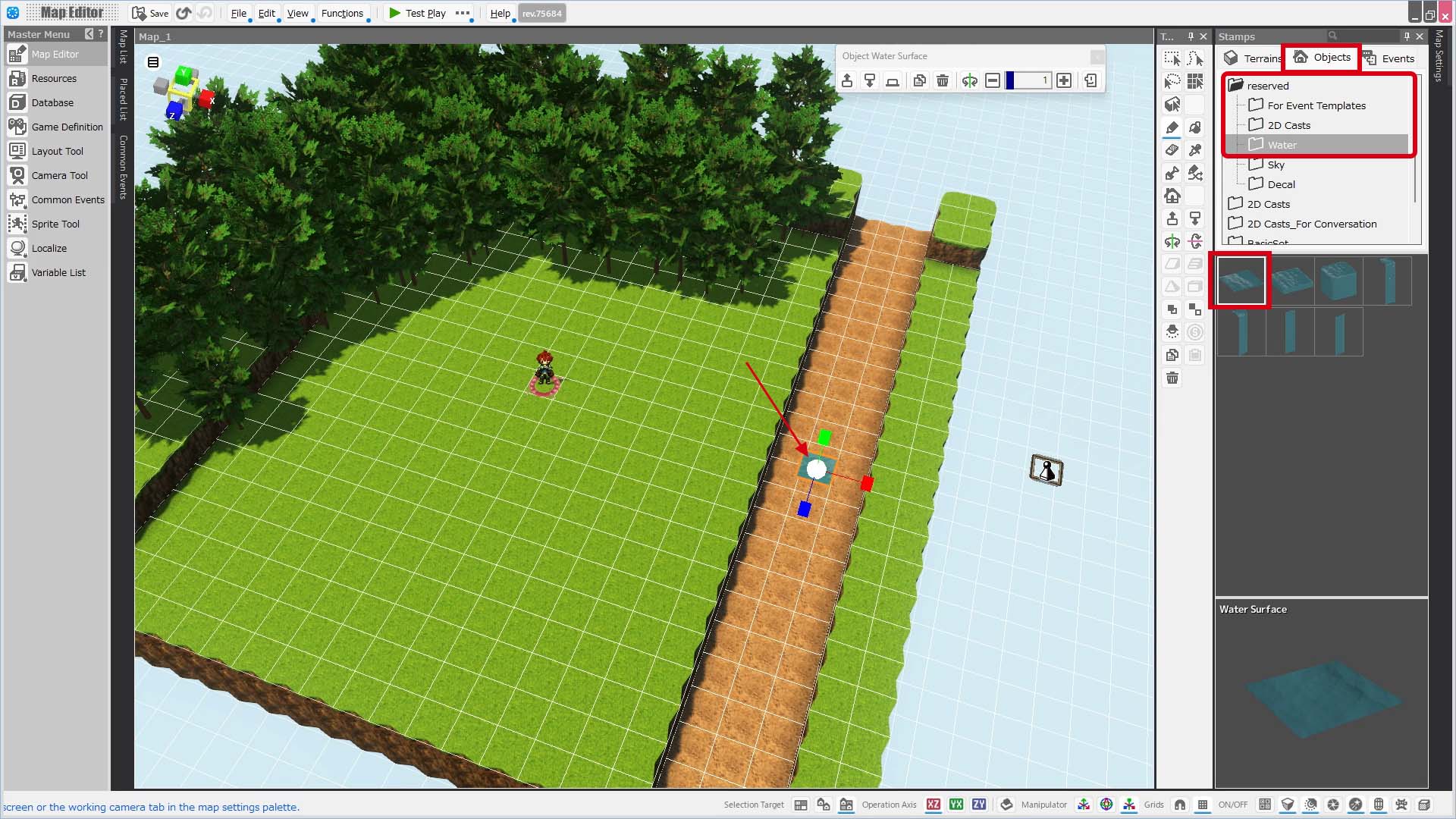
Just like other objects, river surfaces are placed using stamps.
From the Stamps Palette, navigate to: BasicSet > reserved > Water, and select the “Water Surface” stamp. Place it over the riverbed area on the map.
After placing it, drag the green bar on the manipulator (the red, blue, and green arrow bars that appear on the stamp) to slightly raise the water surface above the riverbed.
Once the water surface is lifted, click the “Scale Adjustment” button at the bottom of the Map Editor, or press the “R” key.
The manipulator will change shape.
Now drag the ends of the red and blue bars to resize the water surface.
Try expanding it until it covers the entire riverbed.
#ref(): File not found: "Creating a Map 2_7.jpg" at page "Creating a Map 2 (Beginner Tutorial)"
The ability to easily adjust size and rotation is one of the advantages of 3D objects.
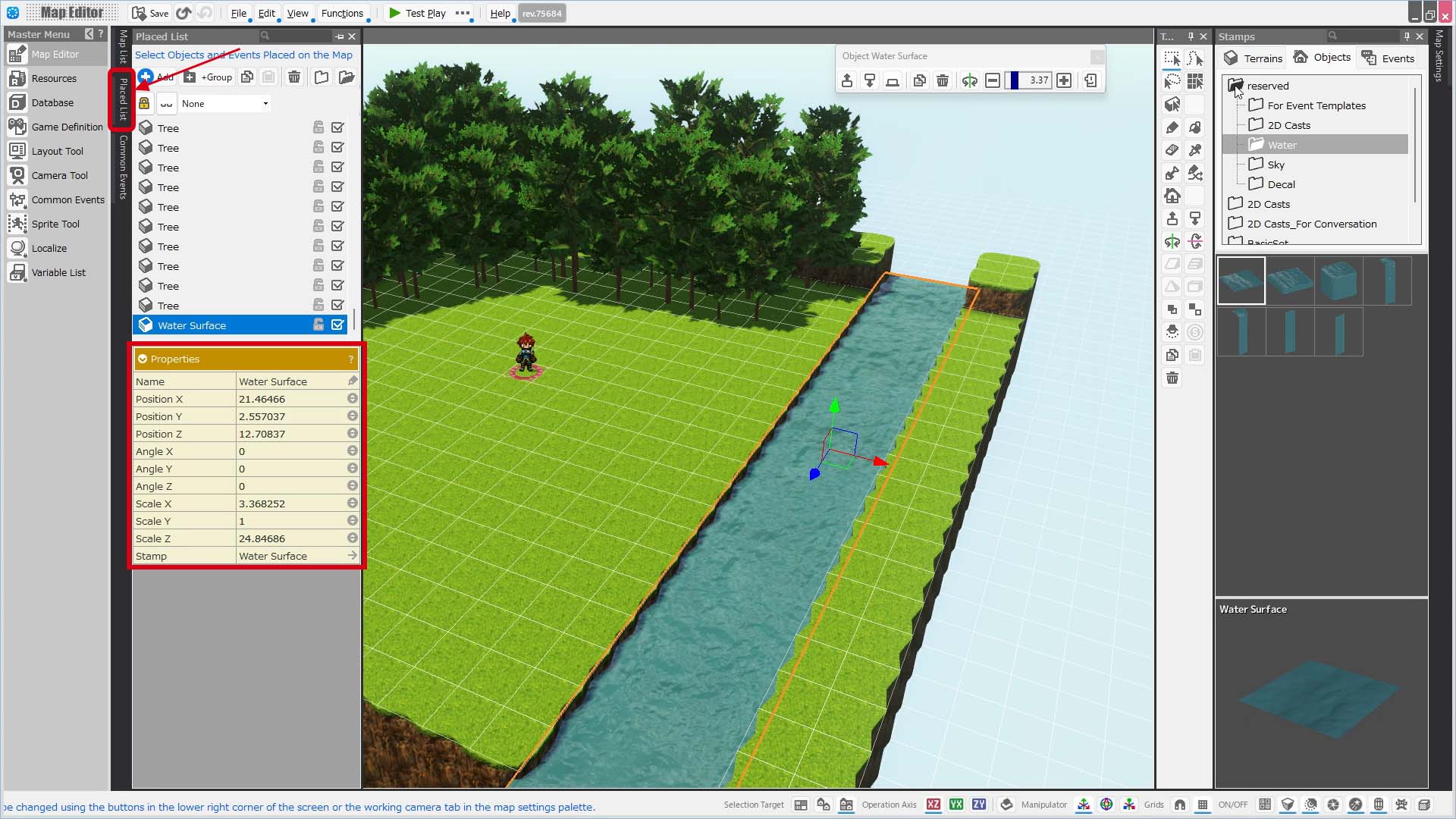
If you want to fine-tune angles or positions using precise numbers, use the Placed List Palette on the left side of the screen.
Click the water surface you placed earlier in the Map Editor. It will be selected in the Placed List Palette, and a property section will appear at the bottom of the palette.
You can directly enter values in the property fields for more precise adjustments.
Next, let’s add some rocks into the river.
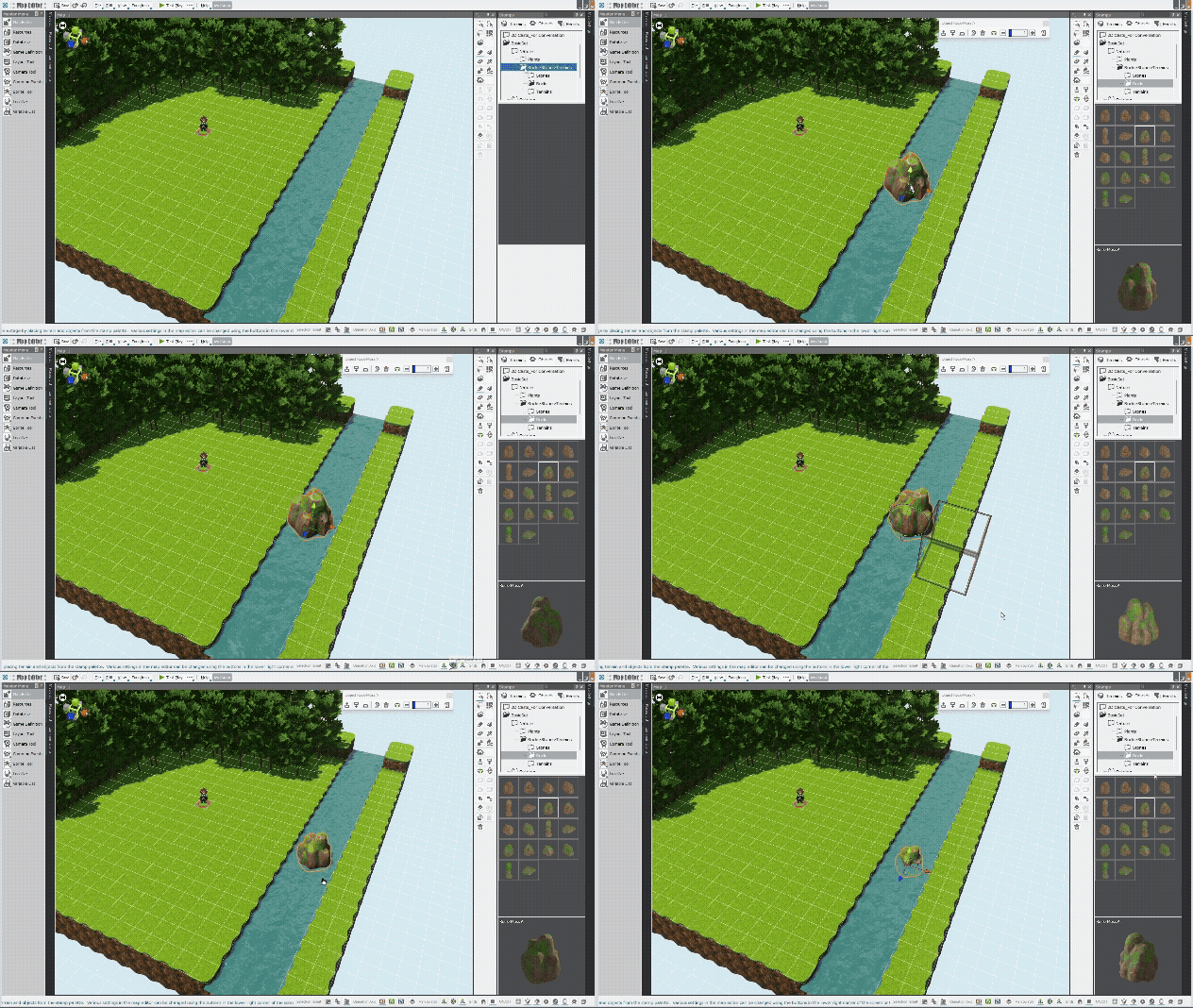
From the Stamps Palette, go to: BasicSet > Nature > Rocks-Stones-Terrains > Rocks folder, and choose a rock stamp you like.
Click on the area where you want to place the rock.
Then, use the “Scale Adjustment” button or the “Angle Adjustment” button next to it to switch the manipulator mode.
Try adjusting the manipulator to change the rock’s size or angle freely.
If you want to resize the object without altering its shape, click and drag the white sphere at the center of the manipulator.
Once you're happy with the rock's size and angle, press the “Position Adjustment” button (or press the “W” key), then click the green arrow and drag to submerge the rock into the river.
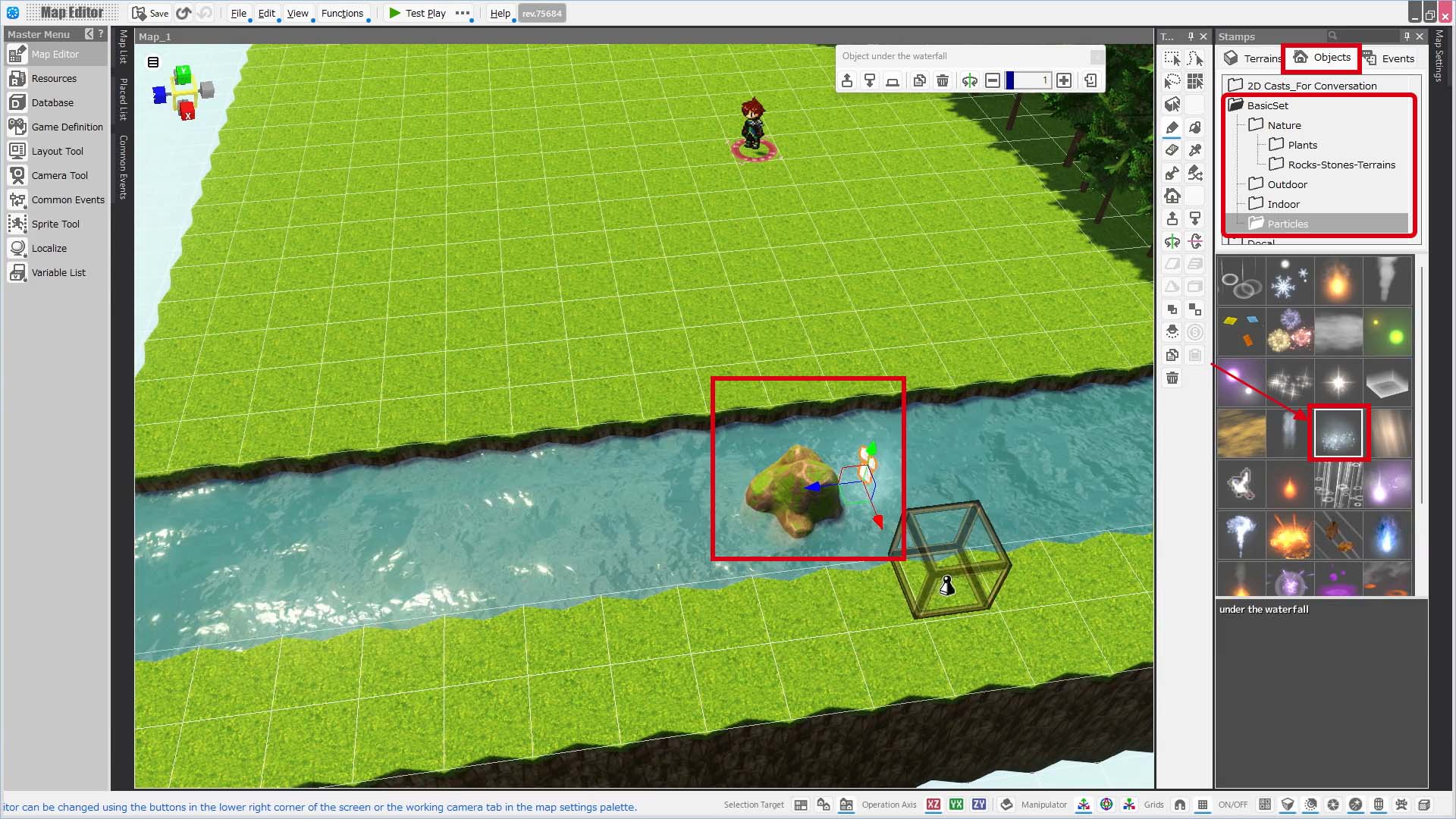
Now let’s add a splash effect around the rock.
From the Stamps Palette, go to: BasicSet > Particles, and select the “Under the Waterfall” stamp.
Place it next to the rock to create a splash effect.
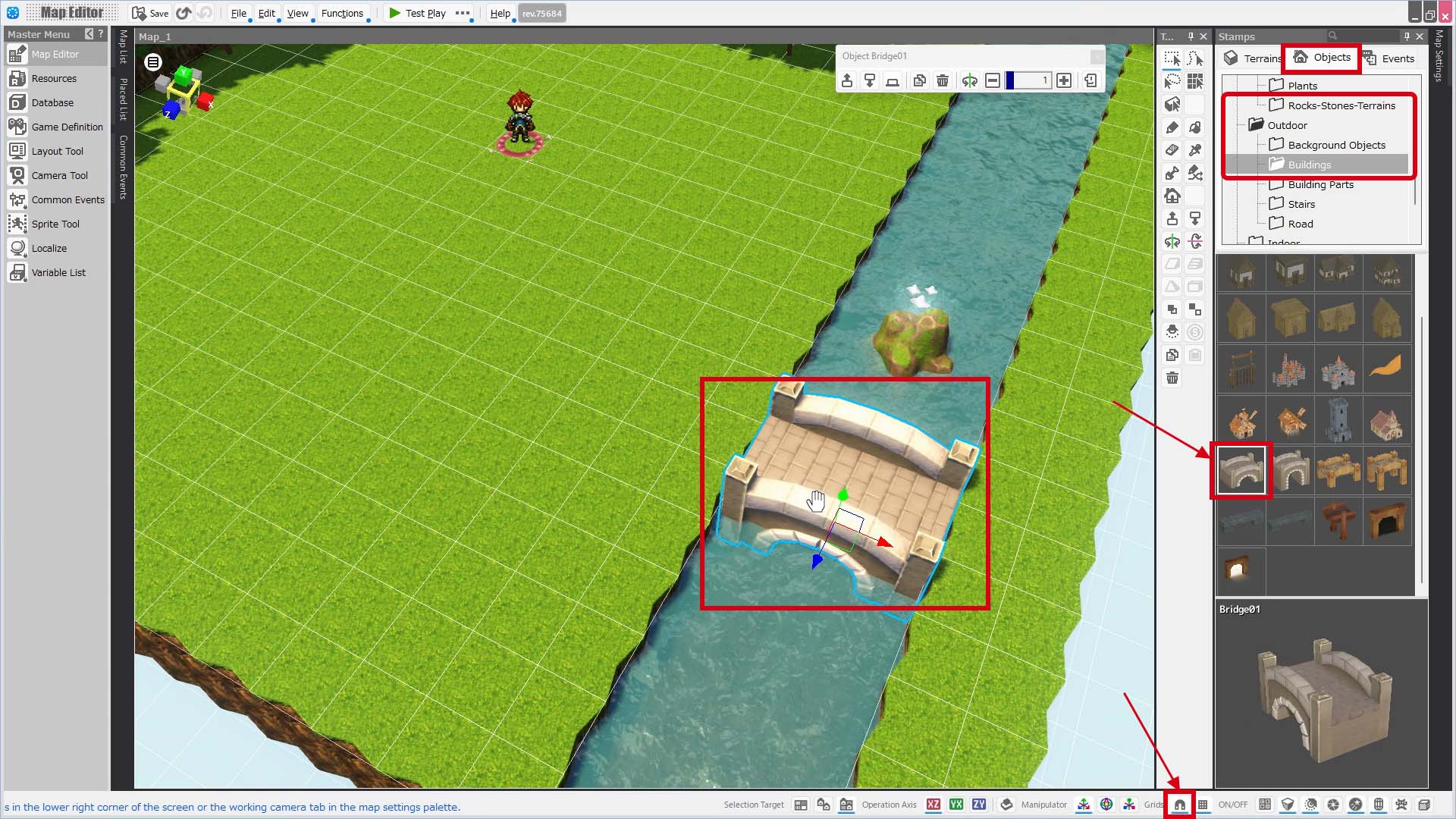
Let’s try placing a bridge across the river.
First, turn on the “Snap to Grid” button located at the bottom of the Map Editor.
With that enabled, go to the Objects tab in the Stamps Palette, open the folder: BasicSet > Outdoor > Buildings, and select the “Bridge” stamp.
After selecting it, click on the spot where you want to place the bridge.
When you move the bridge using the manipulator, you’ll notice it moves in 0.5 grid increments. This behavior is due to the “Snap to Grid” feature we enabled earlier.
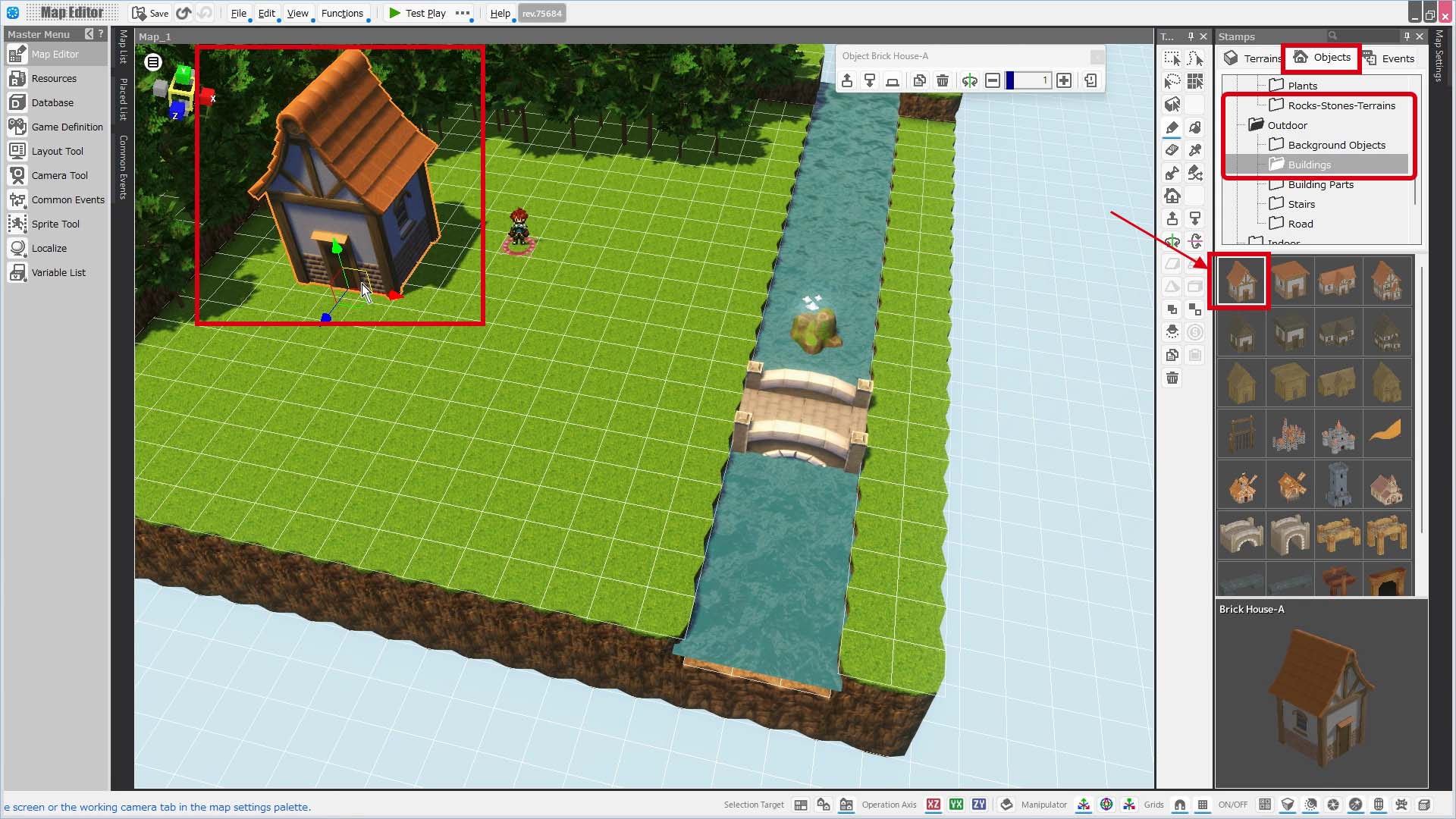
Next, let’s place a house in front of the forest.
Just like when you selected the bridge, go to the Buildings folder in the Stamps Palette, select the “Brick House-A” stamp, and place it where you'd like.
Your map is mostly complete now.
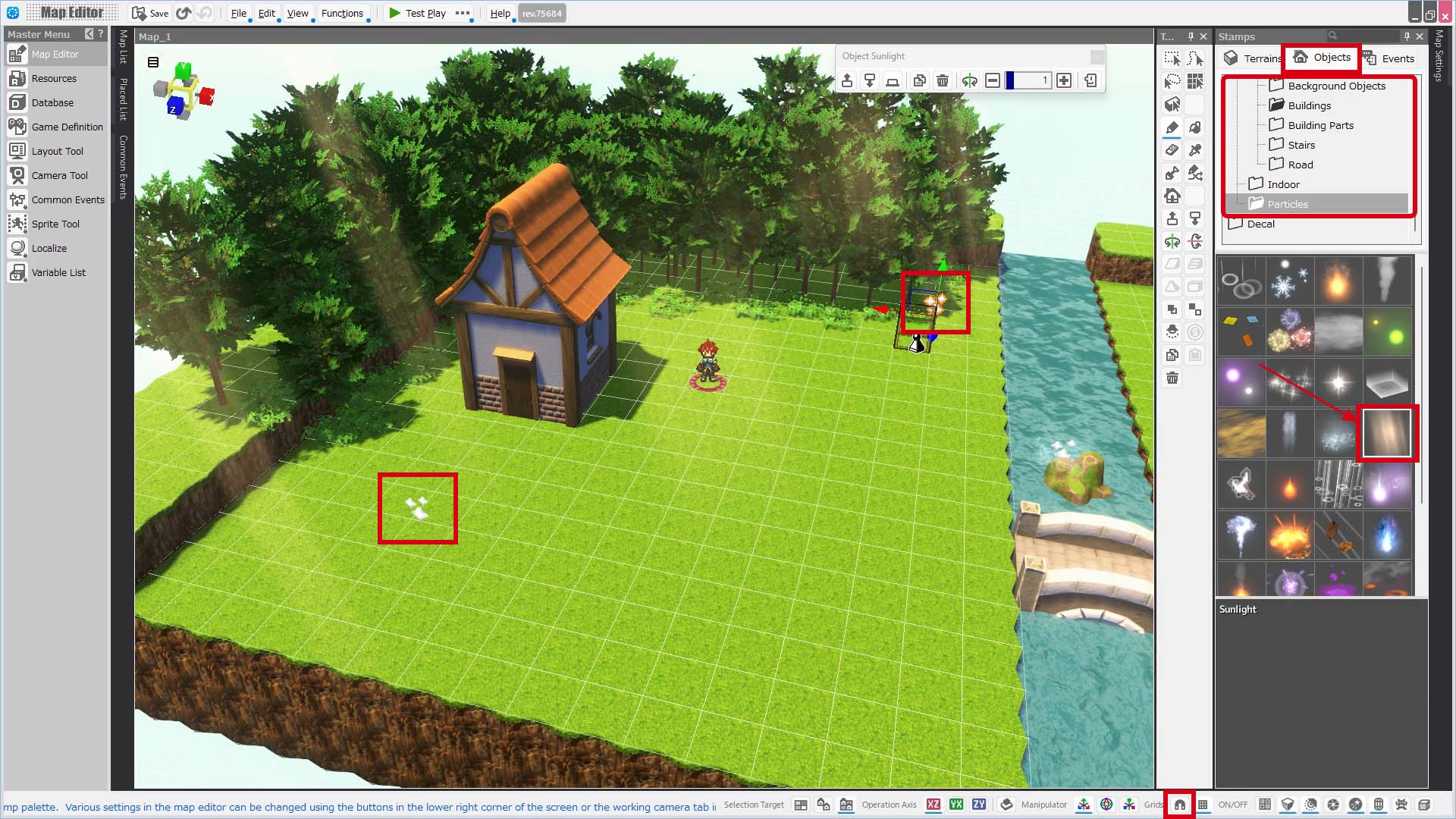
Let’s add some undergrowth beneath the forest trees.
First, turn off the “Snap to Grid” button. Then, go to the Objects tab in the Stamps Palette, open Nature > Plants > Grasses, and select the “Bush” stamp. Click and drag near the base of the trees to place some bushes.
Next, open the Particles folder in the Stamps Palette, select the “Sunlight” stamp, and place it on the map to simulate sunlight streaming through.
Now, let’s change the map from a daytime scene to a sunset one.
Open the Map Settings Palette on the right side of the screen and go to the Rendering Settings tab.
From the list of rendering presets, select “Nightfall.”
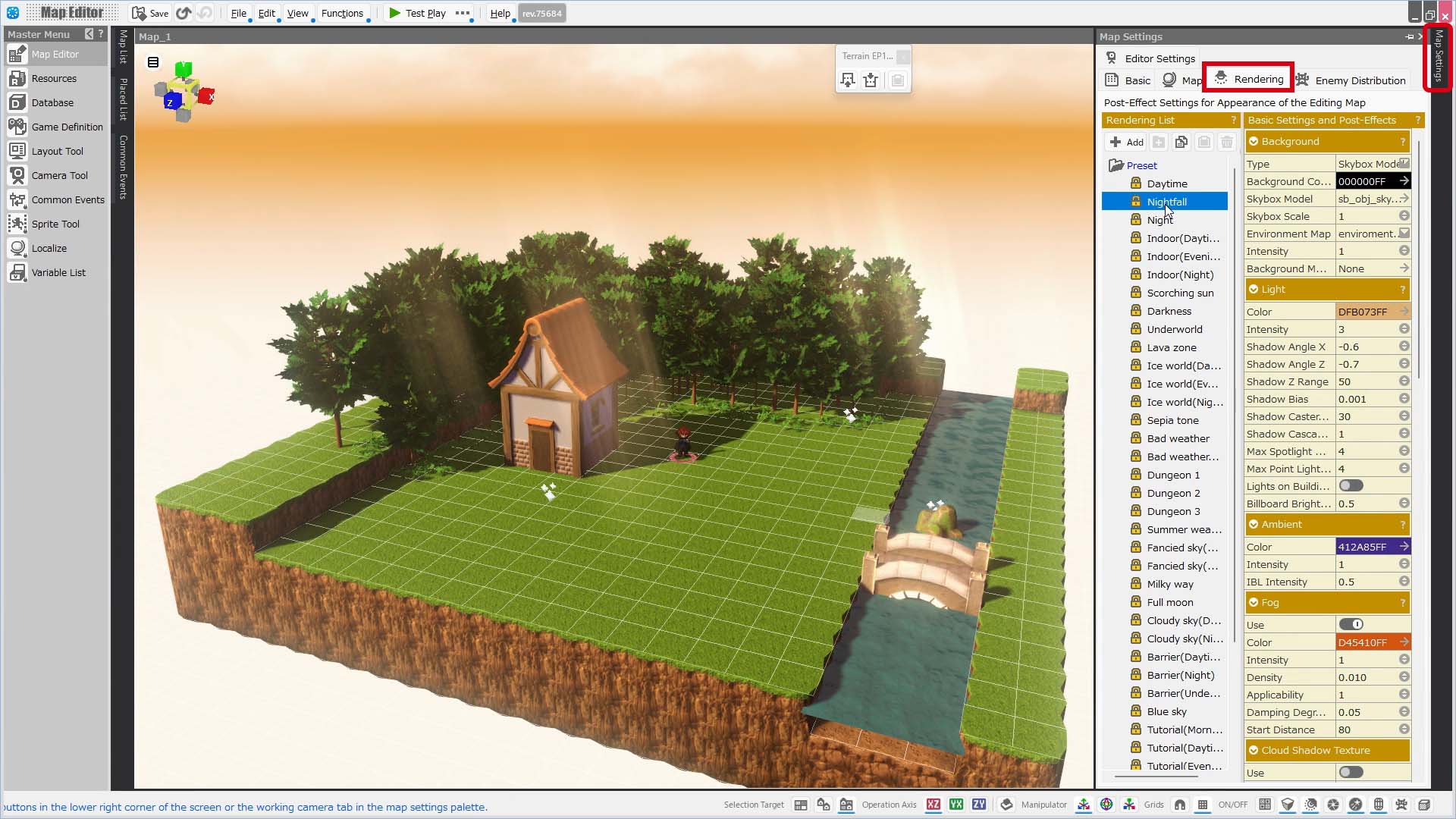
Bakin offers easy adjustment of post effects such as light color and depth of field (DOF), which blurs distant objects.
You can think of post effects as filters applied to the entire image.
By changing these filters, you can give the same map a completely different atmosphere.
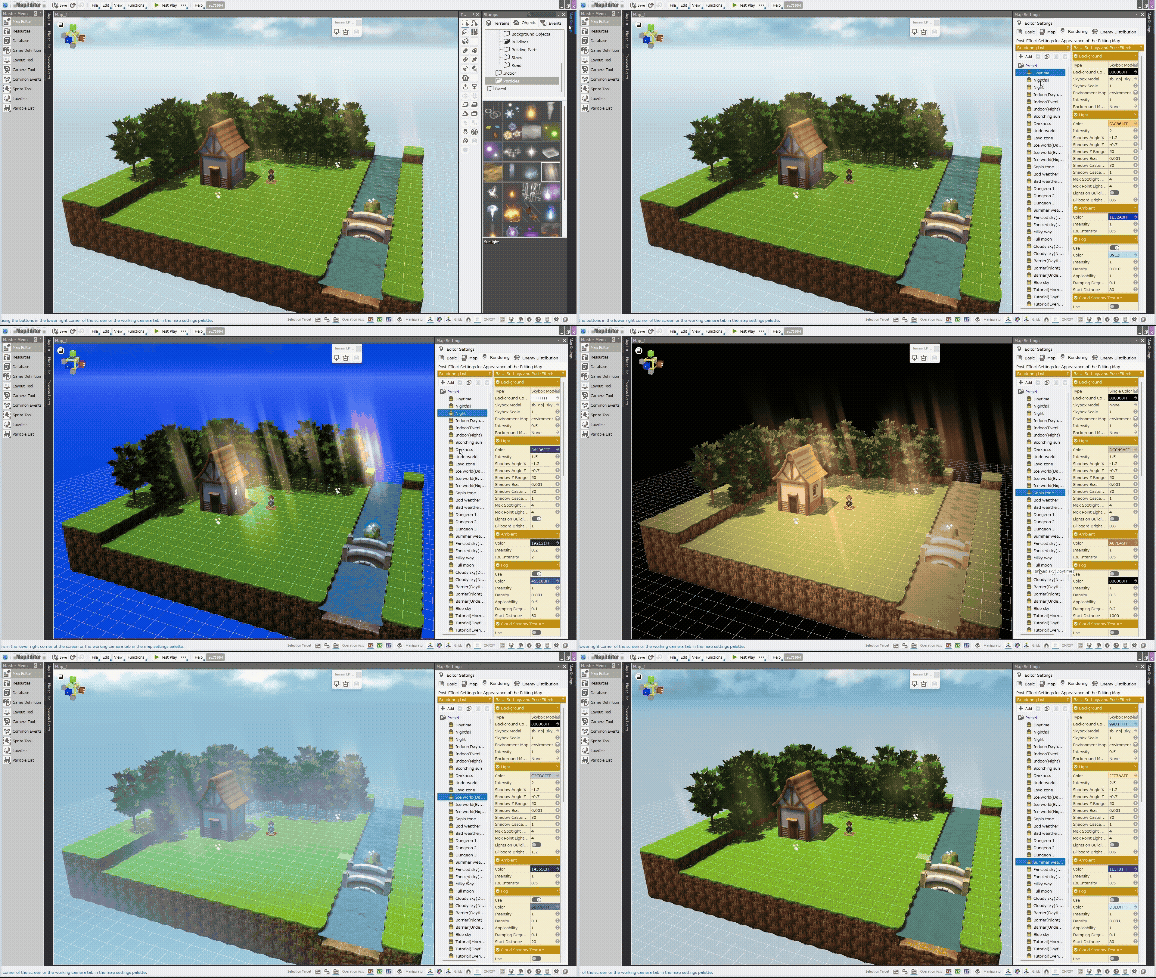
Try experimenting with the various presets in the rendering settings list.
See the Map Settings palette > Rendering.
One of Bakin’s standout features is how easily you can apply advanced post effects.
Explore different visual styles and see what you can create!
Lastly, let’s set the background sound for when the player enters in this map.
In the Map Settings Palette, switch to the Basic tab.
Click the -> next to “Environmental Sound” under the “Sounds” section. This opens the Asset Picker.
From the Asset Picker, choose: BGS > BGS_River_01
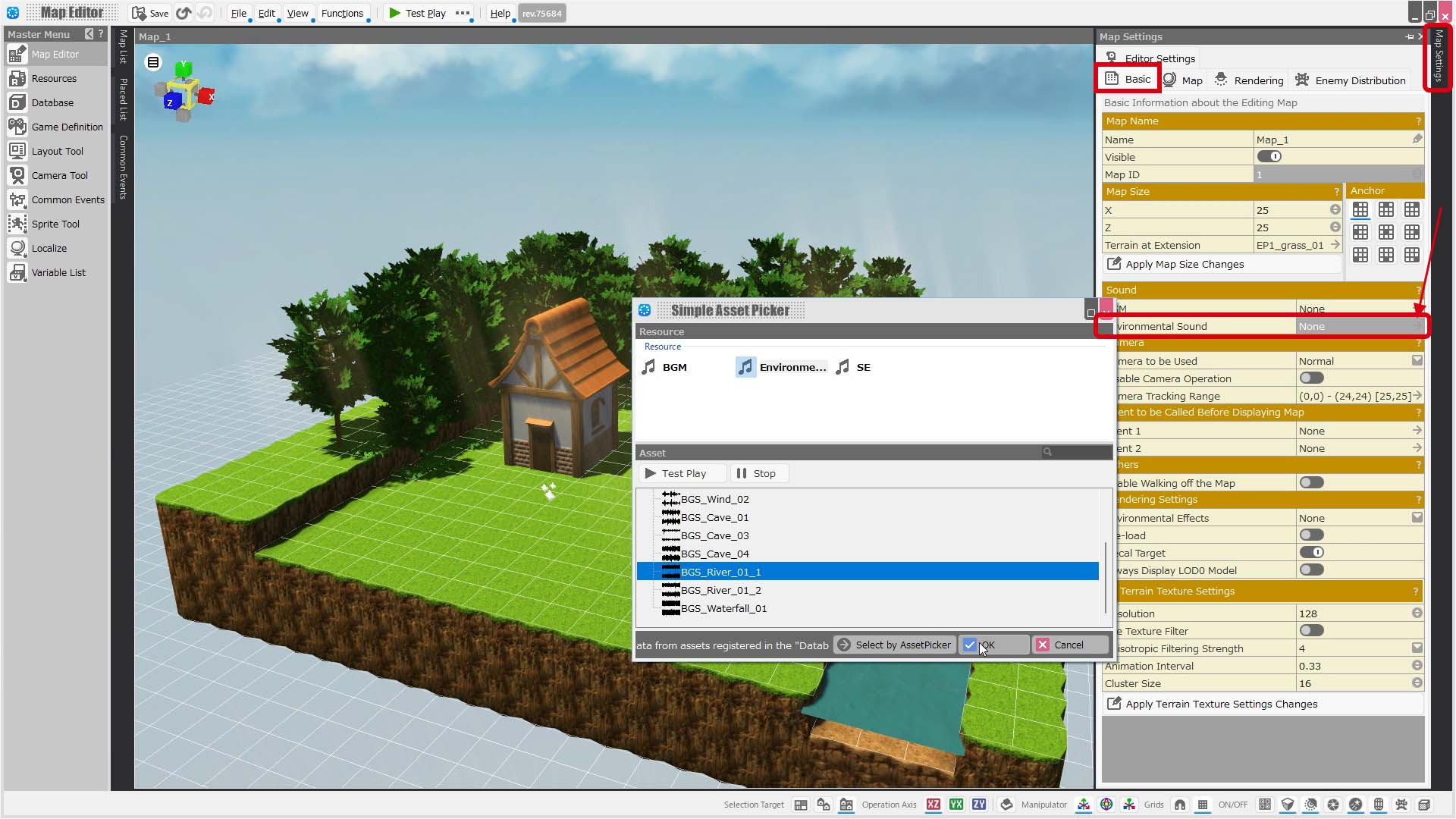
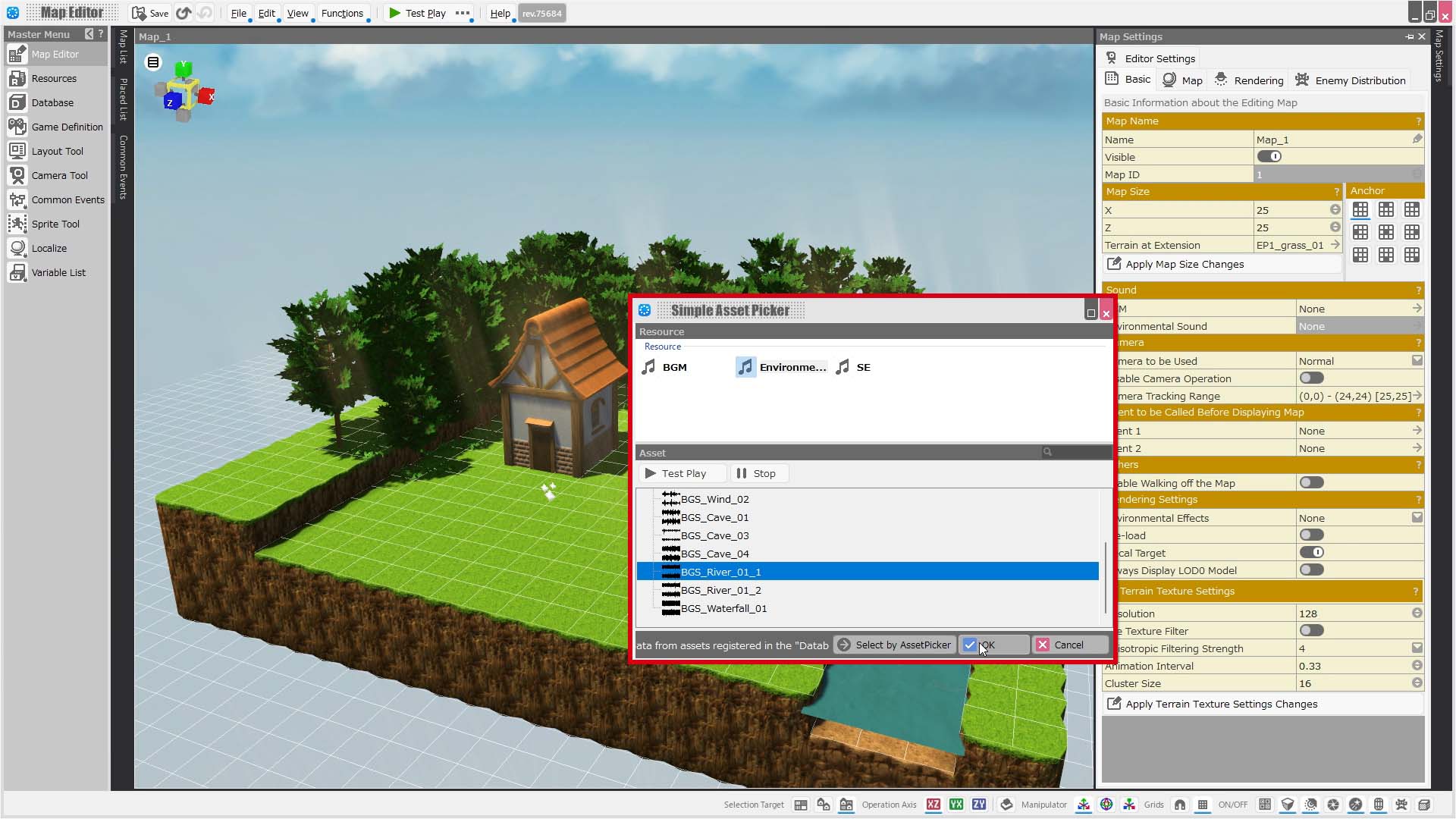
Please note: sounds set here will not play in the Map Editor.
You will hear them during “Test Play,” which we’ll cover next.
Once you've come this far, click the “SAVE” button at the top of the Map Editor to save your project.
While you'll be prompted to save when closing the project, it’s a good habit to save regularly during your work.
Note: Bakin also features automatic backup. For more details, see Auto Backup.
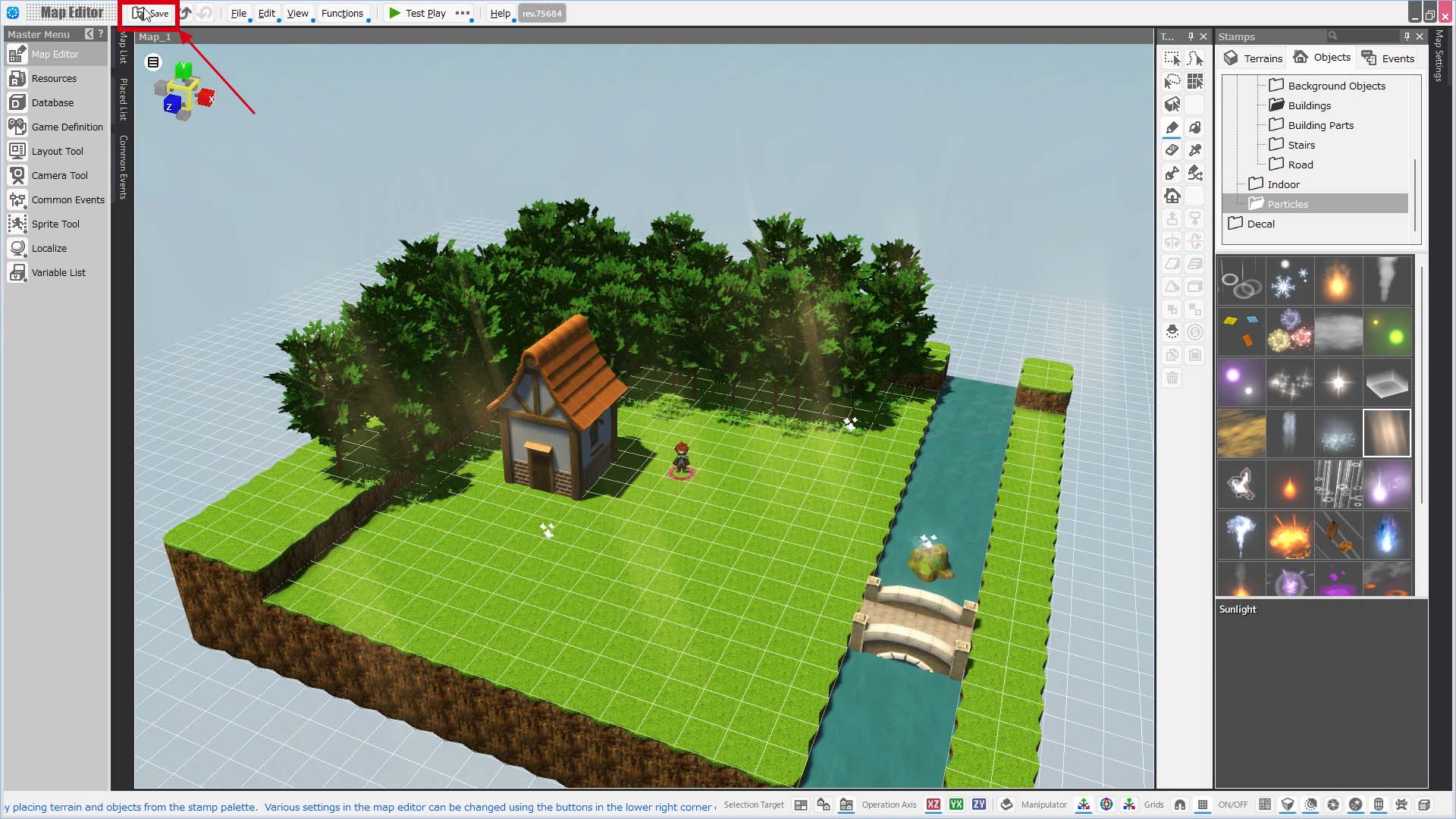
That completes your first map!
From here, feel free to place more stamps or experiment with post effects.
Refer to the Map Creation Tips to help polish your own unique map.
Next, let’s move on to Test Play and try walking around on the map!
Next: test_5_EN
Previous: test_3_EN


