RPG Developer Bakin Live2D Toolkit†
Live2D Toolkit Overview†
日本語ページはこちら
[[ Click here to download the Live2D Toolkit for free:https://☆☆☆☆]]
Contents†
Update History†
License†
This DLC uses the Live2D Cubism SDK. If you use this DLC to create and release a game, you must agree to the Live2D SDK license.
SDK Release License
In addition, the Live2D models included in this DLC may be used in accordance with Live2D’s guidelines.
Guidelines
Introduction:†
Bring Your Game to Life—Animate Your Characters with Live2D!
“Live2D Toolkit” is a free expansion DLC that allows you to incorporate Live2D models created with Live2D Cubism into games developed with “RPG Developer Bakin.” It is a tool designed to help you create memorable character presentations using animated character sprites.
Purpose and Features of This Tool
- Game Development in RPG Developer Bakin Using Live2D Models Created with Live2D Cubism
Main Features
- Import Live2D Models
You can easily import Live2D models into your Bakin project.
- Placeable on both 3D maps and the in-game screen
Imported Live2D models can be placed on 3D maps and displayed on screen in both the Display Image Panel and the Conversation Panel. You can choose which to use depending on the scene, and in either case, you can change facial expressions and play back motions.
- Supports lighting and post-effects
You can apply lighting and post-effects using Bakin's local lights to Live2D models placed on a 3D map.
This allows you to make characters blend naturally into the space to match the scene's atmosphere.
- Supports simultaneous display of multiple models
You can place and display multiple Live2D models simultaneously on the 3D map and in the display image panel.
The conversation panel can display up to two models at a time.
This allows you to naturally stage dialogue scenes between characters.
- Automatic playback of breathing, blinking, and lip-syncing
Imported Live2D models automatically play breathing and blinking animations. Additionally, when a Live2D model is displayed in a conversation panel, its mouth moves automatically while dialogue is displayed.
You can add or edit the parameters used for breathing from the resources.
- Switch motions and expressions from event panels
You can control the playback of Live2D model motions and facial expressions from Bakin's Event Panel.
You can implement effects such as “smile here” or “play this motion here” simply by arranging commands.
- Includes a sample project
After purchasing the DLC, you can download and use a sample project that utilizes Live2D.
You can see examples of how to position models and use event panels in the actual project.
- Implementation in existing projects
You can use the Live2D Toolkit features by adding this DLC to your existing projects.
Note: Depending on the status of your project and your environment, some adjustments may be necessary. We recommend backing up your project before installation.
Supported Platforms and System Requirements
- RPG Developer Bakin
- Version: 2.5.0 or later
Compatible Models
Supports Live2D Cubism models exported using the following target versions:
- SDK 3.0 / Cubism 3.0 (3.2)
- SDK 3.3 / Cubism 3.3
- SDK 4.0 / Cubism 4.0
- SDK 4.2 / Cubism 4.2
- SDK 5.0 / Cubism 5.0
Note: Models exported using Cubism 5.3 or later are not supported.
How to Install†
- Please download “RPG Developer Bakin Live2D Toolkit” from the Steam Store.
- [[&size(20)Click here to download the Live2D Toolkit for free};:https://☆☆☆☆]]
- Please verify that the download is taking place in the Steam client.
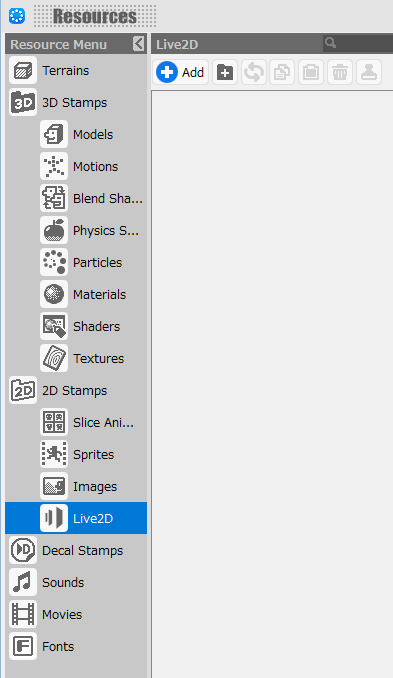
- Launch Bakin. If “Live2D” has been added to the Resources menu, it is ready to use.
Live2D Trademark Display†
You can access the Live2D Trademark Display dialog by selecting Functions > Extensions > Live2D Trademark Display from the top menu.
- Review Live2D Trademark Display Guidelines
Click to view the trademark display guidelines online.
- Add Live2D Logo to the Title Screen
Click to add a layout that includes the Live2D logo to the title.
How to Import†
You can import the file using one of the following methods.
In each case, please import ‘'model3.json’'.
Importing Files into the Map Editor via Drag-and-Drop†
Drag and drop the model3.json file for the model you want to import from the Explorer.
A 2D stamp will be generated automatically.
Importing Files by Drag-and-Drop to the Live2D List under Resources†
Drag and drop the “model3.json” file for the model you want to import from the Explorer.
Select “model3.json” from the “Add Resource” Button and Import It†
Click the “Add Resource” button, select the model's “model3.json” file you want to import from the “Local File” tab, and then select “Add and Exit.”
Create a Stamp
If you want to display it on a map or use it in a conversation panel, you'll need to turn it into a stamp.
- What are 'Stamps'?;
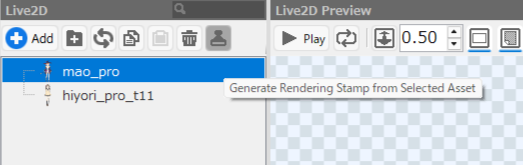
By clicking the Create Stamp button at the top of the Resources > Live2D list, you can set it as a 2D stamp.
What You Can Do in the “Live2D” Resource Menu†
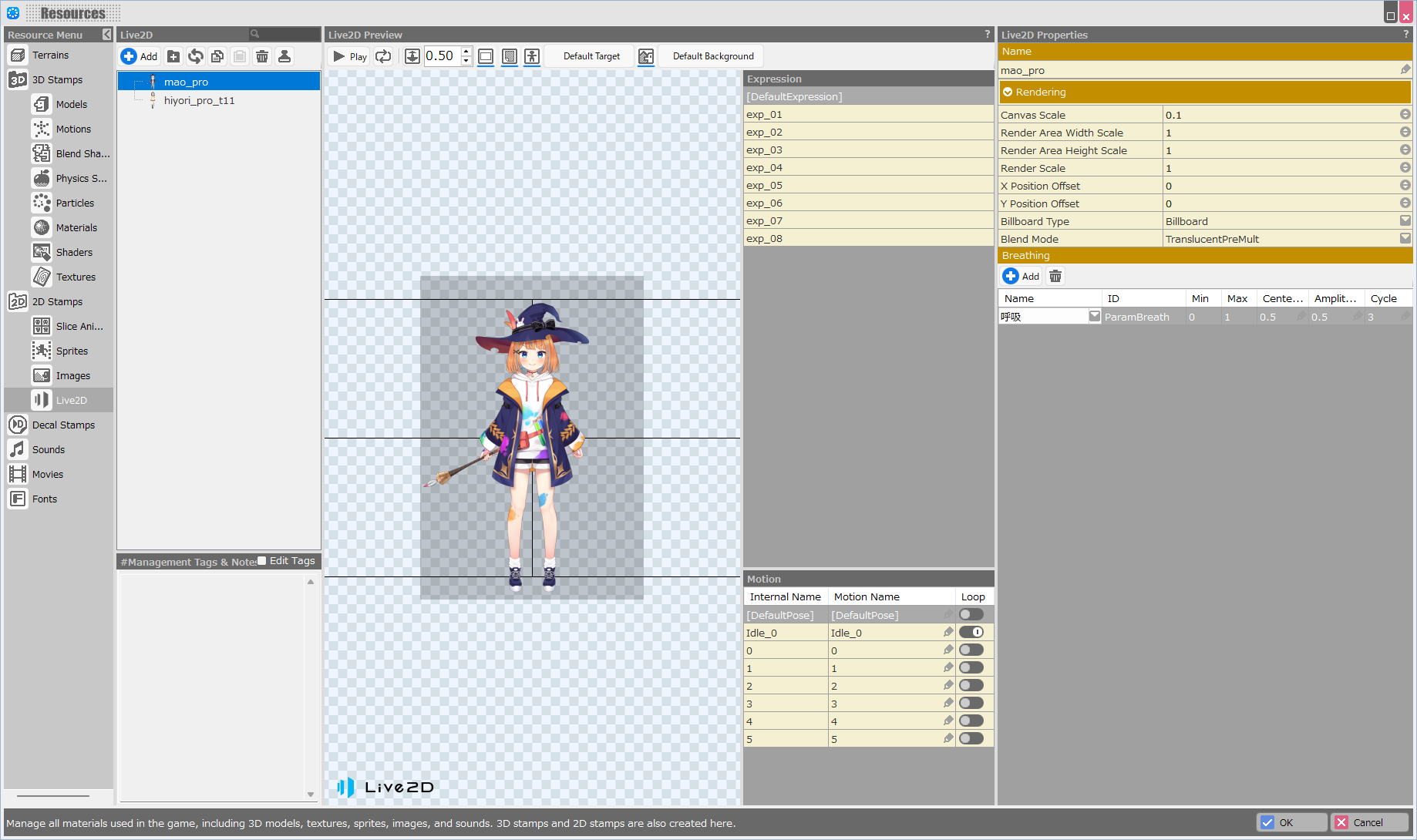
In the Live2D section of the Resources menu, you can configure Live2D rendering settings.
Imported Live2D models are stored in the ‘’[■■■\Project Name\res\live2d]‘’ directory.
You can navigate to this location by selecting ‘'Open the Resources Folder in Explorer’' from the right-click menu.
Live2D List†
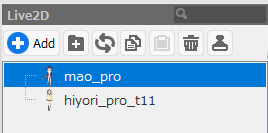
This is a list of registered Live2D assets.
- Add Button
Adds a Live2D model from the Asset Picker.
- Folder Button
Adds a folder for organization and management.
If multiple entries are selected, pressing this button will group them into a folder.
After creating a folder, you can move data by dragging and dropping entries.
- Update File Button
Specifies a folder for data updates.
When clicked for the first time, you will be prompted to set the import source path.
Once configured, you can update data directly from that folder in the future.
This is useful when you want to keep editable source data outside of the project folder.
- Copy Button
Copies the selected entries.
- Paste Button
Pastes the copied entries.
- Trash Button
Deletes the selected entries.
- Stamp Button
Registers the selected entries as stamps.
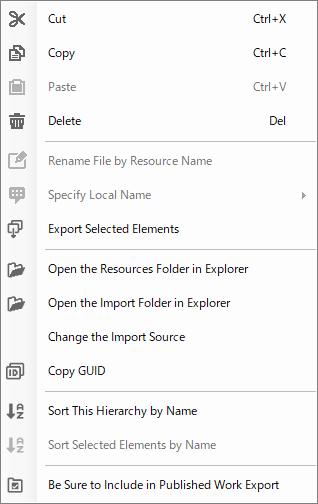
Live2D List / Right-Click Menu†
- Cut
Cuts the selected models.
- Copy
Copies the selected models.
- Paste
Pastes the cut or copied models.
- Delete
Deletes the selected models.
- Rename File by Resource Name
This cannot be used with Live2D. Please rename the file by re-exporting it in the “Live2D Cubism Editor” or “Live2D Cubism Viewer.”
- Specify Local Name
Note: Valid only when selecting a folder.
This feature localizes folder names.
You can set the English folder name that will appear when the folder is opened in the English version.
- Export Selected Elements
Exports the selected elements as an .exrbr file. If multiple elements are selected, they are combined into a single file.
The .exrbr file format consolidates various resources and allows them to be imported into Bakin.
- Open the Resources Folder in Explorer
Open the folder where the resources are stored.
- Open the Import Folder in Explorer
Open the import folder. (If there is a folder for updating data that was added using the “Update File” button.)
- Copy GUID
Copy the model-specific GUID.
- Sort This Hierarchy by Name
Sorts the entries within the selected hierarchy or folder in alphabetical order.
- Sort Selected Elements by Name
Sort only the entries that have been selected.
- Be Sure to Include in Published Work Export
When exporting as a published work, ensure that the selected resources are included in the work.
(Important Notes)When exporting a project for published work, resources other than those “used in the game”—such as those placed on maps or used in events—will not be included in the project.
Therefore, for resources used exclusively by plugins installed in the project, you must explicitly include them in the project using this feature.
Live2D Preview†
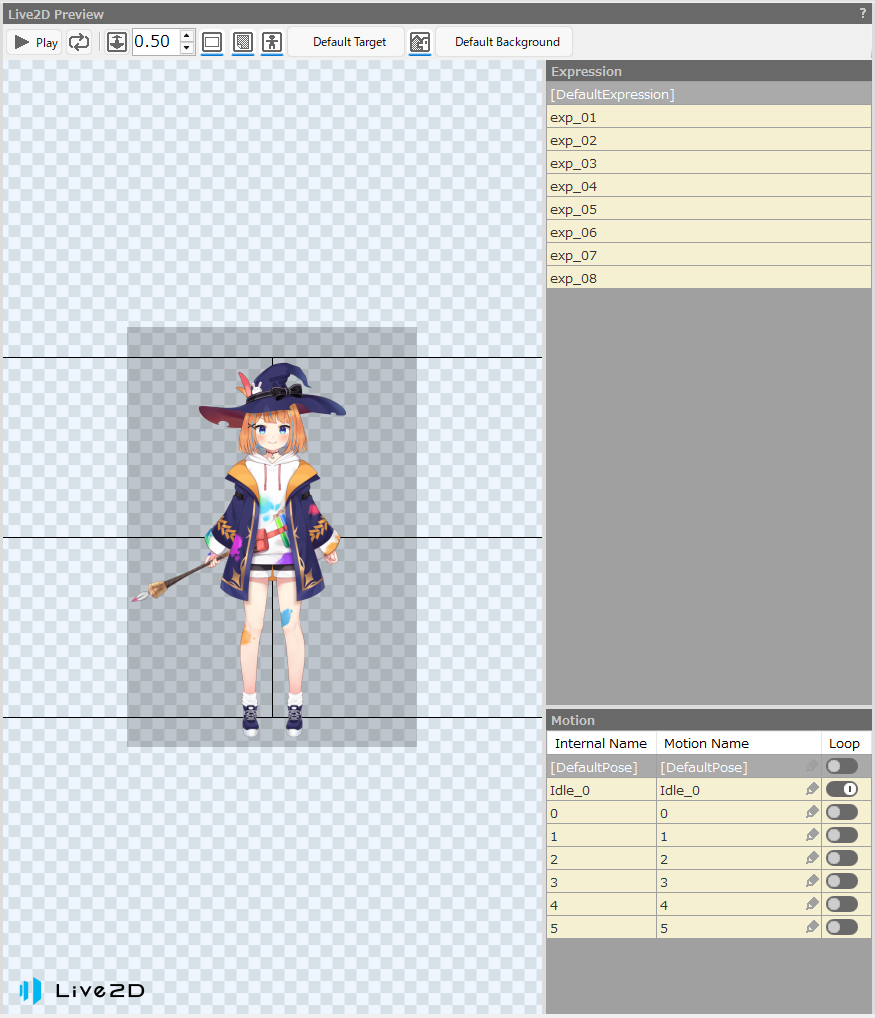
This is the Live2D preview screen. You can move the view by dragging with the middle mouse button.
You can check the selected facial expression and motion.
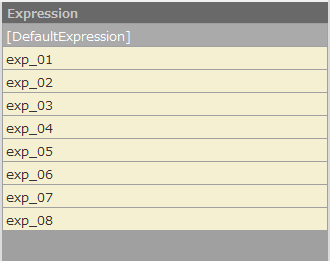
Facial Expression†
Click to switch between facial expressions in the preview window.
You cannot make changes within Bakin.
If you want to change the name of a facial expression, please do so in “Live2D Cubism Viewer.”
Motion†
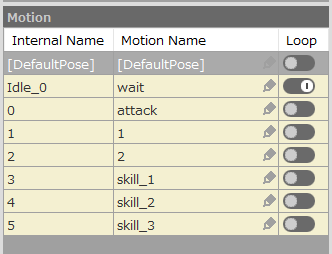
Click to play the preview.
- Internal Name
The motion's internal name is displayed. You cannot make changes to it in Bakin.
The motion's internal name is displayed by appending “_n” to the “Group Name” set in “Live2D Cubism Viewer.”
- Motion Name
You can enter a motion name by clicking on it. Use this motion name when specifying a Live2D motion in Bakin.
By matching it with Motion Name List, you can automatically play animations during map battles, just like with 3D and 2D stamps.
- Loop
Turning this on will cause the motion to loop.
Live2D Properties†
- Name
Set the name of the Live2D model.
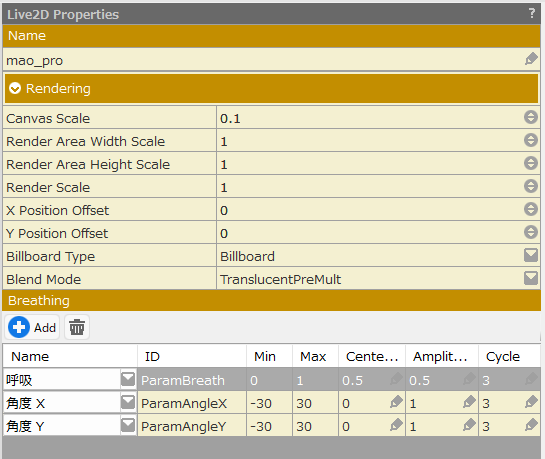
- Rendering
- Canvas Scale
This scale value specifies the resolution used when rendering Live2D models internally.
It determines the rendering size based on the model's canvas size set in the “Live2D Cubism Editor.”
Setting this value lower reduces the rendering load, but it also lowers the model's image quality.
A low canvas scale can cause outlines to appear blurry or make jagged edges more noticeable.
(Important Notes)Performance will decrease, especially when you increase the canvas scale.
Conversely, if you want to display the image smaller on the screen or prioritize performance, you can reduce the rendering cost by lowering the canvas scale.
- Render Area Width Scale
Specifies the horizontal size of the area where the Live2D model is rendered.
This adjusts the width of the rendering area rather than changing the size of the model itself.
If the model is cut off during motion playback, widening the area will allow it to be displayed all the way to the edge.
- Render Area Height Scale
Specifies the vertical size of the area where the Live2D model is rendered.
This adjusts the height of the rendering area rather than changing the size of the model itself.
If the model is cut off during motion playback, expanding this area will allow it to be displayed all the way to the edge.
- Render Scale
Specifies the final display scale for the entire Live2D model.
This parameter determines the actual size of the model as it appears on the screen.
- X Position Offset
Adjusts the horizontal positions of Live2D.
- Y Position Offset
Adjusts the vertical position of Live2D.
- 注意点:
Changing the offset will also change the position on the map.
POINT:If you want to display the same model on the map, we recommend copying and pasting the model and adding it with a different ID, so you can use one for conversations and the other for the map.
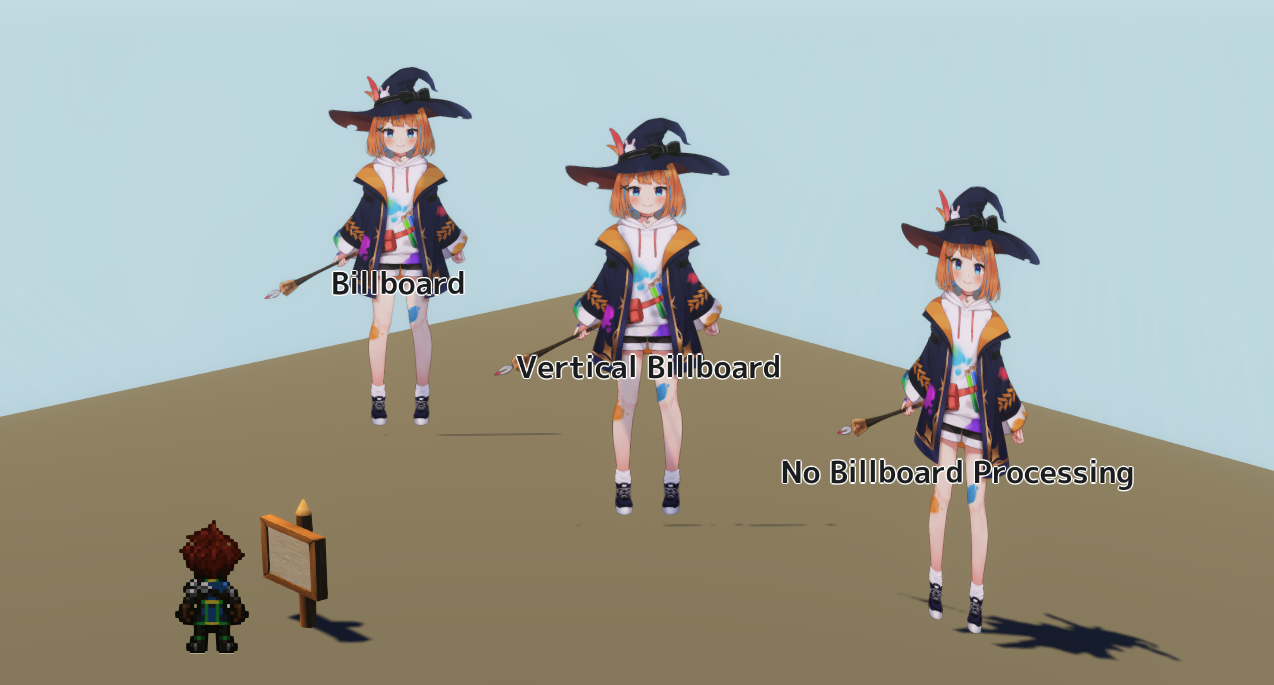
- Billboard Type
Select how to display the billboard (a flat polygon with a cast image attached).
- Billboard: Changes orientation in response to the camera's direction.
- Vertical Billboard: Changes orientation only along the camera's Y-axis.
- No Billboard: Doesn't change orientation regardless of the camera's direction.
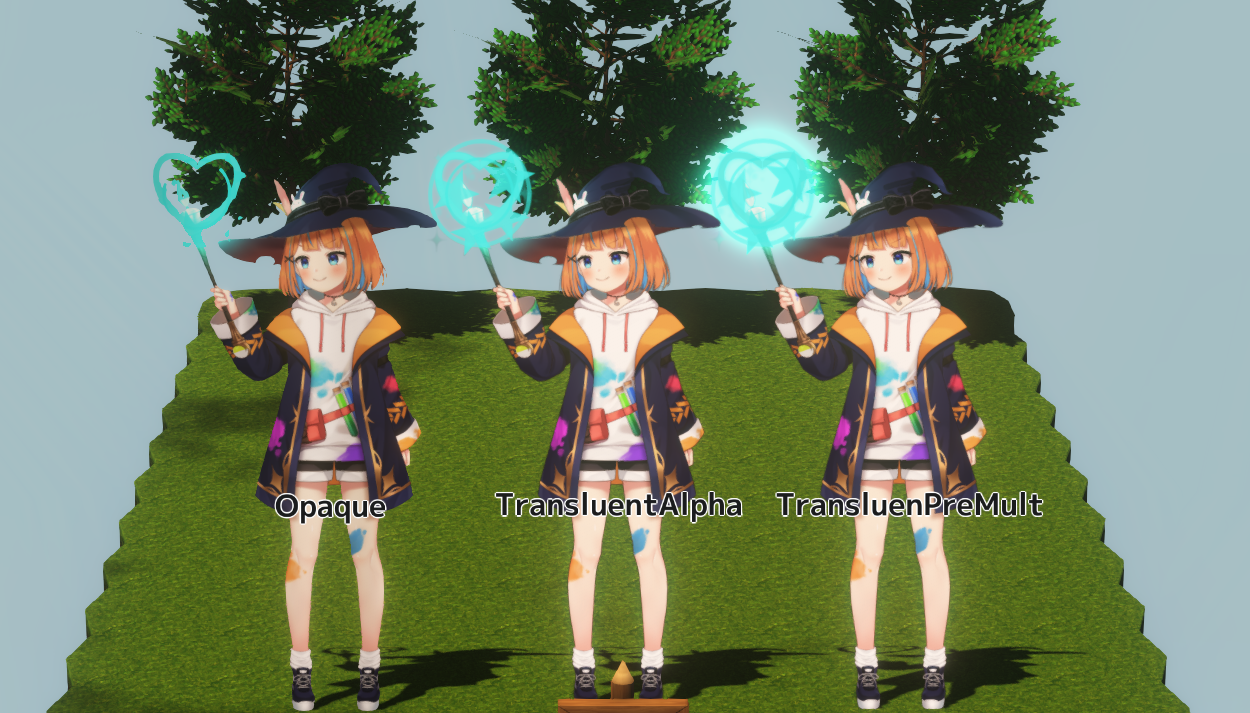
- Blend Mode
Select the method for rendering Live2D models on 3D maps.
- Opaque:
Renders the Live2D model as an opaque object.
Translucent areas are not rendered.
This offers the best rendering performance.
Use this for models that do not require translucent rendering or when you want to prioritize performance.
- TranslucentAlpha:
Renders the Live2D model as a translucent object.
The translucent areas are displayed.
Rendering costs are higher than in Opaque mode.
Cloud shadow textures on the map are not displayed.
Black blurring may occur when adjusting the multiply color, screen color, or opacity.
If there are translucent objects such as camera DOF or particles in the background, they will appear in the foreground.
When using additive rendering, areas with an alpha value will not be rendered.
- TranslucentPreMult:
Renders the Live2D model as a translucent object.
The translucent areas are displayed.
Rendering costs are higher than in Opaque mode.
Cloud shadow textures on the map are not displayed.
Black blurring may occur when adjusting the multiply color, screen color, or opacity.
Transparent objects such as the camera's DOF or particles in the background will be displayed in the foreground.
You can render into 3D space while taking additive blending into account.
(Important Notes)If your design includes translucent elements, you should generally use “TranslucentPreMult.”
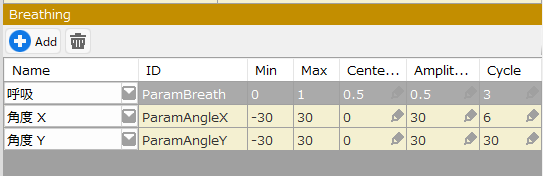
- Breathing
The Live2D model's breathing is automatically animated using a sine wave.
The parameter values fluctuate smoothly up and down to create a natural breathing motion.
- Delete
Deletes the selected row.
- Name
Click ▼ to select a parameter.
Choose the parameter you want to include in the breathing animation.
- ID
Displays the ID of the selected parameter.
- Min
Displays the minimum value of the selected parameter.
- Max
Displays the maximum value of the selected parameter.
- Center
The reference value used for the breathing animation.
Specifies the center position of the waveform.
Changing this value shifts the midpoint of the breathing motion.
- Amplitude
Specifies the intensity of the breathing motion.
Increasing the value makes chest movement and body sway more pronounced.
Decreasing the value results in subtler breathing.
- Cycle
The duration of one breathing cycle (inhale and exhale).
Unit: seconds
Increasing the value makes the breathing slower.
Decreasing the value makes the breathing faster.
Display Method†
Imported Live2D models can be both “placed on 3D maps” and displayed on the screen in the “Display Image Panel” and “Conversation Panel.”
How to Display Live2D on 3D Maps†
- Objects
Place Live2D models converted to 2D stamps on maps.
Use this to display them on maps in their default state.
Since you cannot change facial expressions or play animations using objects, please use the “events” listed below.
- Events
- Event Overview
Place the Live2D model—converted into a 2D stamp—on a map and convert it to a “Custom Event”.
In the event, you can change facial expressions and play back motions.v
When displaying Live2D in an event, you can play back motion using two methods: “Event Sheet Switch” and “Event Panel.”
- Playing Motion with Event Sheet Switching
Use this when you want to change the initial state of an event or play a motion when switching event sheets.
Change the motion of ‘'Change Elements During Sheet Execution’'.
- Event Panel
By using “Change Player Motion” and “Change Event Motion,” you can play back the motion events of Live2D models placed on a 3D map.
- POINT:Sample Project
The usage examples below can be found in the “Live2D Toolkit” sample project included with the DLC. Please use them as a reference during production.
How to Display Live2D on the Screen†
To display a Live2D model on the screen as a 2D image, use the “Display Conversation” panel or the “Display Image” panel with an event.
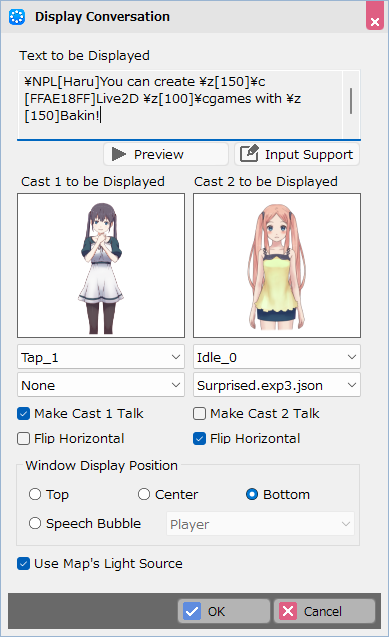
- Display Conversation
Use this when you want to display a 2D stamp with “Live2D” settings on the screen alongside text.
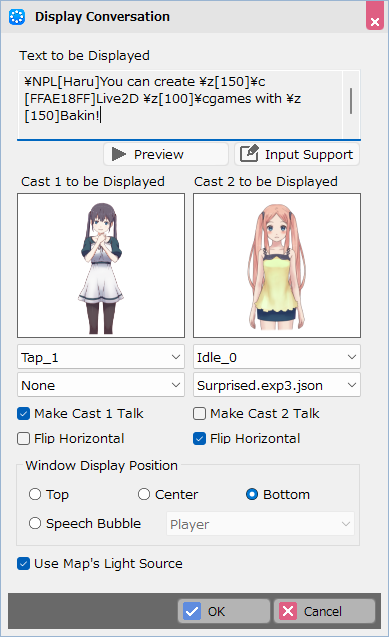
- By using Display Conversation, you can display up to two Live2D models and set up dialogue scenes between characters.
Clicking “Cast 1/2 to be Displayed” opens the Asset Picker.
Select “2D Stamps” from the Asset Picker types, then select the 2D stamp you want to display from the assets.
- You can specify the motions and facial expressions to be displayed.
By using conversation panels multiple times, you can create story scenes that feature changing facial expressions and motion playback.
- If you check the “Make Cast 1/2 Talk” box, the “Live2D model” will lip-sync while the message is being sent. Lip-syncing will stop once the message has been sent.
- POINT:How to Change the Position of the Cast Members Displayed
'You can change the casts’ positions by adjusting the positions of Cast 1 to be Displayed (\dialoguecharacterleft) and Cast 2 to be Displayed (\dialoguecharacterright) in the layout parts list on the “Layout Tools > ‘'Conversation’'” screen.
Additionally, if you want to change positions during the game, you can do so by using ‘'Change Layout to be Used’' to switch the layout you're using.
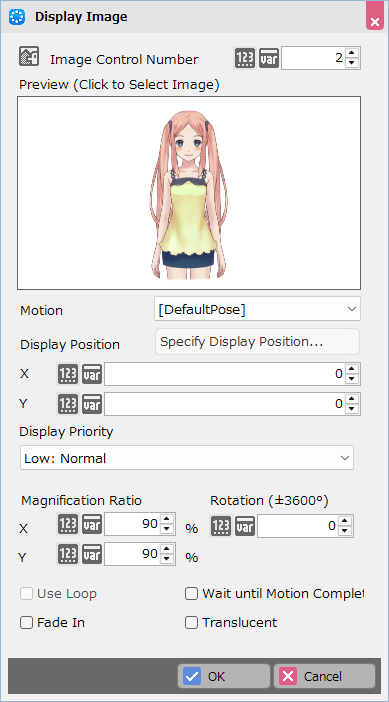
- Display Image
Please use this when you want to display a single “Live2D” model or when you want to display two or more models on the screen.
- You can display Live2D models using Display Image.
Click Preview (Click to Select Image) to open the Asset Picker.
Select Live2D from the Asset Picker, then choose the Live2D model you want to display from the assets.
Note: For this event only, select Live2D instead of a 2D stamp.
- POINT:If you want to play a motion, you can select it from the Motion setting.
By using the “Display Image” panel multiple times, you can create a scene where a character remains on screen while a motion plays.
Event Panel†
Event Panels Compatible with Live2D
You can use Live2D models in the event panels listed below.
Display Conversation†
Display Conversation
You can set up dialogue scenes between cast members.
Along with the text on the screen, you can display the rendering stamps set in “Cast to be Displayed” on the left and right sides of the screen.
Display Image†
Display Image
Displays the specified Live2D resource.
If you want to play a motion, you can select it from the “Motion” setting.
By using the “Display Image” panel multiple times, you can create a scene where the character remains on screen while a motion plays.
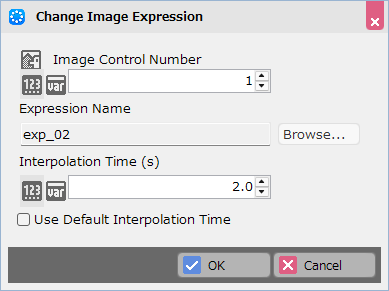
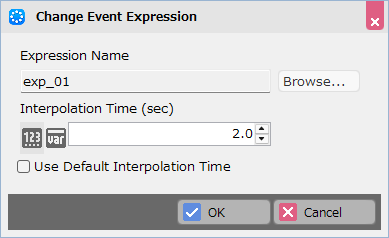
Change Image Expression†
This changes the Live2D expression for the management number specified in “Display Image.”
You can set the interpolation time in the Change Event Expression panel. Use this when you want the expression to change slowly, for example.
Move Image†
Move Image
You can move the specified Live2D to any location.
Delete Image†
Delete Image
Removes the Live2D with the management number specified in Display Image from the screen.
Change Player Motion†
Change Player Motion
Change the player's motion.<\n
In the Change Player Motion panel, you can set the interpolation time. Use this to smoothly transition to a new motion while the current motion is playing.
Change Event Motion†
Change Event Motion
Change the event's motion.<\n>
In the Change Event Motion panel, you can set the interpolation time. Use this to create a smooth transition to a new motion while the current motion is playing.
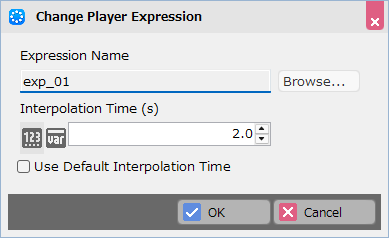
Change Player Expression†
This changes the expression of a player with a Live2D model configured.
You can set the interpolation time in the Change Player Expression panel. Use this if you want the expression to change slowly, for example.
Change Event Expression†
This changes the expression for an event that has a Live2D model assigned to it.
You can set the interpolation time in the Change Event Expression panel. Use this if you want the expression to change slowly, for example.
Restrictions†
- Models exported using Cubism 5.3 or later are not supported. (June 2026)
- Please note that there are restrictions on the “TranslucentAlpha” and “TranslucentPreMult” blend modes.
- Rendering Settings: Cloud shadow textures do not apply to 2D stamps created with Live2D. (June 2026)
- Game Definition > Rules and Rendering > Does not support the “Display Color for Hidden Areas” option under Rendering Options. (June 2026)
- Elements with transparency processing—such as blur from DOF in rendering settings or particles that use transparency—may appear in front of Live2D assets. (June 2026)
- When playing back a motion with modified multiply and screen color settings or opacity, black blurring may occur. (June 2026)
FAQ†
Q. I cannot view models exported from Cubism 5.3 or later.†
A. This DLC is compatible with models exported using Cubism SDK 5.0 or earlier.
Features added in Cubism 5.3 or later are not supported by this DLC.
Please re-export your model by specifying a target version of “SDK 5.0 / Cubism 5.0” or earlier in the “Live2D Cubism Editor” export settings. (June 2026)
Q. The model appears blurry. The image quality has deteriorated.†
A. The canvas scale may be set to a low value.
Setting it to a higher value will improve image quality. However, this will reduce performance.
Q. The edges of the model are cut off when displayed.†
A. The horizontal and vertical scales of the rendering area may be set too narrow. Please increase these values to expand the rendering area.
Q. When I place the model on a map, it floats.†
There are several ways to work around this.
1. Set the rendering area to just above the character's feet.
2. Assign a simple collision to the Live2D model and enable Falling by Gravity to make it touch the ground.
3. In the “Live2D Cubism Editor,” align the model's position with the bottom edge of the canvas.
Q. The game is running slowly.†
A. You can reduce the rendering load by lowering the canvas scale. (However, this will result in lower image quality.)
You can also reduce the load by using smaller texture sizes when creating Live2D.
Q. I want to change the character's size.†
A. Please adjust the overall size using the Render Scale.
Q. I want to set a Live2D model for the main character.†
A. You can configure this by changing the Graphic for Moving in the Casts of the database to a 2D stamp created using Live2D.
Q. If the main character is a Live2D model, they won't change direction†
A.This is the specification.
You can manually create and configure events and scripts that detect changes in direction and switch motions.
You will need to use the “Live2D Cubism Editor” and “Live2D Cubism Viewer” to create motions corresponding to each direction of movement, such as walking, running, and attacking.
Q. I want to use Live2D models in my battle party.†
A. Please use Change Cast Graphic.
Currently, Bakin does not offer a mirror flip feature.
Q. I want to set up collision detection for a Live2D model.†
A. Please assign the Simple Collision Settings to the 2D stamp.
Q. I want to disable Live2D physics or change the intensity.†
A. Currently, this cannot be configured from within Bakin.
Q. When I used 2D stamps created with Live2D in battle, the motion didn't play all the way through.†
A. 2D resources do not check for the completion of motion. As a workaround, you can wait for the motion to finish by adjusting the effect Damage Display Timing (sec) 0=Automatic in the Resources.
Q. I want to rearrange the motions in the Live2D of the Resources.†
A. Currently, the sorting order cannot be changed. The order will be the same as in the “Live2D Cubism Viewer.”
Q. I don't know where the internal name of a motion is determined.†
A. The internal name of a motion is displayed as the group name set in “Live2D Cubism Viewer” followed by “_n”.
Q. In the Map Editor, event symbols appear in front of Live2D models.†
A. This is the specification. This specification has been established to allow for translucency.
Q. If I make it a 2D stamp, it's too far away to see.†
A. If you right-click on the preview screen and select “Reset Camera,” the subject will usually be visible within the view.
Q. I accidentally clicked “Cancel” on the Live2D Plugin Terms of Use. Is there a way to display them again?†
A. Please restart Bakin without saving your project. The Live2D Plugin Terms of Use will be displayed again when you select a project.
![[PukiWiki]](./skin/BAKIN_logo_92.png "[PukiWiki]")